
Resetting Password
🔐 Change your password to maintain account security and access.
Watch the guided demo below to change and reset account password
You can also follow the same steps using the written guide below.
Change Password
The "Change Password" feature in Clevero allows users to update their passwords. This helps make accounts more secure by assisting users to create strong new passwords.
Follow the steps below to update the password:
- Click Settings and then proceed to User Settings.
- Select the Change Password from the menu and click the Change Password button.
- Click the Yes, continue button to proceed.
Note:You will be logged out of the system and unable to access your account.
- Click the Login button to continue.
- Type and retype your new password in the provided fields.
Note:Ensure your password is shown as Very Strong according to the Password Indicator.
- Click the Submit button to confirm.
- Your password has been changed. Click Go to system to return to the login screen and use your new password to login.
Reset Password
The "Reset Password" feature in Clevero allows users to reset their passwords in case they forget. Follow the steps below to reset the password:
- On the login page, click the Don't remember your password? button.
- Fill in your Clevero account email and click Send Email.
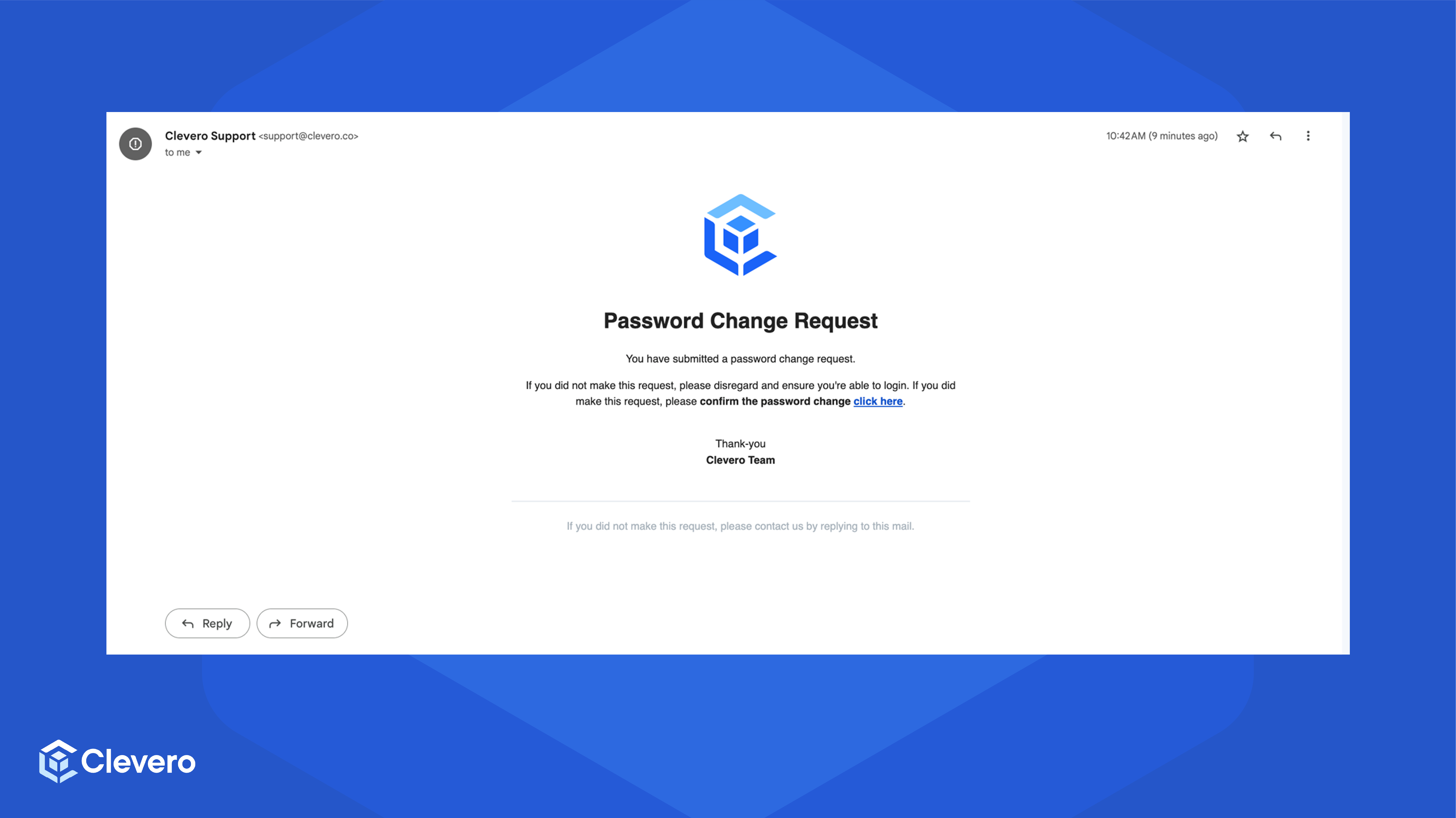
- Check your email inbox for the reset email. Click on the reset link provided in the email.
- You'll be redirected to a reset password page. Fill in your new password on the provided form and click the Next arrow button.
- If you see this page, you've successfully reset your account password.
- Go back to the login page and log in with your new password.
📌 Need Help?

Updated 7 months ago
Did this page help you?