
Fields Overview
Field is a data container used to capture, store, and display information in Clevero. Fields can represent simple values like text, numbers, or dates, as well as more complex data such as images, icons, or JSON. You can add fields to forms, records, and workflows to structure information in a way that best fits your needs.
Understanding Fields
Depending on your use case, you can use either standard fields provided by Clevero or custom fields that you define yourself.
A pre-defined fields that come with the Clevero system. Standard fields are suitable for scenarios with predefined properties and functionality. You can't modify this type of fields.
Fields that you create to capture data specific to your business processes. You can define the field type, validation rules, and default values.
Key Distinction
| Standard Fields | Custom Fields | |
|---|---|---|
| Definition | System-provided | User-created |
| Default Values | System-defined | User-defined |
| Flexibility | Limited customisation | Highly customisable |
| Integration | Seamless | Based on setup |
| Scalability | Common needs | Evolving needs |
| Types | Limited selection | Wide range |
| Validation Rules | System-defined | User-defined |
Types of Fields
Clevero supports various field types. The table below lists the available field types:
| Field Type | Description | Example |
|---|---|---|
| Address | Stores address information (street, city, postal code, etc.). | 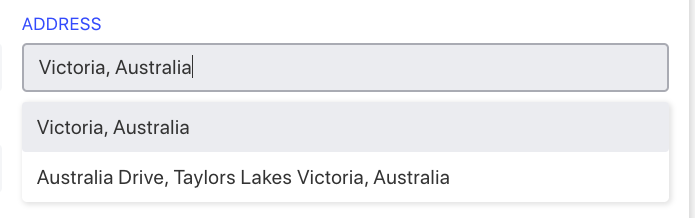 |
| Appointment | Captures scheduling details for a meeting or appointment. | 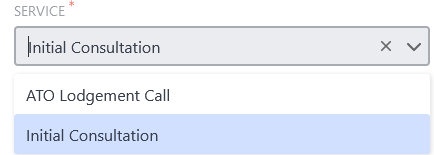 |
| Availability | Tracks available times or slots for booking/scheduling. | 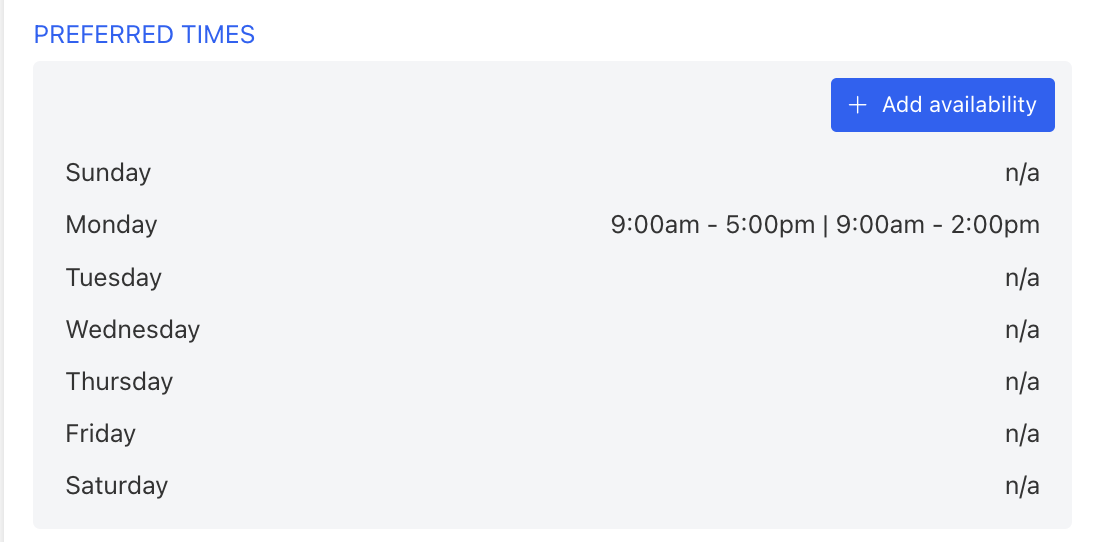 |
| Checkbox | Represents a true/false or yes/no value with a check option. |  |
| Date | Lets users select or enter a calendar date. | 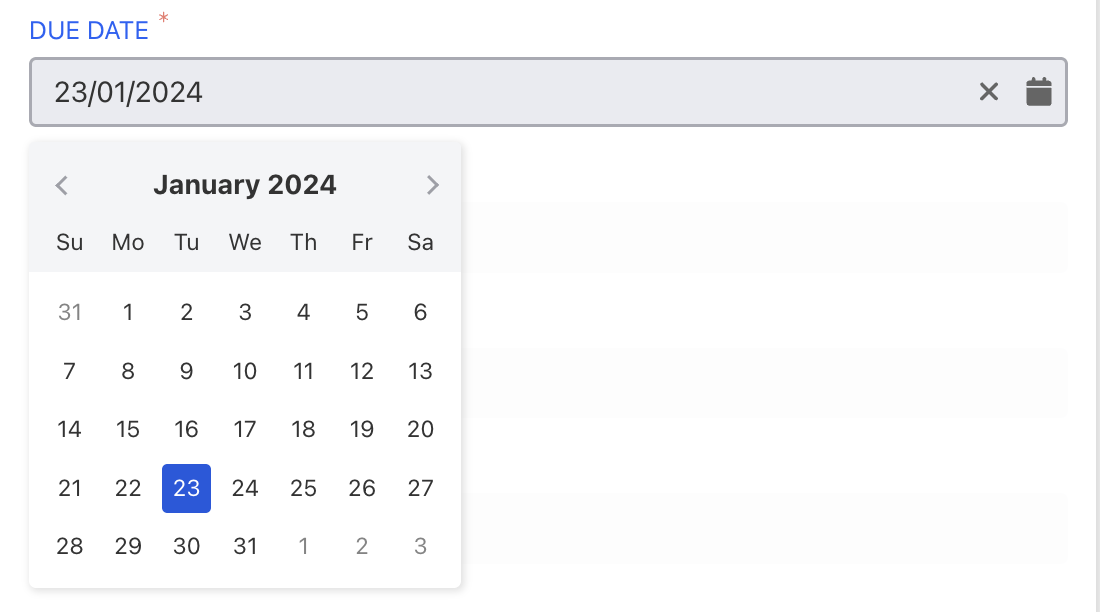 |
| Datetime | Captures both date and time in one field. |  |
| Captures and validates an email address. |  | |
| File | Allows uploading and storing a single file. |  |
| File Bucket | Supports uploading and storing multiple files together. | 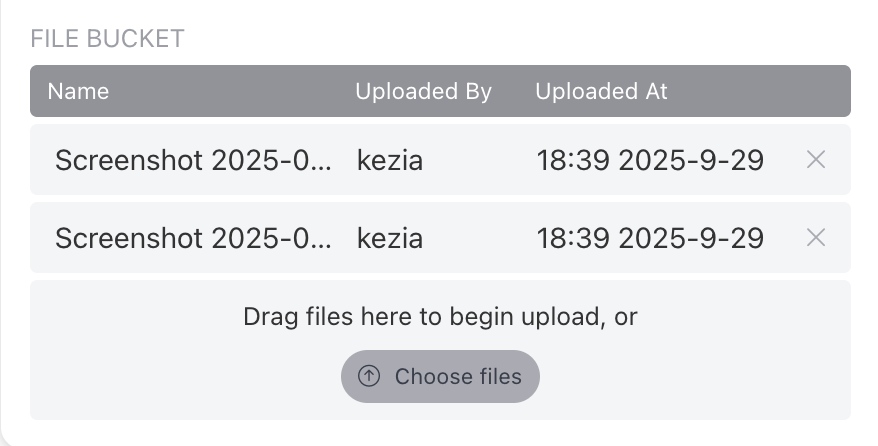 |
| Formula | Calculates a value automatically based on other fields or predefined expressions. | |
| Height | Stores a height value (e.g., cm, m, ft, in). |  |
| Icon | Displays an icon to represent a value or status. | 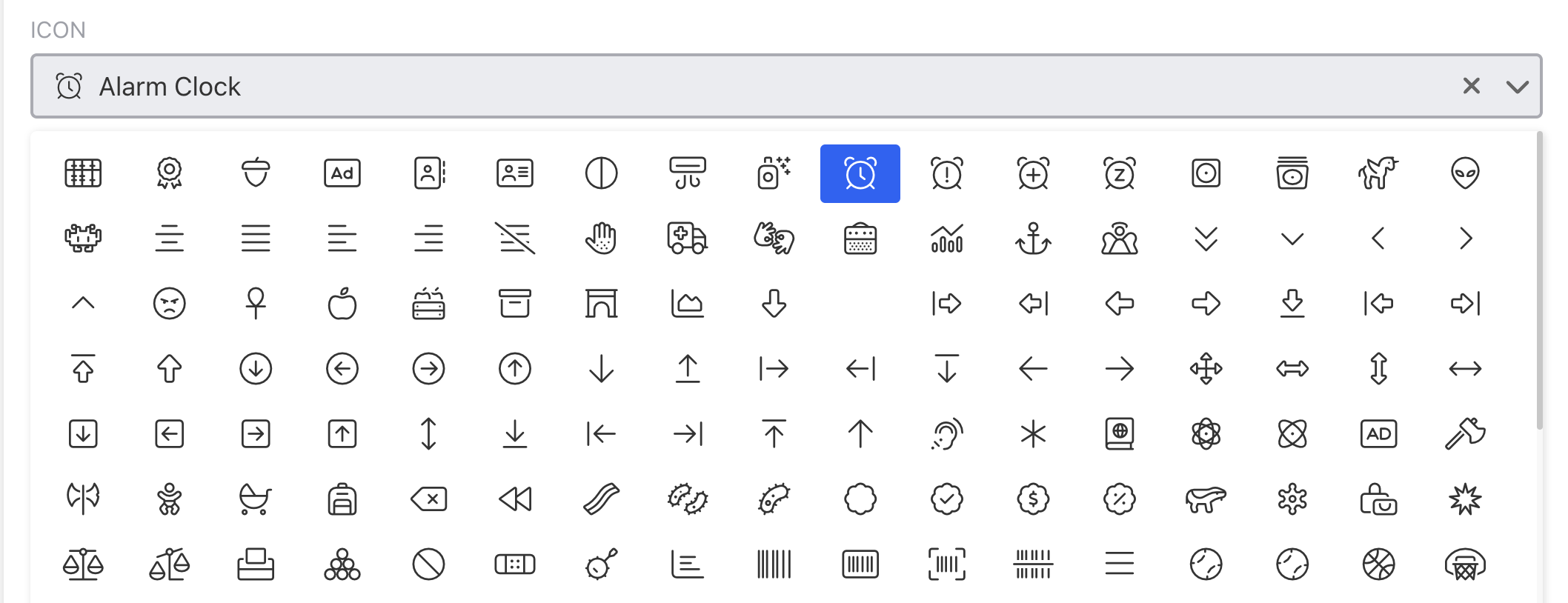 |
| Image | Stores and displays an image (e.g., logo, photo). |  |
| JSON | Stores structured JSON data for advanced use cases. | 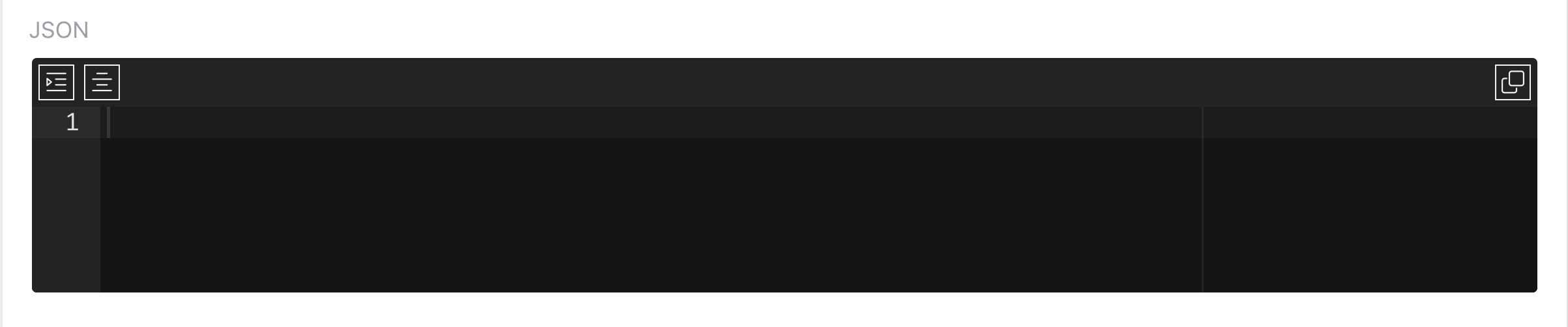 |
| Link | Captures a URL or hyperlink. |  |
| Multiple Choice | Lets users select one option from a predefined list. |  |
| Multiselect | Lets users select multiple options from a list. | 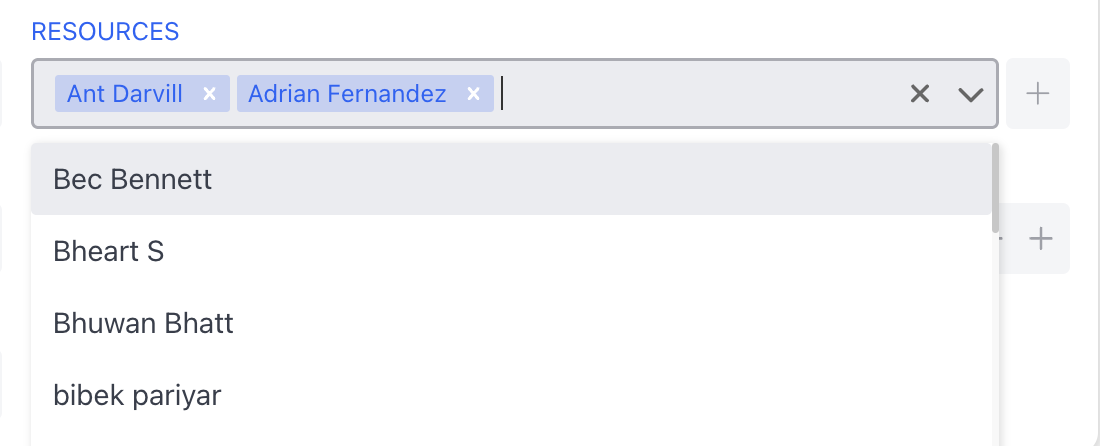 |
| Number | Captures numeric values (integer or decimal). |  |
| Percentage | Captures a percentage value with optional formatting. |  |
| Phone | Captures a phone number in standard format. |  |
| Radio Button | Lets users pick a single option from a set of radio buttons. |  |
| Recurring | Defines repeating events or schedules. | 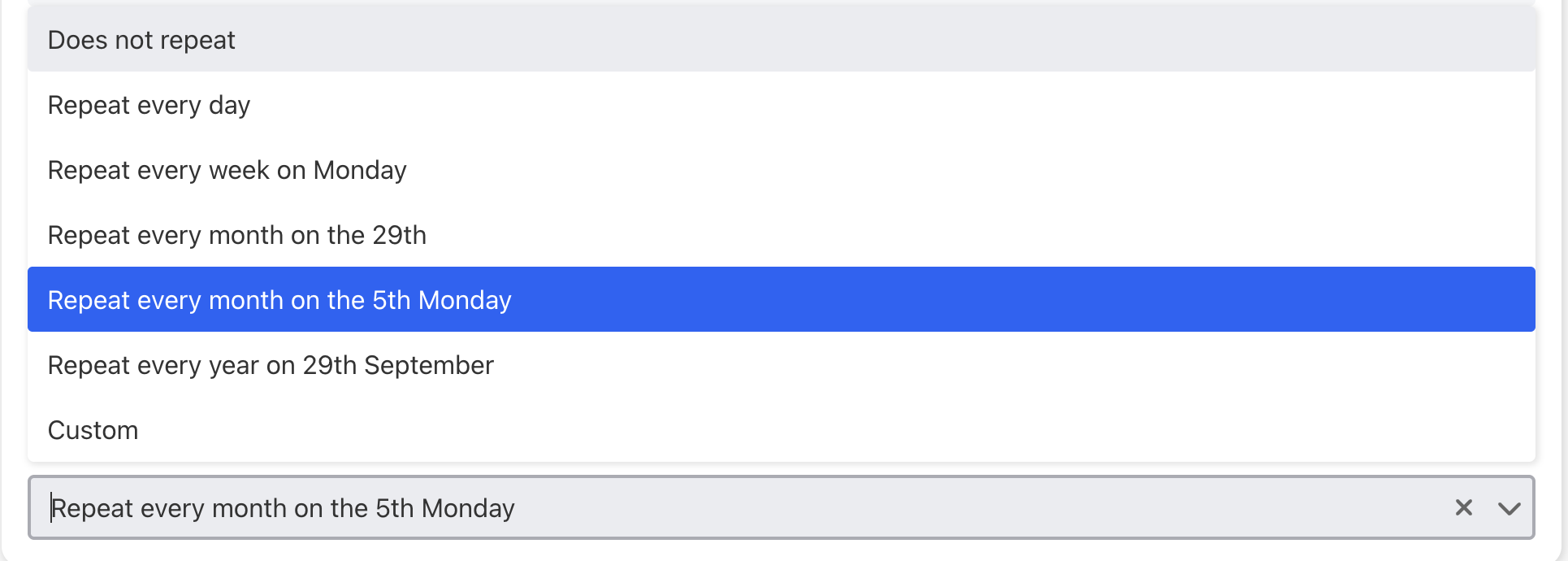 |
| Rich Text | Allows formatted text (bold, italic, lists, links, etc.). | 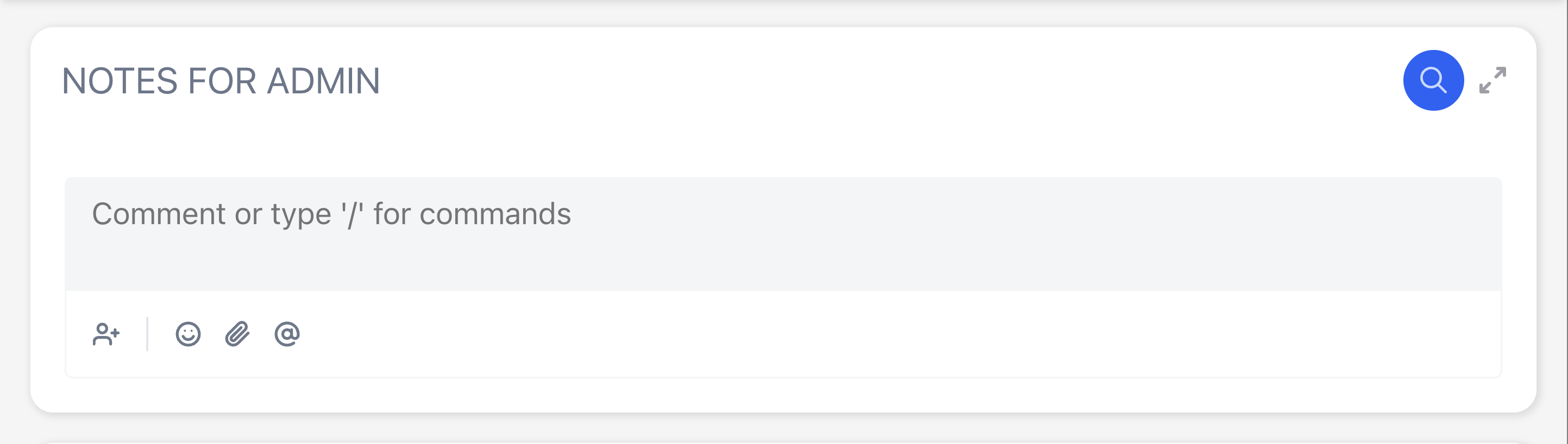 |
| Select | Dropdown menu for choosing one option. | 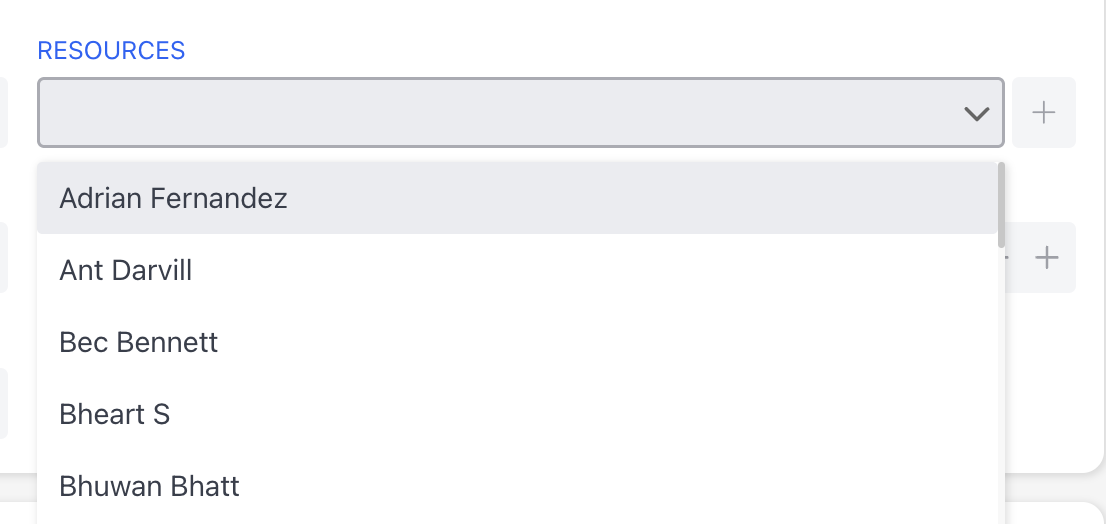 |
| Signature | Allows users to provide a digital signature. | 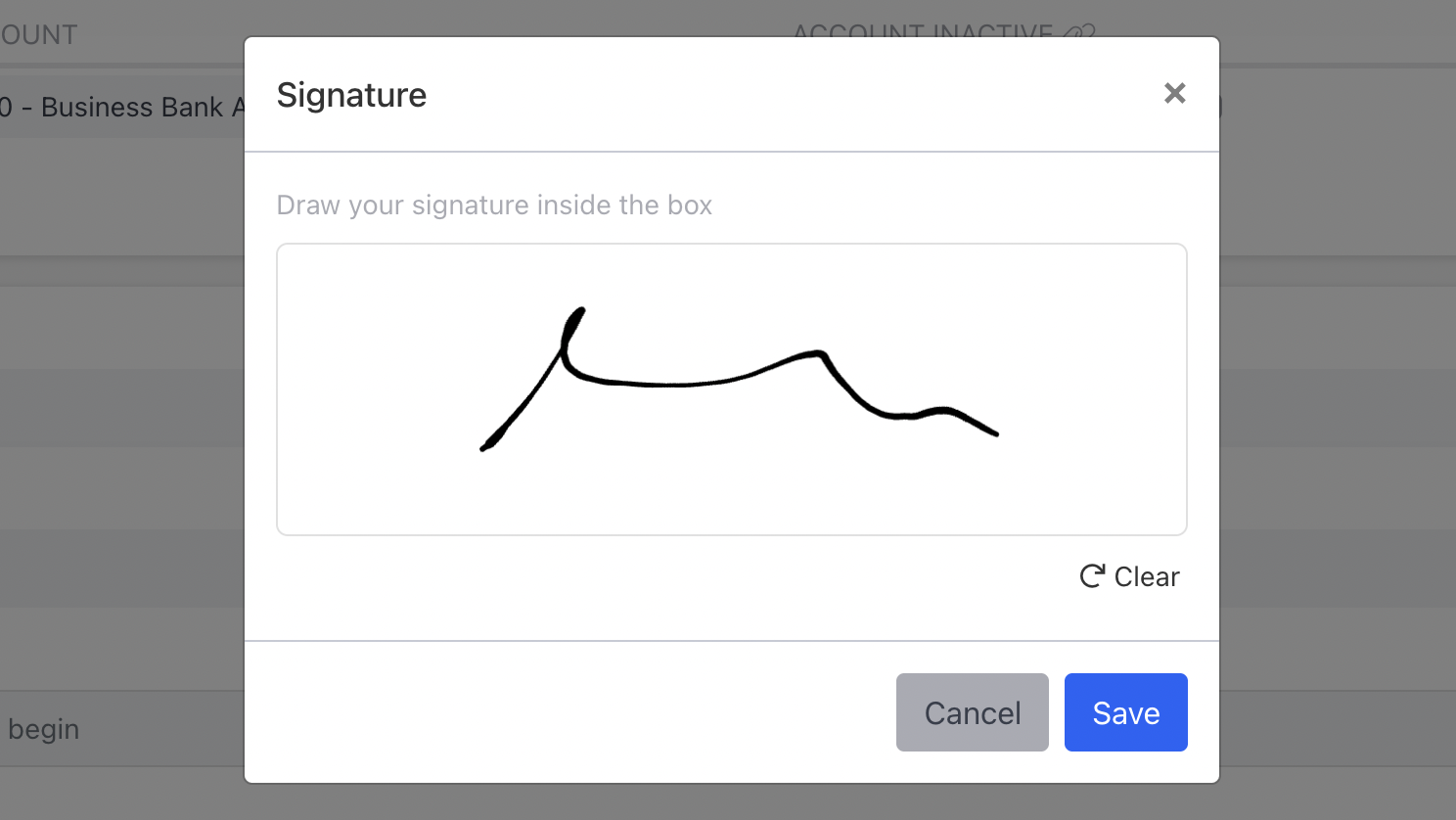 |
| Text | Captures plain text (single line). |  |
| Text Area | Captures longer free-form text (multi-line). |  |
| Time | Lets users select or enter a time of day. | 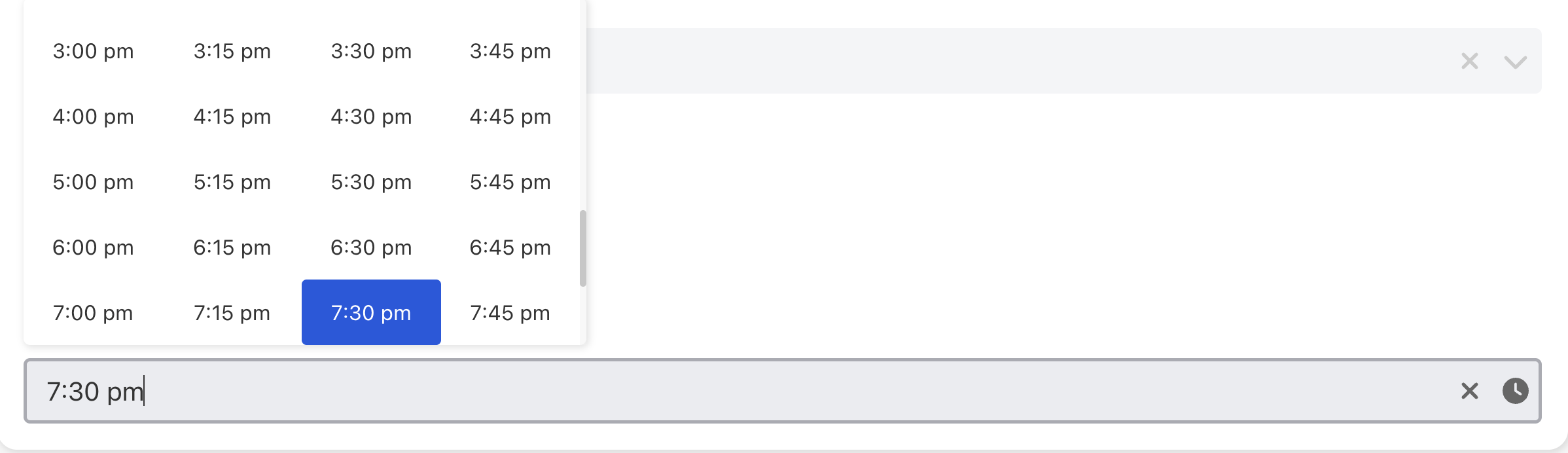 |
| URL | Captures a web address with validation. |  |
| Video | Stores and displays a video file. |  |
| Video Link | Embeds a video from a link (e.g., YouTube, Vimeo). |  |
| Weight | Stores a weight value (e.g., kg, lbs). |  |
📌 Need Help?

Updated about 1 month ago