
Scheduler Layout
✅ Structured design for easy interface navigation.
The Scheduler Layout is a key component in the system's Calendar interface. It allows users to efficiently view, organize, and manage events or tasks within specific timeframes.
Follow these steps to create a new Scheduler Layout:
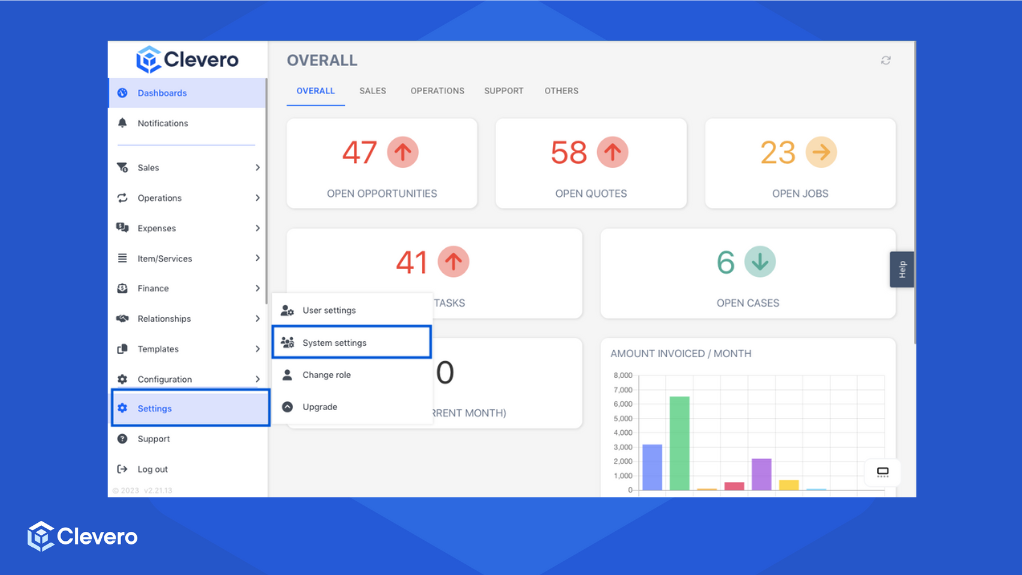
- Go to "Settings" > "System Settings".
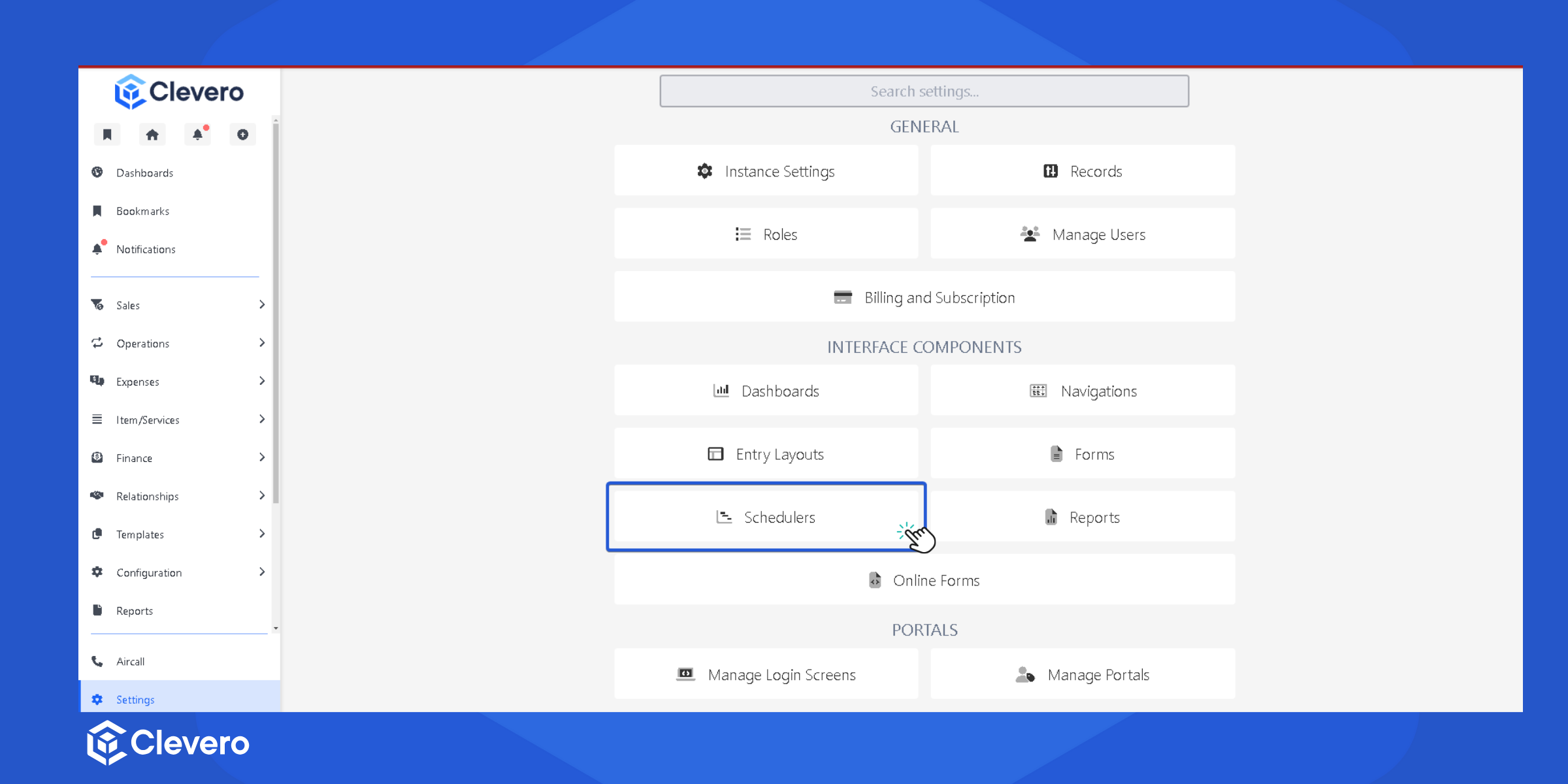
- Select the "Schedulers" menu.
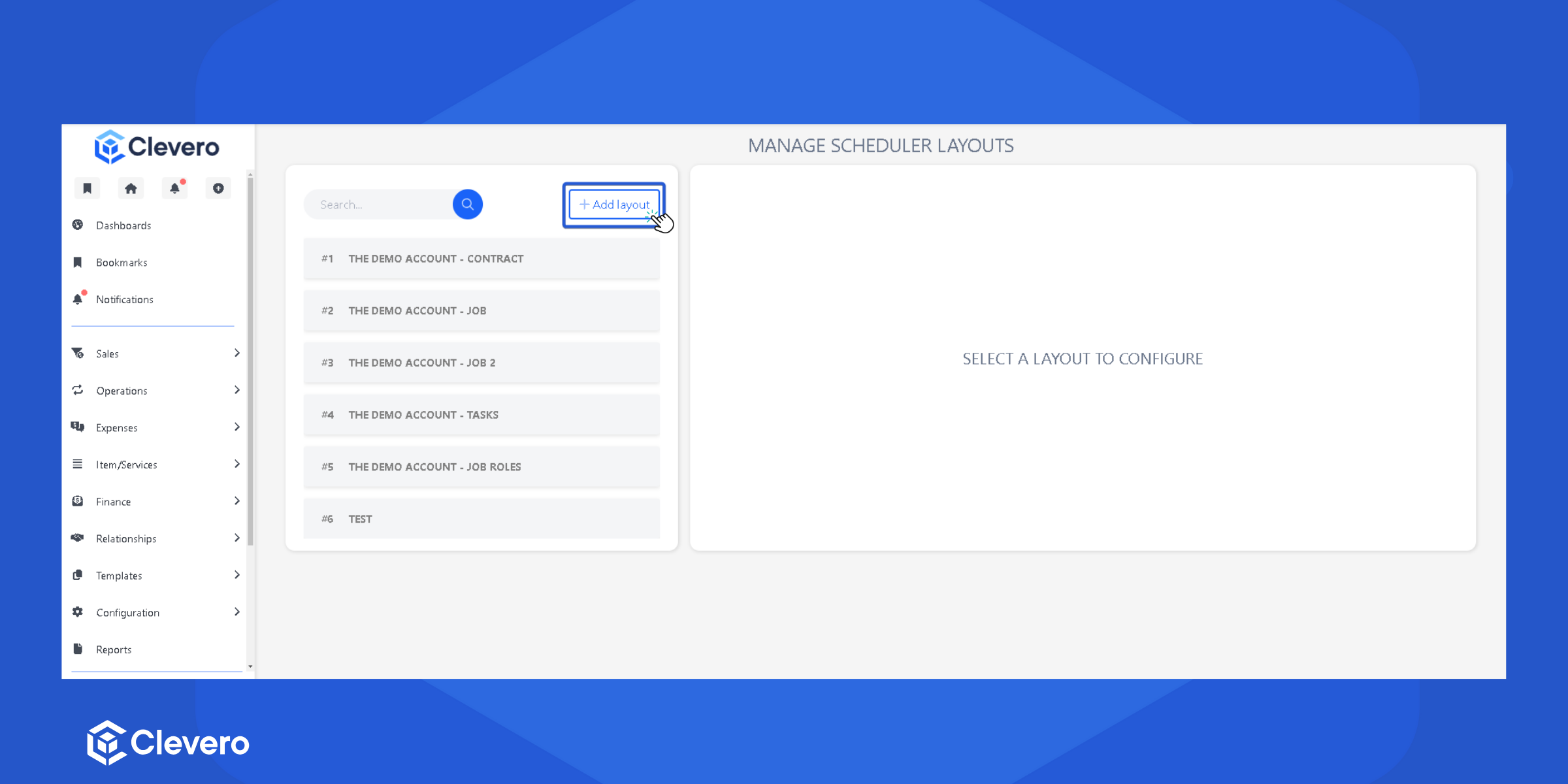
- Click on "Add Layout" to create a new Scheduler Layout.
- Configuring scheduler settings with the configuration below:
1. Basic Details
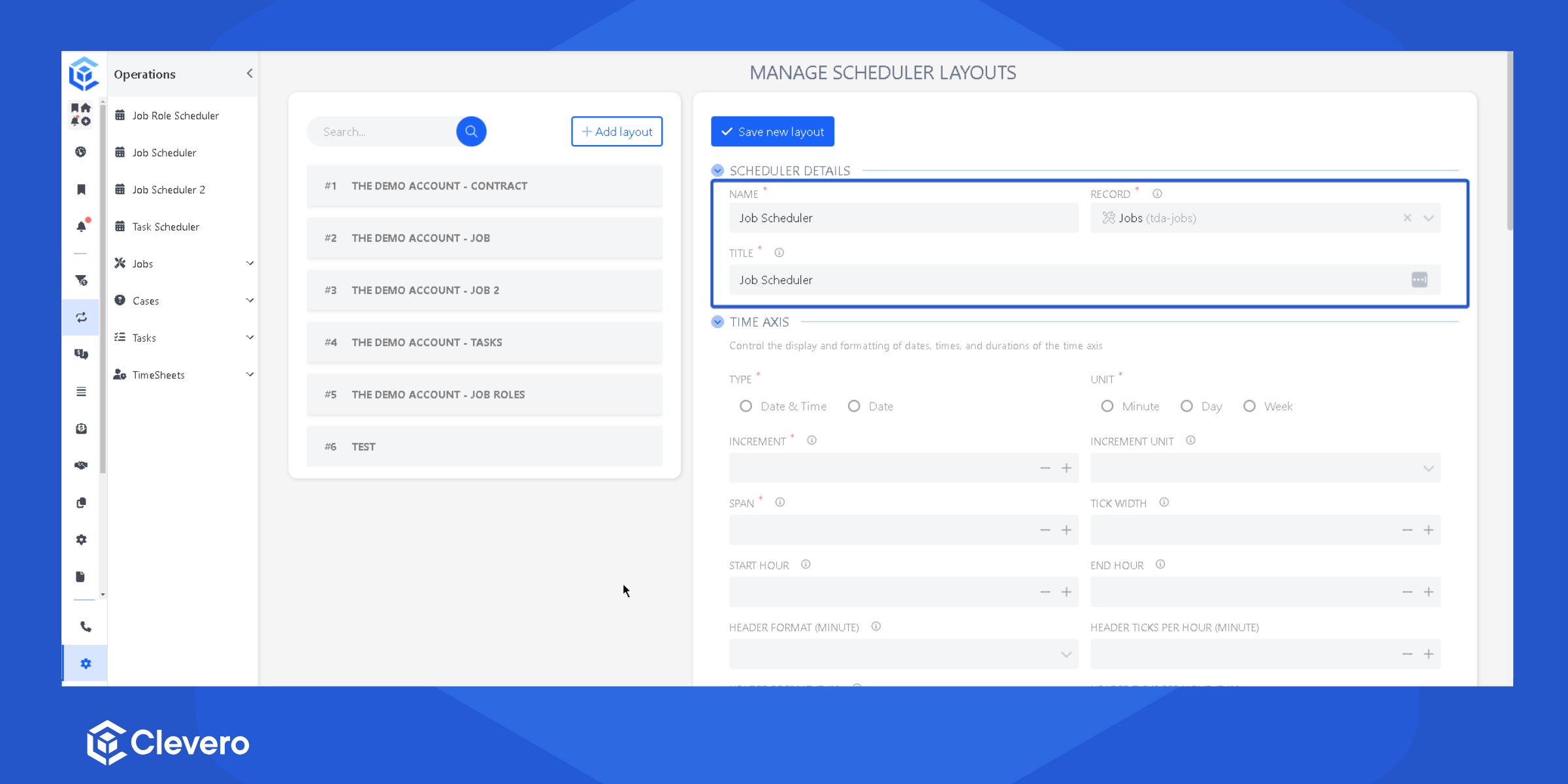
| Setting | Description |
|---|---|
| Name | Name of the Scheduler Layout |
| Record | The selected scheduler layout will be applied to the following record |
| Title | Title shown at the top of the scheduler |
2. Time Axis
Control the display and formatting of dates, times, and durations of the time axis.
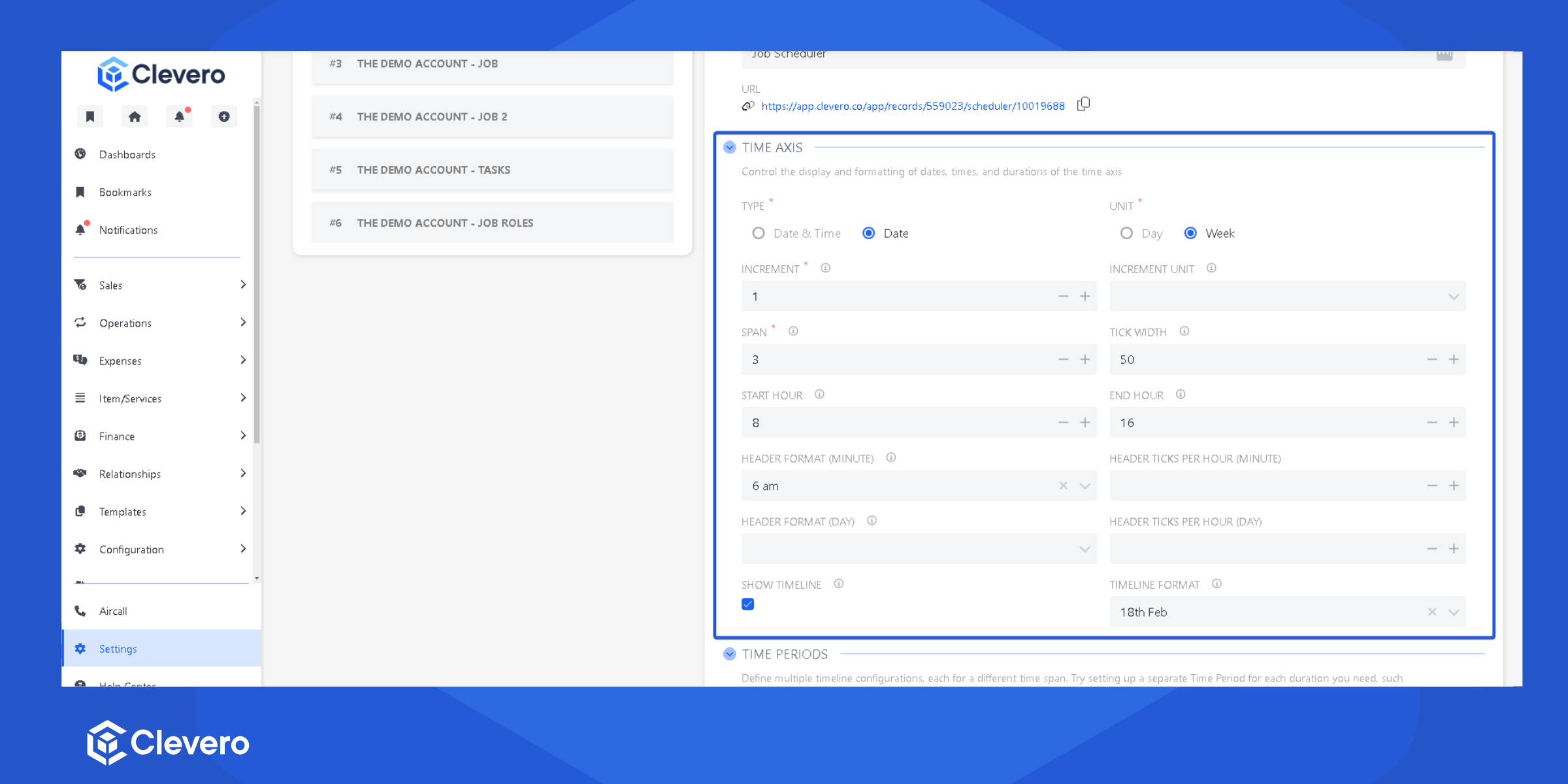
| Setting | Description |
|---|---|
| Type | Defines whether the field stores both date and time (datetime) or only the date |
| Unit | Measurement unit: days, or weeks |
| Increment | Controls how the scheduler snaps to predefined time intervals |
| Increment Unit | Defines the unit of measurement (minutes, days, or weeks) for the snapping behavior |
| Span | Sets the overall timeframe displayed in the scheduler |
| Tick Width | (Optional) Adjusts the minimum width of each time tick in the scheduler |
| Start Hour | Earliest visible hour (minute-based view) |
| End Hour | Latest visible hour (minute-based view) |
| Header Format (Minute) | (Optional) Datetime format in minute view |
| Header Ticks Per Hour (Minute) | (Optional) Ticks shown per hour in minute view |
| Header Format (Day) | (Optional) Datetime format for the scheduler’s header in day view |
| Header Ticks Per Hour (Day) | (Optional) Ticks shown per hour in day view |
| Show Timeline | (Optional) A red "Now" indicator is added to show the current date and time in the scheduler |
| Timeline Format | (Optional) Defines how dates and times are displayed on the timeline |
3. Time Periods
Define multiple timeline configurations, each for a different time span. Try setting up a separate Time Period for each duration you need, such as 1 day, 2 days, 1 week, 1 month, and so on.
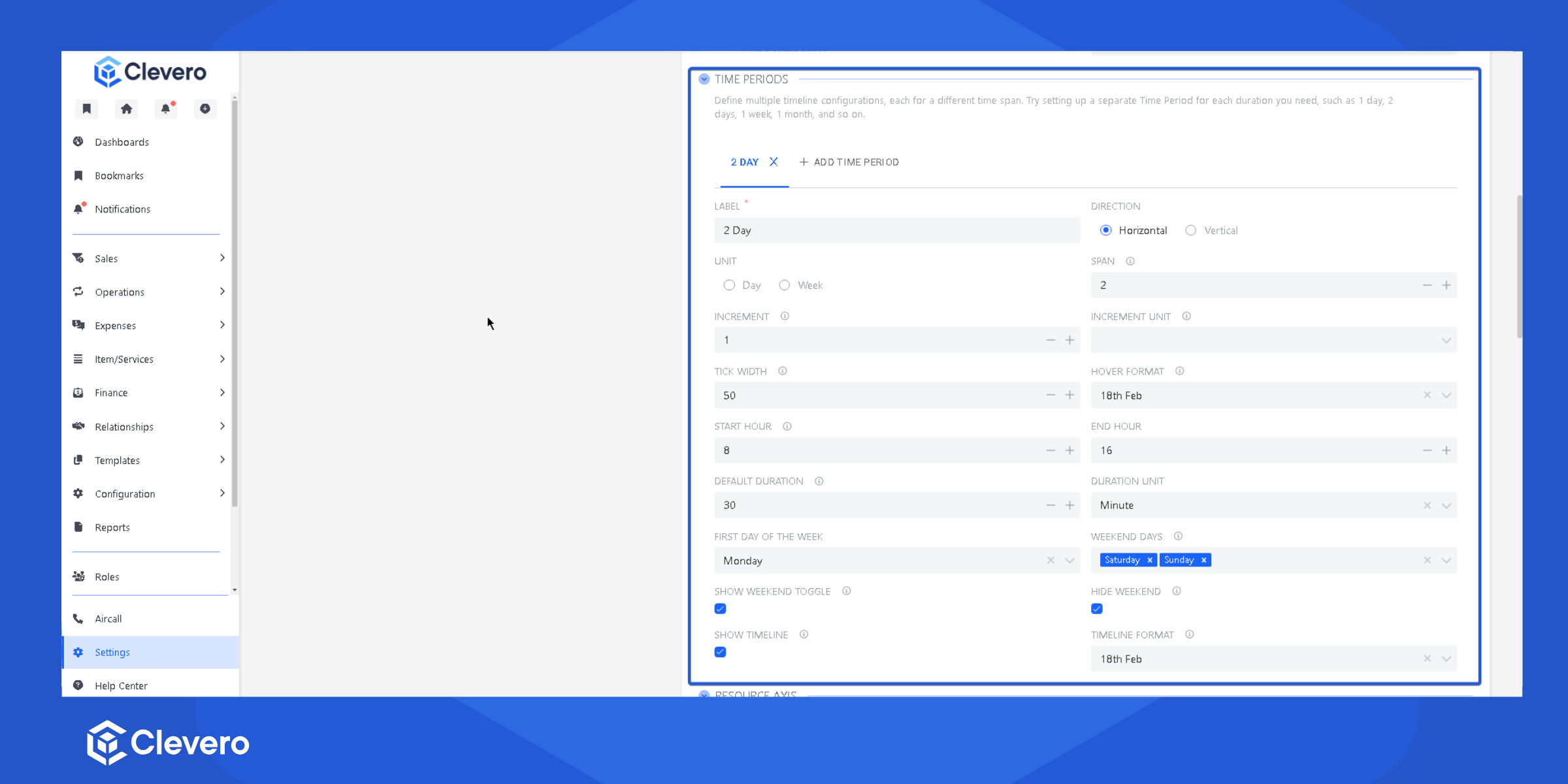
| Setting | Description |
|---|---|
| Label | Title for the period |
| Direction | Determines whether the scheduler is displayed horizontally or vertically |
| Unit | Measurement unit: minutes, days, or weeks |
| Span | Sets the overall timeframe displayed in the scheduler |
| Increment | Controls how the scheduler snaps to predefined time intervals |
| Increment Unit | (Optional) Defines the unit of measurement (minutes, days, or weeks) for the snapping behavior |
| Tick Width | Minimum width per tick in the scheduler |
| Hover Format | Defines what appears when hovering over empty space in the timeline |
| Start Hour | Earliest hour displayed in a minute-based scheduler |
| End Hour | Latest hour displayed in a minute-based scheduler |
| Default Duration | Default event length of scheduled events |
| Duration Unit | The unit (minutes, hours, days, etc.) for the default duration |
| First Day of Week | Checkbox to hide the weekend in the scheduler |
| Weekend Days | Specifies which days are considered weekends |
| Show Weekend Toggle | Enables a toggle to show or hide weekends |
| Hide Weekend | Removes weekends from the scheduler view |
| Show Timeline (Optional) | A red "Now" indicator is added to show the current date and time in the scheduler |
| Timeline Format (Optional) | Defines how dates and times are displayed on the timeline |
4. Resource Axis
Configure the resource defined in the vertical axis. Enhance it with colors, avatars, grouping. Note edits cannot be made to unassigned resources & sorting.
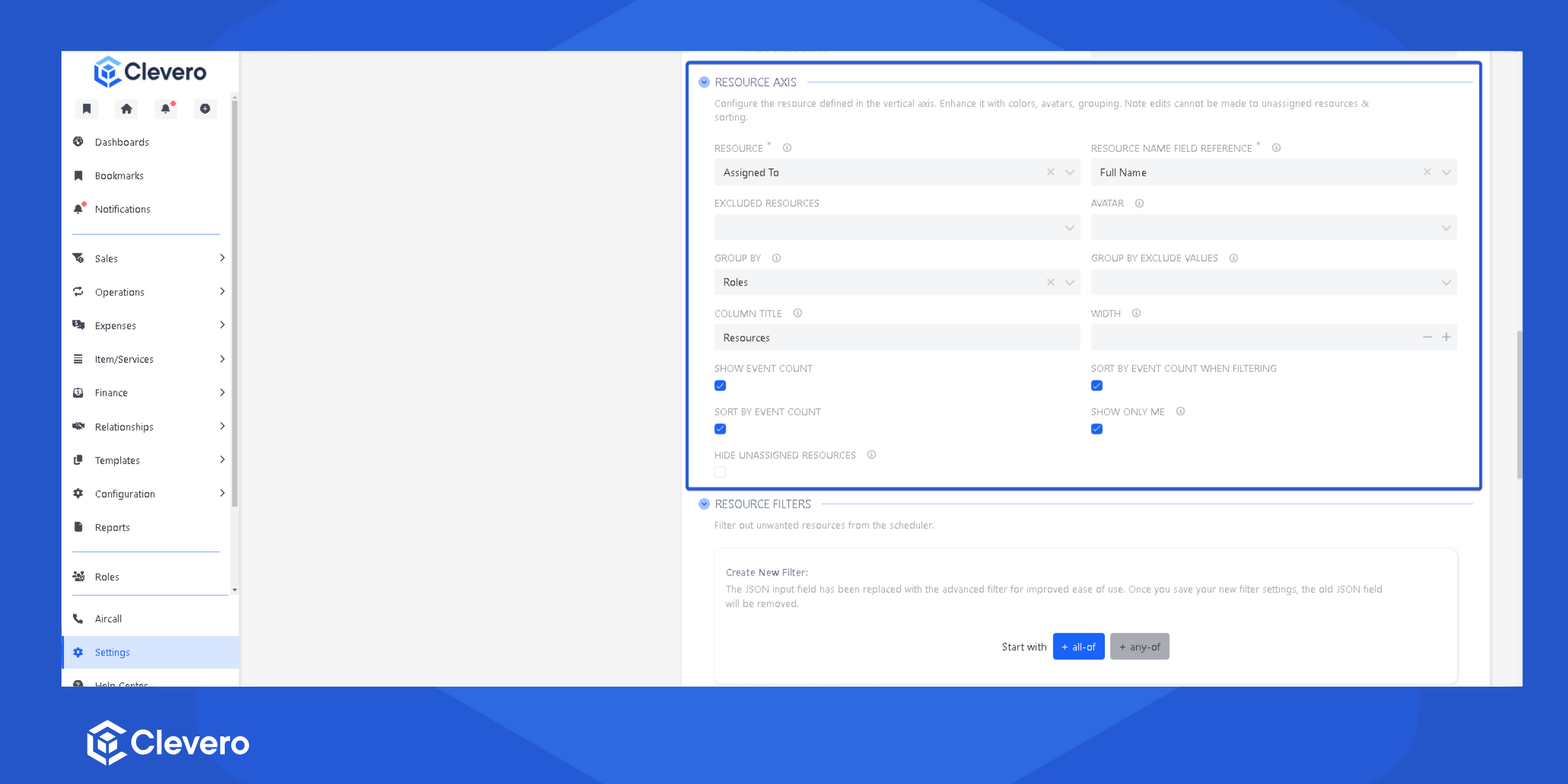
| Setting | Description |
|---|---|
| Resource | Defines vertical axis content |
| Resource Name Field Reference | (Optional) The name for each resource on the vertical axis |
| Excluded Resources | (Optional) Resources excluded from the view |
| Avatar | (Optional) The field used for resource avatars |
| Group By | (Optional) Groups resources with a common value, allowing them to expand and collapse |
| Group By Exclude Values | (Optional) Exclude specific values from grouping |
| Column Title | Title of resource column |
| Width | (Optional) Column width |
| Show Event Count | (Optional) Show number of events per resource |
| Sort By Event Count When Filtering | (Optional) Sort by event count when a filter is applied |
| Sort By Event Count | (Optional) Always sort by event count |
| Show Only Me | (Optional) Show logged-in user only |
| Hide Unassigned Resources | Shows only resources that have assigned events |
5. Resource Filters
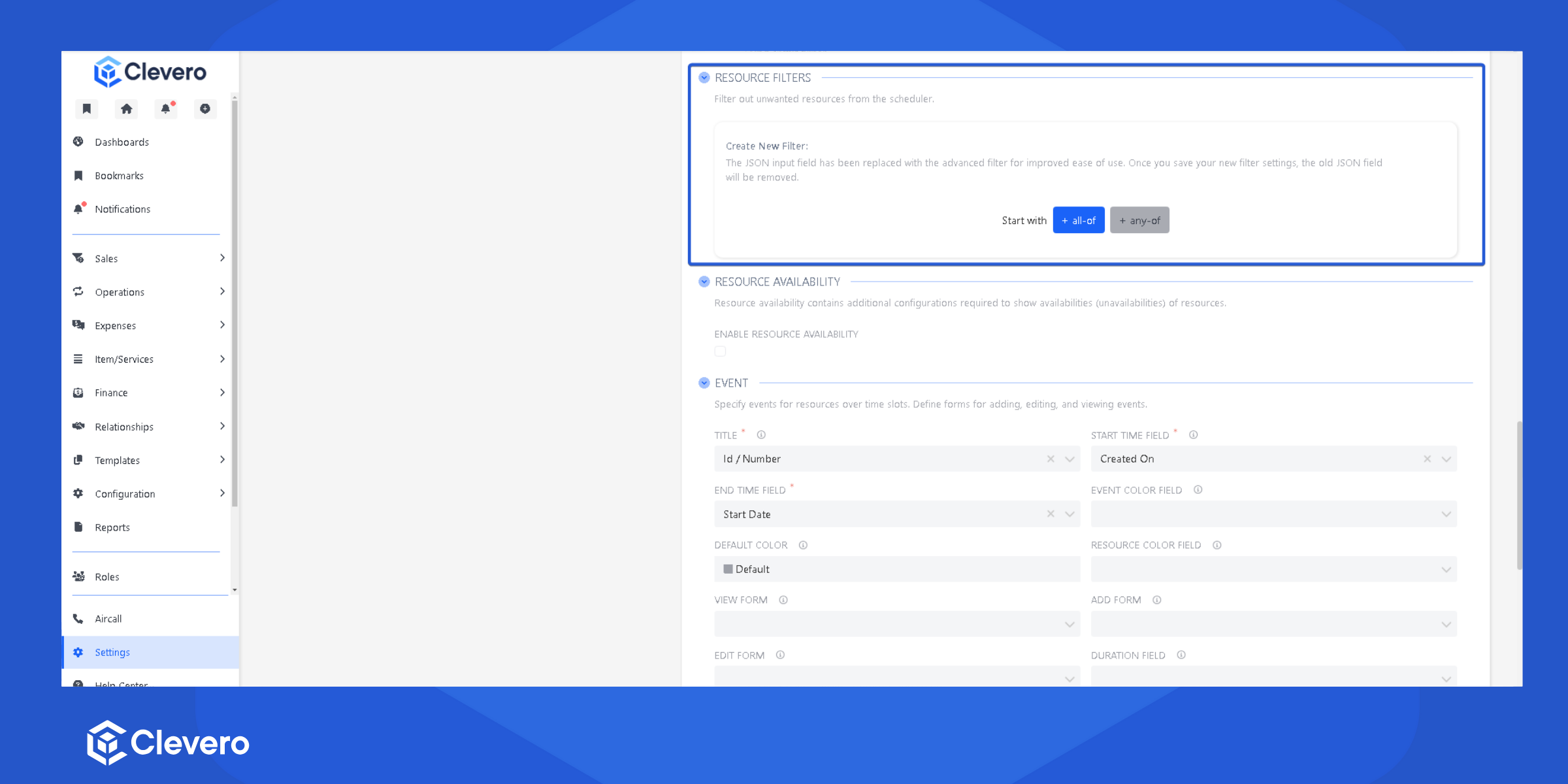
6. Resource Availability (Optional)
Resource availability contains additional configurations required to show availabilities (unavailabilities) of resources.
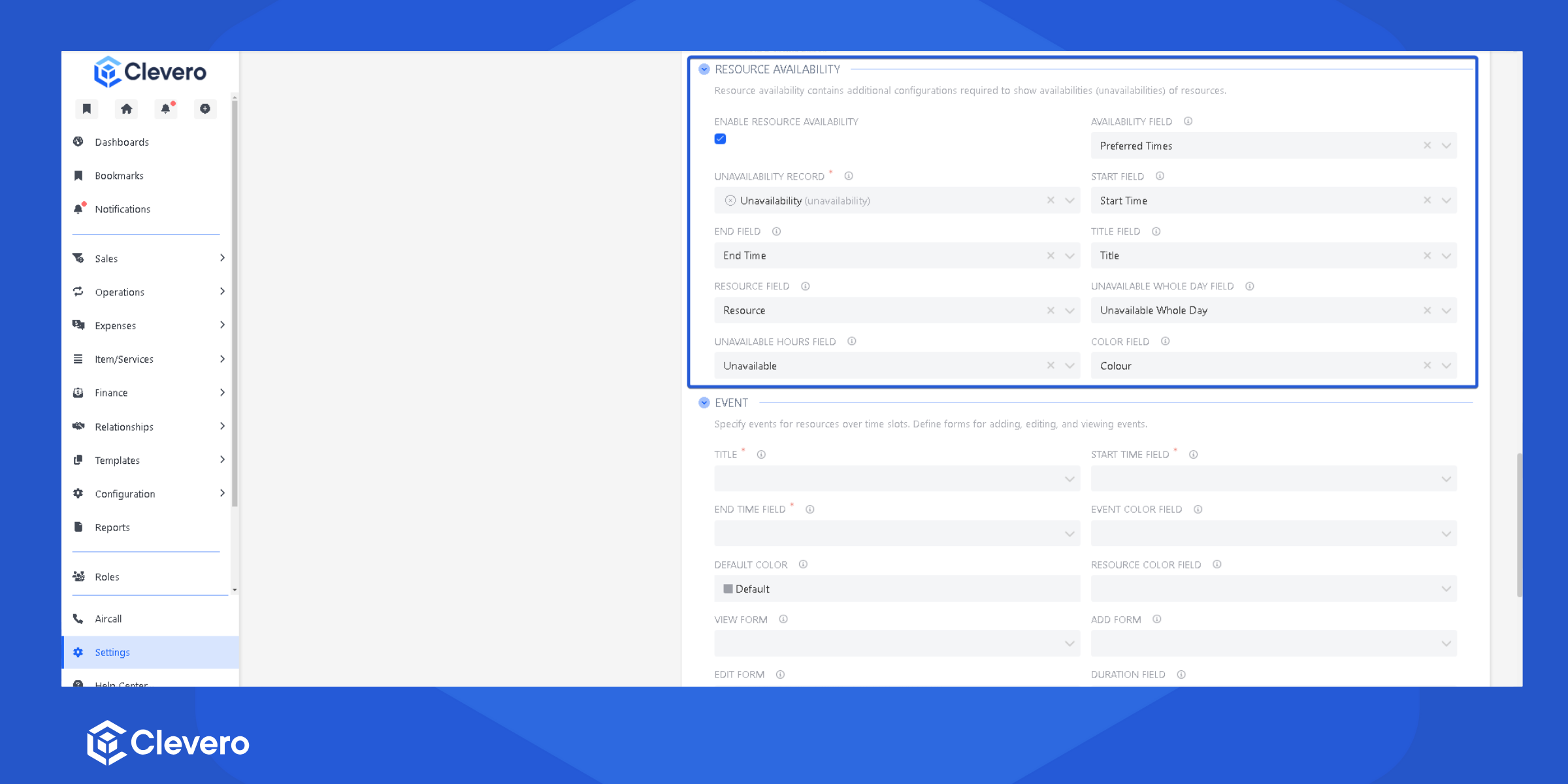
| Setting | Description |
|---|---|
| Enable Resource Availability | Turns on resource availability settings |
| Availability Field | Defines which field indicates when a resource is available. Unavailable time slots will be grayed out |
| Unavailability Record | Specifies the record used to define date ranges when a resource is unavailable |
| Start Field | Start of unavailable time |
| End Field | End of unavailable time |
| Title Field | Title shown in unavailable slots |
| Resource Field | The field linking the record to a resource |
| Unavailable Whole Day Field | Marks if a resource is unavailable for the entire day within a given time period |
| Unavailable Hours Field | Marks if a resource is unavailable during specific hours of the week |
| Color Field | (Optional) Color for unavailable slots |
7. Events
Specify events for resources over time slots. Define forms for adding, editing, and viewing events.
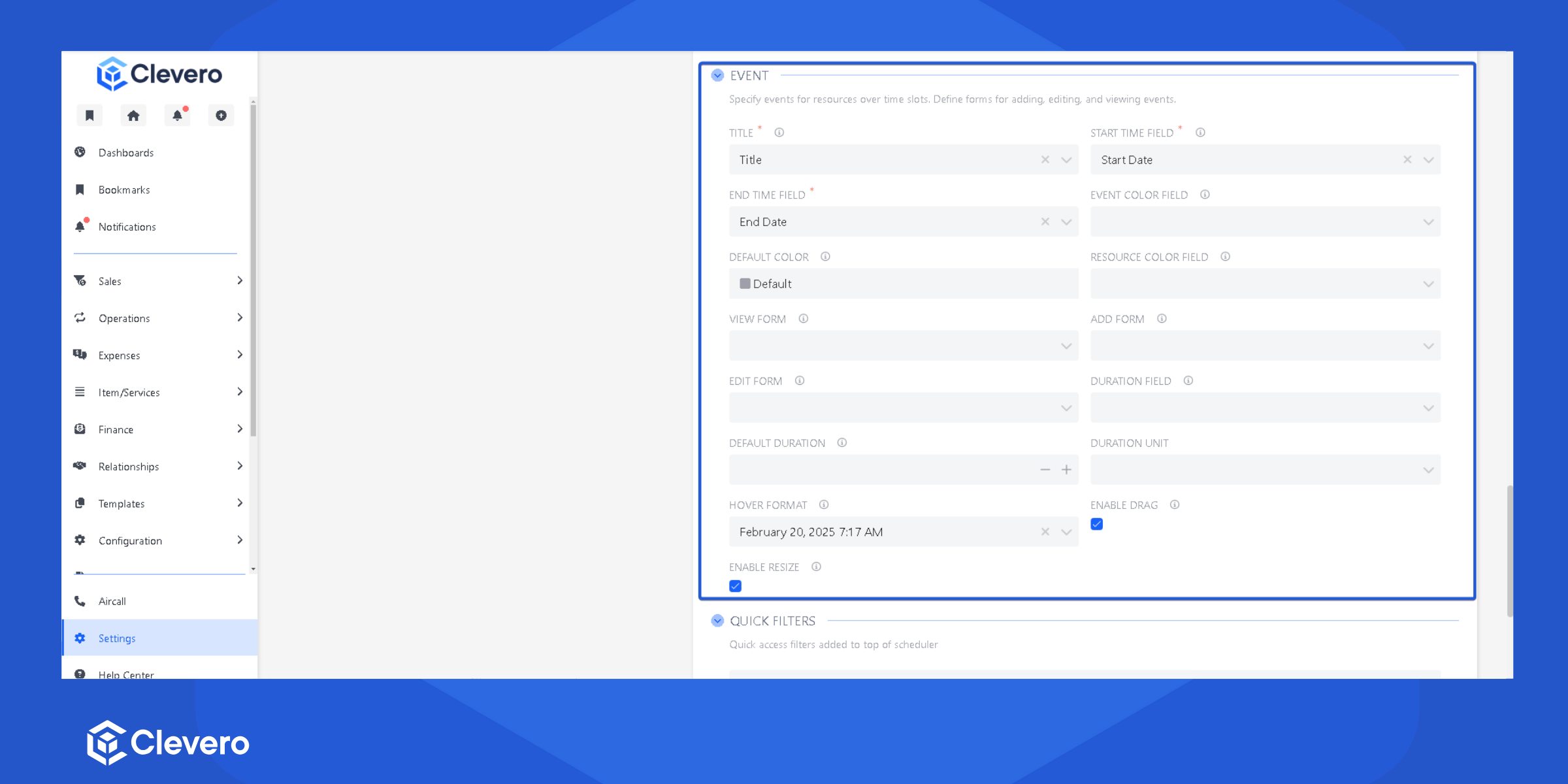
| Setting | Description |
|---|---|
| Title | Sets the event title displayed on the calendar |
| Start Time Field | Specifies the field that determines when an event begins |
| End Time Field | Specifies the field that determines when an event ends |
| Event Color Field | Defines which field controls the color of the event |
| Default Color | Sets the fallback color for events when no specific color is assigned |
| Resource Color Field | (Optional) Determines the field that assigns colors to resources |
| View Form | (Optional) Opens a detailed view of an event when clicked |
| Add Form | (Optional) Provides a form to create a new event |
| Edit Form | (Optional) Allows editing an event’s details |
| Duration Field | Specifies the field that stores event duration |
| Default Duration | Sets the standard duration for events when no end time is provided |
| Duration Unit | Defines the unit of time (e.g., minutes, hours) used for event duration |
| Hover Format | Determines what details appear when hovering over an event |
| Enable Drag | Allows events to be moved on the calendar by dragging |
| Enable Resize | Enables adjusting an event’s duration by resizing its edges |
8. Quick Filters
Quick-access filters displayed at the top of schedule.
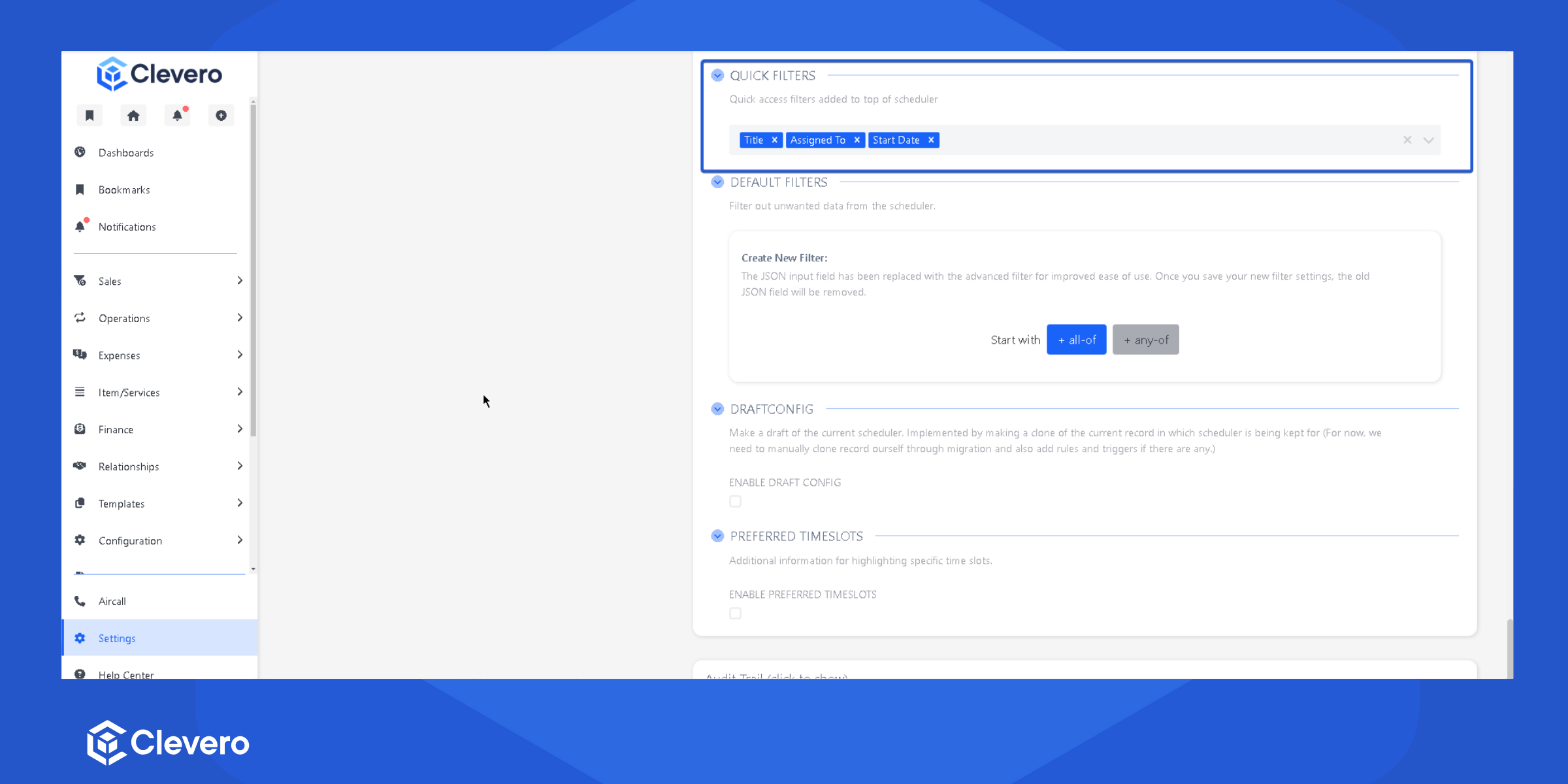
9. Default Filters
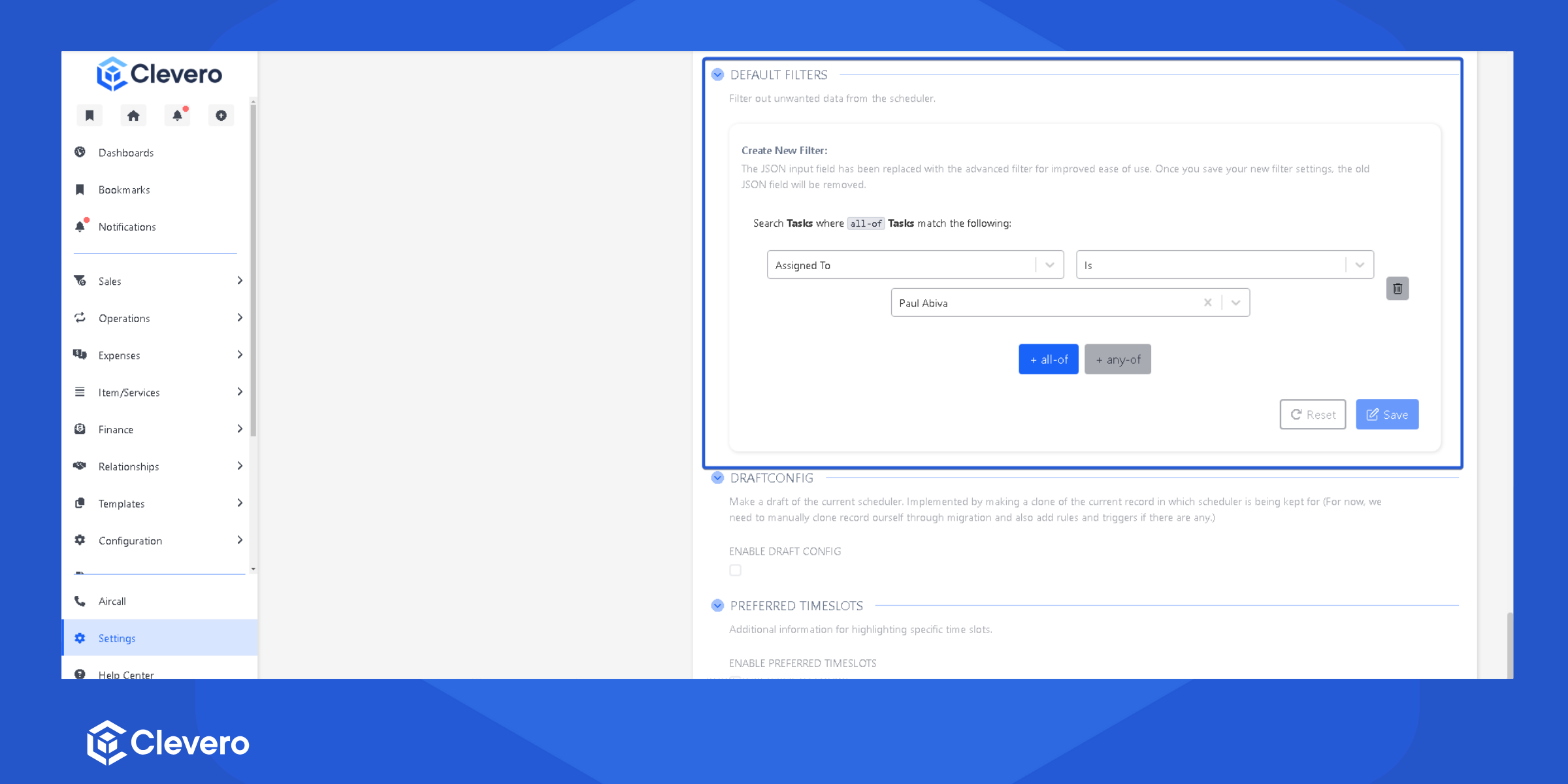
10. Draft Config (Optional)
To create a draft of the current scheduler, a clone of the existing record is made. Currently, this process must be done manually through migration. If there are any rules or triggers, they should also be added manually.
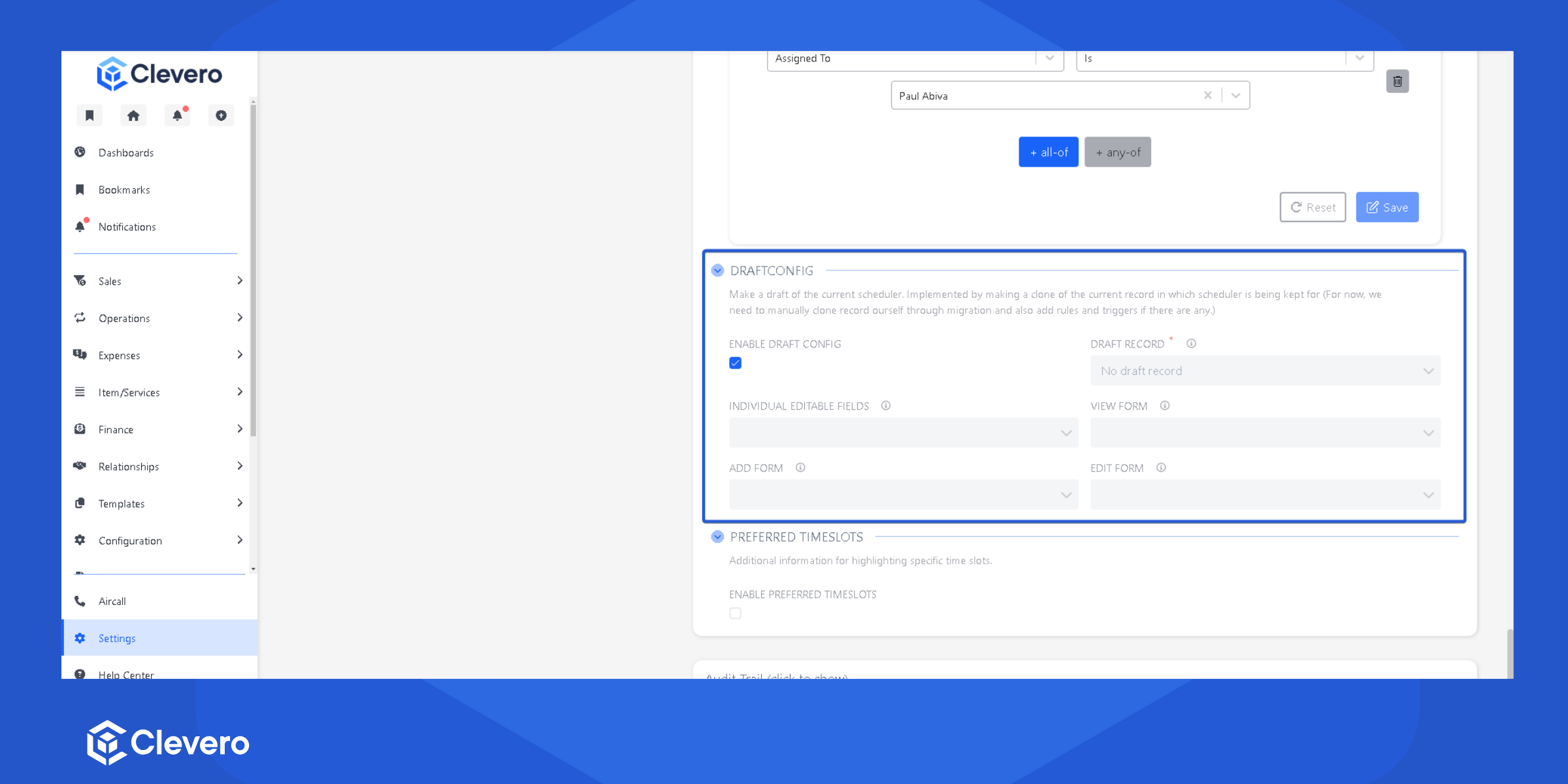
| Setting | Description |
|---|---|
| Enable Draft Config | Turns on Draft Config settings |
| Draft Record | A duplicate of your current record for editing without affecting the original |
| Individual Editable Fields | Specifies which fields can be modified separately within the draft |
| View Form | Opens a detailed view of a draft when clicked |
| Add Form | Provides a form to create a new draft |
| Edit Form | Allows editing a draft's details |
11. Preferred Timeslots
Additional information for highlighting specific time slots.
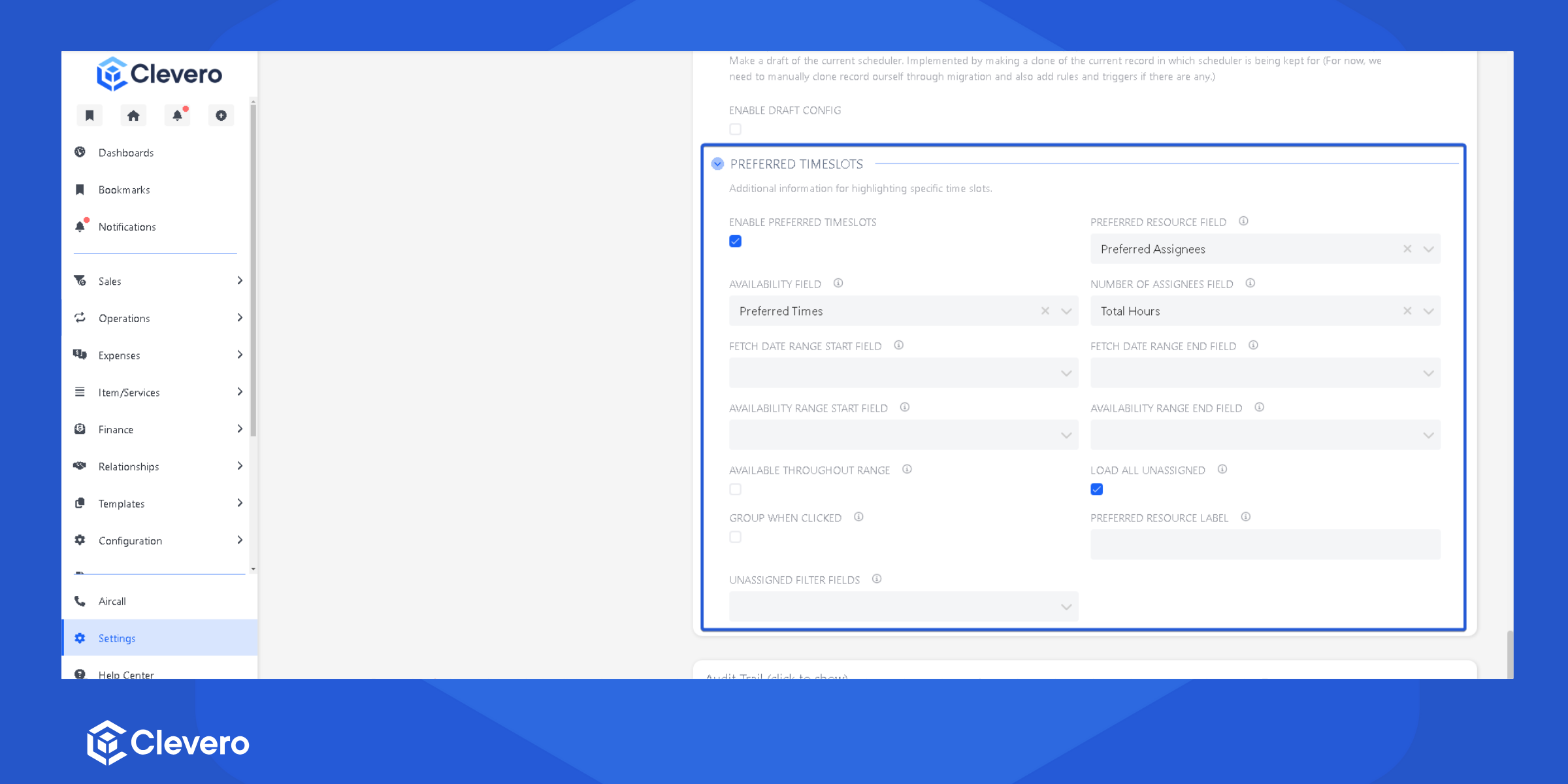
| Setting | Description |
|---|---|
| Enable Preferred Timeslots | Turns on preferred time slots settings |
| Preferred Resource Field | Specifies the field that links a resource to preferred time slots |
| Fetch Data Range Start Field | (Optional) Defines the starting point for fetching relevant data |
| Fetch Data Range End Field | (Optional) Defines the endpoint for fetching relevant data |
| Availability Range Start Field | (Optional) Sets the beginning of the availability range for preferred time slots |
| Availability Range End Field | (Optional) Sets the end of the availability range for preferred time slots |
| Available Throughout Range | (Optional) Marks whether the resource is available for the entire specified range |
| Load All Unassigned | Loads and displays all unassigned time slots |
| Group When Clicked | (Optional) Groups related time slots when selected |
| Preferred Resource Label | (Optional) Customizes the label for preferred resources |
| Unassigned Filter Fields | (Optional) Defines filters to refine unassigned time slots |
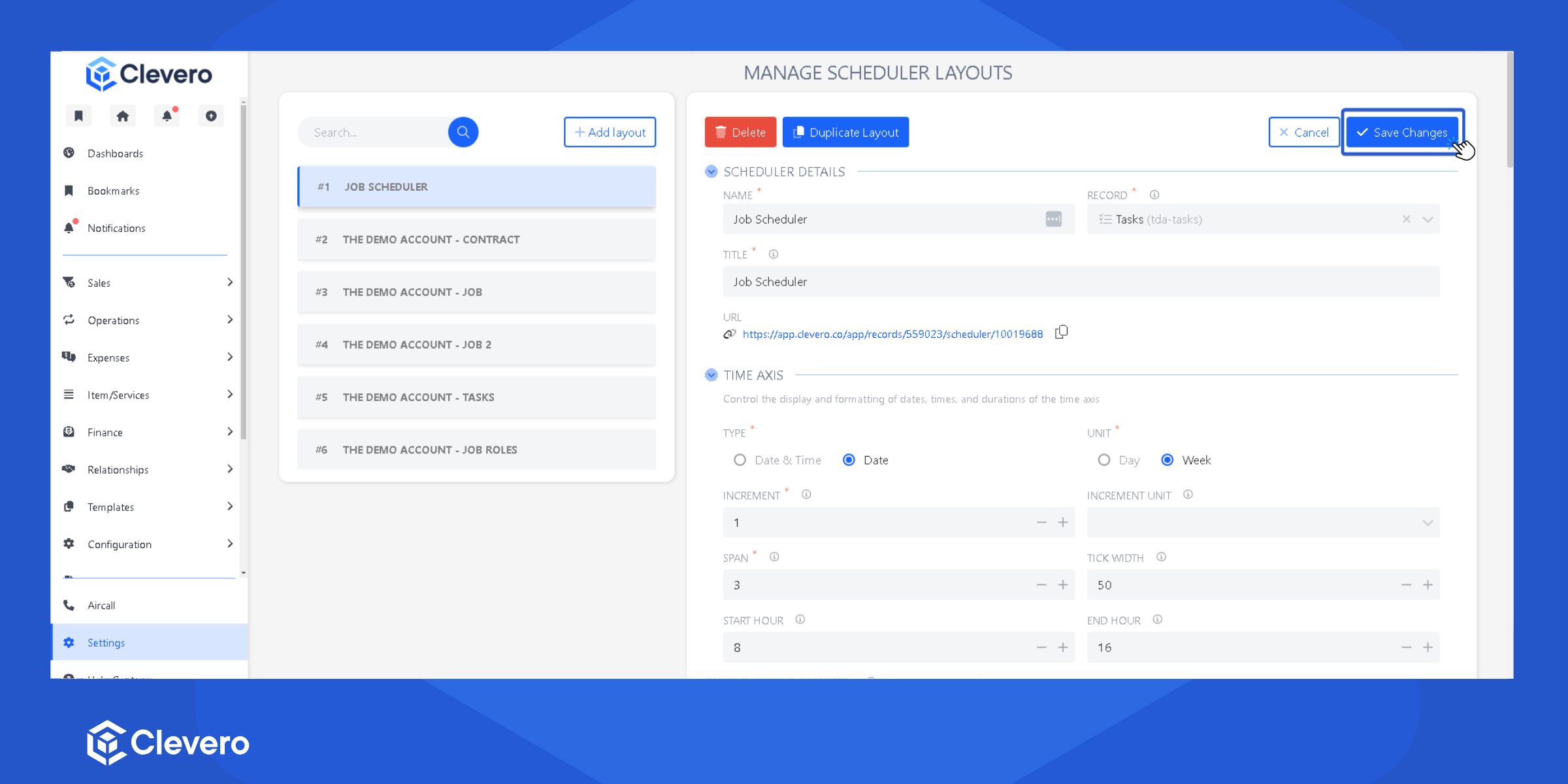
- Click Save Changes to save your scheduler.
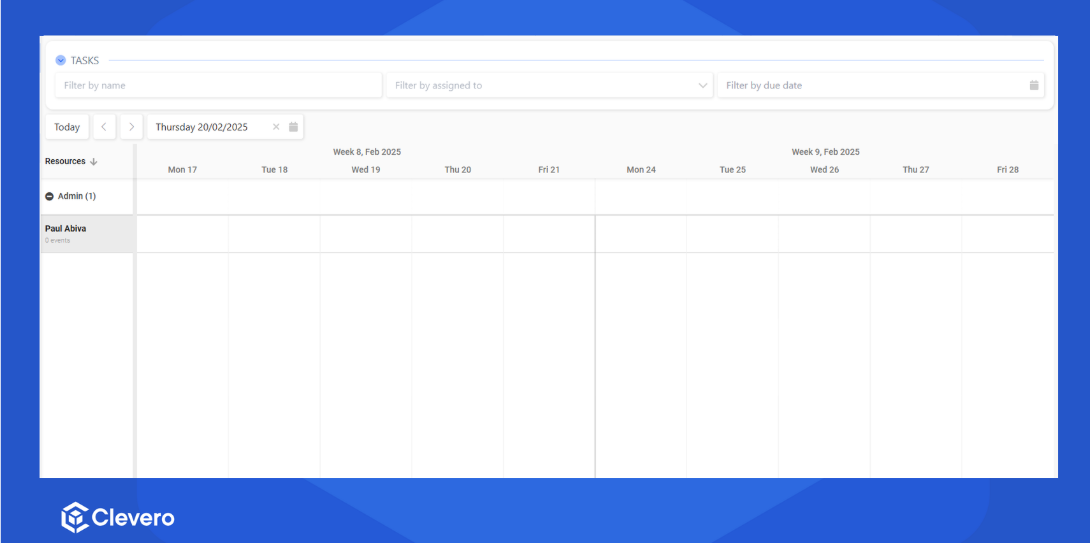
- Click the link to view your created scheduler.
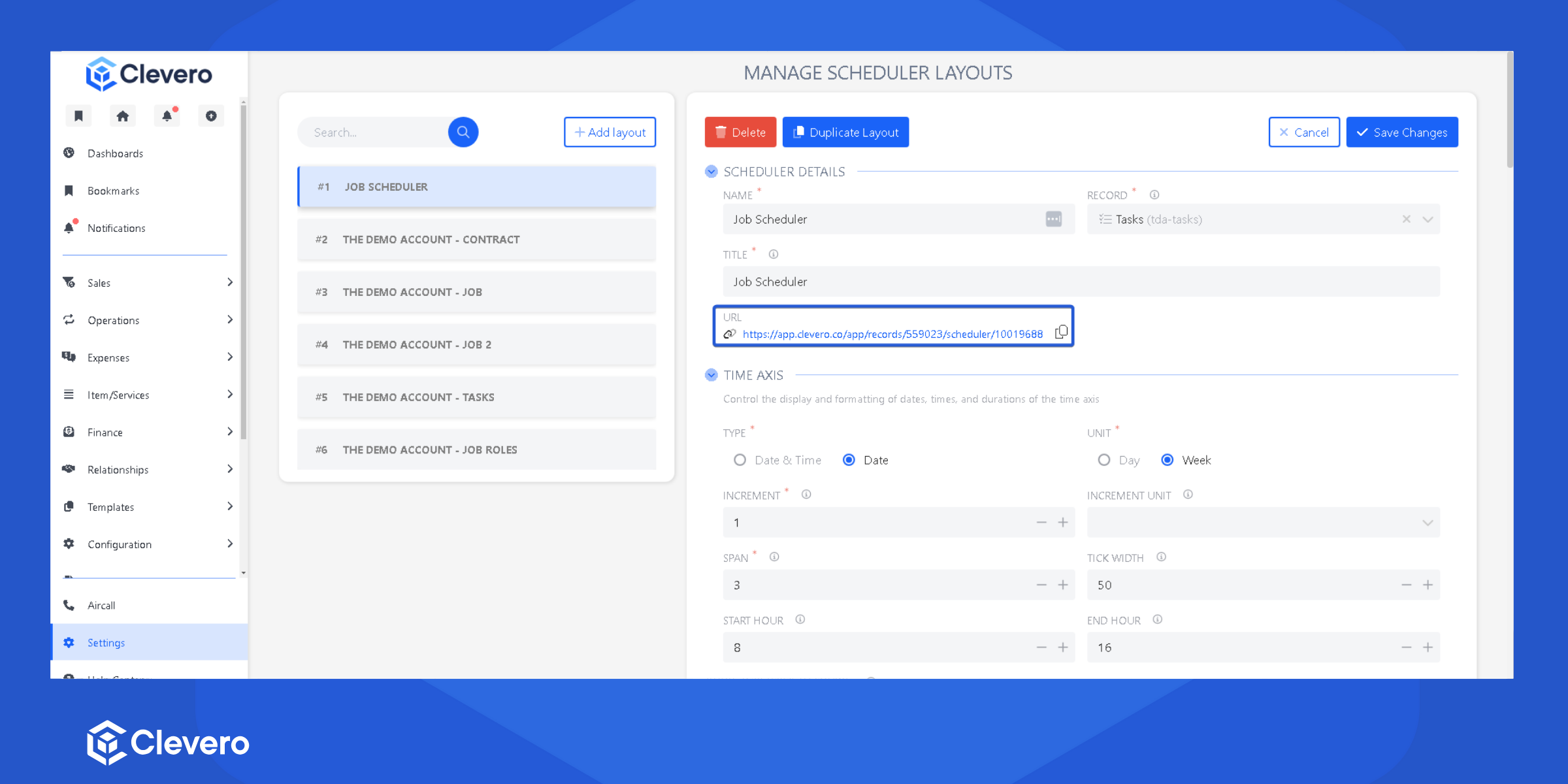
- This is the final output of your scheduler.
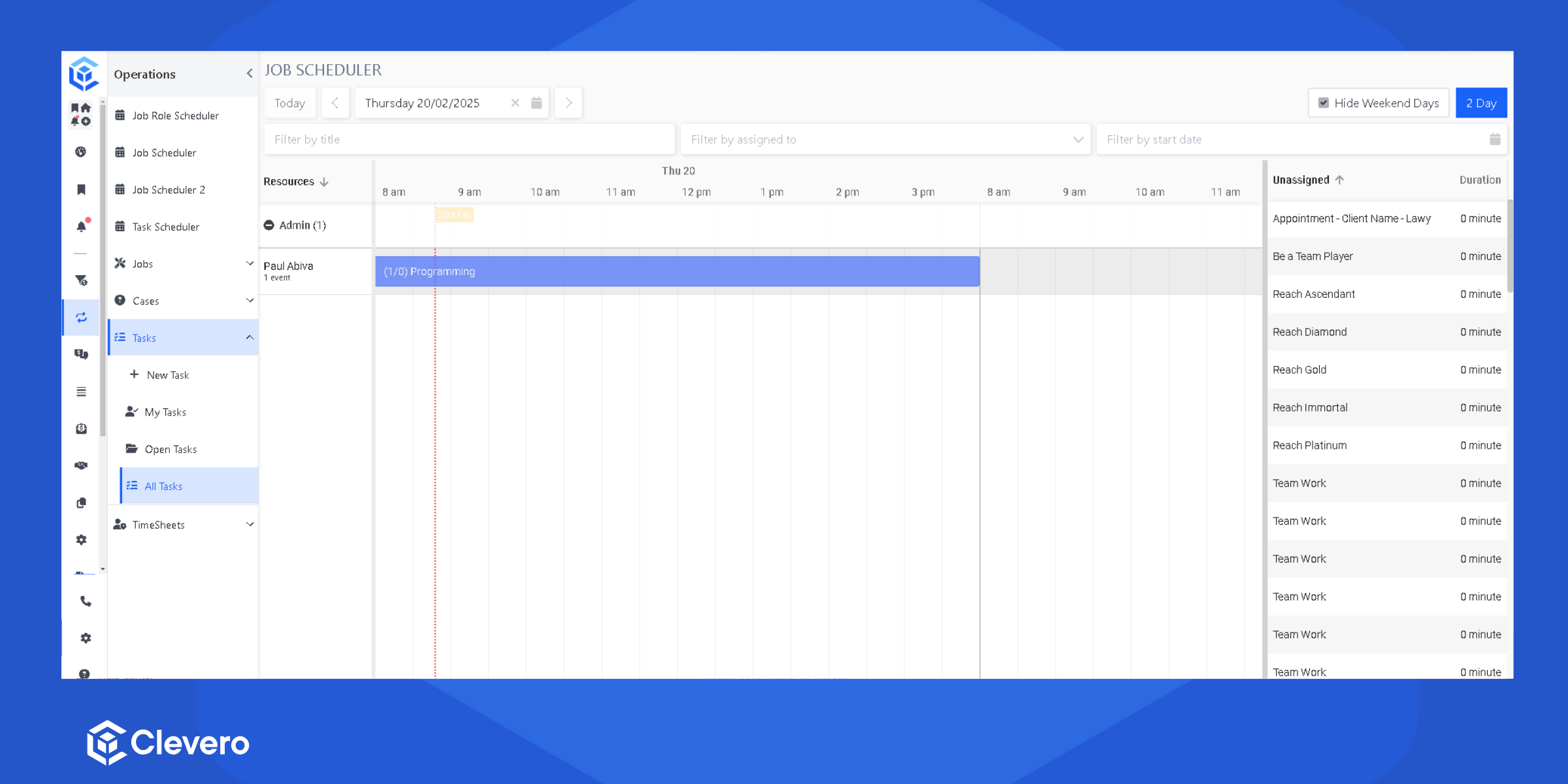
-
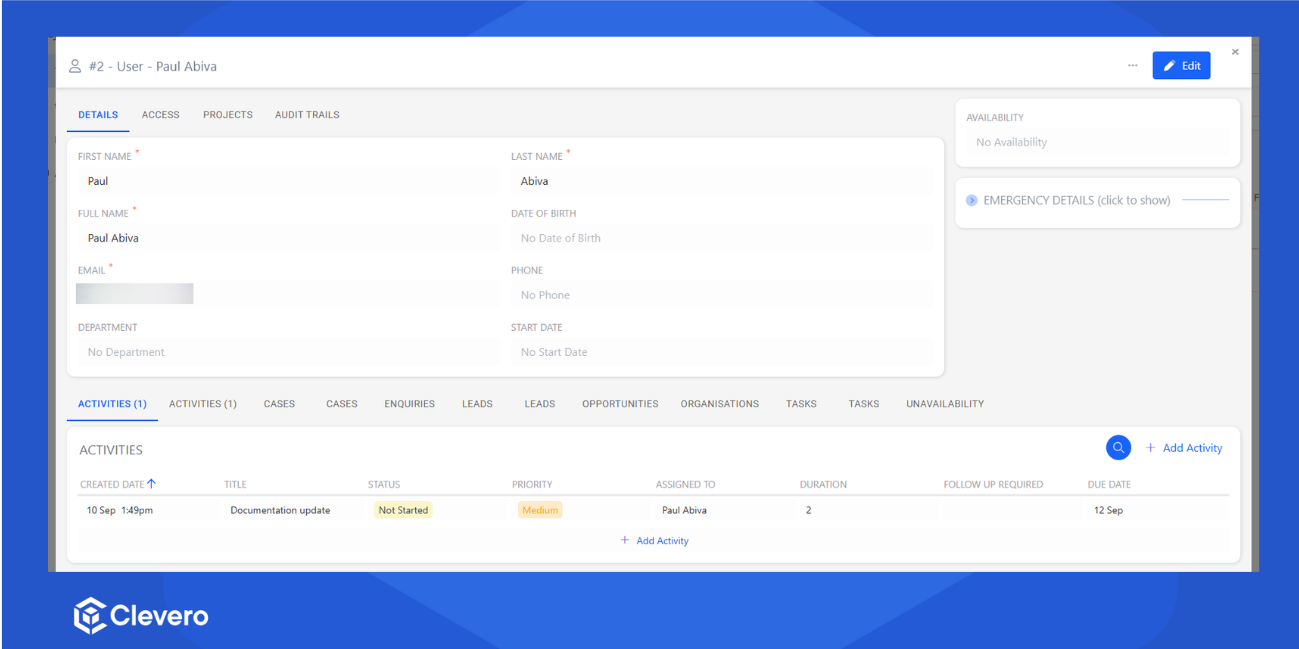
Viewing a Resource Record
Once the scheduler is set up, click a resource name in the resource column to open its linked record in a modal. The modal shows the full record, not only the name displayed on the scheduler.
📌 Need Help?

Updated 5 days ago