
Monthly Scheduler
The Monthly Scheduler adds a new Calendar option under the Time Period section of the scheduler. This view lets you visualize, organize, and manage scheduled events using calendar layouts.
Configure the Calendar Scheduler
- Open the System Settings → Scheduler configuration page.
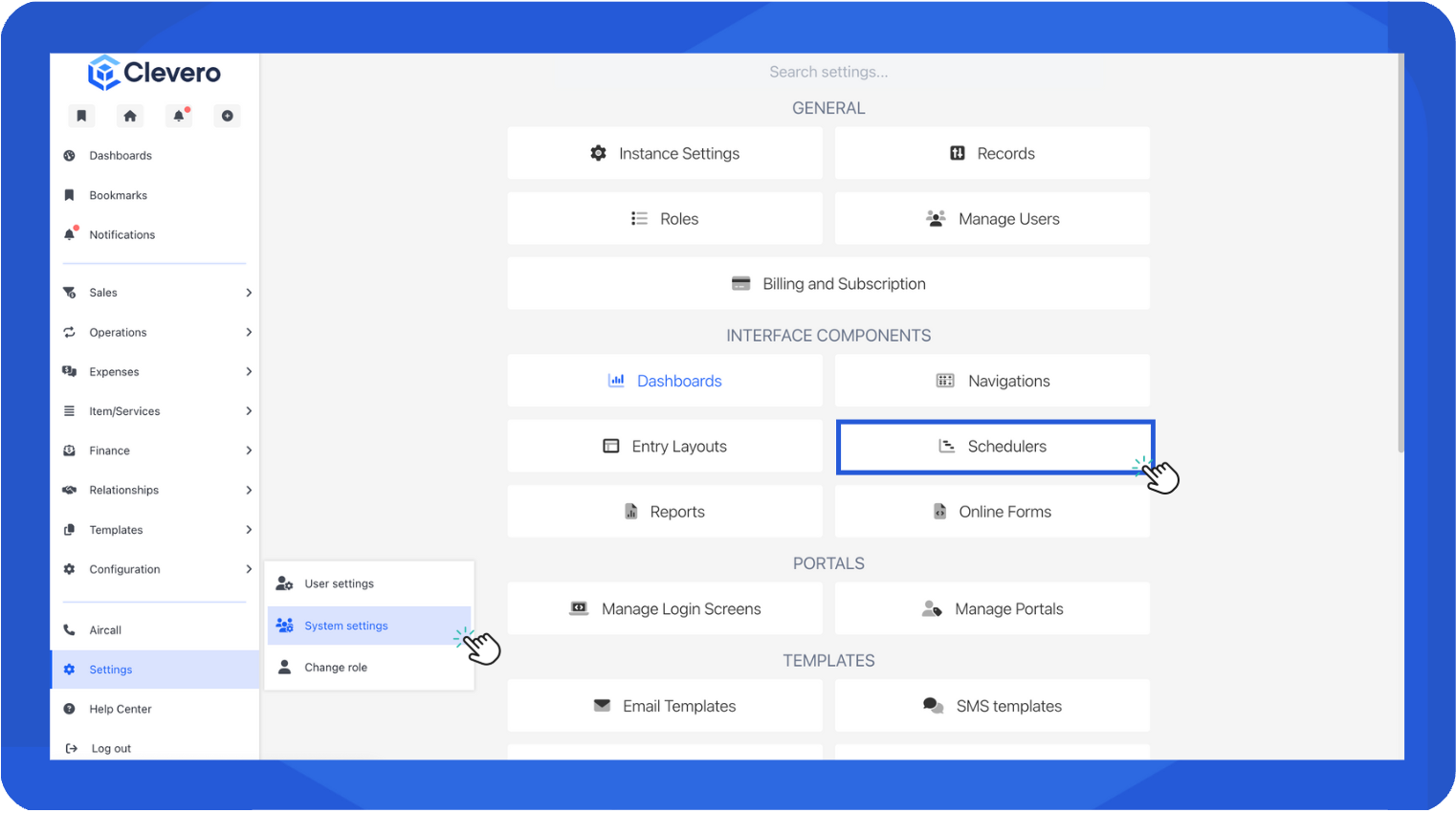
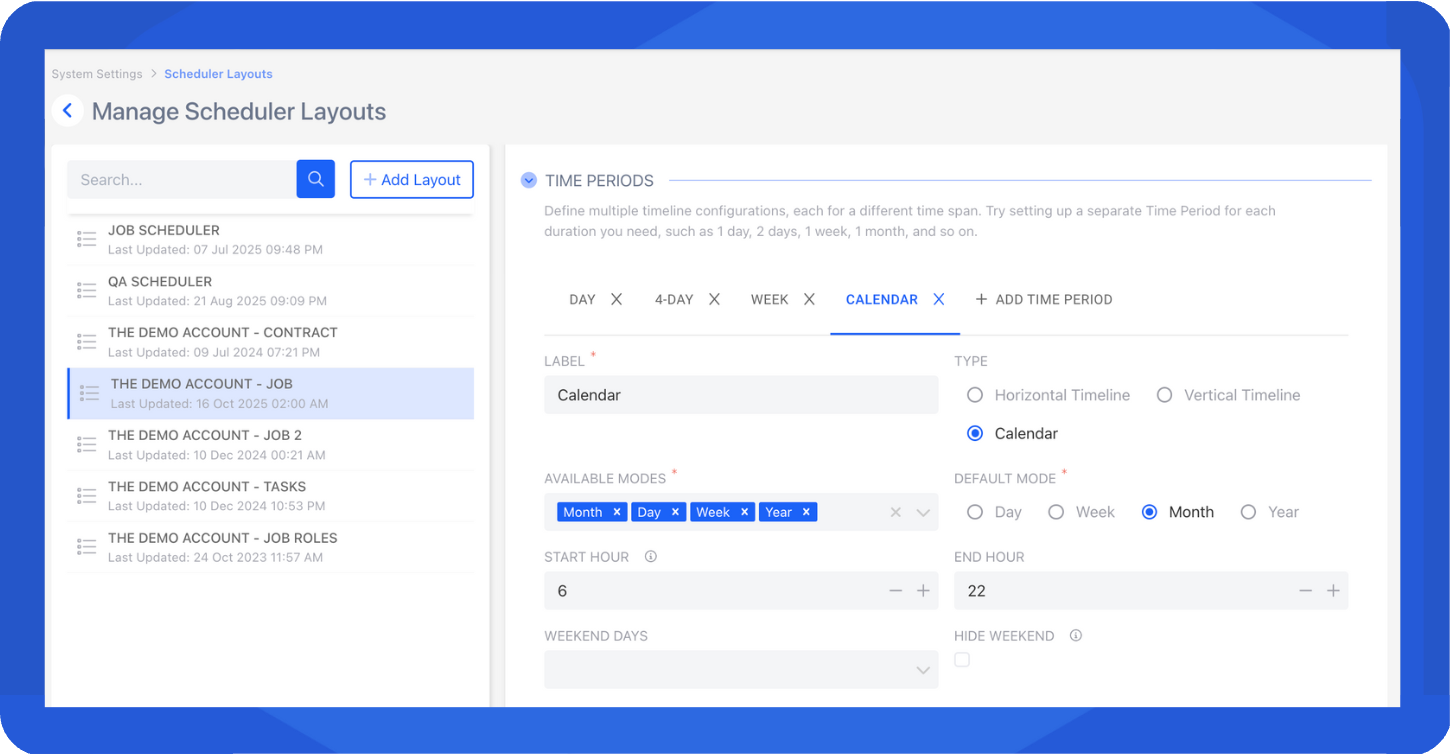
- In the Time Period section, select Calendar as the scheduler type.
- Set the following fields:
- Available Modes – choose which calendar views (Month, Week, Year, List) users can access.
- Default Mode – select the view that opens by default. If not selected, the default view is Month.
- Start Hour – define the starting time for scheduled events.
- Save your configuration.
Use the Calendar View
When you open the calendar, it displays the default mode you selected in the configuration. You can switch between multiple views using the mode selector:
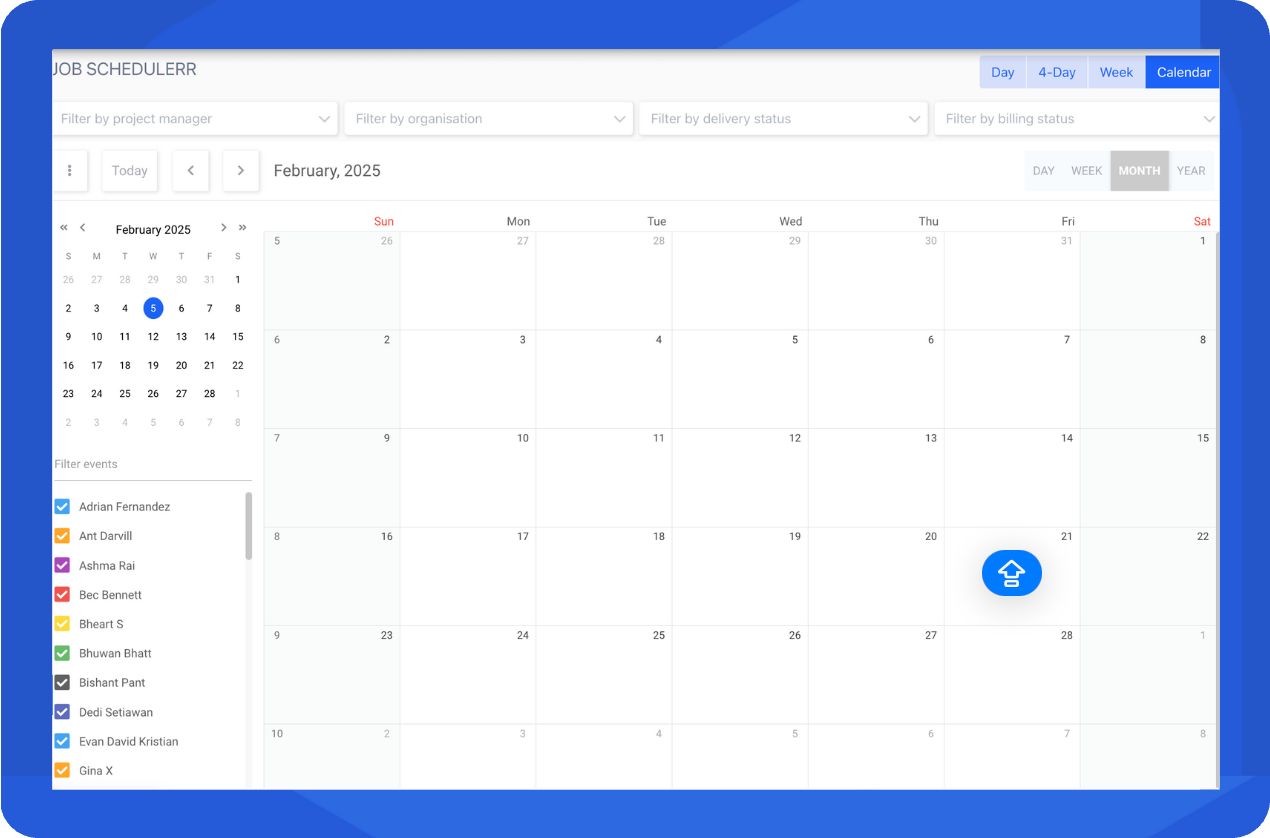
1. Month View
Displays all scheduled events for the current month.
- Drag and drop events to adjust their dates.
- Add or edit events directly from the calendar.
- Filter visible resources to focus on specific ones.
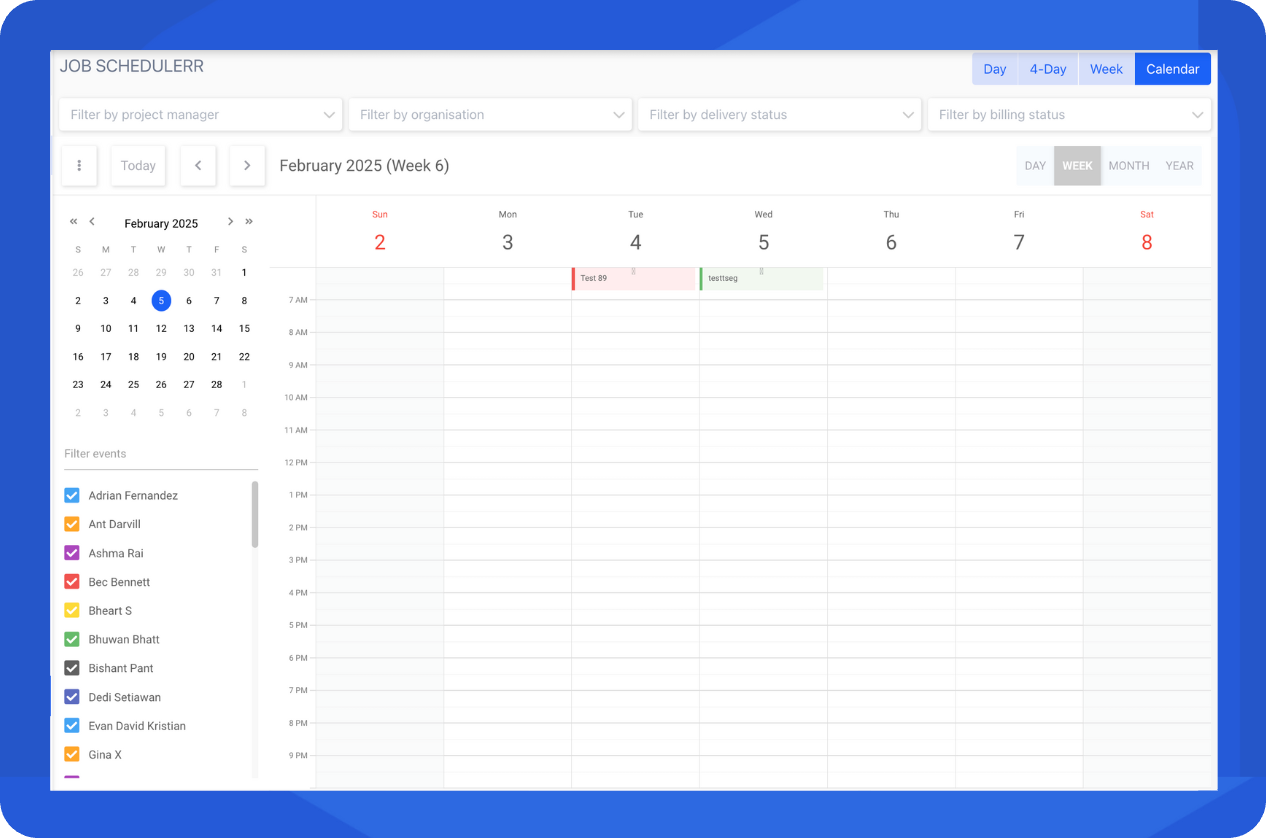
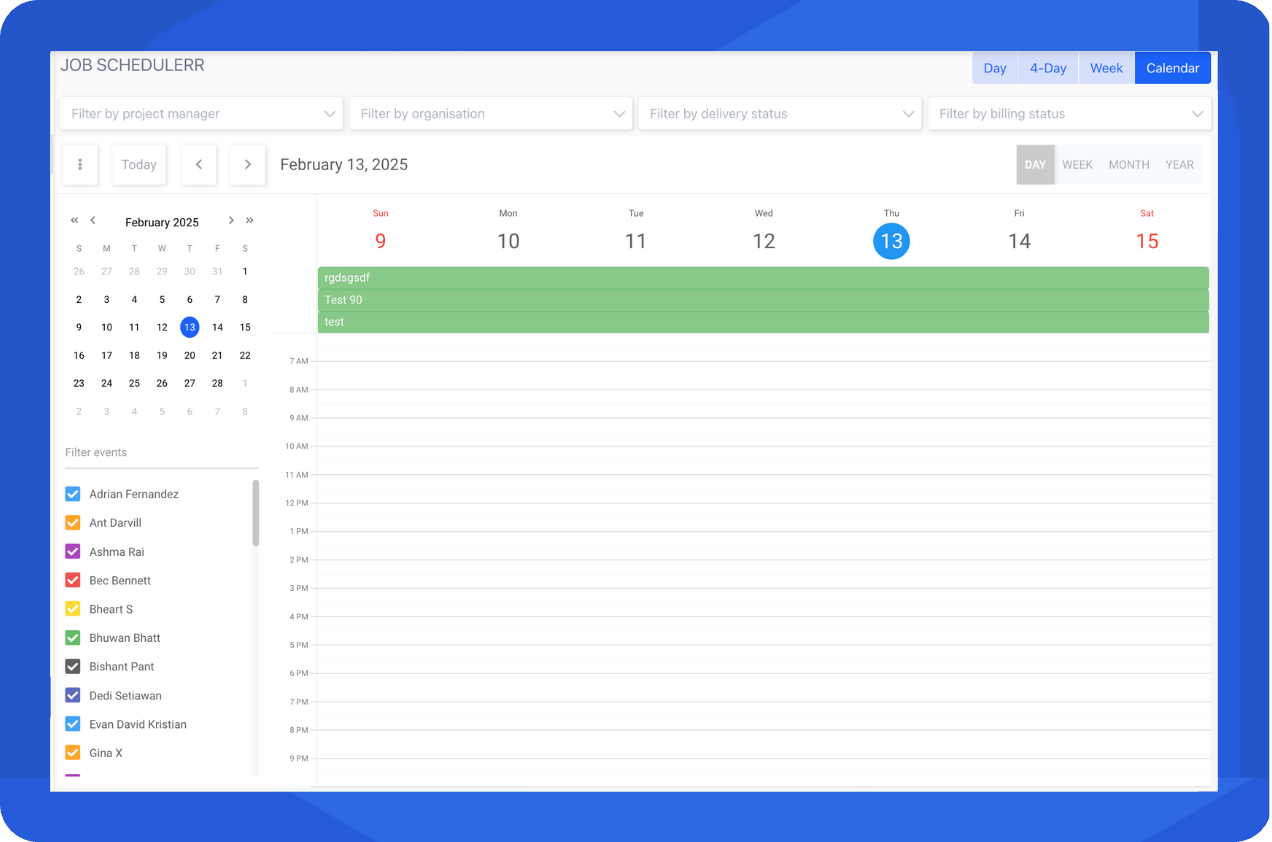
2. Week View
Shows events organized by week, useful for short-term planning and resource allocation.
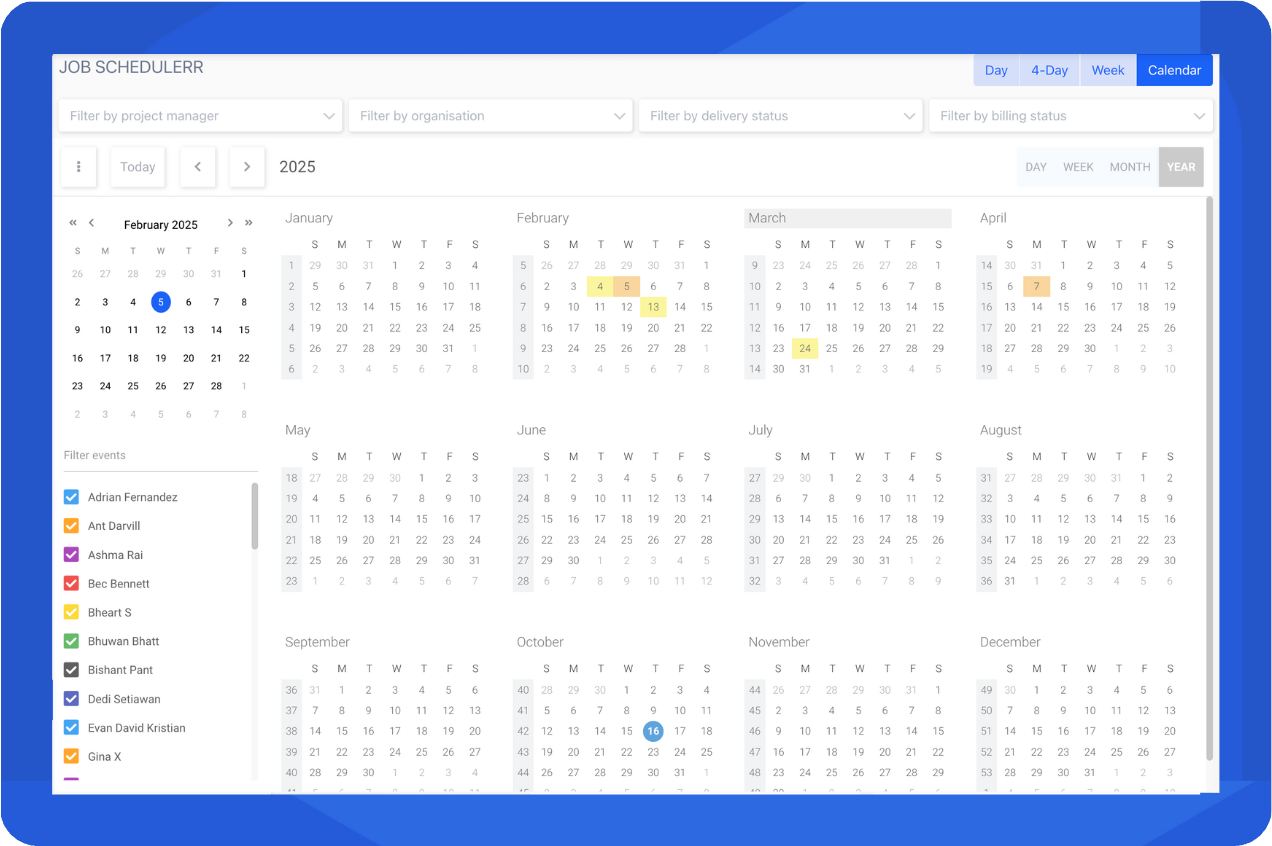
3. Year View
Displays a heatmap of events across the year:
- Darker colors indicate higher event density.
- Lighter colors show fewer scheduled events.
- Full-day events appear fully colored (e.g., solid blue or green).
4. List View
Lists all events within a specific timeframe, such as a year or decade. You can scroll through or filter events to review historical activity or long-term schedules.
📌 Need Help?

Updated 11 months ago
Did this page help you?