
E-Signature
✍🏻 Streamline signing with an e-signature template.
Adding an e-signature to a PDF takes place within an external web app, and the PDF may also include other user-fillable inputs, such as name and date.
1. Create PDF Template
To create a PDF Template in Clevero, follow these steps:
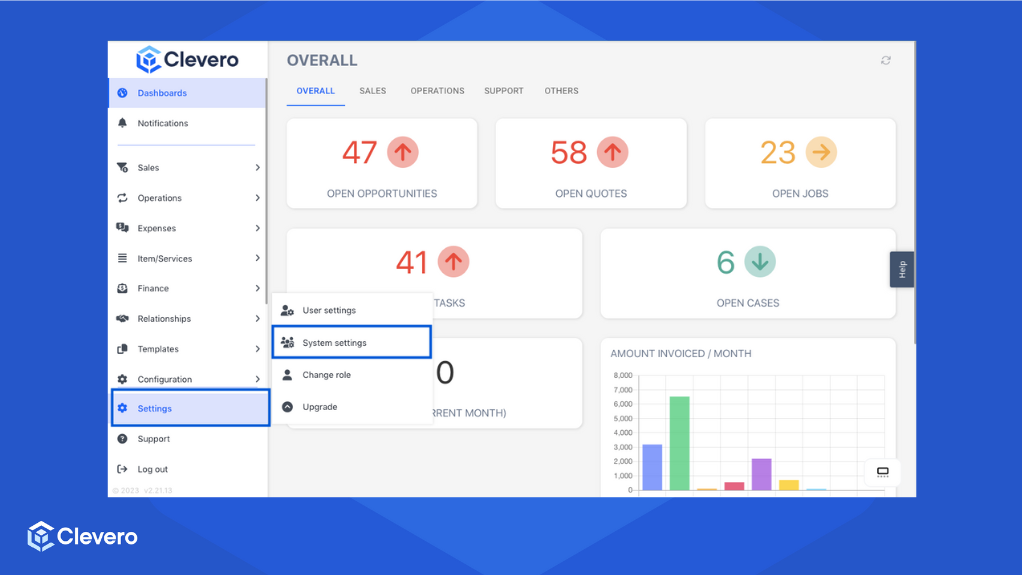
- Go to "Settings" > "System Settings".
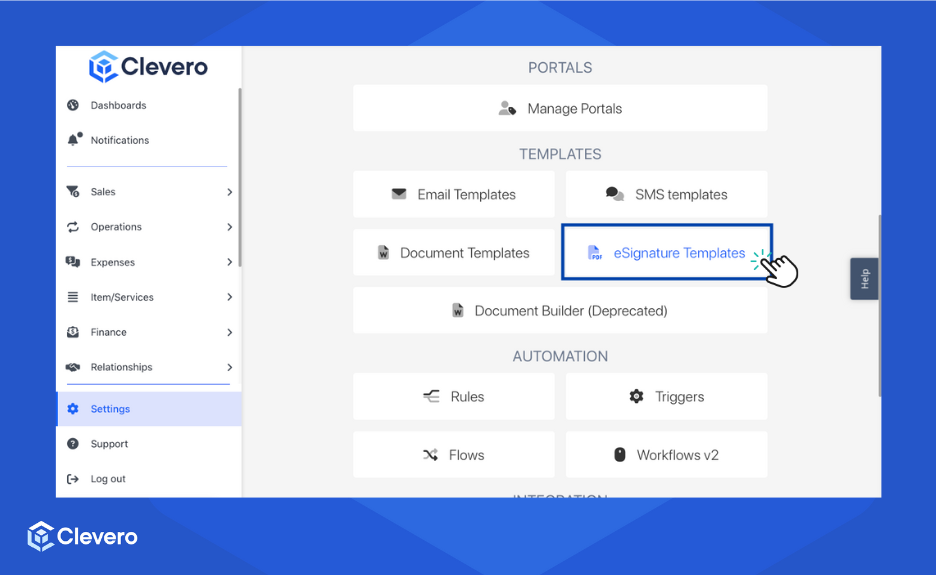
- Choose "eSignature Templates" from the available options.
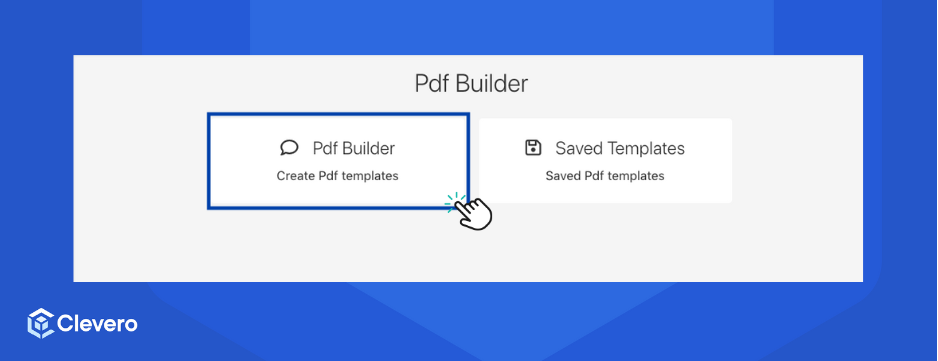
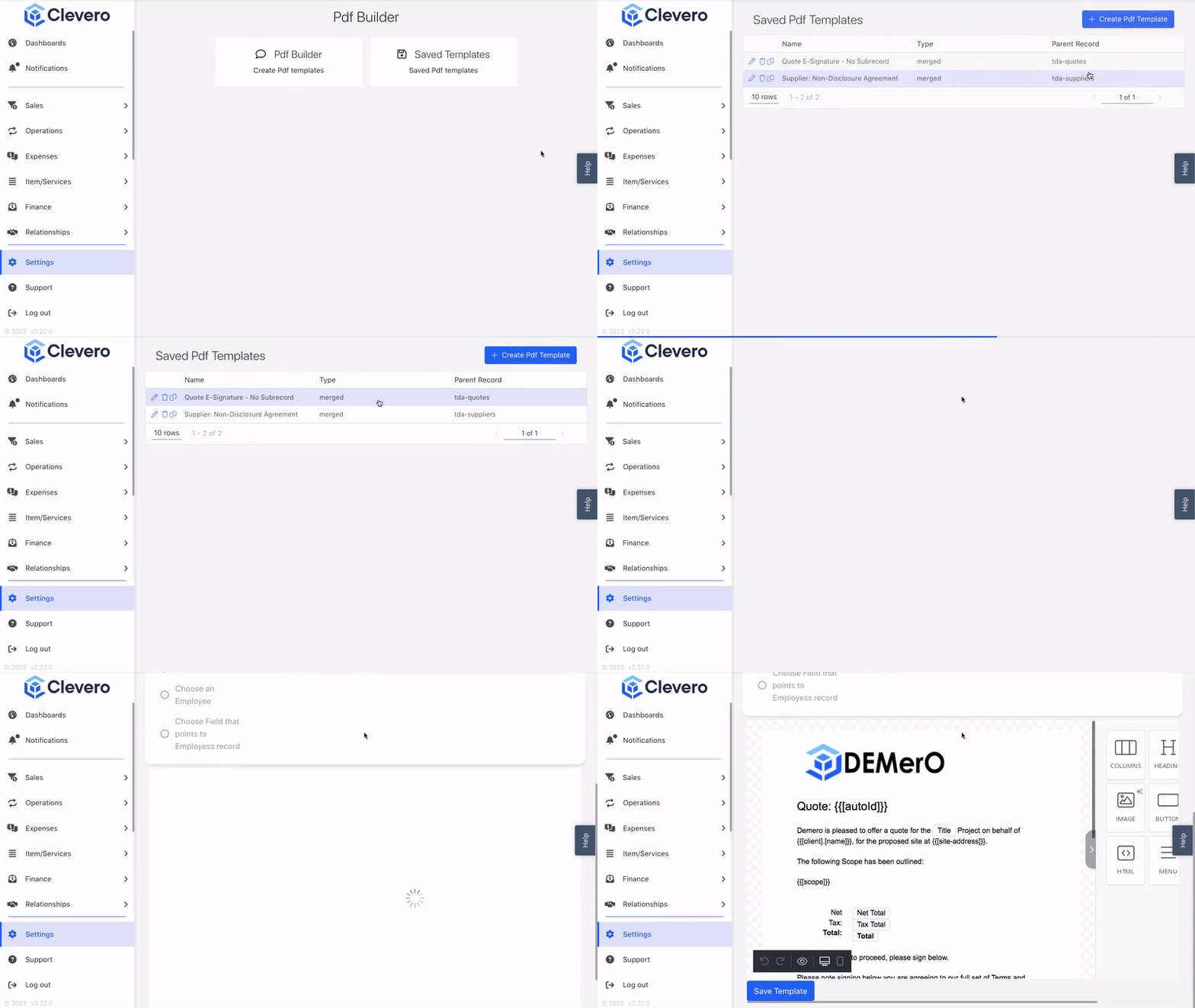
- Click on "Pdf Builder" to create a PDF Template.
- Select a record for which you want to create the template. This record will be associated with the generated PDF.
- Choose a "Uniquely Identifying Field" for the template. This field helps in uniquely identifying the records associated with the PDF Template.
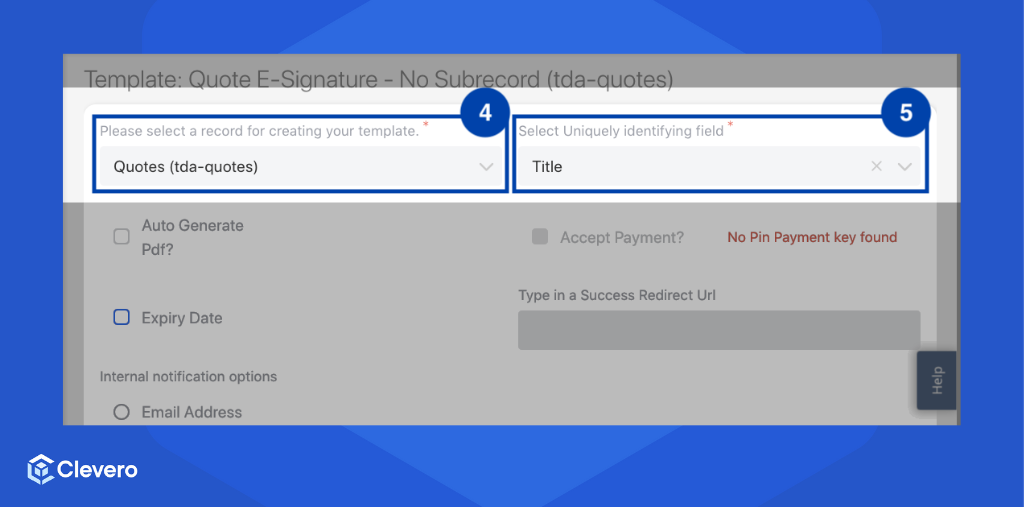
- Specify the following options:
| Options | Details |
|---|---|
| Auto Generate Pdf? | If enabled, the PDF will be automatically generated once the associated record is created or updated. |
| Expiry Date | Set an expiry date for the PDF, after which it will no longer be accessible or editable. |
| Accept Payment? | If enabled, the PDF can redirect users to a payment process through a third-party service after they sign the document. This is useful for collecting payments for services or products related to the document. |
| Type in a Success Redirect Url | Specify a URL to which users will be redirected after successfully signing the document. |
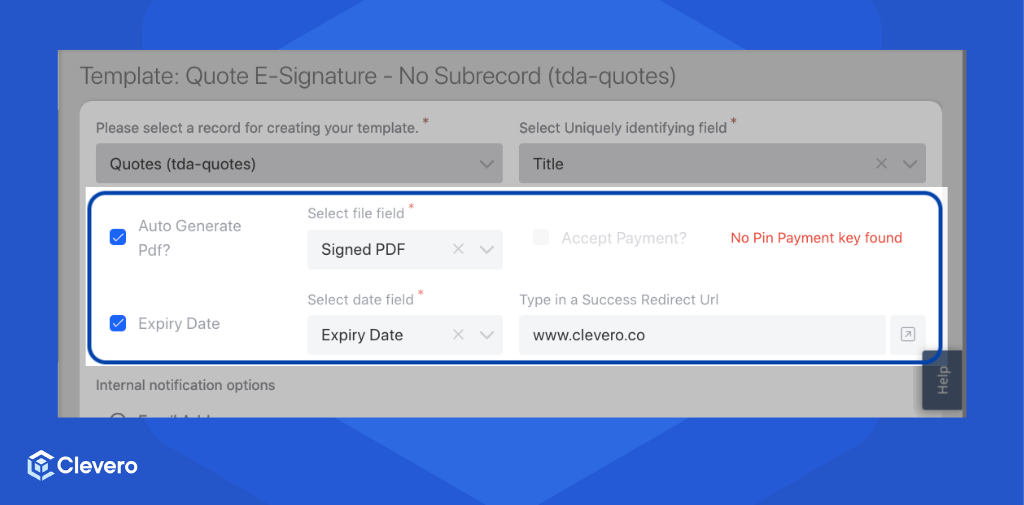
Info:The "Accept Payment" can be done by specifying the pin payment. Further details on this matter will be discussed in the Standard Connectors page.
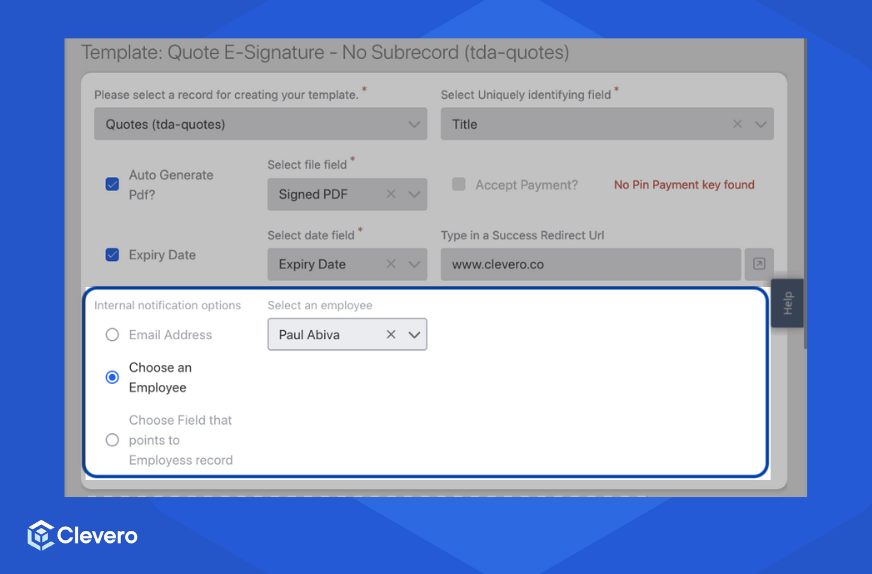
- Determine the internal notification options:
- Email Address, enter the email address(es) of the recipients who should receive notifications when the PDF is signed, or actions related to the PDF Template are performed.
- Choose an User, select one or more users who should receive notifications.
- Choose a Field that points to the Employees record. If you have a field in the record that links to a user, you can choose that field, and the linked user will receive the notifications.
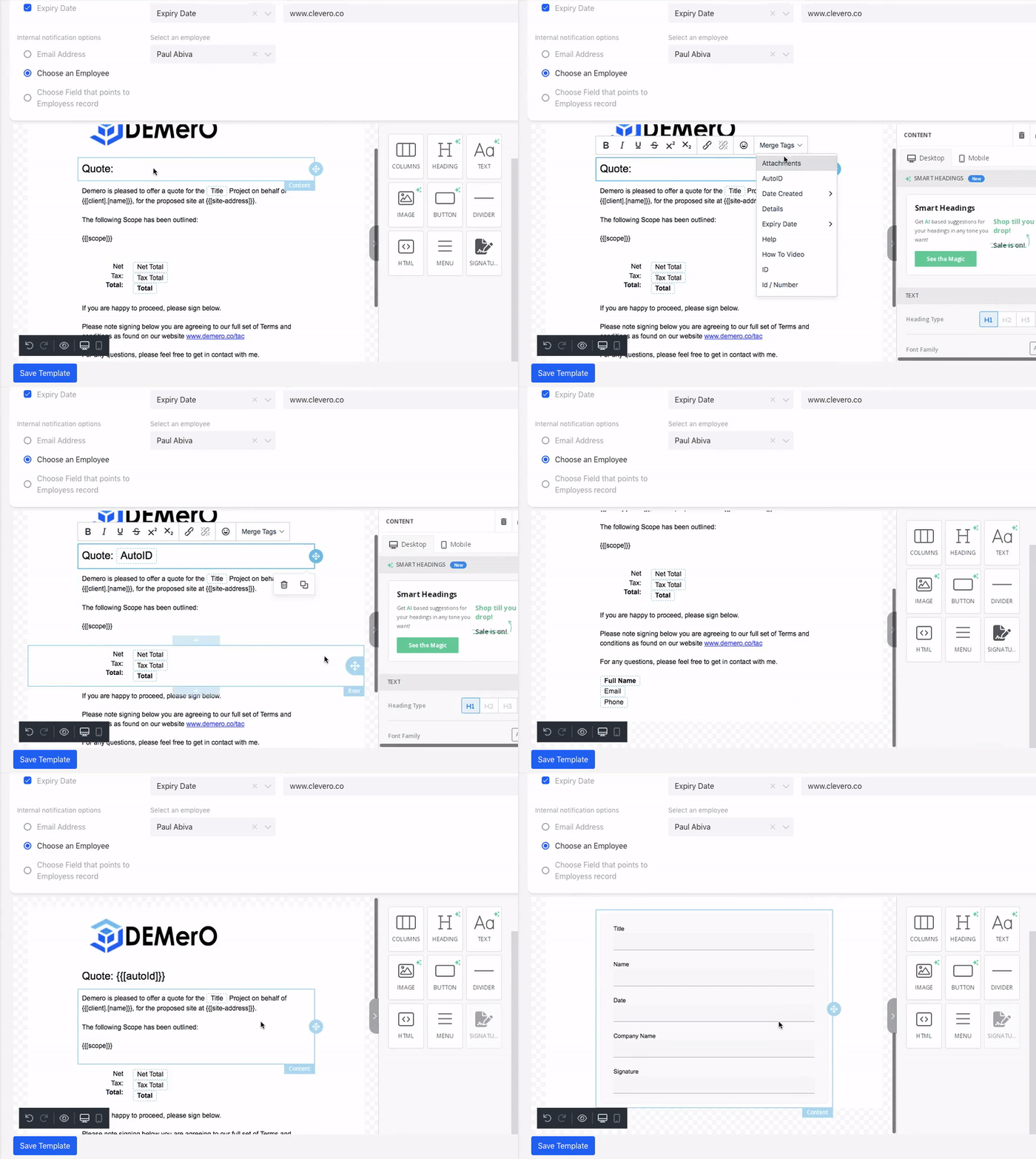
- What sets PDF Template apart from document templates is that you can directly drag and drop the necessary elements into your PDF Template, add Merge Tags, and add the eSignature ability.
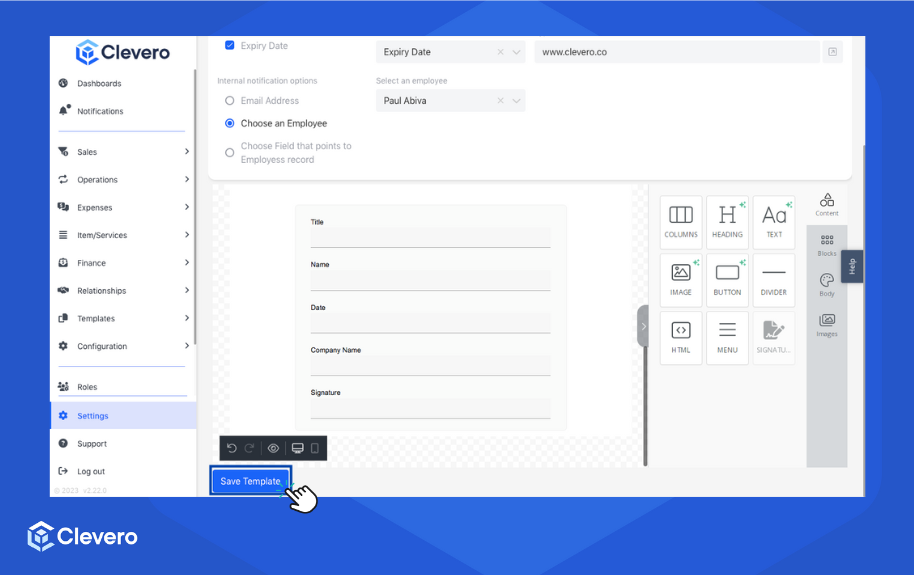
- Click the "Save Template" button to save the PDF Template.
2. Editing Docx Templates
After successfully creating a PDF Template, you may want to modify it. Go to the "Saved Docx Templates" option and select the desired template you wish to modify.
📌 Need Help?

Updated over 1 year ago
Did this page help you?