
2FA Authentication
Secure your account with 2FA Authentication.
Two-Factor Authentication (2FA) adds an extra layer of security to ensure only you can access your account—even if someone else knows your password. Every new Clevero user will be assigned 2FA for enhanced security.
Note2FA must be requested by your Organisation’s Admin. To activate or disable 2FA for your Organisation, please contact our support team.
Setting Up 2FA for the First Time
PrerequisiteDownload an authenticator app on your mobile device, such as Google Authenticator.
Below are instructions demonstrating the 2FA initialisation process for your users when they log in for the first time.
- Log in to the Clevero app.
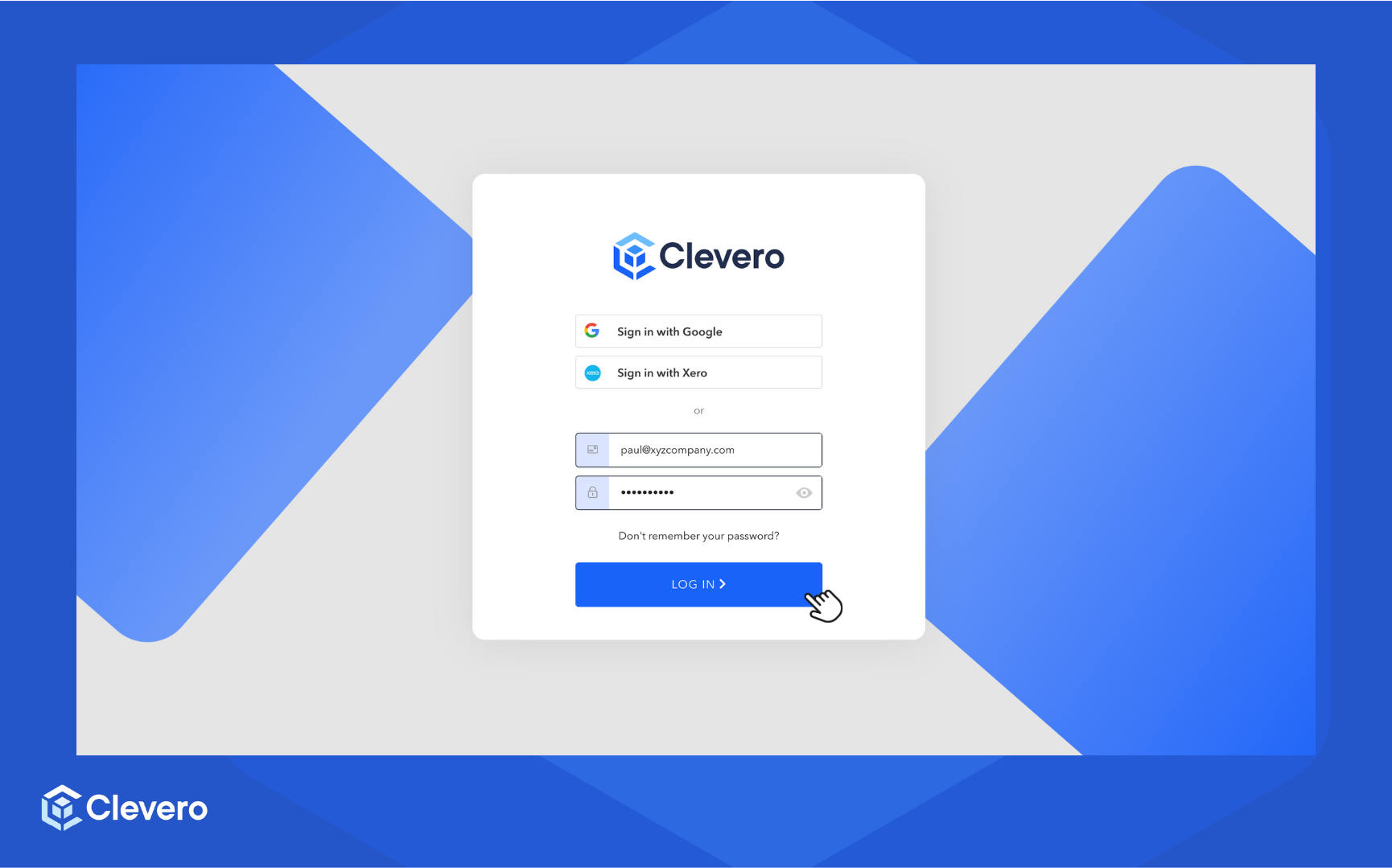
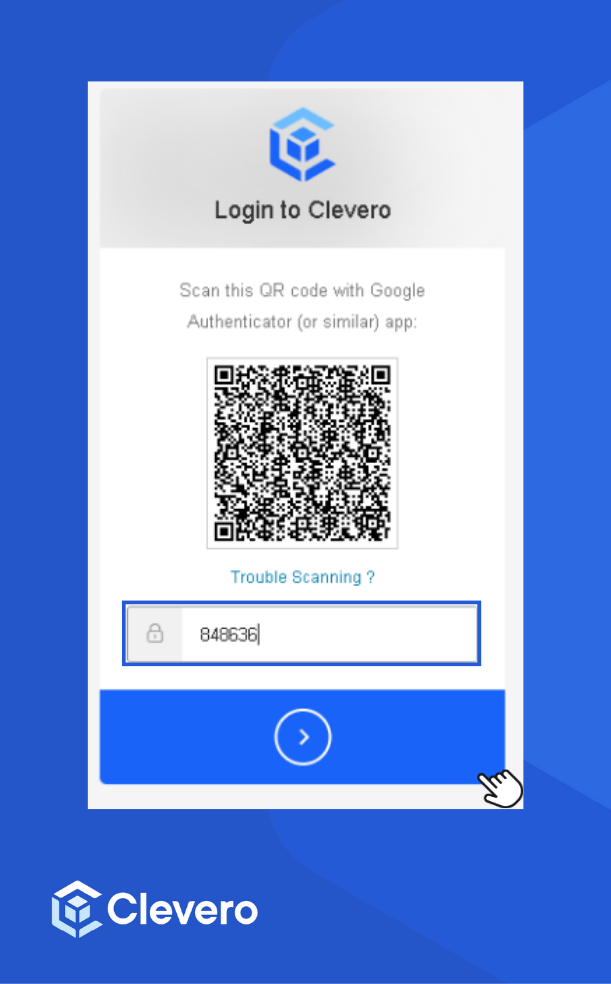
- You will be directed to the 2FA setup page.
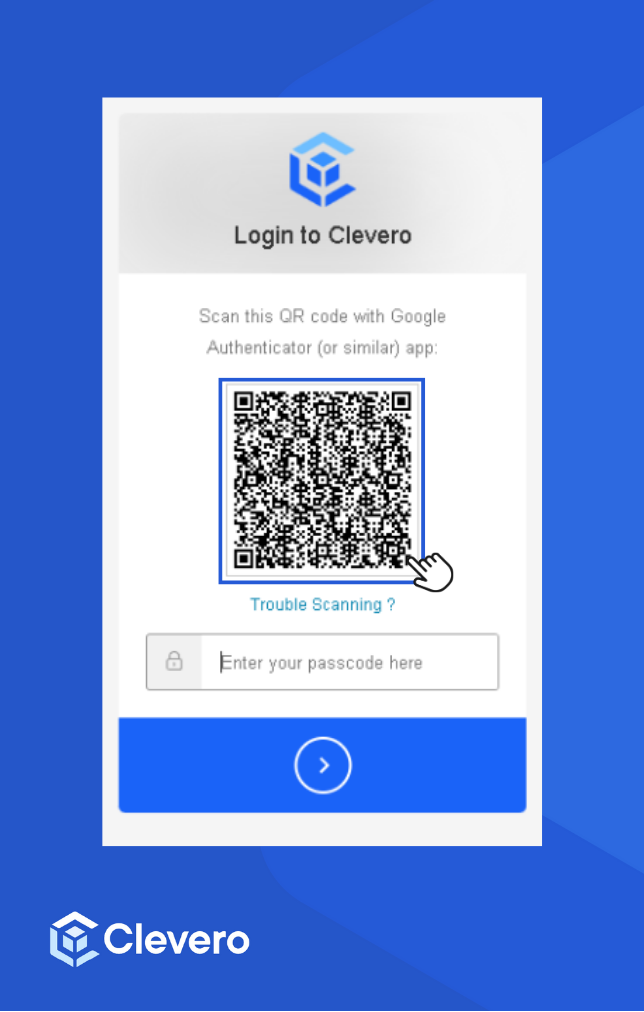
- Open your authenticator app and select the "Scan a QR code" option. Scan the QR code displayed on the 2FA setup page.
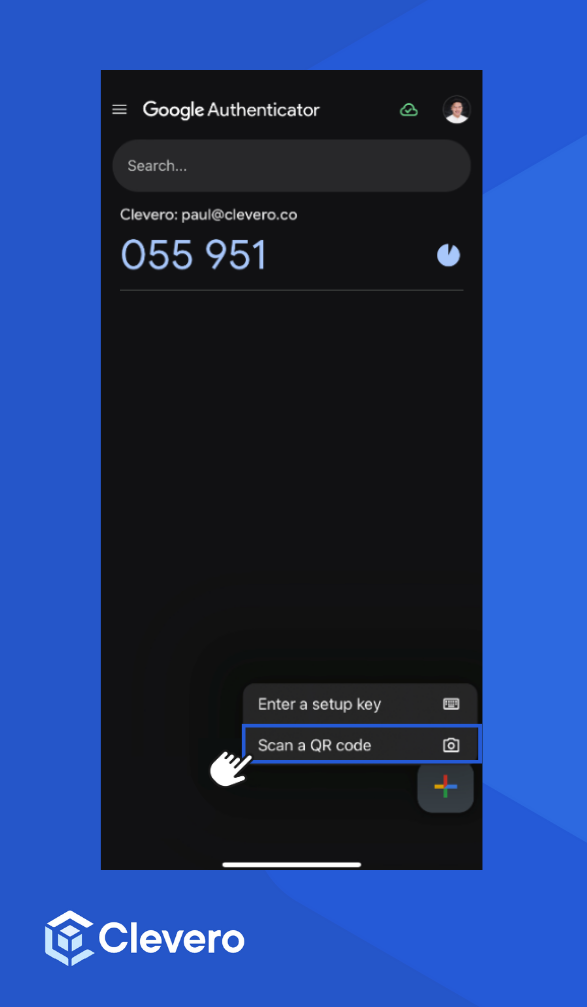
- The authenticator app will automatically generate a new code every 15 seconds. Copy the code displayed.
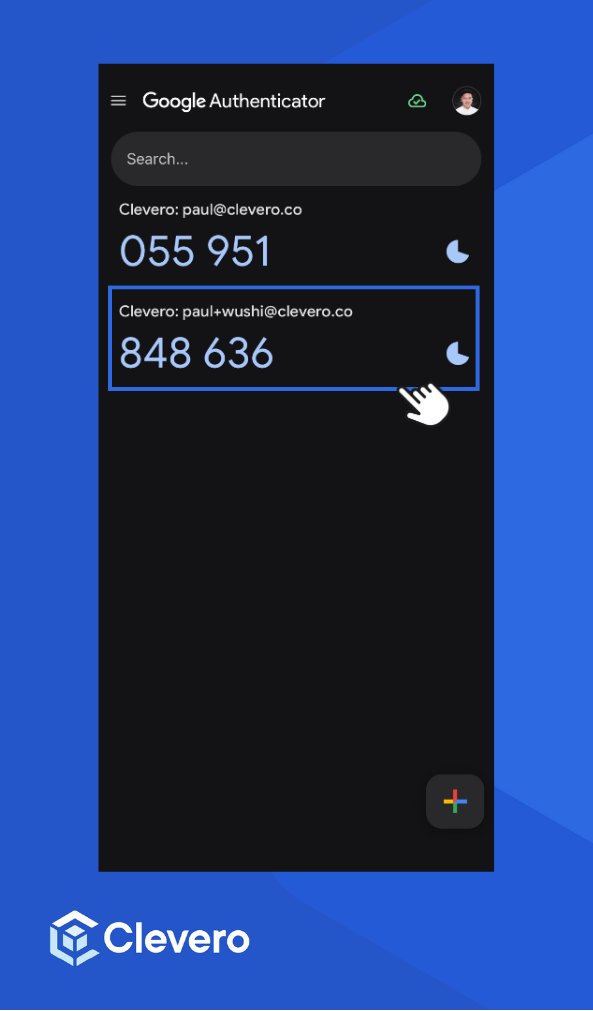
- Paste the copied code into the field on the Clevero app's 2FA page. Click the login button.
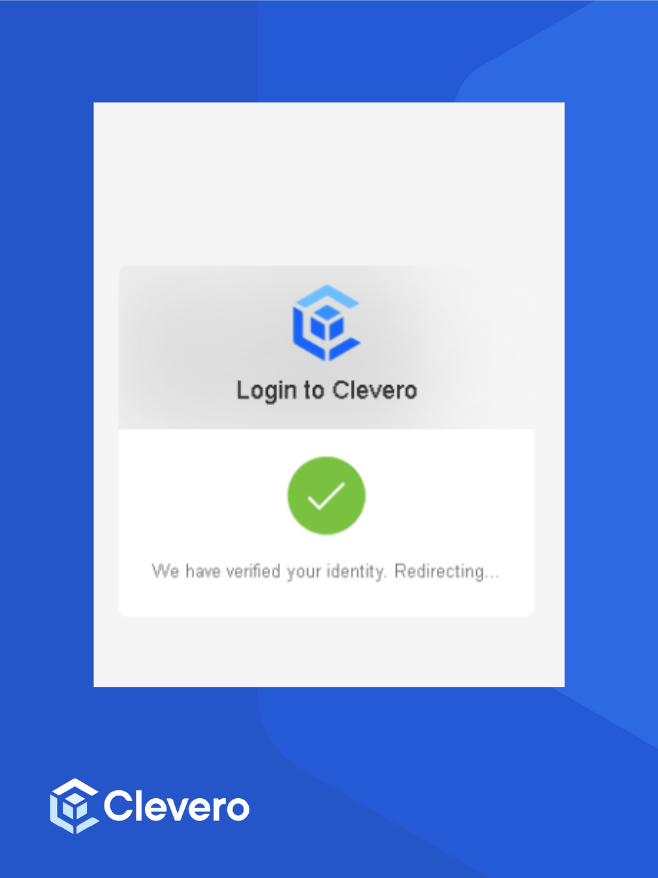
- Upon successful verification, you will be redirected to the Clevero app dashboard.
InfoOnce you've scanned the QR code into your authenticator app, you just need to use the code it generates for future logins.
Resetting 2FA
If you lose access to your authenticator app (for example, due to a lost or changed device), you will need to request a 2FA reset.
To reset your 2FA:
- Submit a support ticket to the Clevero support team, or
- Email [email protected] with your request
Once your request is processed, the support team will reset your 2FA, and you will be prompted to set it up again the next time you log in.
📌 Need Help?

Updated 6 months ago