
Importing Files in Bulk
📥 Bulk Import Made Simple: Streamline File Uploads in a Few Clicks.
1. Importing Format
| Format | Details |
|---|---|
| File Types | We cover many file types, including images, text documents, PDFs, and other text-based files. |
| File Format | You have two options to choose from:
|
2. How to Import the Data?
Watch the guided demo below to see how to import files in bulk.
You can also follow the same steps using the written guide below.
Step 1: Import Files in Bulk
- Go to "Settings" > "System Settings".
- Select the "Bulk Import Files".
- Click the "Choose files" button to select the files you want to import. You can upload multiple files simultaneously or zip files.
- Select "Upload" to proceed.
- Please wait for the system to complete the importing process.
Step 2: Export the CSV File
- Click the Download button to export a CSV file containing the details of your imported files.
- You've successfully imported your files in bulk. The CSV file provides essential information, including unique keys for each file stored in AWS S3.
- When working with the CSV file, ensure that you include a column with the corresponding file keys received from the bulk files import process. Depending on your scenario, there are two cases to consider:
- Importing a Single File
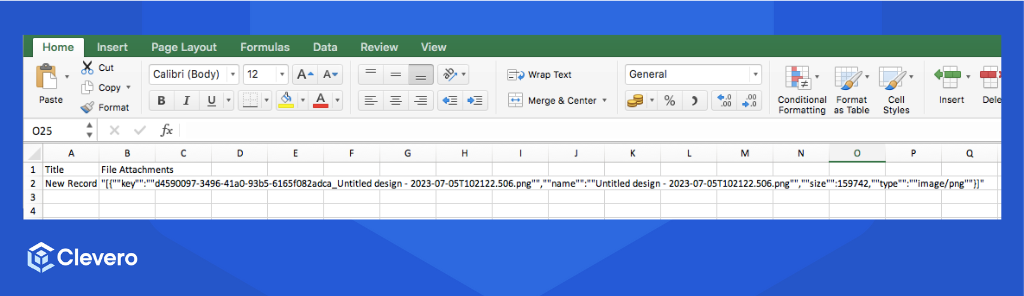
- Importing Multiple Files
If you're importing multiple files, you will get all the data from every imported files in one CSV file. Please ensure that you format the file keys in an array format, as shown in the example below:
"[{""key"":""file's key"",""name"":""file's name"",""size"":26726,""type"":""image/png""},{""key"":""file's key"",""name"":""file's name"",""size"":25927,""type"":""image/png""},{""key"":""file's key"",""name"":""file's name"",""size"":20695,""type"":""image/png""}]"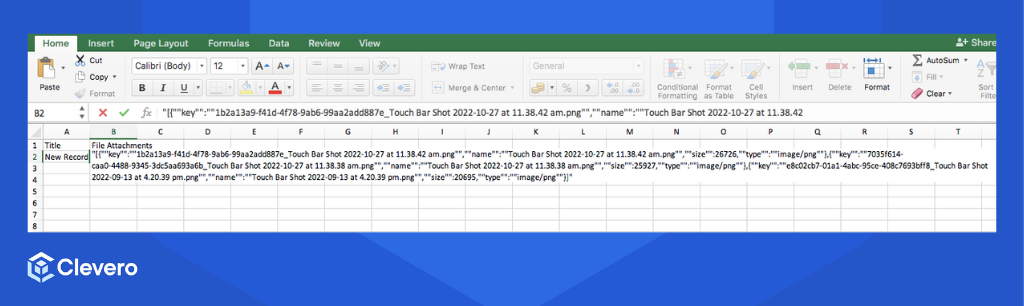
Info:For detailed instructions on importing the CSV file into the specific record, please refer to the Importing Spreadsheets page.
📌 Need Help?

Updated 4 months ago
Did this page help you?