
How to Share a Dashboard Tab Link
Share a direct link to any dashboard tab so a teammate can open that exact view instead of being talked through how to get there.
1. Overview
Each dashboard tab, for example, Summary, Financial Summary, Student Summary, Gender Summary, has its own link. Selecting a tab updates the address bar to match it, so that link can be bookmarked or shared with someone else to open the same tab directly, rather than the default view. Navigating back between tabs continues to work as expected.
2. Benefits
This makes it possible to:
- Bookmark the dashboard tab you use most often.
- Send someone a direct link to a specific tab, such as Summary or Financial Summary, instead of explaining how to get there.
- Move between tabs and back again without losing your place.
3. Sharing a Dashboard Tab Link
-
Go to the dashboard.
-
Select the tab you want to share, such as Student Summary or Gender Summary.
-
Copy the link from the browser's address bar.
-
Share the link with the person who needs it.
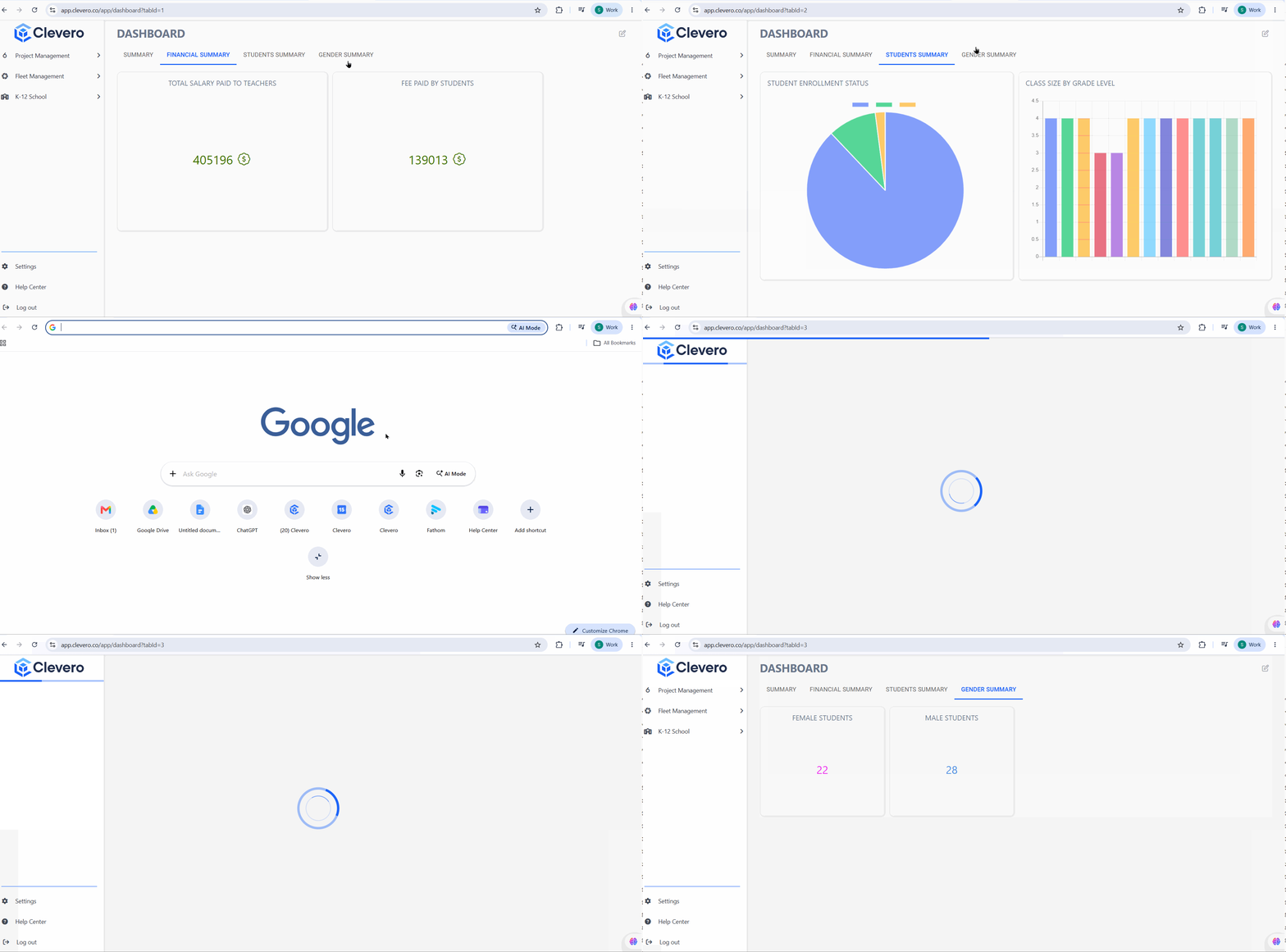
Opening the link takes the recipient straight to that tab.
4. Notes
📘 Note: This applies to all dashboard tabs.
📌 Need Help?
If you require assistance or encounter any issues, please don't hesitate to contact us for further support.
Updated about 6 hours ago