
Task Timer
Task Timers is a feature in Clevero that allows users to track working hours and time spent on tasks. Users can either:
- clock on and off for their workday
- track time directly against specific tasks
- manually log time entries
Access the Task Timer
There are two ways to access the Task Timer:
Option 1: Access via Task Time Navigation
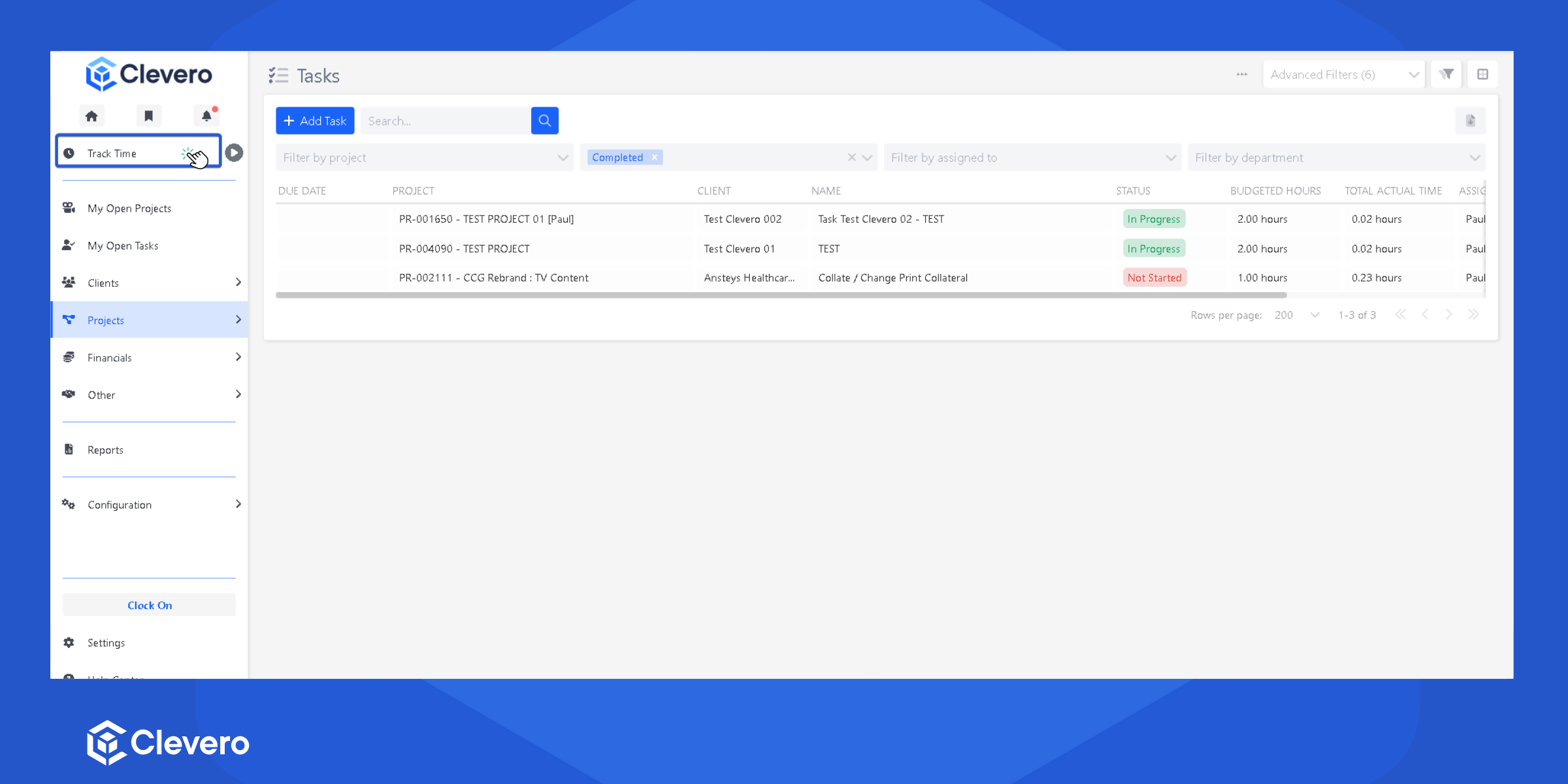
The Task Timer page contains two tabs:
Timer
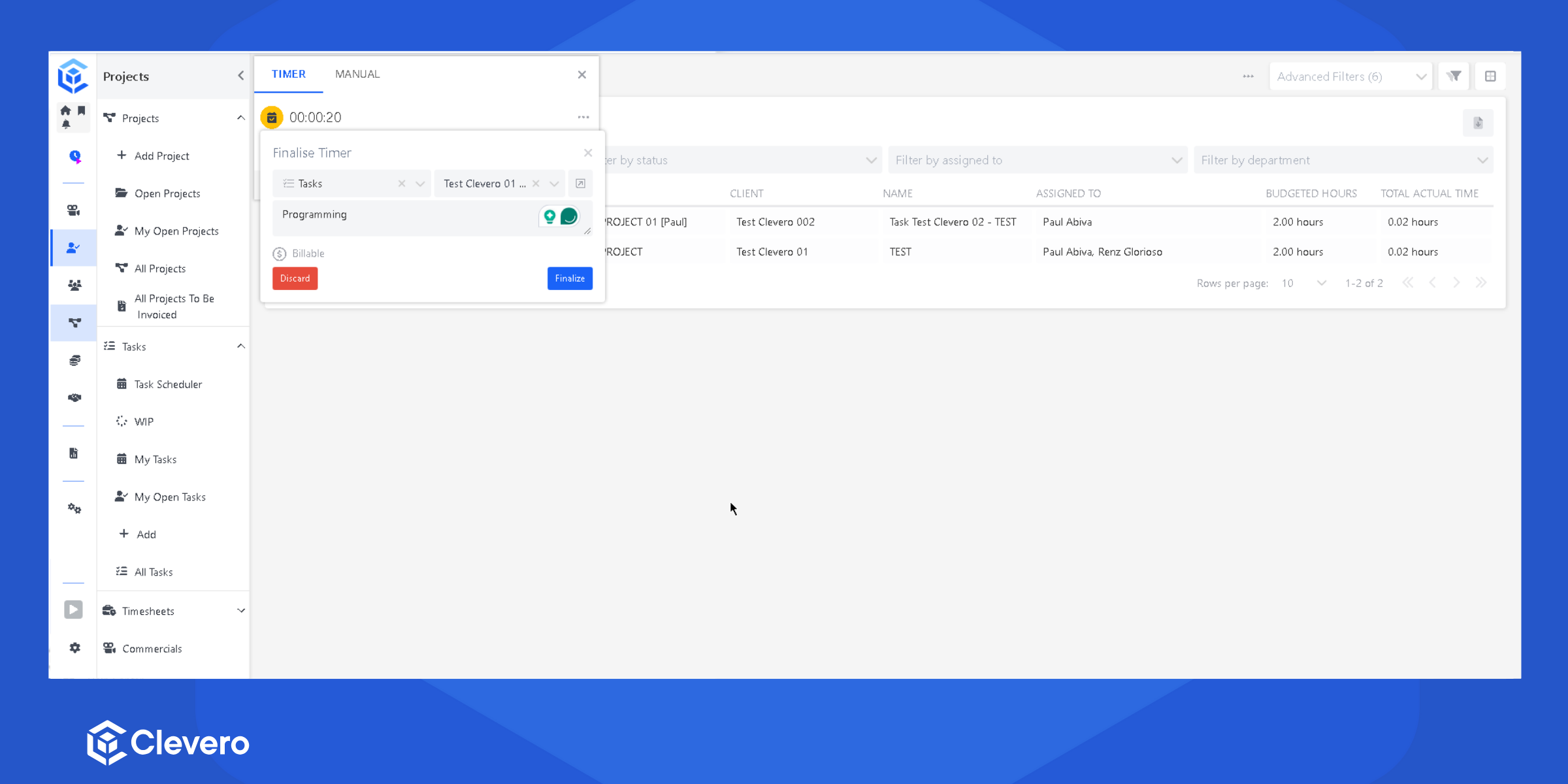
Use the TIMER tab to track time while actively working on a task.
Start Tracking Time
- Select the Record and Entry you want to track.
- Click Start Time to begin tracking.
Stop Tracking Time
After completing the task:
- Click Start Time again to stop the timer.
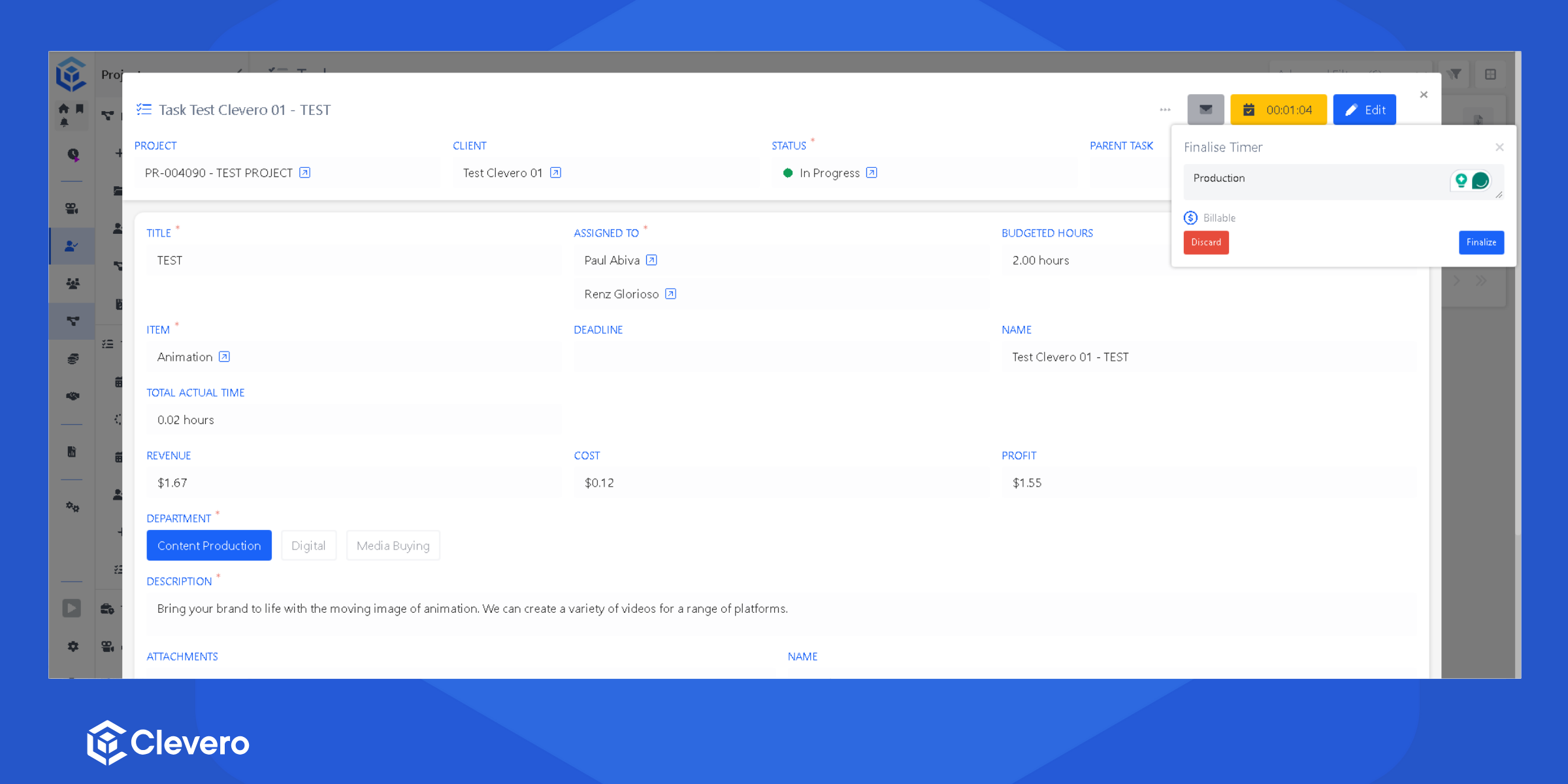
- A modal appears with the following options:
| Option | Description |
| ------------ | ------------------------------------- |
| Notes | Add additional details about the task |
| Billable | Mark the tracked time as billable |
| Discard | Cancel the tracked time |
| Finalize | Save and confirm the tracked time |
Manual
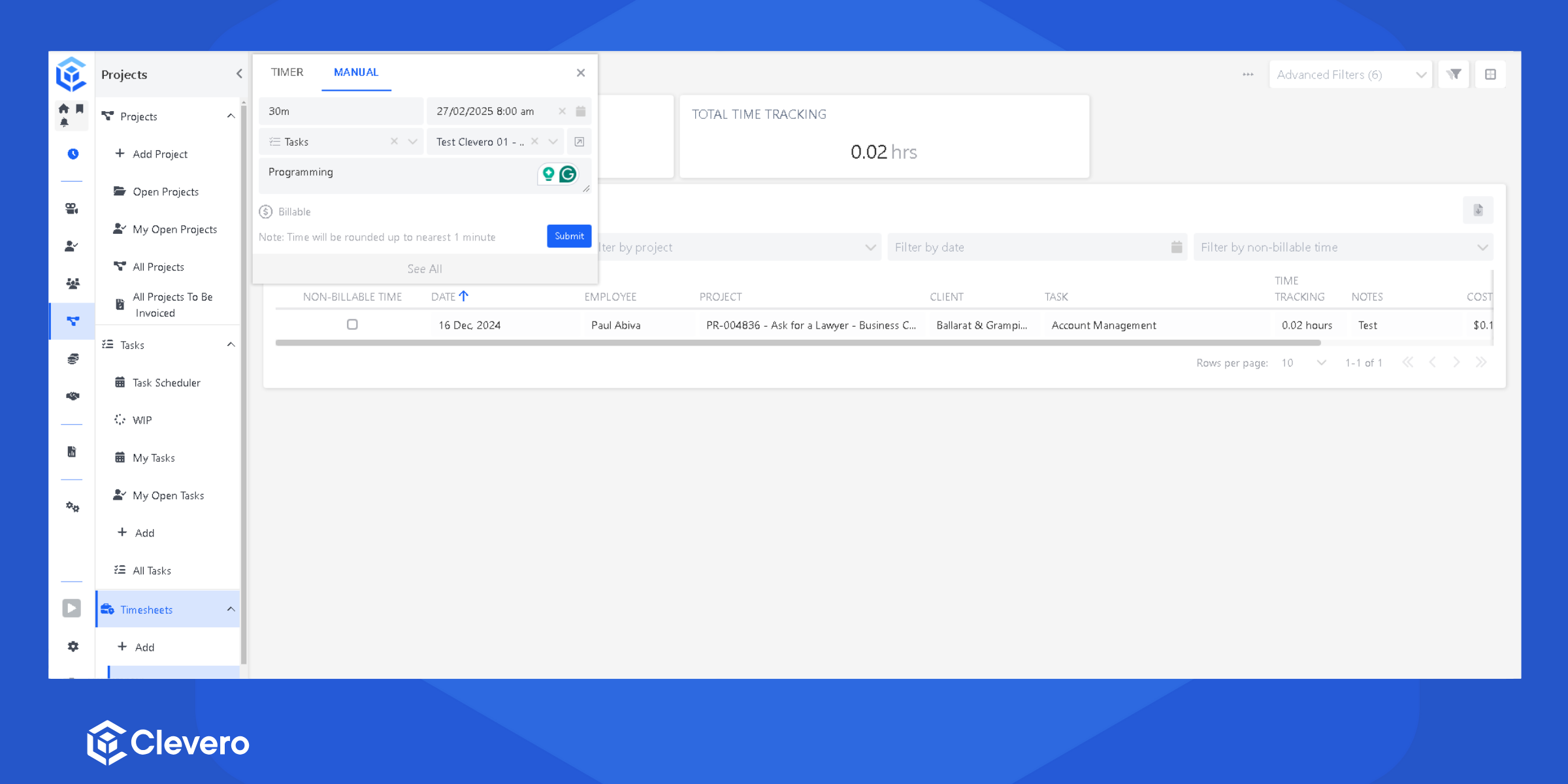
Use the MANUAL tab to manually create a time entry.
-
Enter the following details:
| Field | Description |
| ------------ | ---------------------------- |
| Duration | Total time spent on the task |
| Date | Date of the work entry |
| Record | Associated record |
| Entry | Associated task or entry |
| Billable | Marks the entry as billable |
| Notes | Additional task details | -
Click Submit to save the time entry.
Option 2: Access via Start Time Entry
You can also start tracking directly from an entry.
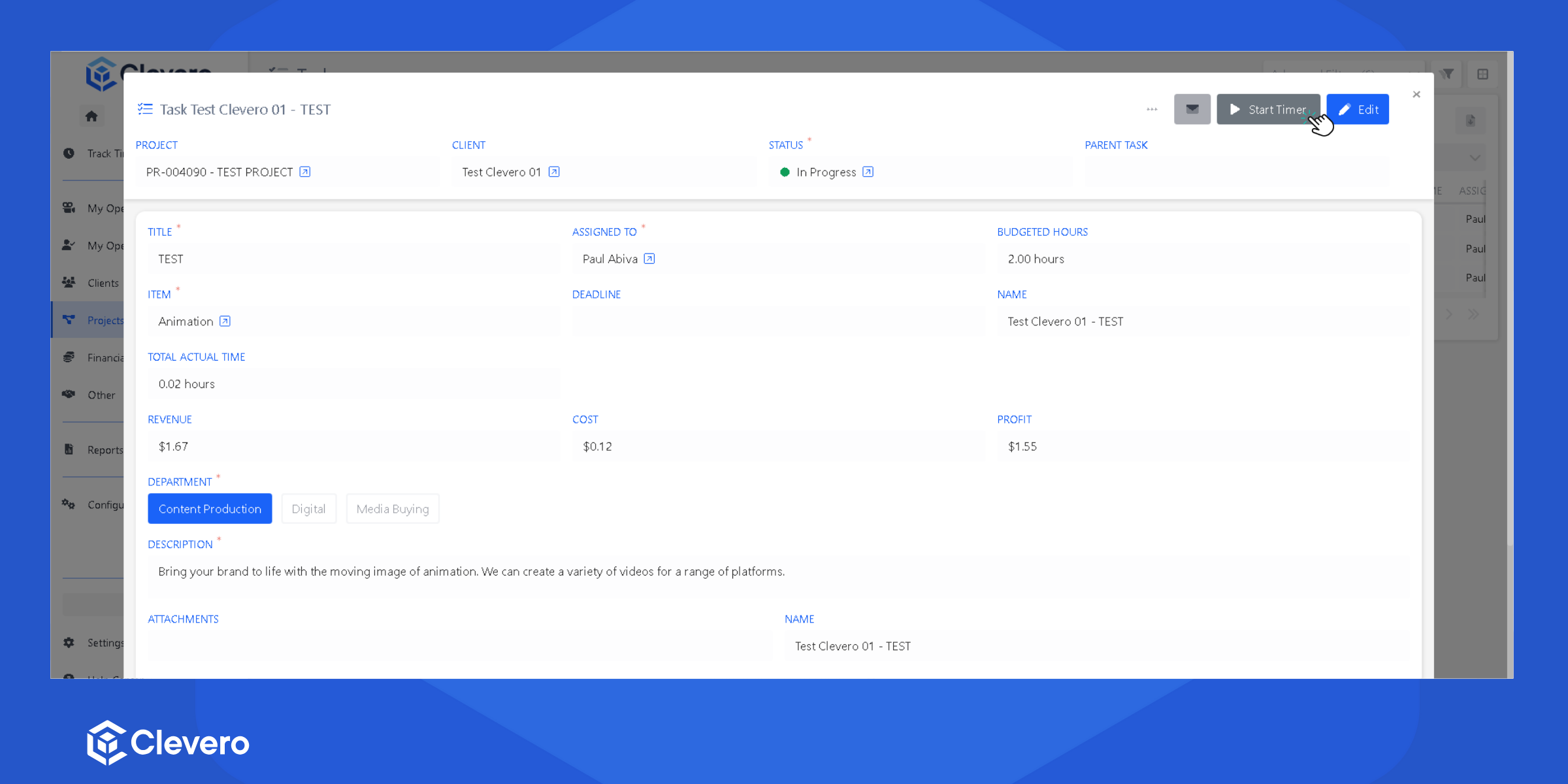
Start Tracking
- Click Start Time on the entry to begin tracking.
Stop Tracking
After completing the task:
- Click Start Time again to stop tracking.
- A modal appears with the following options:
| Option | Description |
| ------------ | --------------------------------- |
| Notes | Add additional task details |
| Billable | Mark the time as billable |
| Discard | Cancel the tracked time |
| Finalize | Save and confirm the tracked time |
Clock On
Use Clock On to track your overall working hours for the day.
Access Clock On
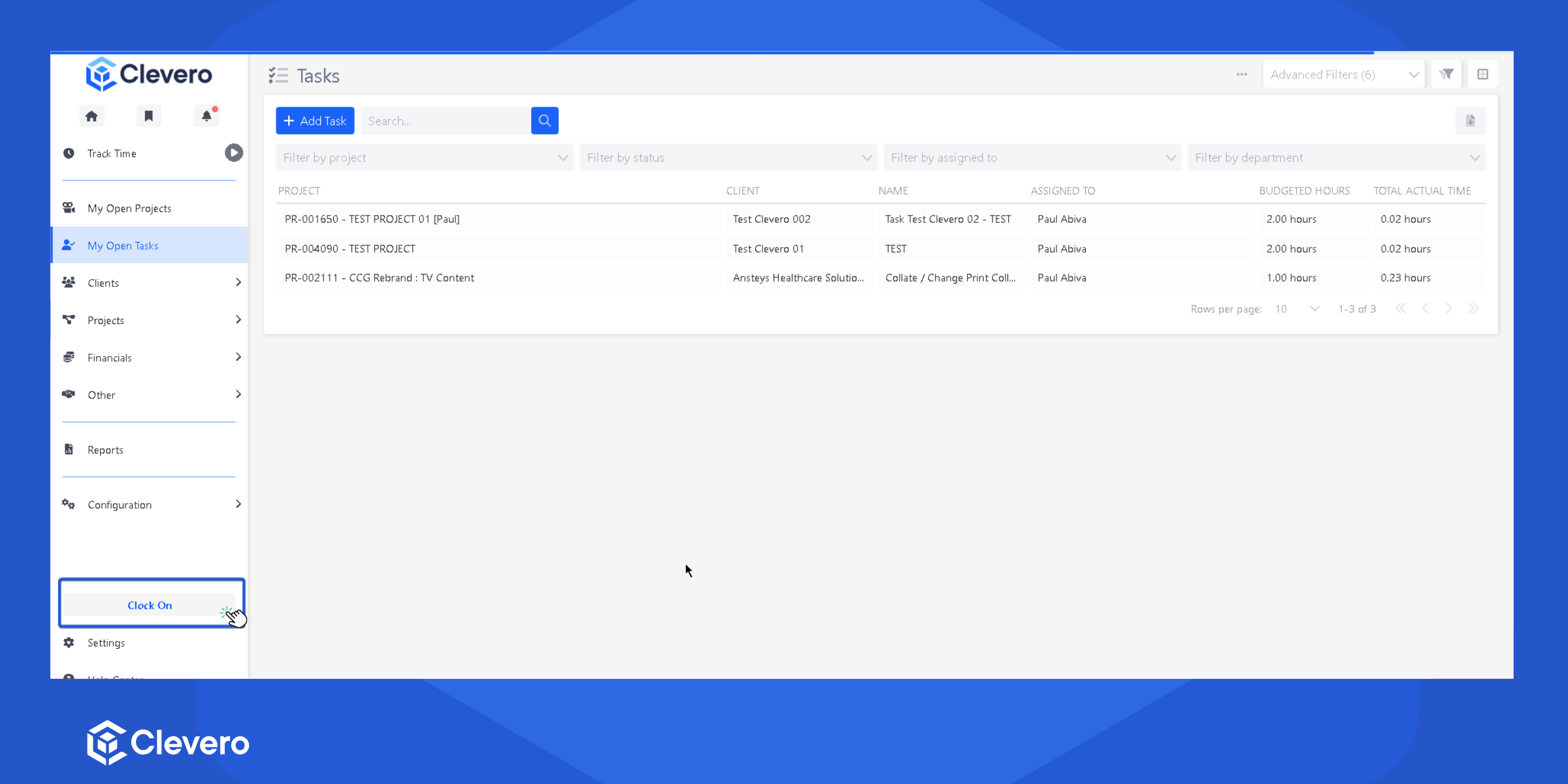
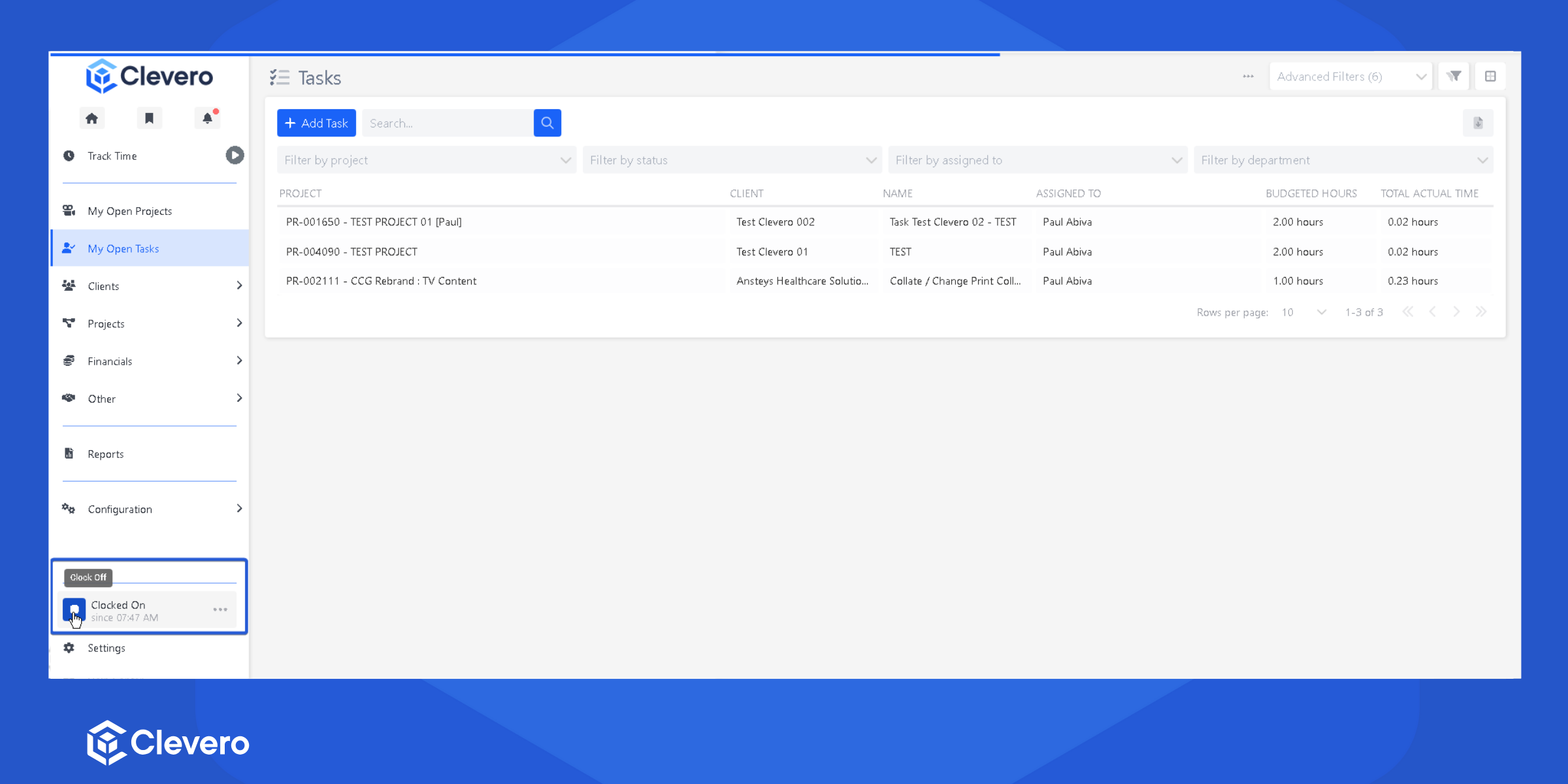
- Click Clock On from the navigation menu.
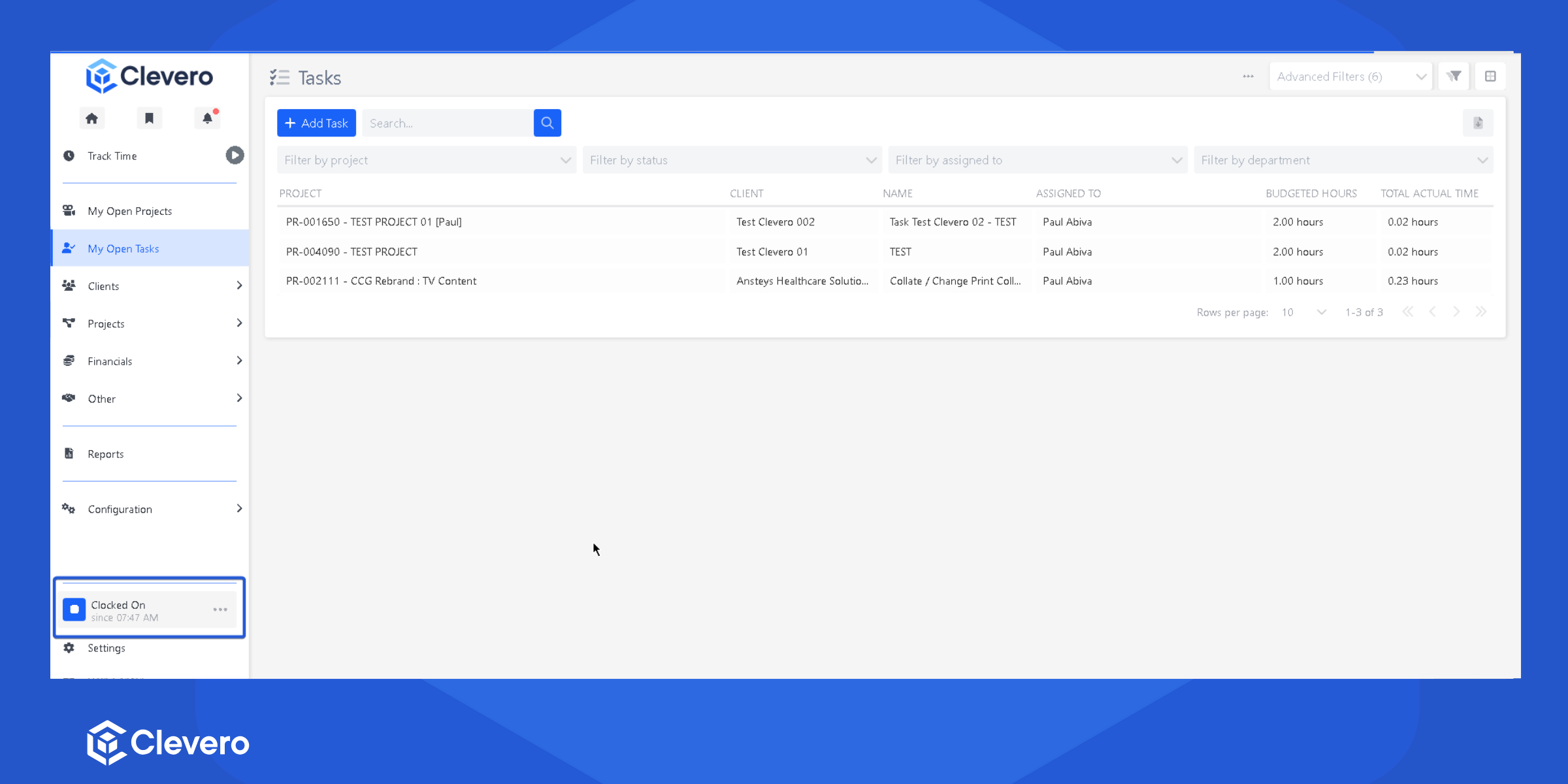
- After clocking on, it will display the date and time of your clock-on entry.
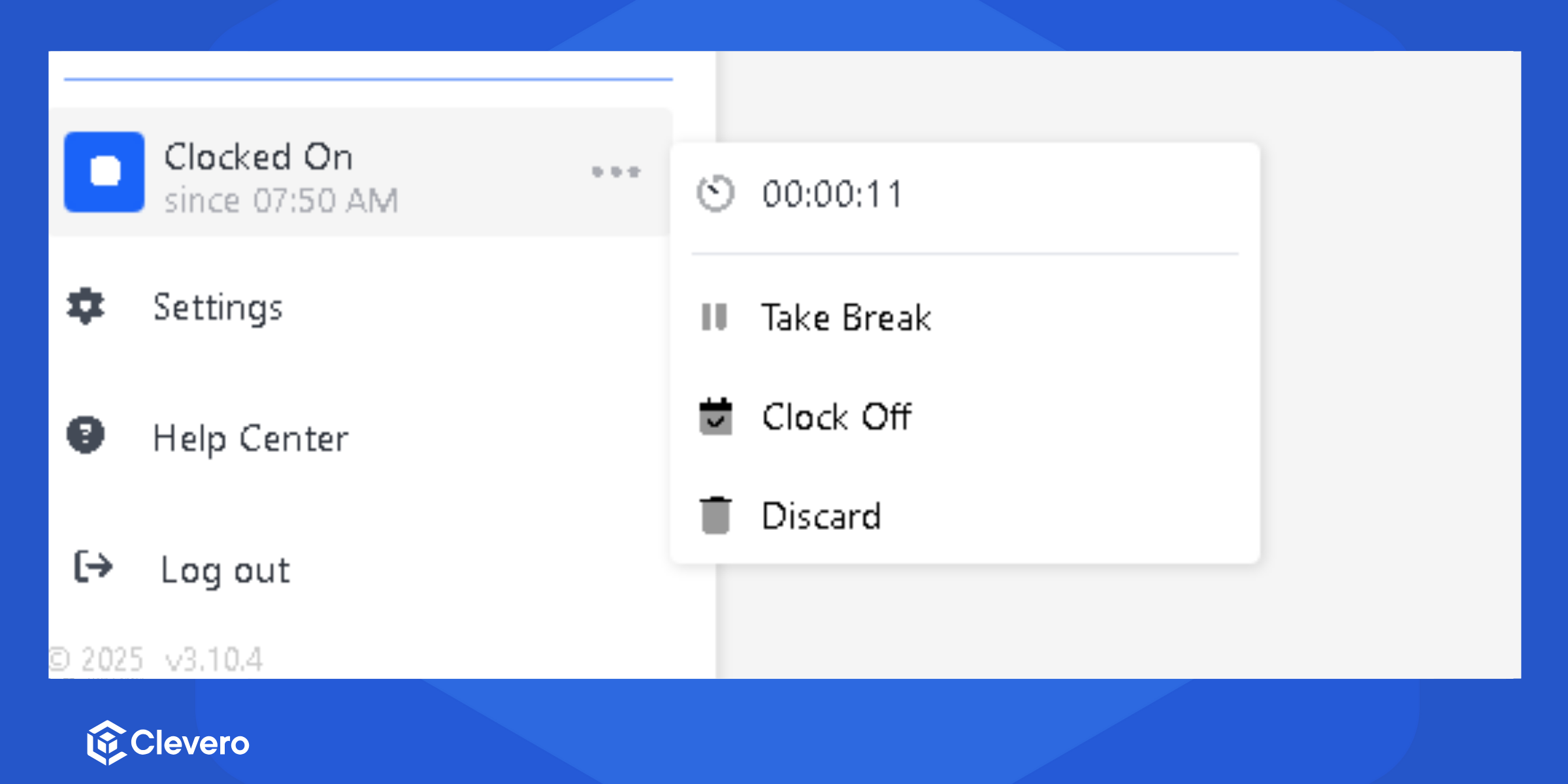
- You can manage your clock by clicking the three dots menu, which will show options for:
- The Date: Displays the current date for reference.
- Take Break: Allows you to log a break during your shift.
- Clock Off: Ends your shift and records your clock-out time.
- Discard: Cancels any unsaved changes or actions.
- Click Clock Off to end your work session and record your clock-out time.
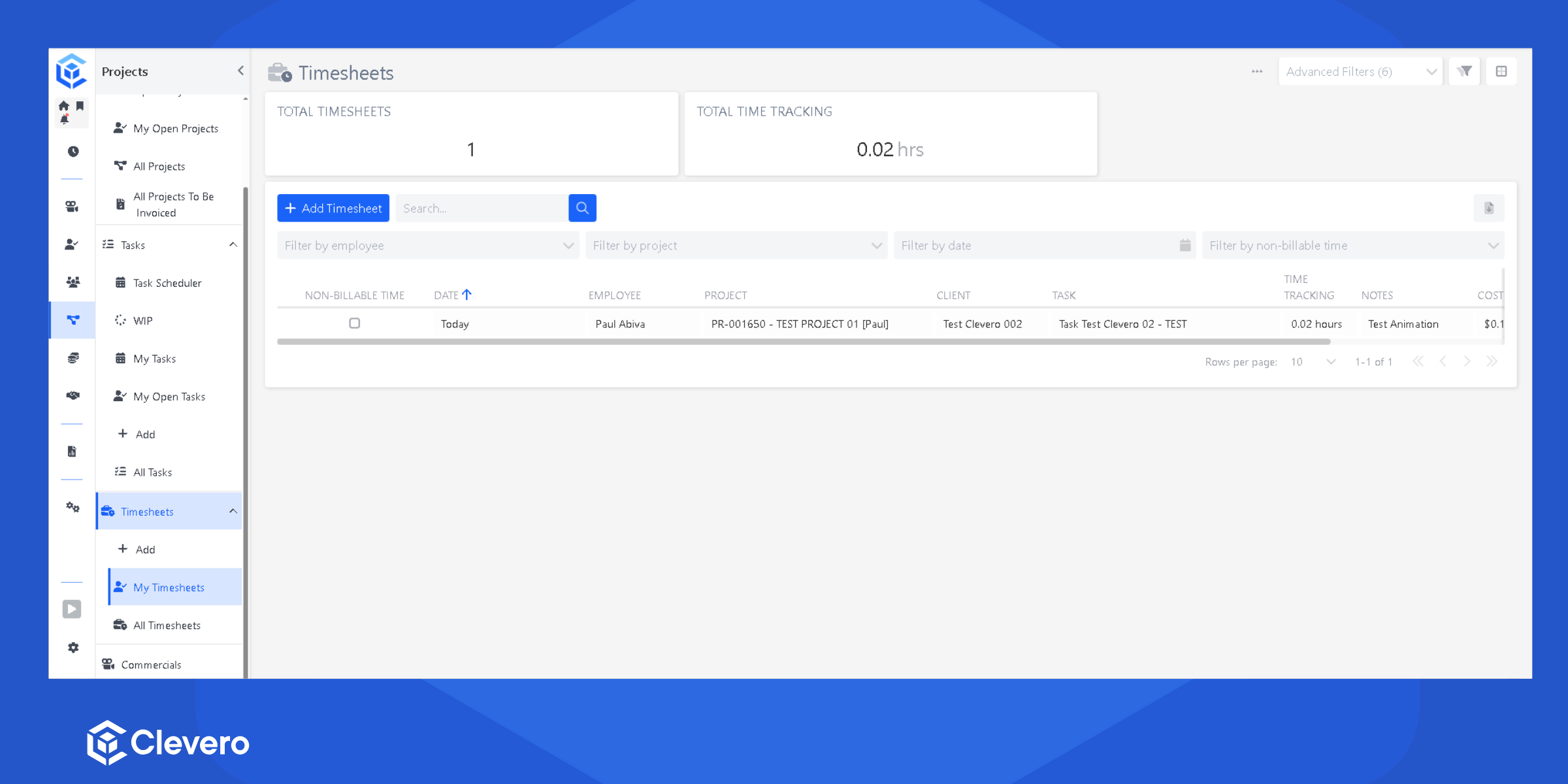
- To review your logged work hours and tracked tasks, go to My Timesheet.
📌 Need Help?

Updated 5 months ago