
Lists
💡A list of related records or items for convenient access, retrieval, and management.
1. Standard Lists
A Standard Lists refers to a ready-to-use set of options or values the system or application provides. These options are commonly used and cover general or commonly occurring scenarios. Users can select from the available options when creating or editing a field.
Note:The existing standard list cannot be modified.
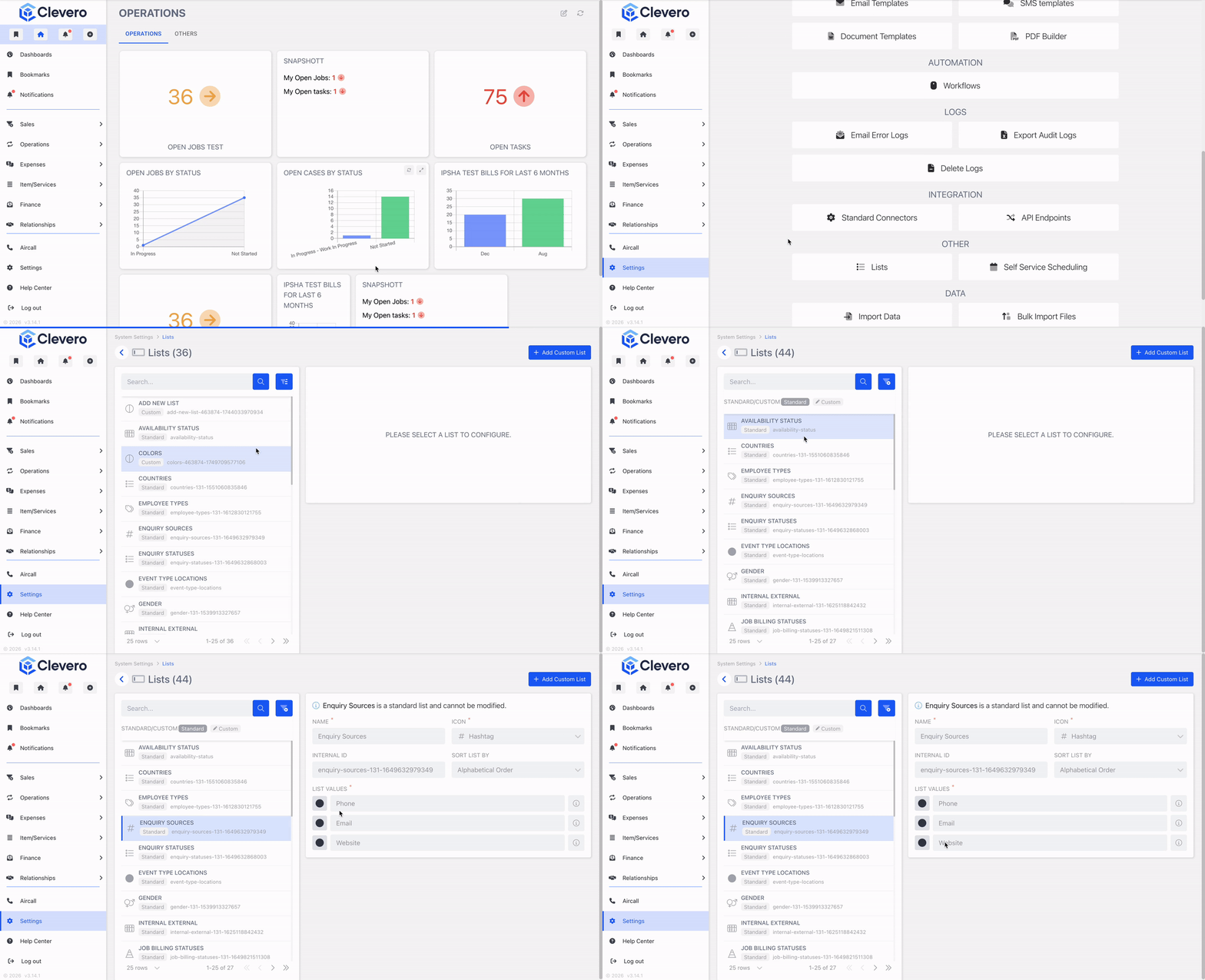
2. Custom Lists
On the other hand, a Custom Lists allows users to define their own set of options or values for a field. This provides flexibility to tailor the list to specific needs or requirements. Users can add, remove, or modify the options according to their unique context or preferences.
Watch the guided demo below to see how to create a list.
You can also follow the same steps using the written guide below.
- Go to "Settings" > "System Settings".
- Search and choose "Lists".
- Click the "+ Add Custom List" button.
Info:Refer below the ability to search, sort, and filter fields effortlessly.
- Fill in all settings provided:
- Name: A title or label for a list.
- Icon: A visual representation or symbol associated with a specific list.
- Sort List By: The order in which items are displayed in a list. You have two options for sorting the list, Alphabetically and Original Order.
- Alphabetical Order: The list will be arranged in ascending or descending order based on their names or labels.
- Original Order: The list by the original order preserves the sequence in which the items were entered or added.
- Specify the value > click "Add Item to add more values.
- Additionally, you can assign a specific colour to each entry to indicate a different value.
- Click on the "Save" button to save the changes.
- After creating the list, you can assign it to a new or existing field. Please refer to the Fields page for more details.
📌 Need Help?

Updated 9 months ago