
User Preferences
⚙️ Customise configurations to manage users based on your needs.
In Clevero, User Preferences are the choices and settings you can adjust to make the platform work just as you like.
Watch the guided demo below to manage user preferences.
You can also follow the same steps using the written guide below.
- Click Settings and then proceed to User Settings.
- Select the Preferences.
- The user can customise three different options:
- Date Display
- Calendar Format
- Table Settings
1. Date Display
Date display provides the flexibility to configure the display of time formats, allowing users to choose between a 12-hour or 24-hour time display.
| Option | Description |
|---|---|
| 12h | Time is divided into two 12-hour cycles, with designations of "AM" for the morning hours and "PM" for the afternoon and evening hours. |
| 24h | Time is represented as a continuous cycle from 0 to 23. This format eliminates the need for AM and PM, as the time progression is counted continuously through the 24-hour day. |
Example of the options
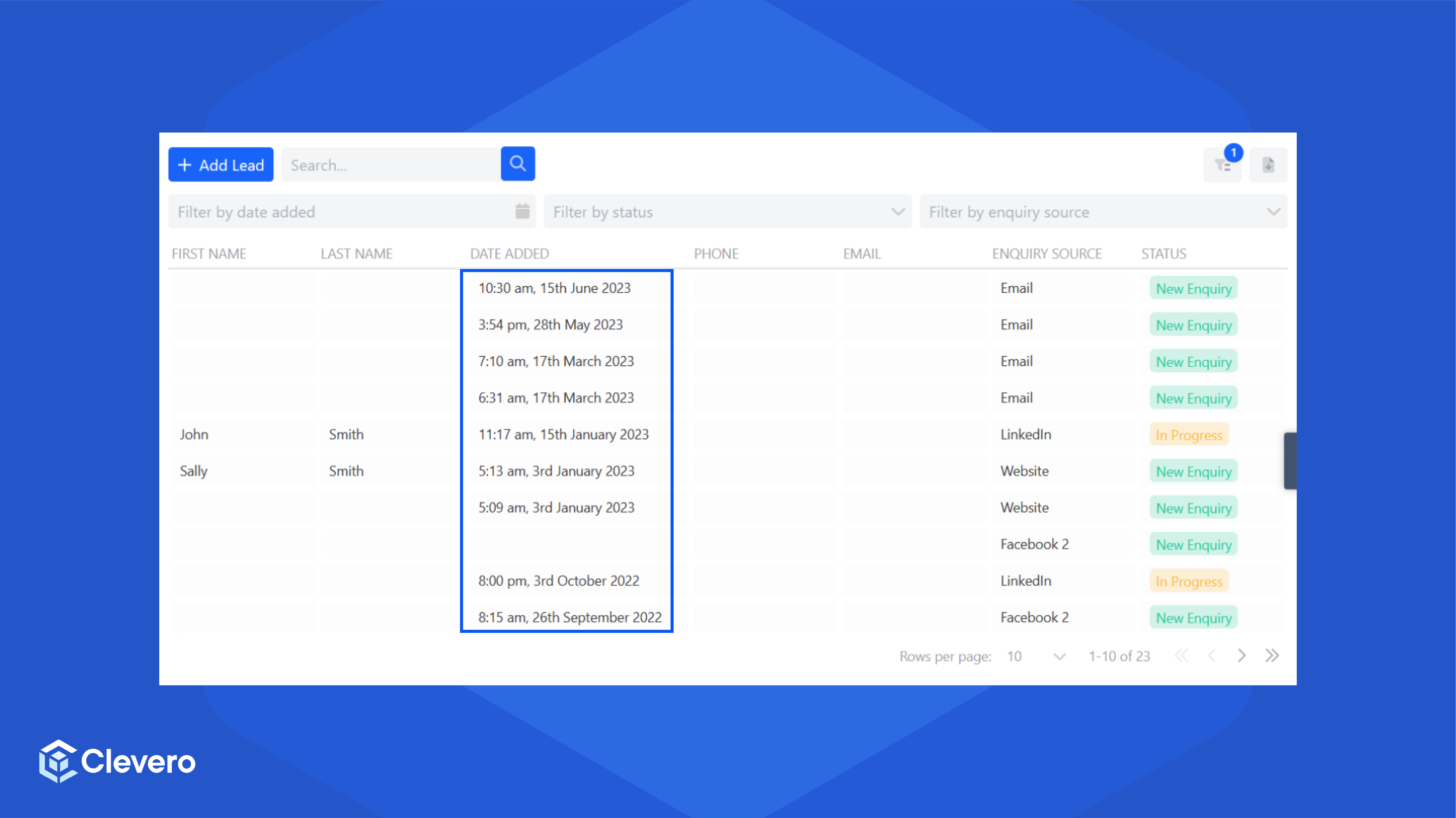
12h Time Format
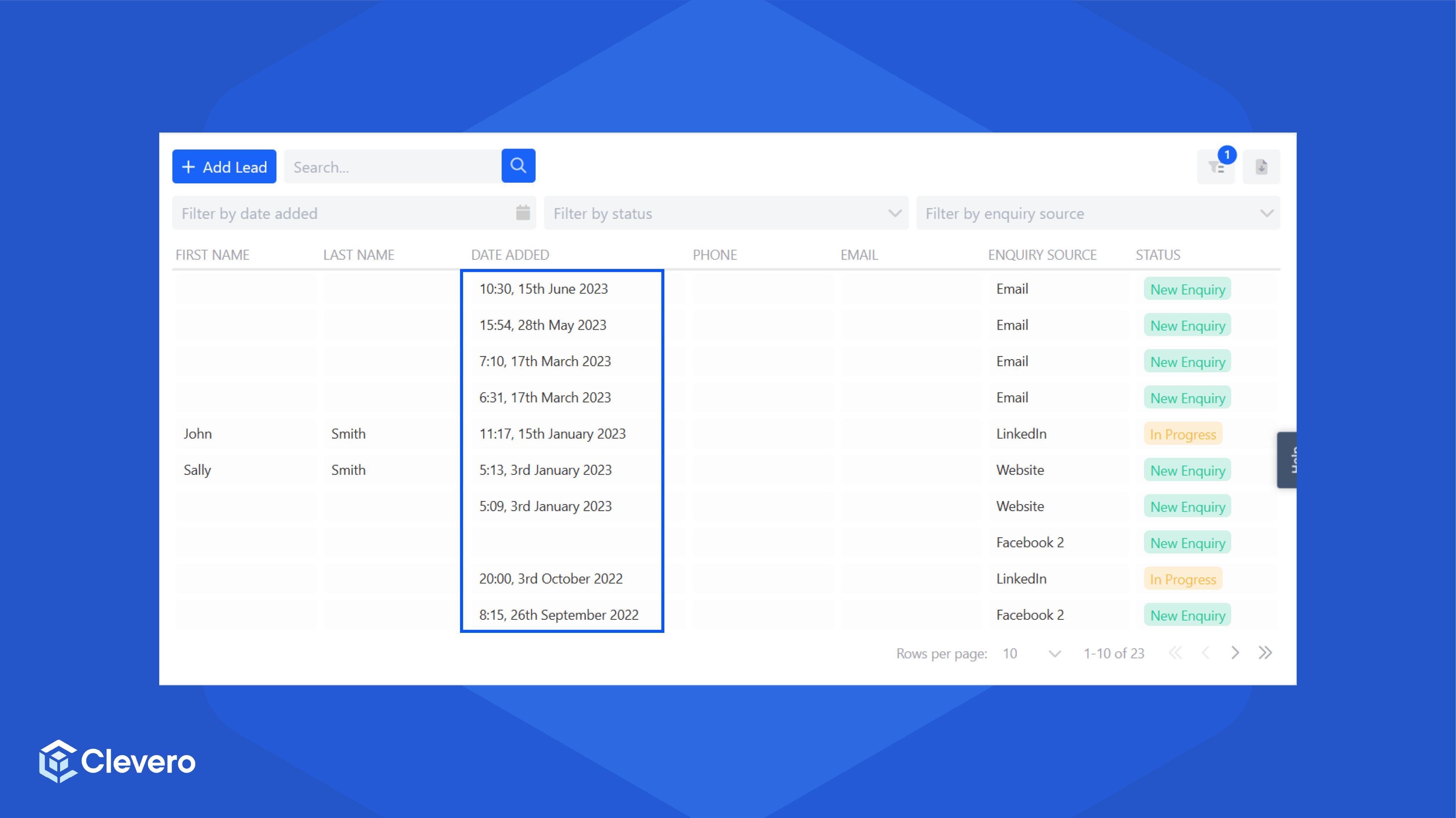
24h Time Format
2. Calendar Format
The calendar format defines the default view of their calendar and personalises the time intervals displayed in the Day view format.
| Option | Description |
|---|---|
| Default Calendar View | The Default Calendar View is how your calendar looks when you first open it, showing your events in a specific way, like daily, weekly, or monthly. |
| Default Time Interval (Day View Only) | The Default Time Interval (Day View Only) splits your Day view into time sections. It helps you see your day's schedule more clearly by breaking it down into smaller chunks, like 30 minutes or 1 hour. |
Example of the options
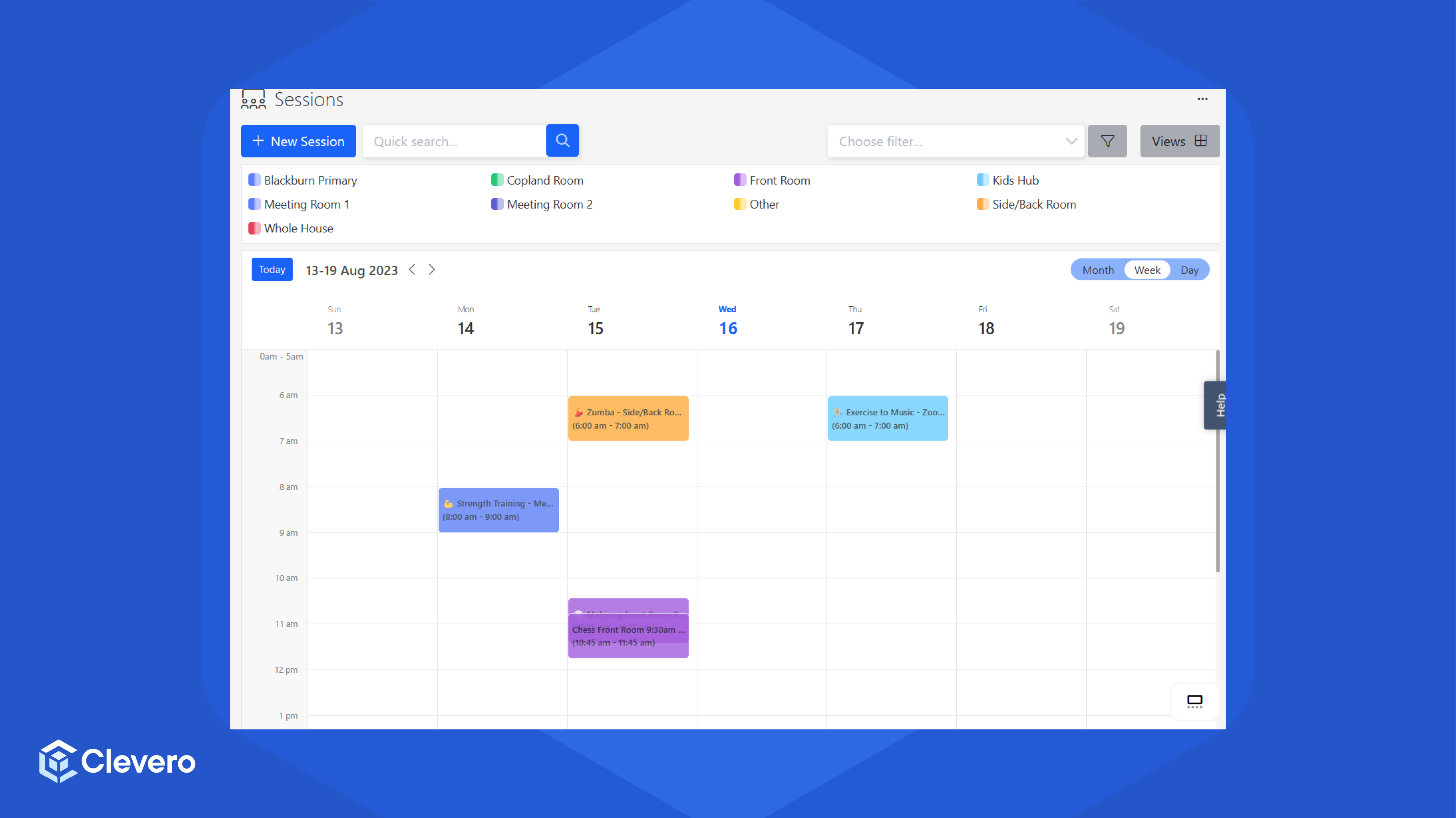
Default Calendar View
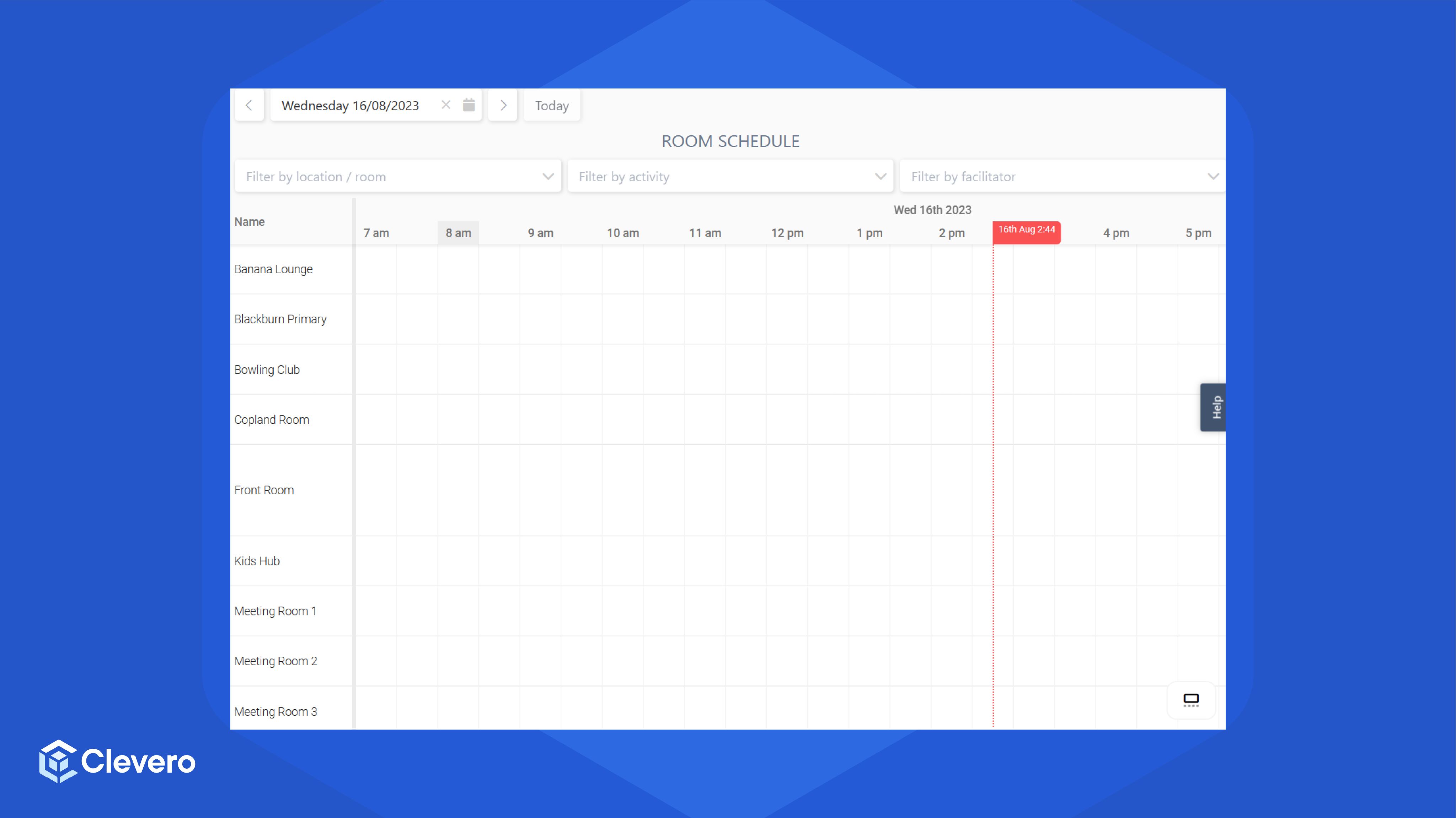
Default Time Interval (Day View Only)
3. Table Settings
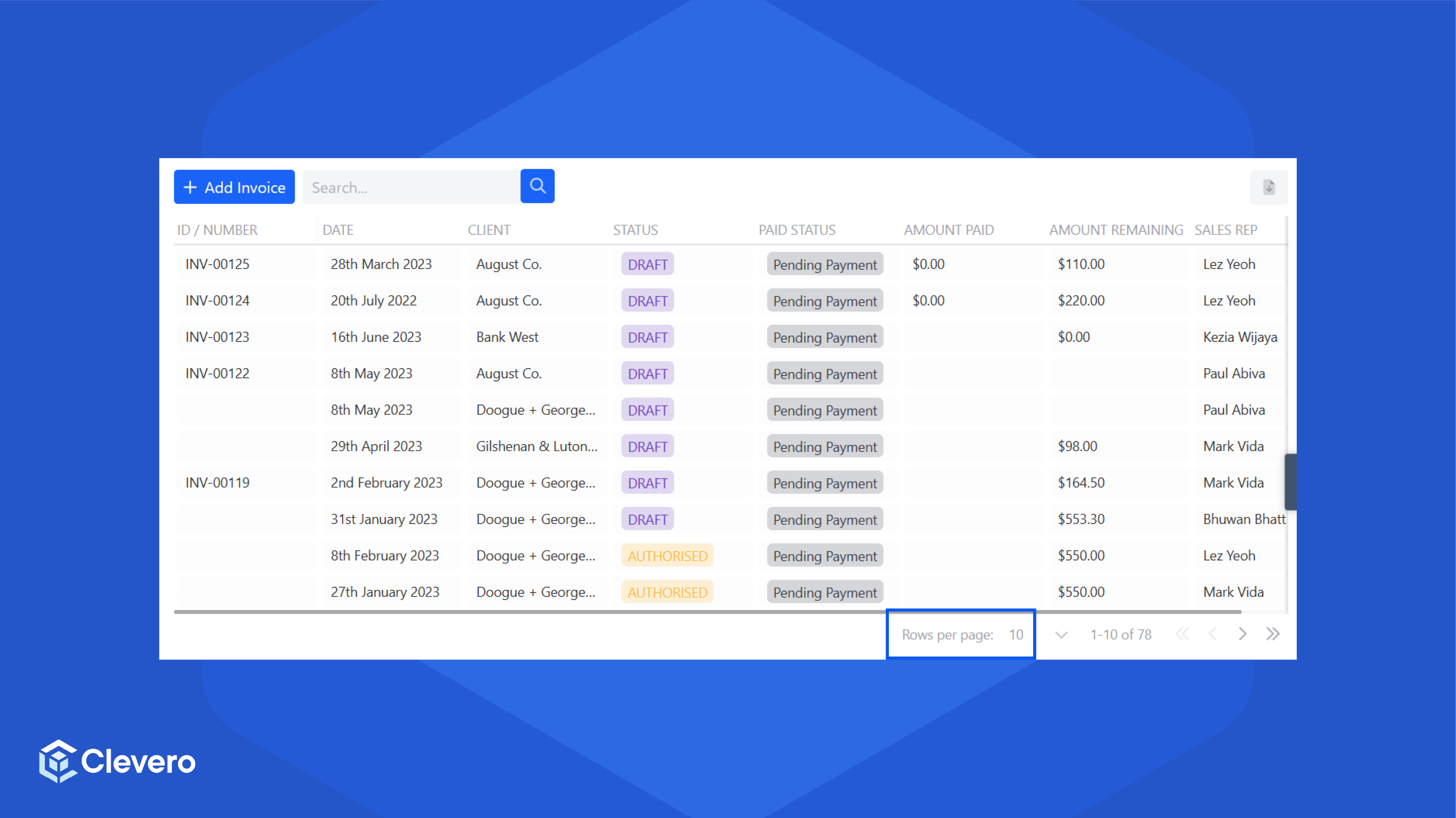
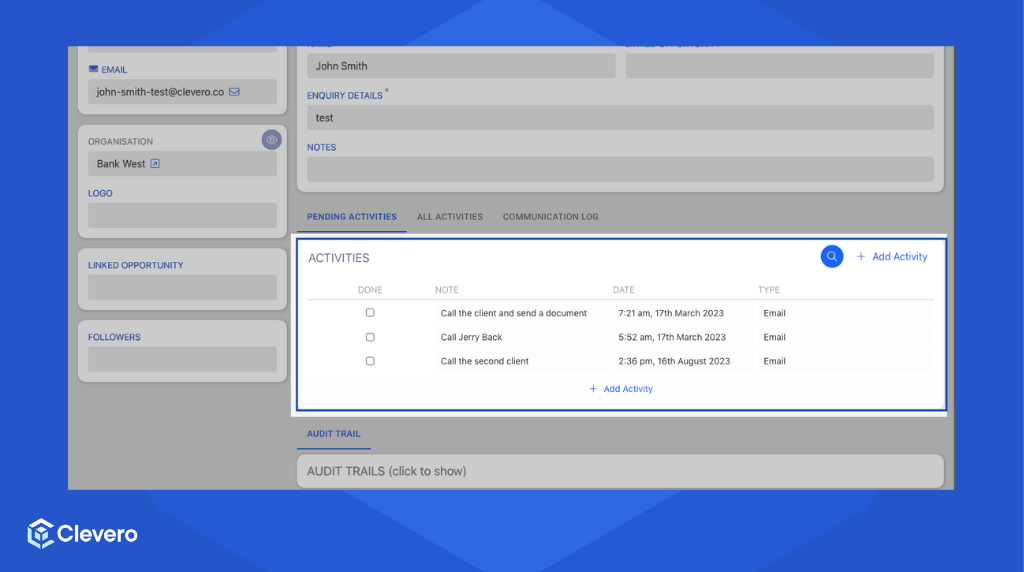
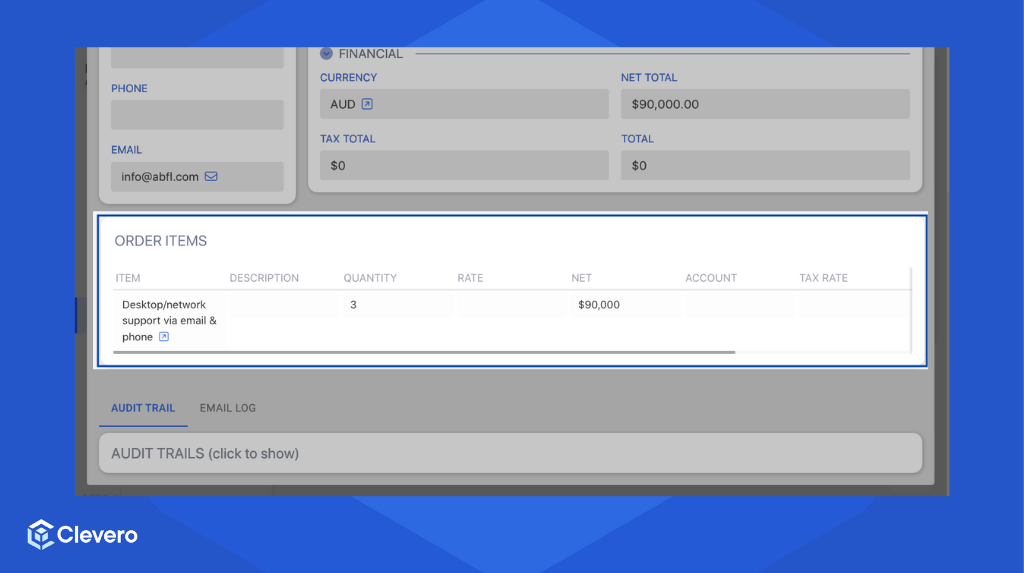
The Table Settings feature allows users to customise how many rows of data are shown by default in the record.
| Option | Description |
|---|---|
| Records | To set how many rows are displayed in the record. |
| Associations | To set how many rows are displayed in the association table associated with the record. |
| Subrecords | To set how many rows are displayed in the sub-records table within the record. |
Example of the options:
📌 Need Help?

Updated 7 months ago