
How to Clear Your Browser Cache
Learn how to clear your browser cache with step-by-step instructions.
Clearing your browser's cache can help resolve website loading issues and ensure you see the most up-to-date content.
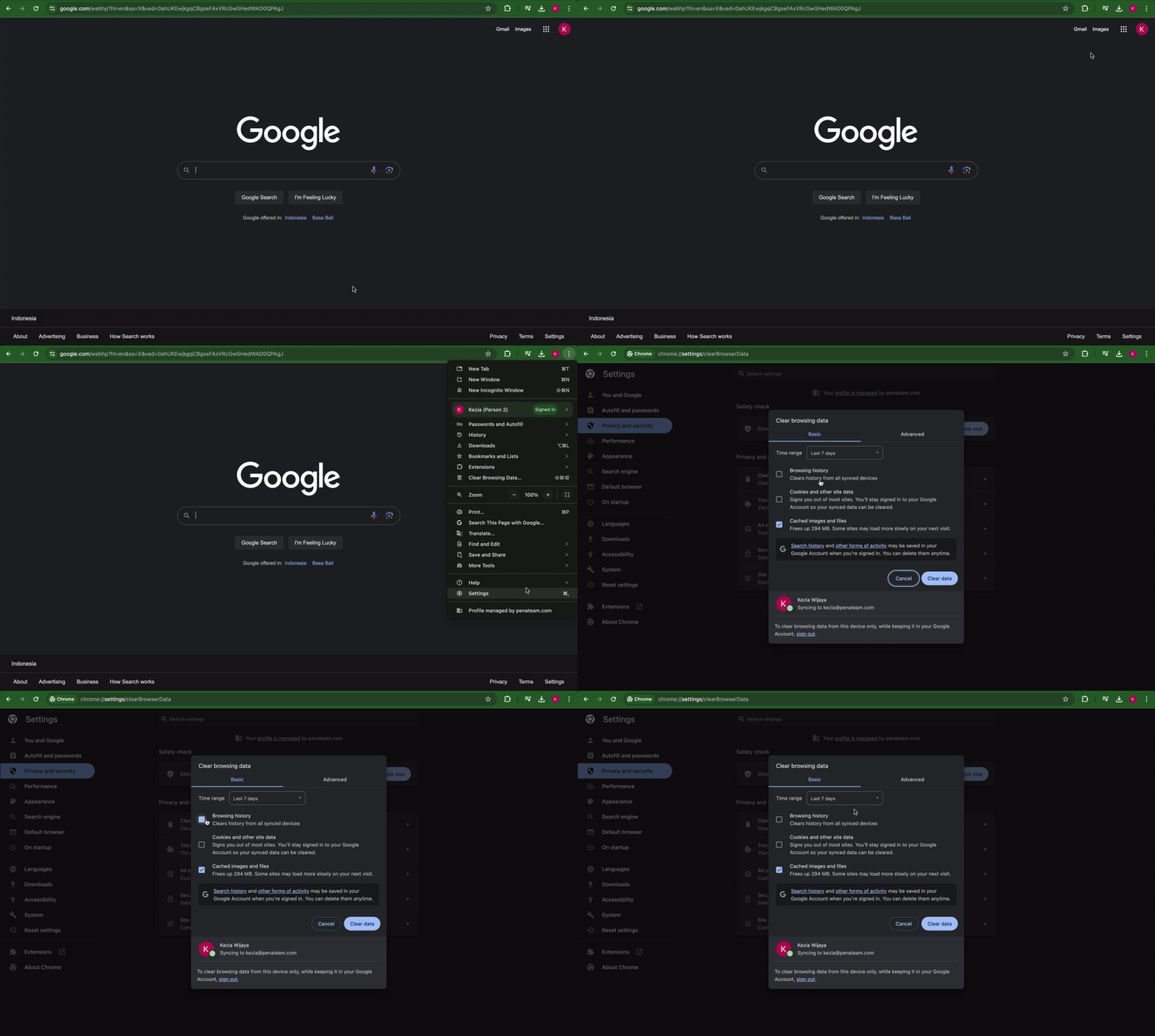
Google Chrome
- Click on the three vertical dots in the top-right corner.
- Select "Settings".
- In the left-hand menu, choose "Privacy and security".
- Choose "Clear browsing data".
- Choose the "Time Range":
- Last hour: Clears browsing data from the past hour only.
- Last 24 hours: Clears browsing data from the past 24 hours.
- Last 7 days: Clears browsing data from the past week.
- Last 4 weeks: Clears browsing data from the past month.
- All time: Clears all browsing data accumulated since you started using Microsoft Edge.
- Check the boxes for "Browsing history", "Cookies and other site data", or "Cached images and files".
- Click "Clear data" to proceed.
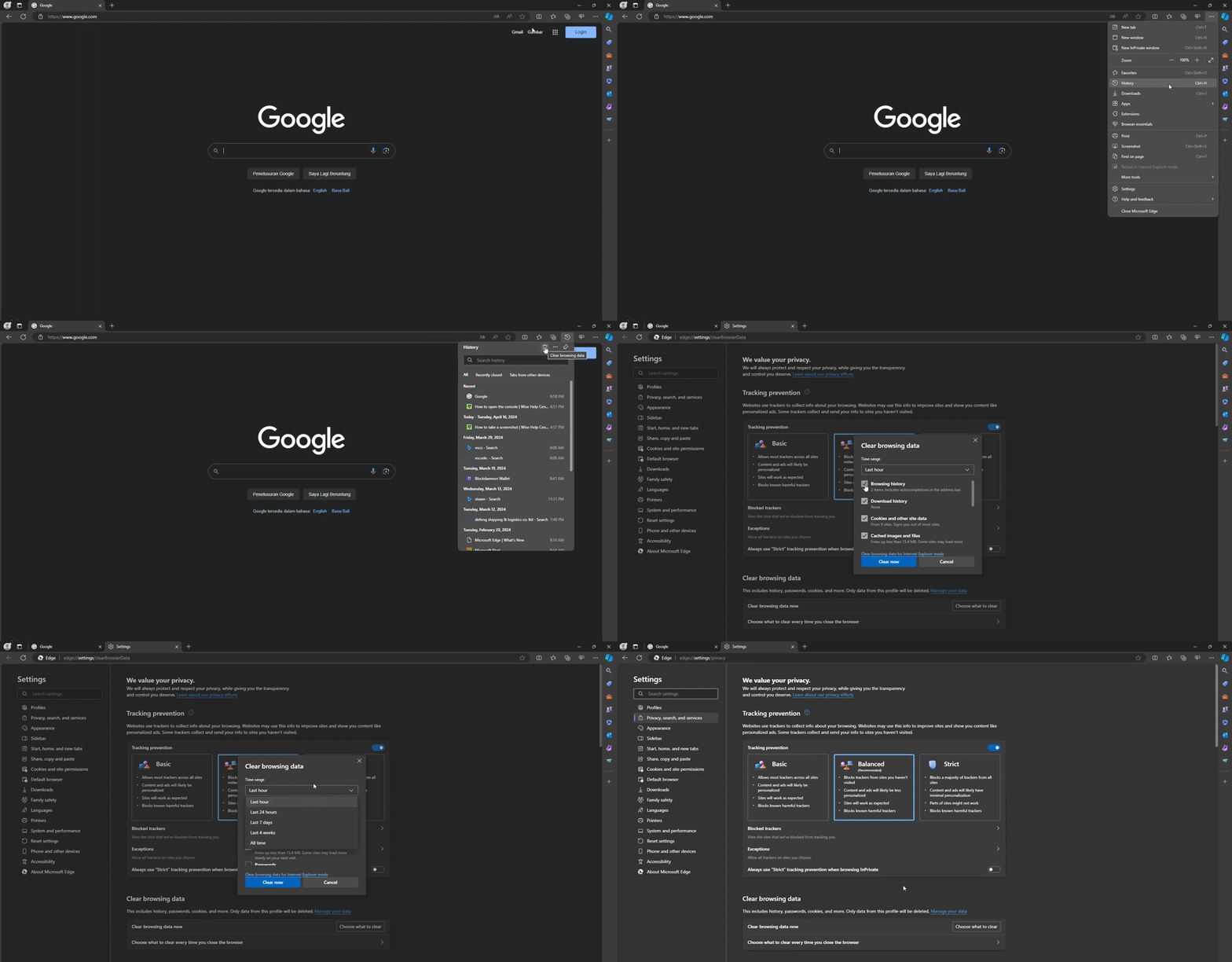
Microsoft Edge
- Click the three horizontal dots button in the top-right corner.
- Select "History".
- In the pop-up window, click the "Clear browsing data" (Bin icon 🗑️).
- Choose the "Time Range":
- Last hour: Clears browsing data from the past hour only.
- Last 24 hours: Clears browsing data from the past 24 hours.
- Last 7 days: Clears browsing data from the past week.
- Last 4 weeks: Clears browsing data from the past month.
- All time: Clears all browsing data accumulated since you started using Microsoft Edge.
- Check the boxes for what you want to clear:
- Browsing history
- Download history
- Cookies and other site data
- Cached images and files
- Click the "Clear now" button to proceed.
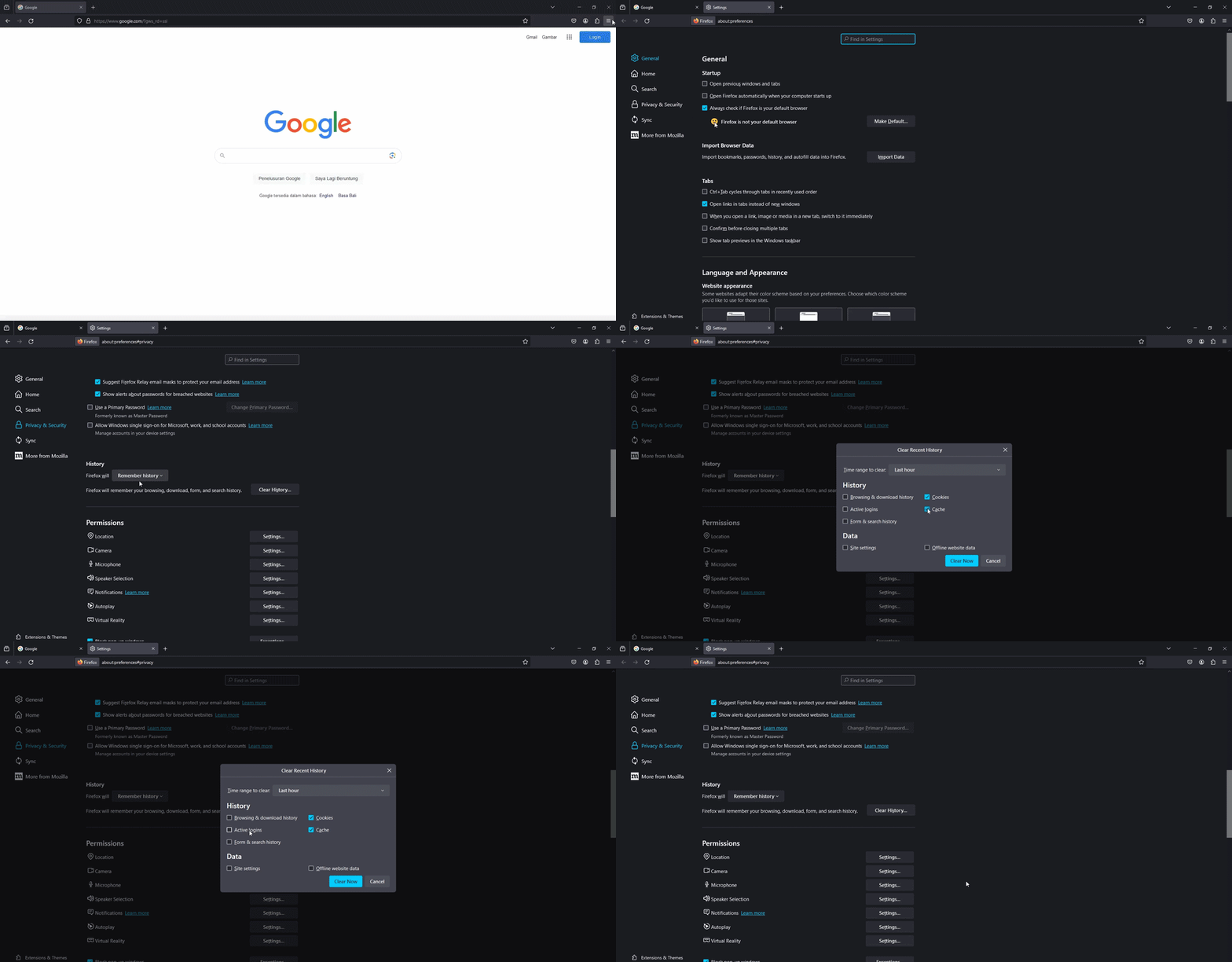
Mozilla Firefox
- Click the three vertical lines in the top-right corner.
- Select "Settings".
- In the left-hand menu, choose "Privacy & Security".
- Under the "History" section, select "Clear History".
- Choose the "Time range to clear":
- Last hour: Clears browsing data from the past hour only.
- Last 24 hours: Clears browsing data from the past 24 hours.
- Last 7 days: Clears browsing data from the past week.
- Last 4 weeks: Clears browsing data from the past month.
- All time: Clears all browsing data accumulated since you started using Microsoft Edge.
- Check the boxes for what you want to clear:
- Browsing & download history
- Active logins
- Form & search history
- Cookies
- Cache
- Click the "Clear Now" button to proceed.
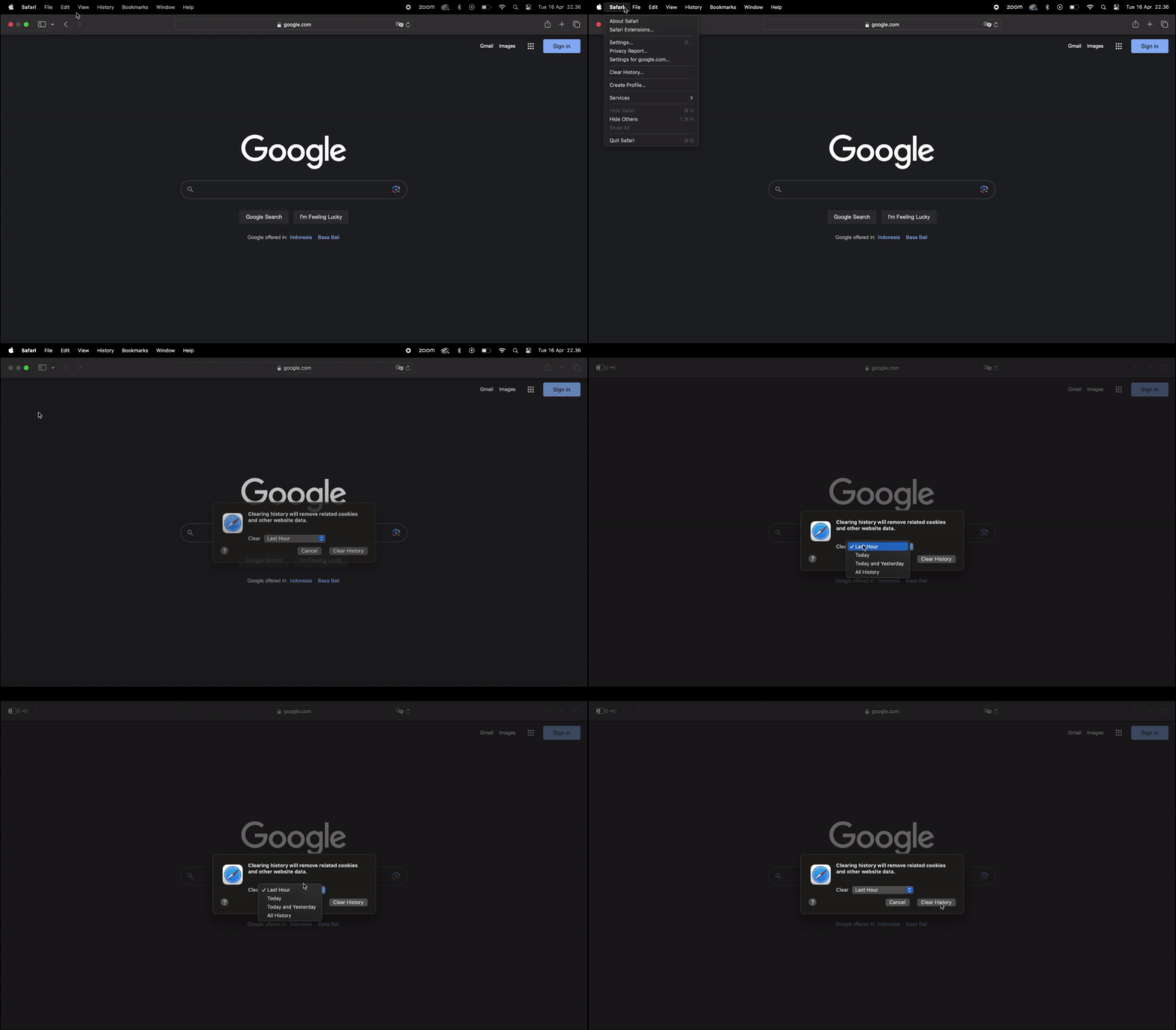
Safari
Clear History & Cookies
NoteClearing history will remove related cookies and other website data.
- From the top-left corner of your screen, click "Safari".
- Choose "Clear History..." from the dropdown menu.
- Choose the "Clear" option:
- Last hour: Clears browsing data from the past hour only.
- Today: Clears browsing data accumulated from the current day.
- Today and Yesterday: Clears browsing data from today and yesterday.
- All History: Clears all browsing data accumulated since you started using Safari.
- Select "Clear History" to proceed.
Remove Cache
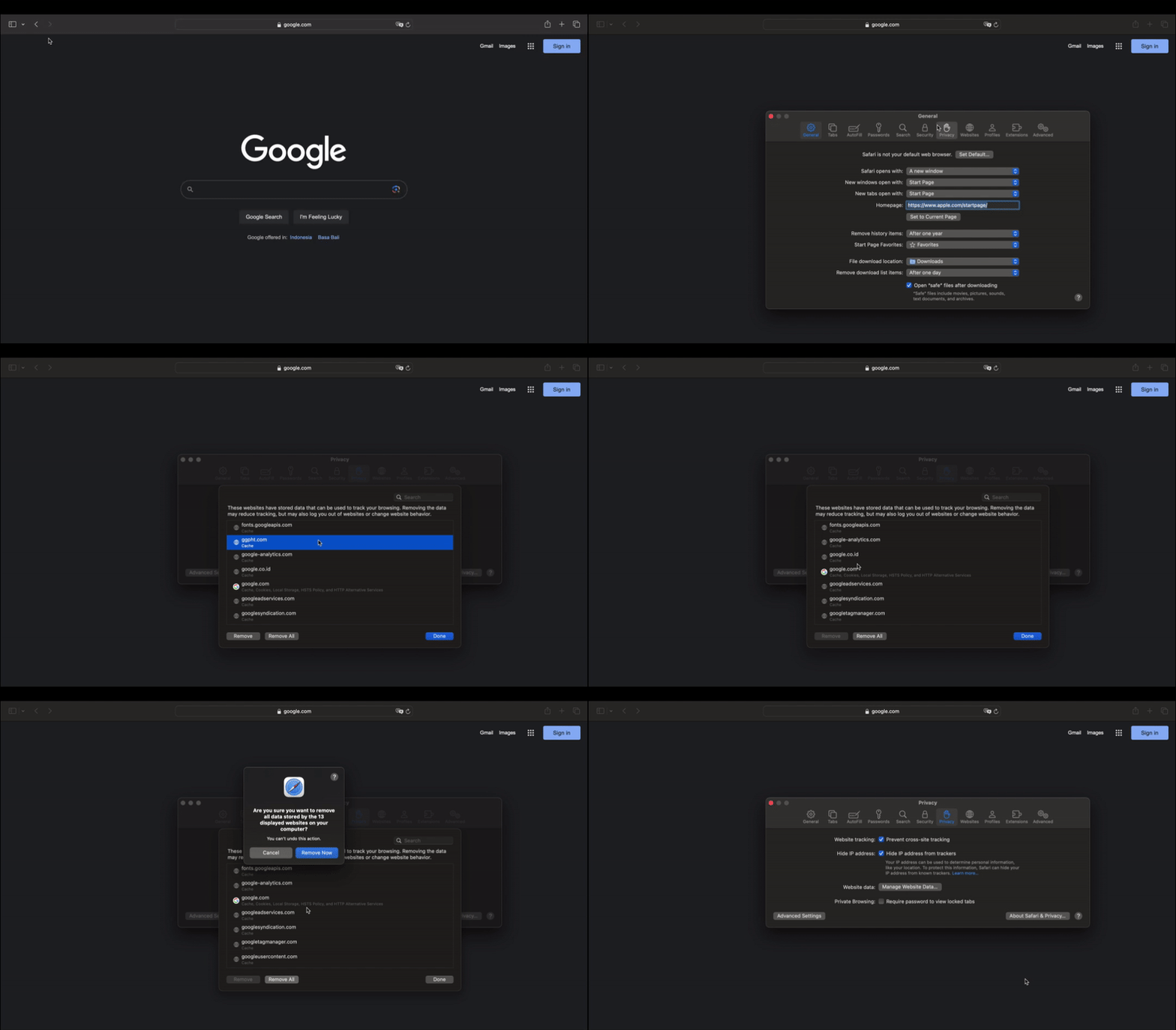
The website has stored data that can be used to track your browsing. Removing the data may reduce tracking and log you out of websites or change website behaviour.
- From the top-left corner of your screen, click "Safari".
- Choose "Settings..." from the dropdown menu.
- It will open a pop-up menu. From the header, click on the "Privacy" tab.
- Click on the "Manage Website Data" button.
- Select the Cache you want to remove > Click the "Remove" button.
- To remove all cached data and cookies from your computer, click the "Remove all" button.
🚧 You can't undo this action
- Wait a few moments, then click "Done" to close the dialogue box.
📌 Need Help?

Updated about 1 year ago
Did this page help you?