
Generic Template
📨 Understand how to create and use generic templates for email communication purposes.
Email Templates are pre-designed email drafts created within Clevero. It offers the flexibility to send emails ad-hoc or automate their delivery. These templates can merge in relevant record data, incorporate branding elements, and are customisable by the client.
Watch the guided demo below to create and manage the generic email template.
You can also follow the same steps using the written guide below.
1. Create a Generic Email Template
To create a Generic Email Template, follow these steps:
- Go to Settings and select System Settings.
- Click on Email Templates to access the template management page.
- Choose the + Generic Template option to create a new template.
- There are three essential components to use. Let's explore them in detail:
Content
This component allows you to make changes to the text and layout of the email template. Additionally, we offer a helpful feature called Smart Text, which enhances the quality of your writing.
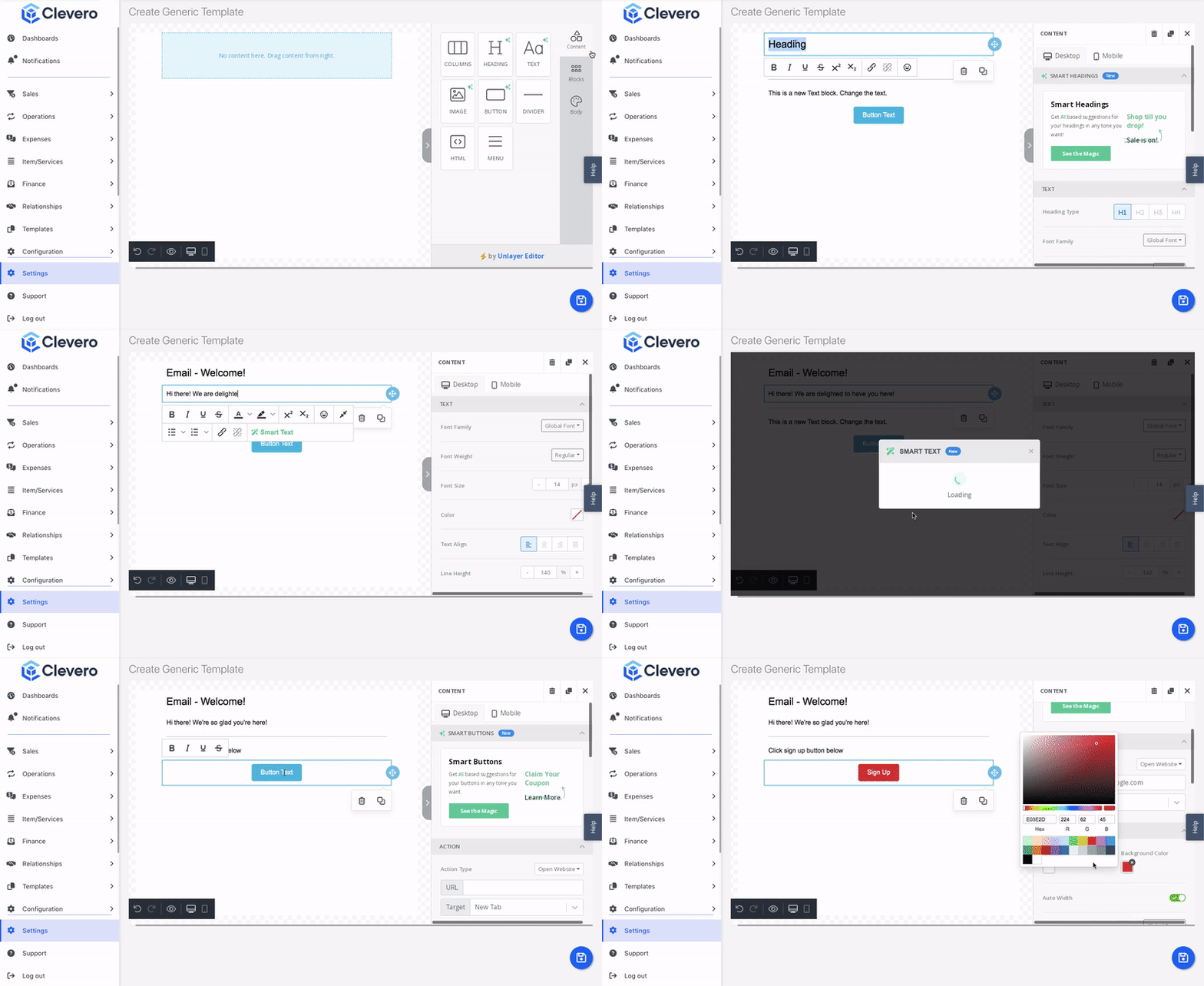
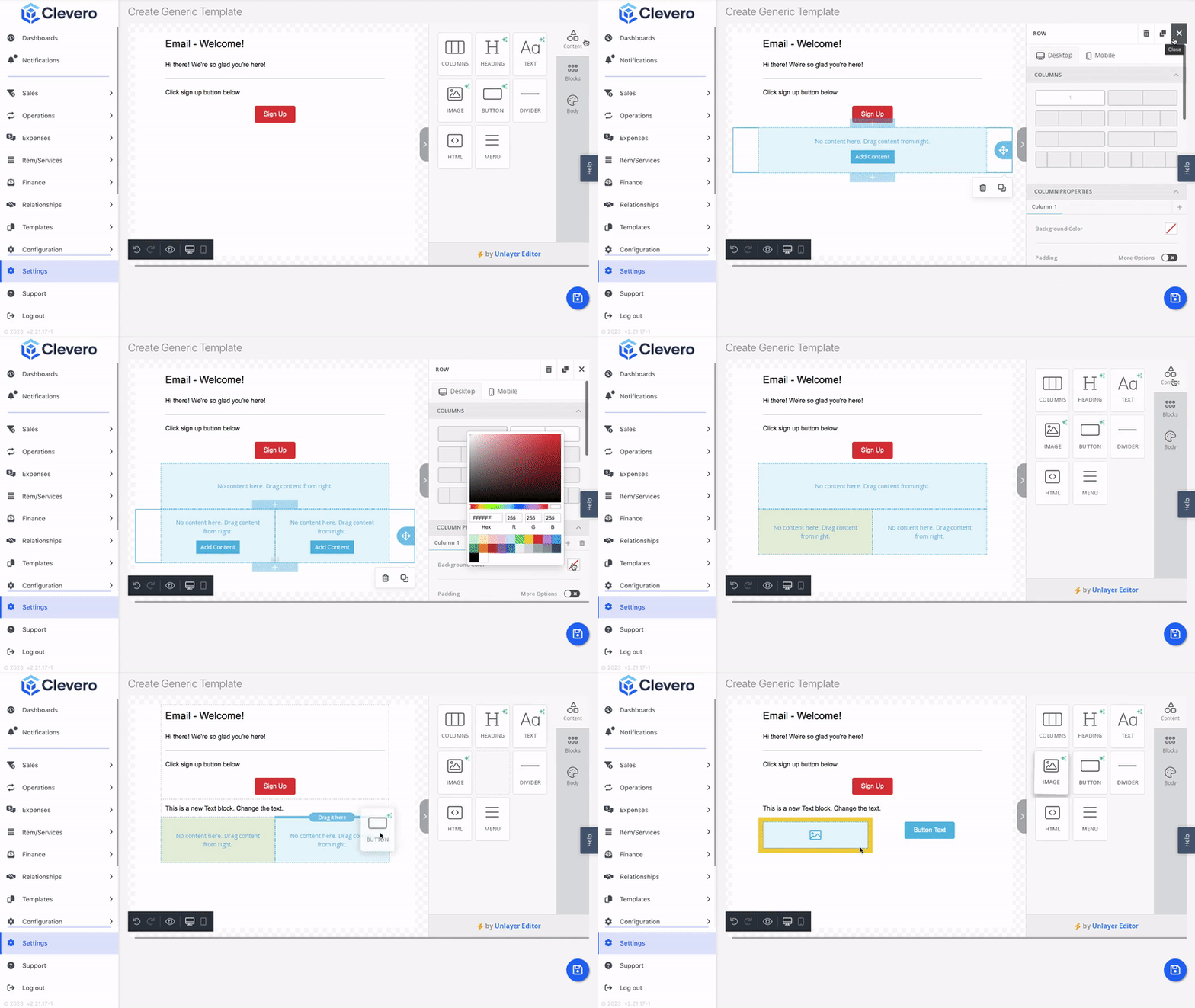
Blocks
You can personalise specific sections or components within the template. You can tailor the email template to your desired style and branding by customising blocks.
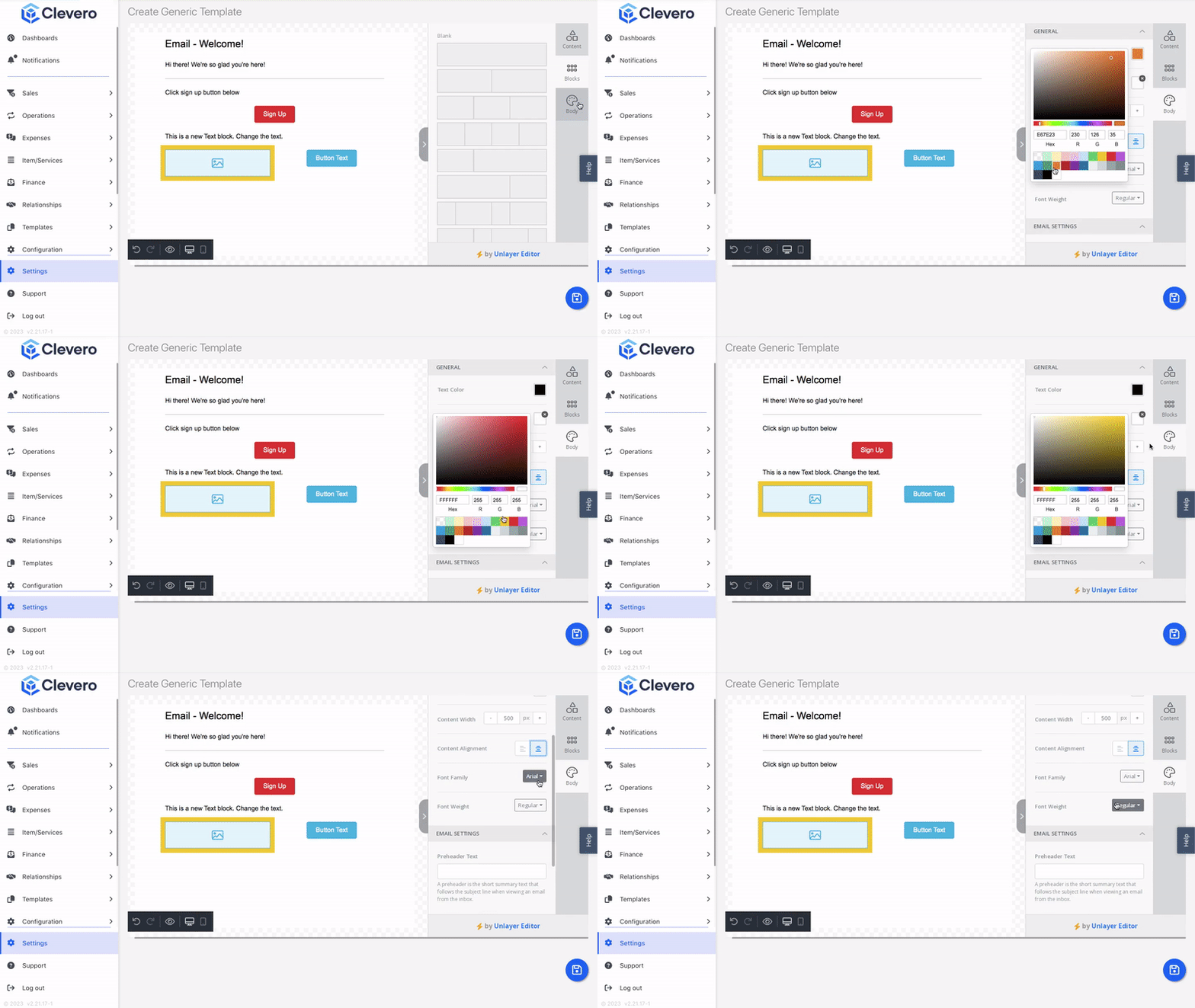
Body
The body component allows you to modify the overall structure and appearance of the email. You can adjust the layout, font styles, colours, and other visual elements to ensure the email presents a professional and engaging look.
- Preview the template (👁) you have created with various display options.
- Click on the Save button to proceed.
- Provide a template name and subject for the email, which will be automatically filled in when creating the email.
- Finally, click on the Save Template button to save your changes.
2. Duplicate and Delete the Email Template
To duplicate or delete a template, follow these steps.
- Go to Settings and select System Settings.
- Click Email Templates.
- You can perform the following actions:
- To duplicate, right-click on the template, then click Duplicate Email Template.
- To delete, right-click on the template, then click Delete Email Template.
📌 Need Help?

Updated 5 months ago