
Associations
🔗 Connections between records to establish relationships and navigate related data.
Overview
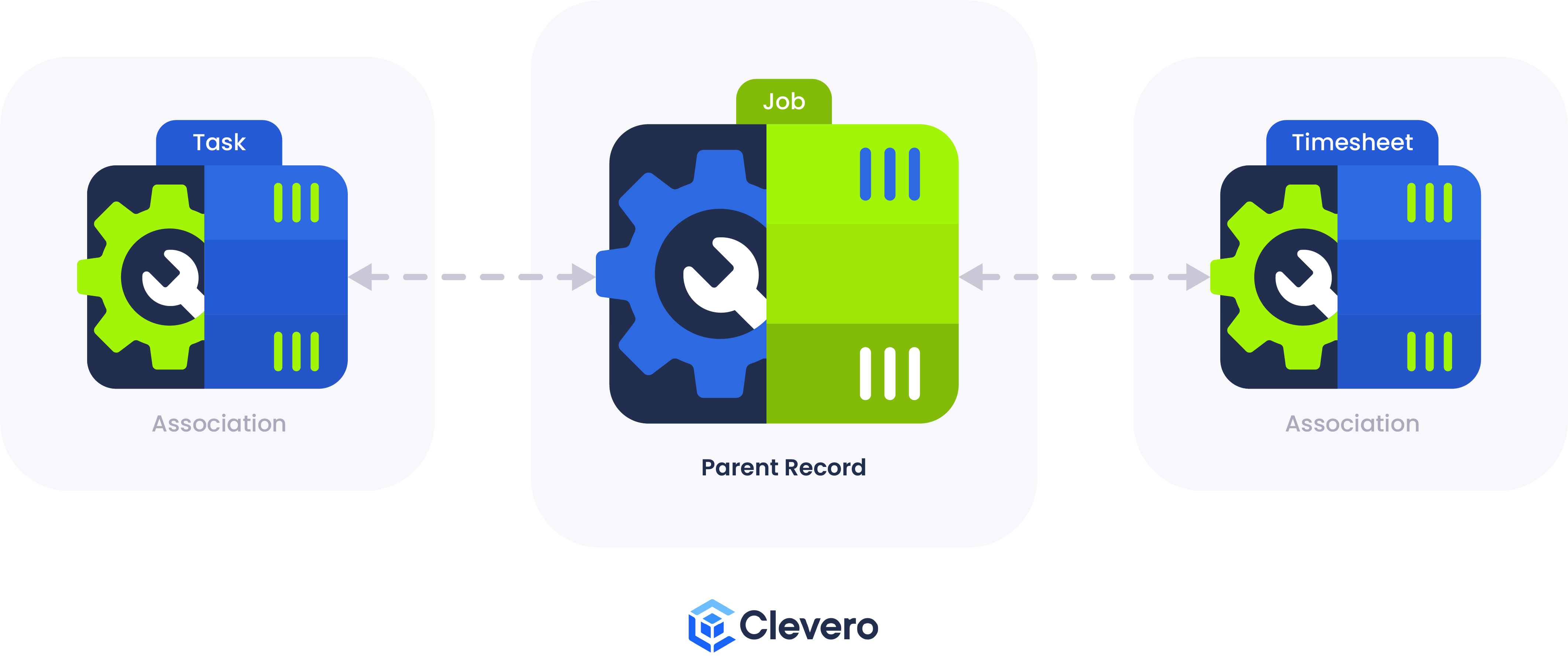
Associations let you connect related records so you can view and work with them together. Think of it as creating links between your data.
Why Associations Matter?
Associations make your records more powerful by:
✅ No need to jump between different records to piece things together.
✅ Run bulk updates (e.g., update all tasks for a project at once).
✅ Use associated data in emails (e.g., include an organisation’s address when emailing a contact).
Example
- A Job record might be associated with multiple Tasks and Timesheets, allowing you to see all related work in one place.
- A Customer record can be associated with Sales, Invoices, Quotes, and Contacts. This creates a complete “360° view” of the customer, so when you open their record, you can instantly see everything connected to them.
Creating an Association
In this example, you’ll create an association that connects Jobs with their Organisation, so you can see all jobs being worked on for each organisation.
Watch the guided demo below to create an association.
You can also follow the same steps using the written guide below.
Step 1. Access the Employee Record
We’ll start by opening the Jobs record where the association will be added. You can access your record through either method below:
From the record view, click the ⋯ (three dots) icon and select Configure Record.
- Go to Settings → System Settings.
- Select Records.
- Choose or search for the record you want to configure.
Step 2. Create the Association Field
Next, we’ll add a new field to the Jobs record that links it to the Organisation record.
- From the sidebar, choose "Fields" > Click on the "+ Add Field" button.
- Fill in the required information:
- Field Name: This refers to the field's name, used to identify the data it represents.
- Internal ID: An auto-generated unique identifier assigned to the field. You can also modify it manually if needed.
- Data Type: An association can only have "Select", Multiselect, Multichoice, or Radio Button data type.
- Mandatory: A required field that indicates that a field or input must be filled out or selected before proceeding.
InfoBy selecting “Multiselect,” you can link one record to multiple related records at once.
- Set up the settings of the selected data type:
- Uses Record/List: Select the record or list you want to link to from another table or module.
- Field to Display: Choose which field from the linked record or list will be shown in the association.
- Order By: Define how the associated records should be sorted (e.g., by name or date).
- Color Field: Assign colors to records or data elements to make them easier to distinguish.
- Display Entries on Parent Record: Tick this option if you want the association to also appear in the linked (parent) record. For example, enable this to see all Jobs from the Organisation record, or see the associated Organisation when viewing a Job record.
- Click on the "Save" button to confirm the changes.
Step 3. Add the Association to the Layout
Now that the field is ready, you’ll make it visible in the Organisation layout.
- Go to Organisations record > Select Configure Record.
- Go to Entry Layout in the side navigation. Open the layout you currently use for the organisation.
- Drag and drop an Associations component into the layout (inside a container), or add a new Association within an existing Associations component
- Configure the Association component:
- Enter the Title of the association, this will appear as the tab name.
- Select the Record you want to associate with (in this case, Jobs).
- Select the Field you created earlier (in this case, Organisation).
InfoFor more details on configuring default fields and values, see the How to Configure Associations page.
- Reorder or adjust the component placement as needed, then click Save Changes to apply the layout updates.
Step 4. Test the Association
As a final result, it creates a seamless two-way connection between Jobs and Organisation.
- A new Jobs tab appears in each Organisation record, displaying all jobs linked to that organisation.
- Each Job record also displays its associated organisation.
📌 Need Help?

Updated 6 months ago