
How to Set Title Name on the Entry Layout
Configure the title that displays at the top of an entry record.
1. Overview
The header of an entry layout controls the title shown at the top of each entry. The title can mix plain text with dynamic values, such as the record name, the entry's Auto ID or any field on the record.
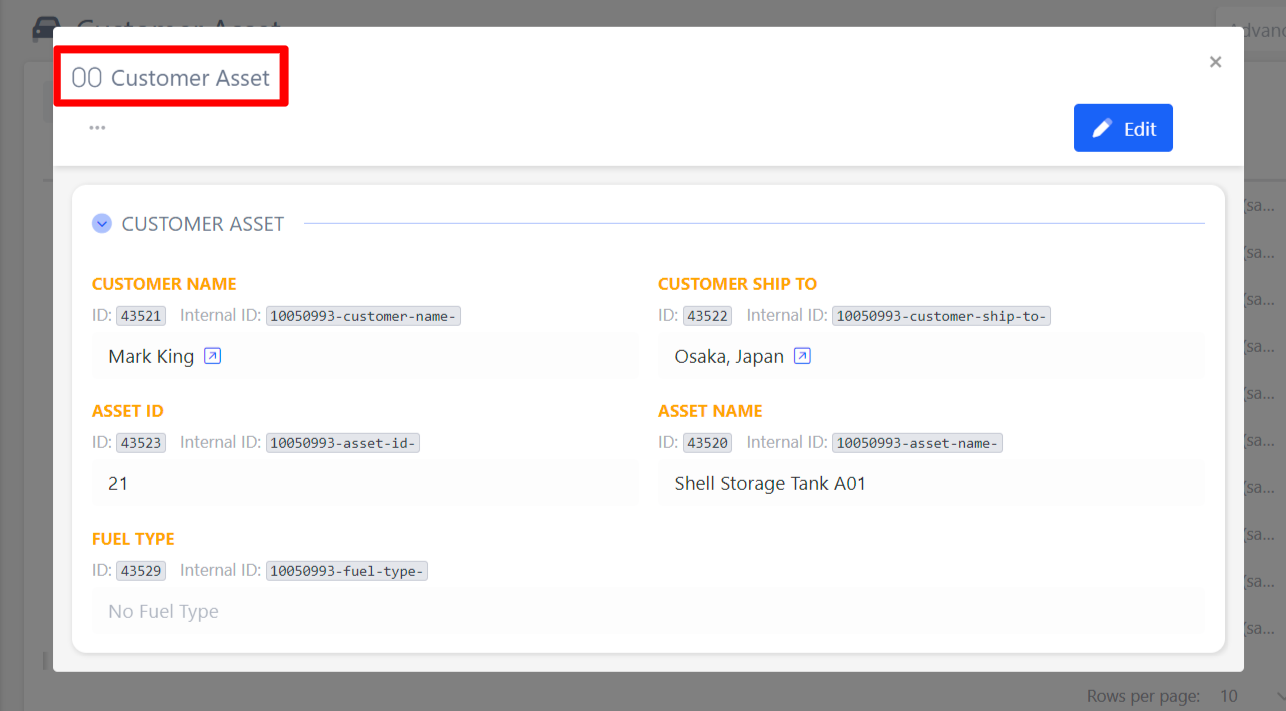
You can set the title in two ways:
- Title field: type the title directly and insert dynamic values with
{{or + Variable. - Open editor: edit the header's JSON configuration directly for advanced setups.
2. Setting the Header Title
-
Go to the record you want to configure (for example, Customer Asset).
-
Click the ⋮ (Three-dot menu) menu next to Advanced Filters and select Configure Record.
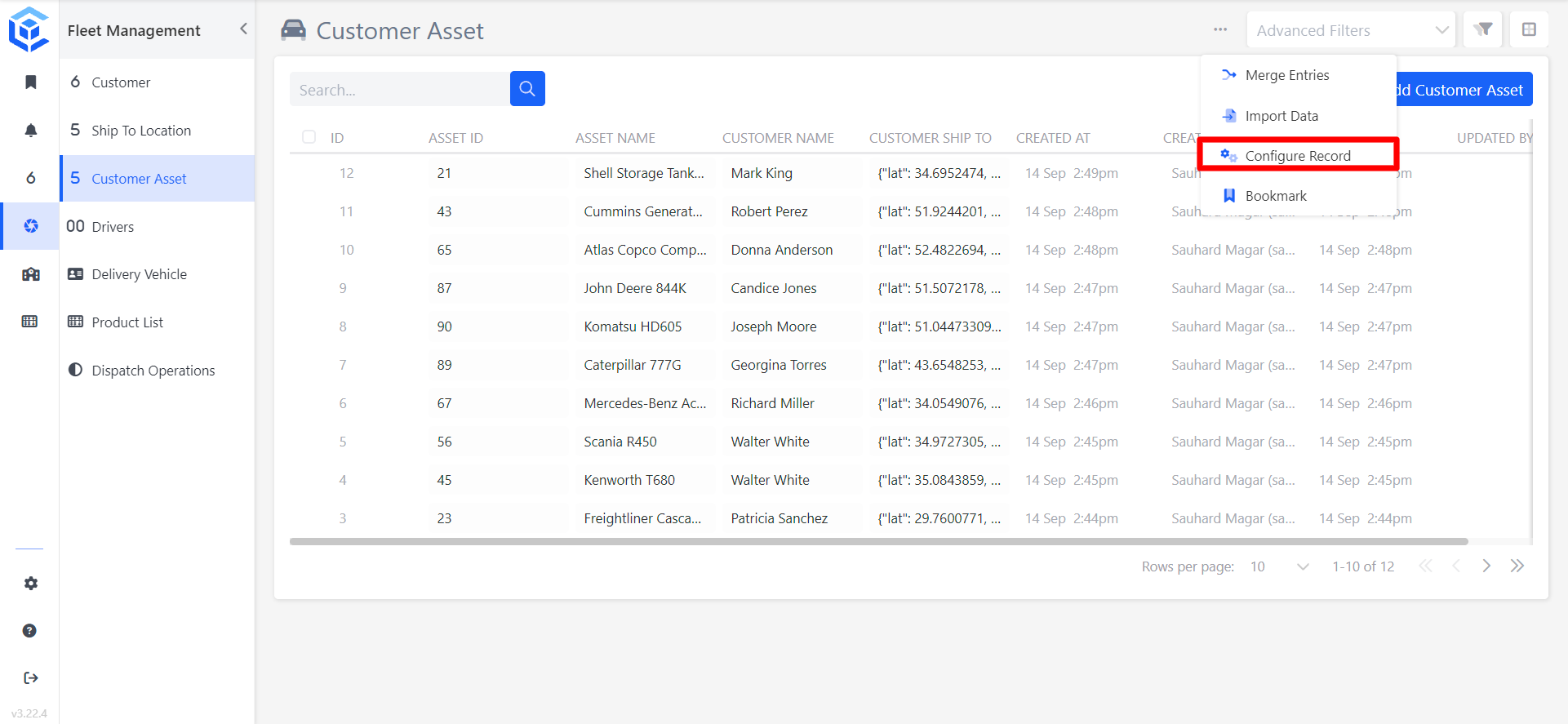
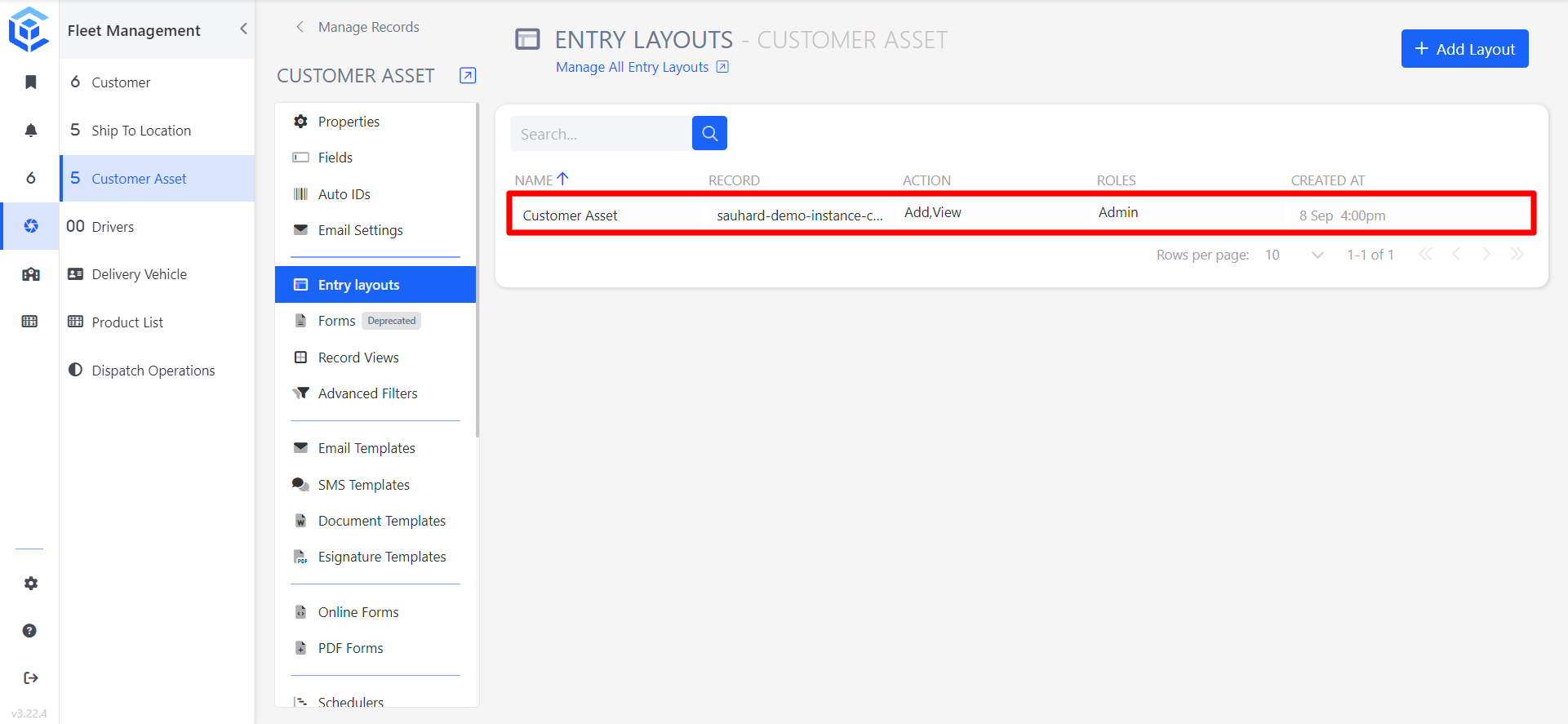
- In the record's configuration menu, select Entry layouts.
- Click the name of the layout you want to edit. The layout editor opens.
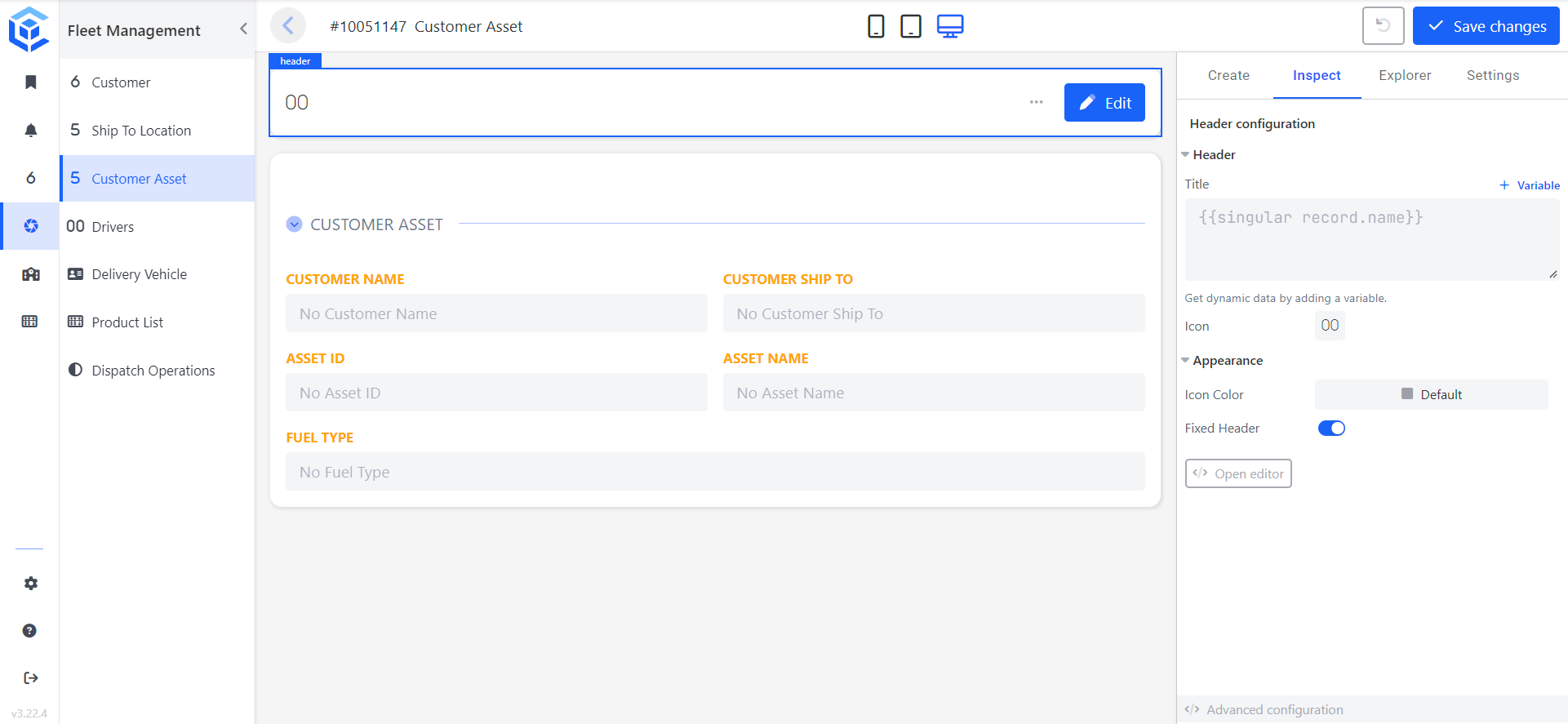
- In the layout preview, click the header at the top of the layout. The Inspect tab opens and shows the Header configuration.
-
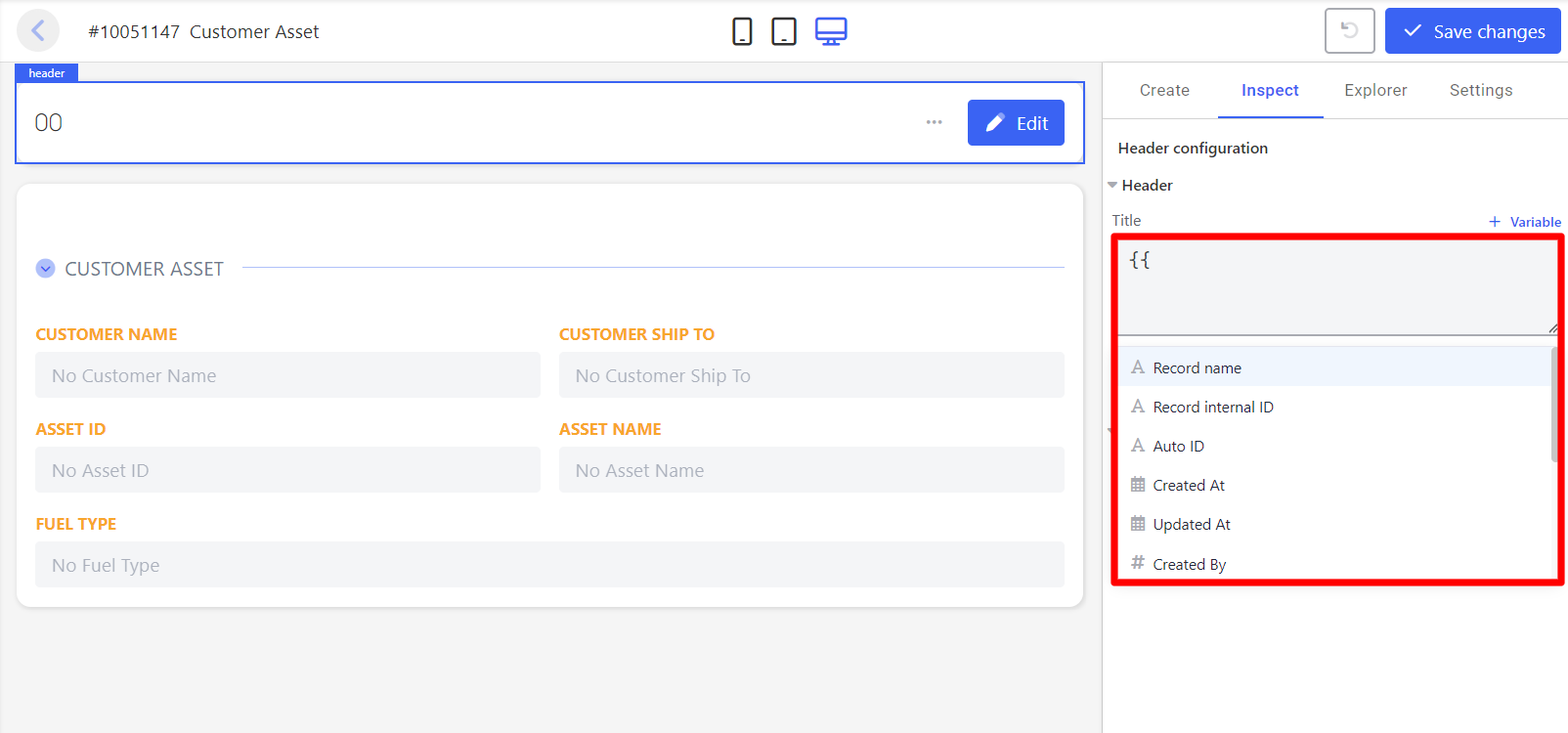
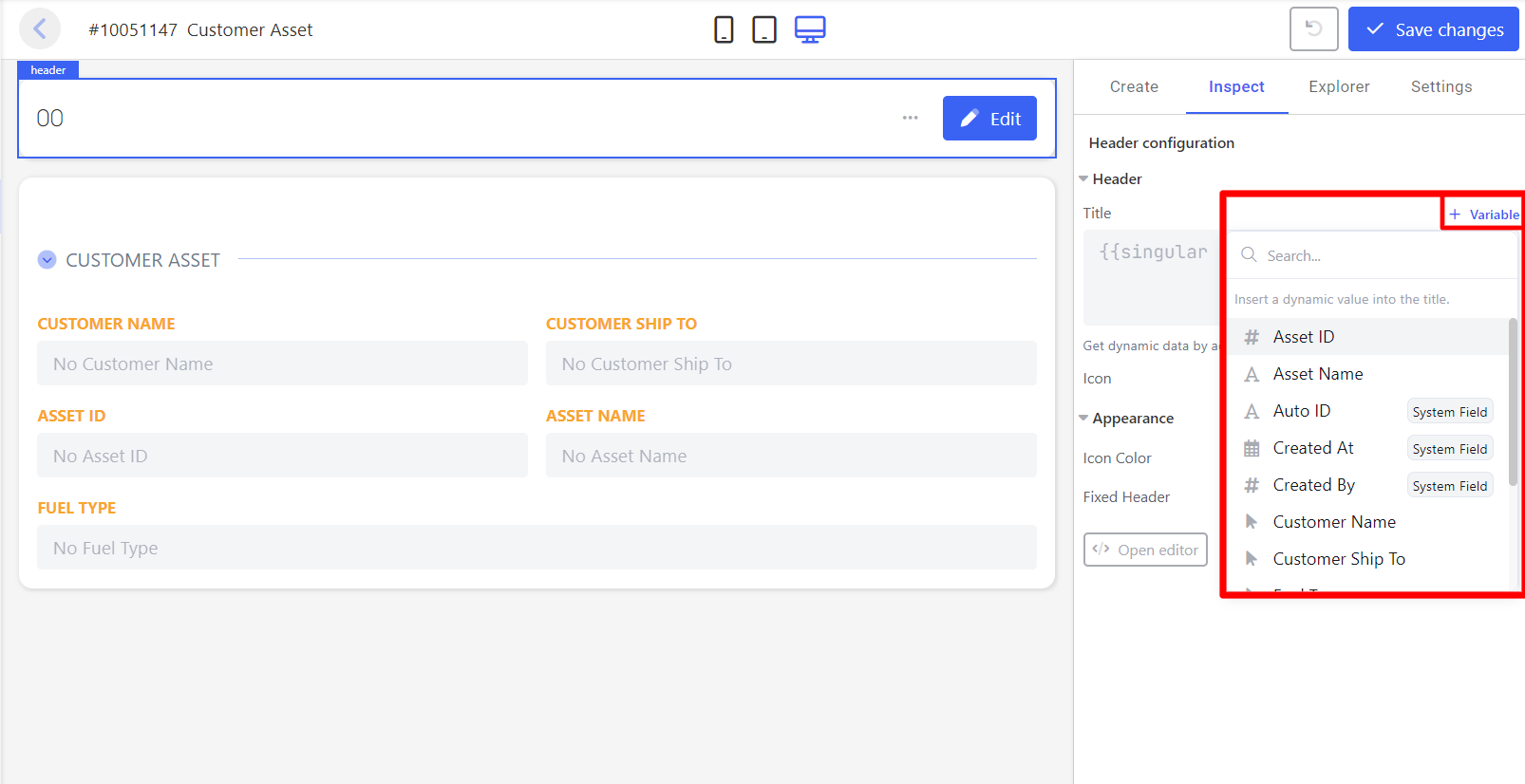
In the Title field, enter the title. Add dynamic values in either of these ways:
- Type
{{in the Title field. A list of available values appears. Select one to insert it. - Click + Variable above the Title field. Search for or select a value from the list. System values such as Auto ID, Created At and Updated By are labelled System Field.
- Type
-
Add plain text, spaces or separators between values as needed. The layout preview updates as you type.
Note: Values are inserted exactly at the cursor position, with no space added. Type any spaces or separators (for example,
-) yourself. -
Click Save changes at the top of the layout editor.
Note: Use the Undo button next to Save changes to reverse your recent edits one step at a time before saving.
3. Configuration
The Header configuration panel contains the following settings.
| Property | Section | Description |
|---|---|---|
| Title | Header | The text and dynamic values shown as the entry title. |
| Icon | Header | The icon displayed in the header. |
| Icon Color | Appearance | The color of the header icon. |
| Fixed Header | Appearance | Keeps the header fixed at the top of the entry. |
3.1. Dynamic value format
| Value | Inserted as |
|---|---|
| Record name | {{singular record.name}} |
| A record field | {{entry.<field-internal-id>}}, for example {{entry.10050993-asset-name-}} |
4. Advanced: Editing the Header JSON
- Open the layout and select the header, as described in steps 1 to 5 above.
- In Header configuration, click Open editor. The advanced configuration editor opens.
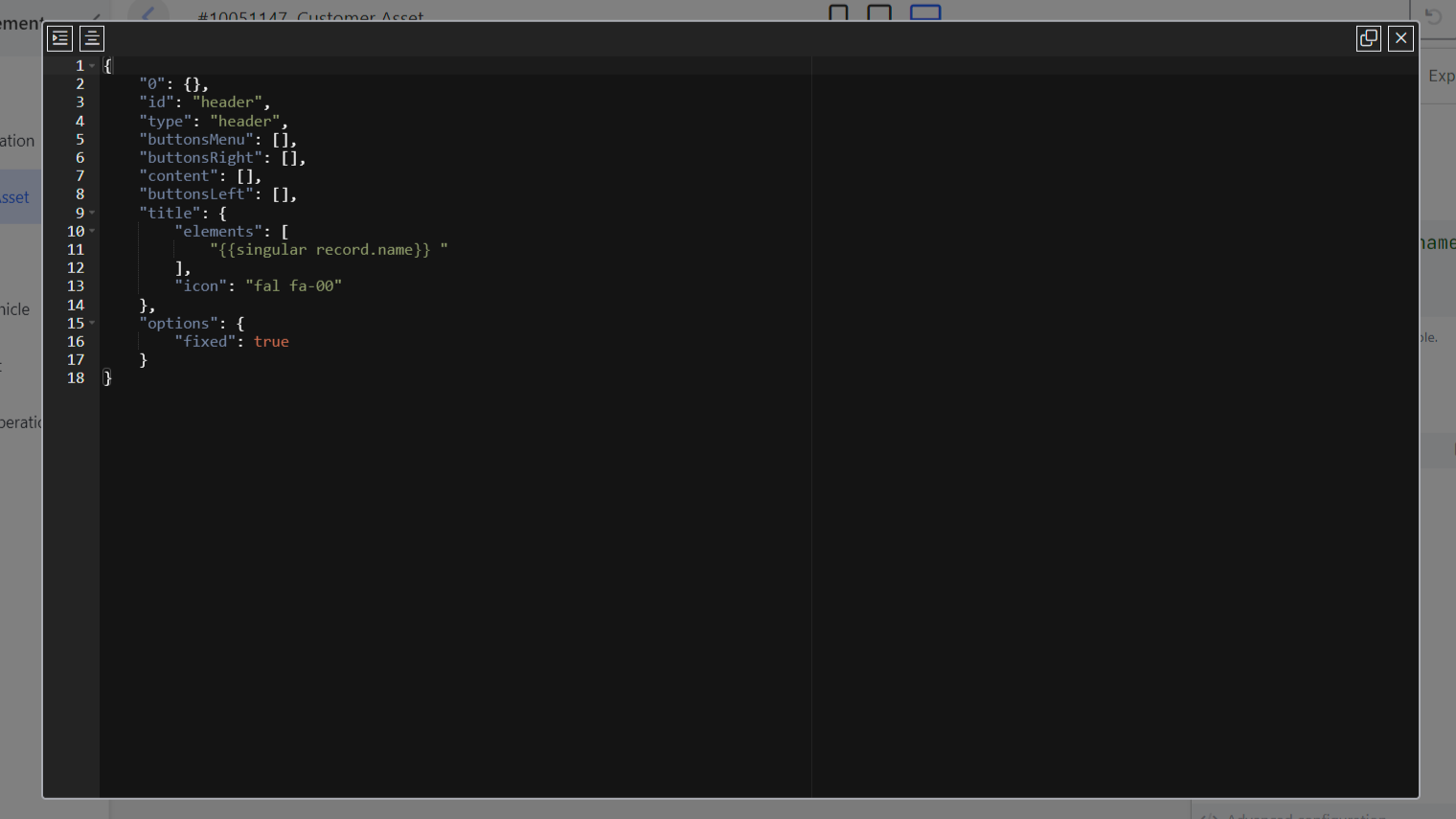
- Edit the
title.elementsarray to change the title.
   "title": {
       "elements": [
           "{{singular record.name}}"
       ],
       "icon": "fal fa-00"
   }
-
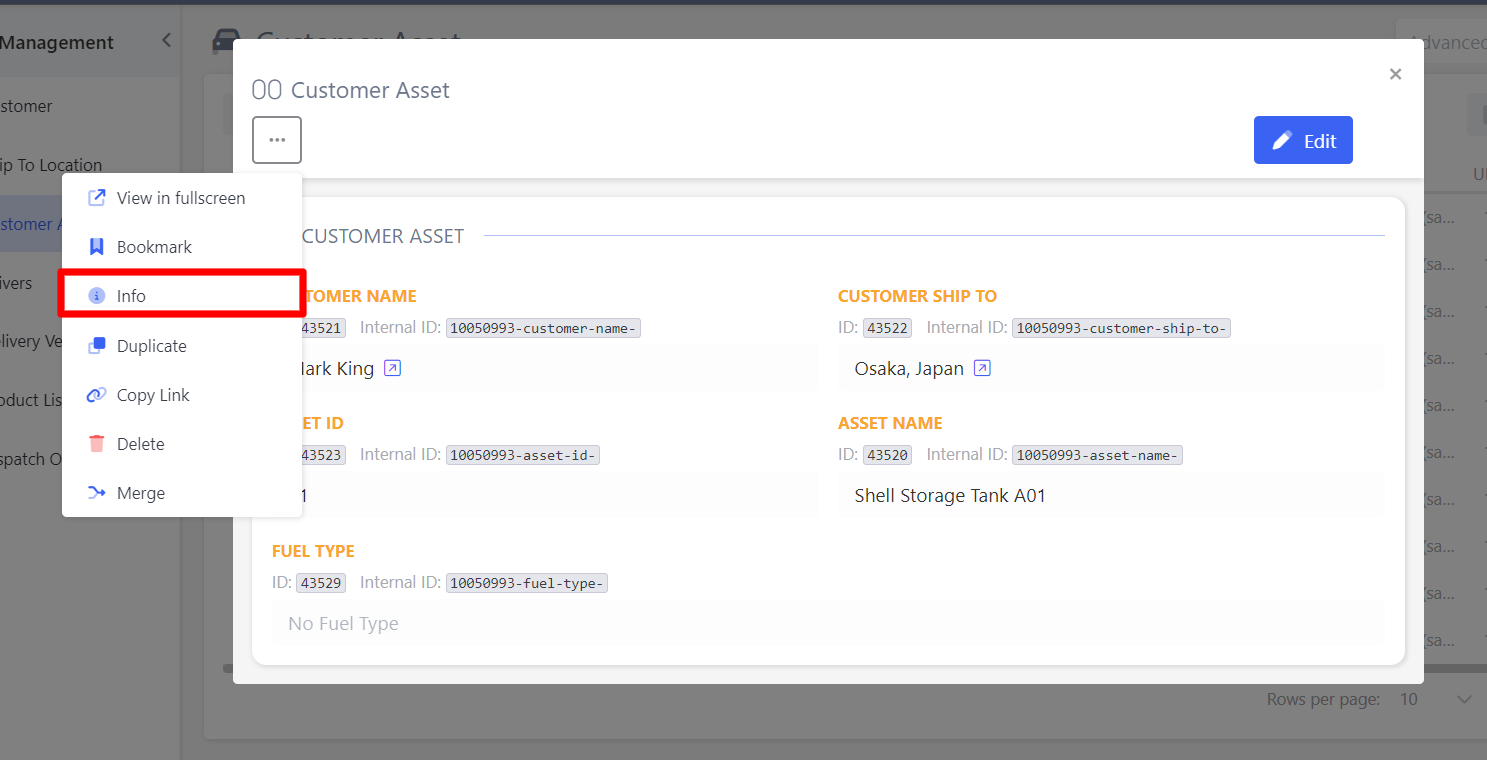
To reference a field, use the
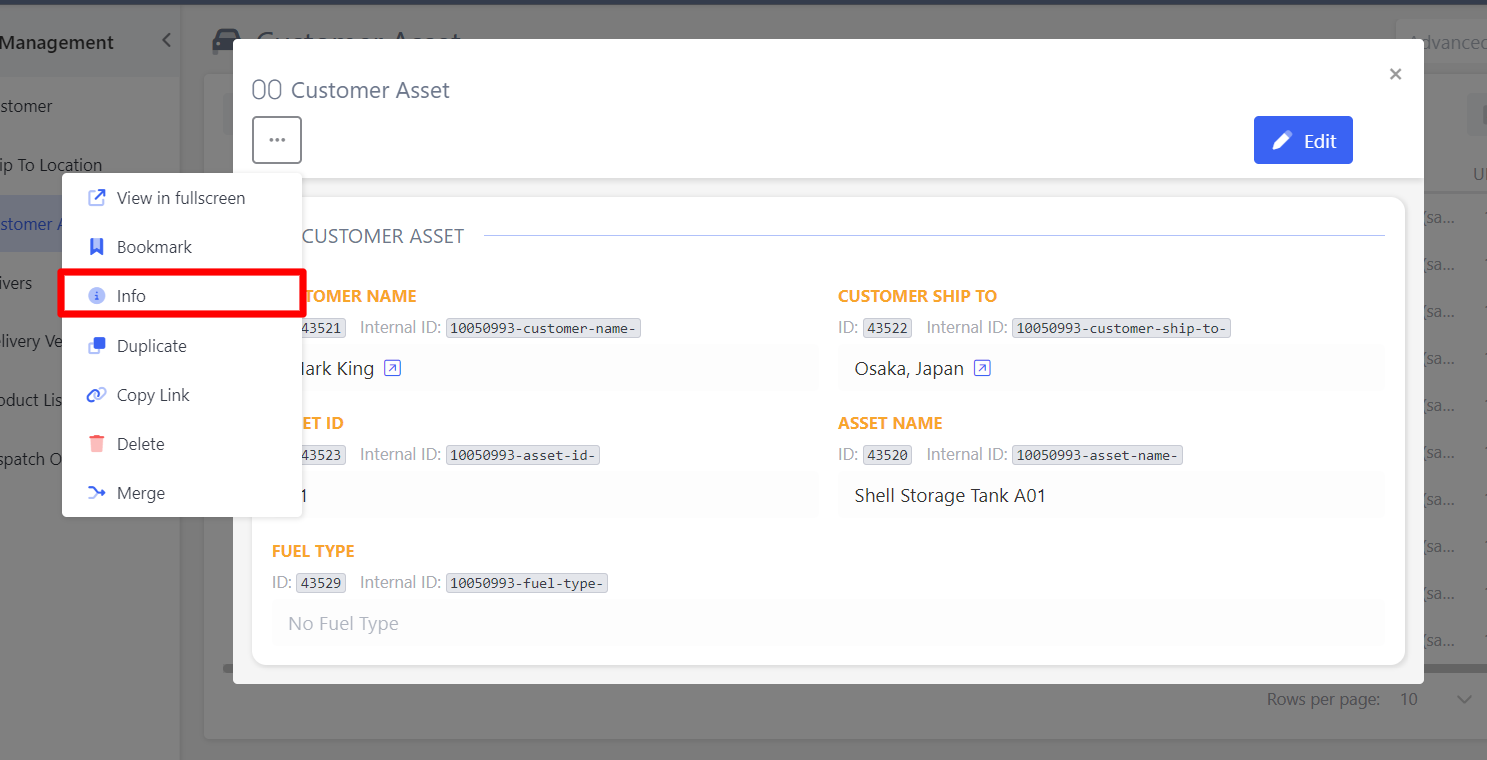
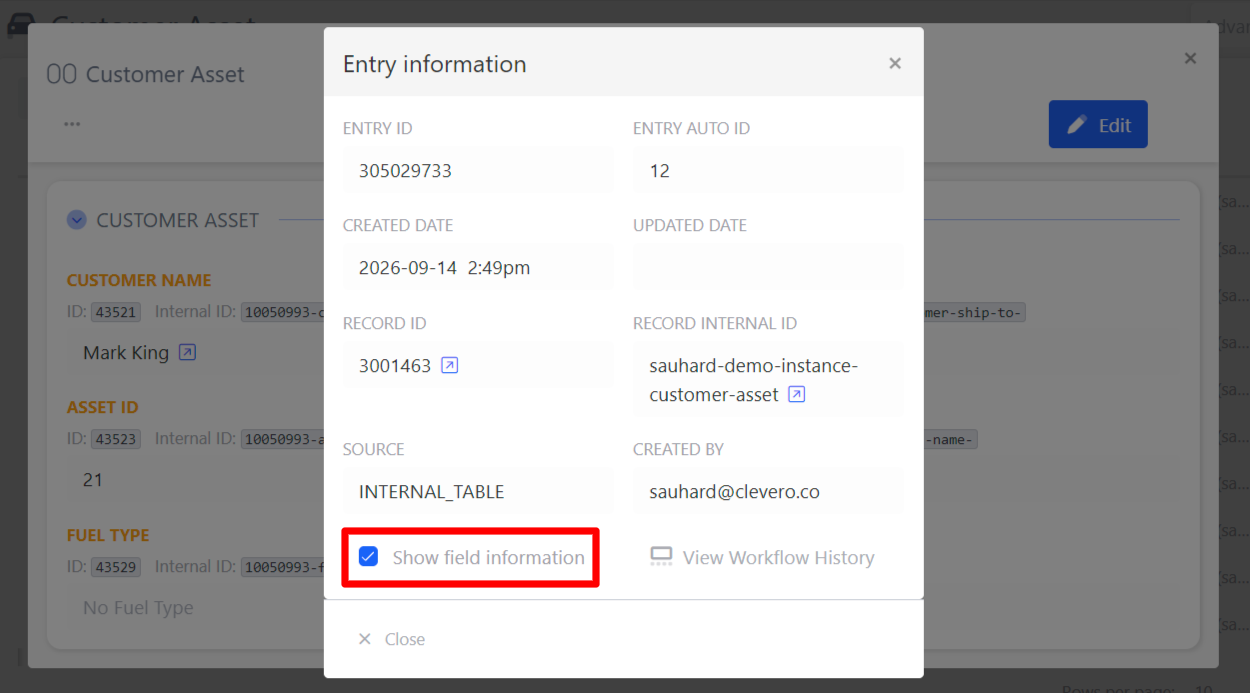
entry.prefix followed by the field's internal ID. To find a field's internal ID:- Open any entry of the record.
- Click the ⋮ (Three-dot menu) menu and select Info.
- In Entry information, tick Show field information.
-
Close the editor and click Save changes.
5. Notes
- A title can combine plain text and any number of dynamic values, in any order.
- Each entry layout has its own header, so update every layout where the new title should appear.
📌 Need Help?
If you require assistance or encounter any issues, please don't hesitate to contact us for further support.
Updated 11 days ago