
How to Change Your Browser's Default Email
Modify the default email for mailto link in several web browsers.
When you click on email hyperlinks (e.g., [email protected]), your computer opens your default email client, typically Microsoft Outlook for systems with Microsoft Office. If you prefer a different email client, you can customise your web browser to open it.
Google Chrome
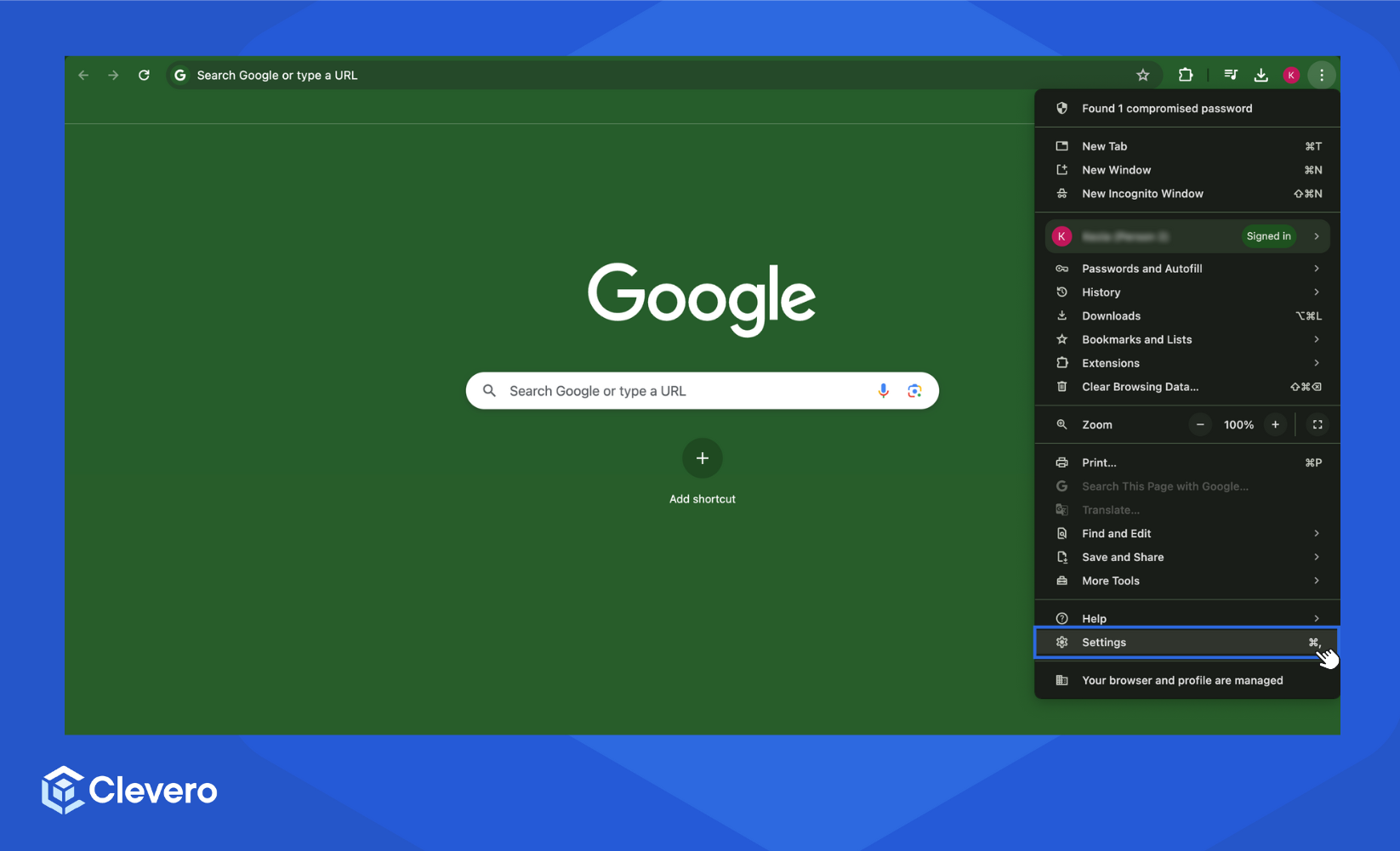
- Click the three vertical dots button in the top-right corner.
- Select Settings.
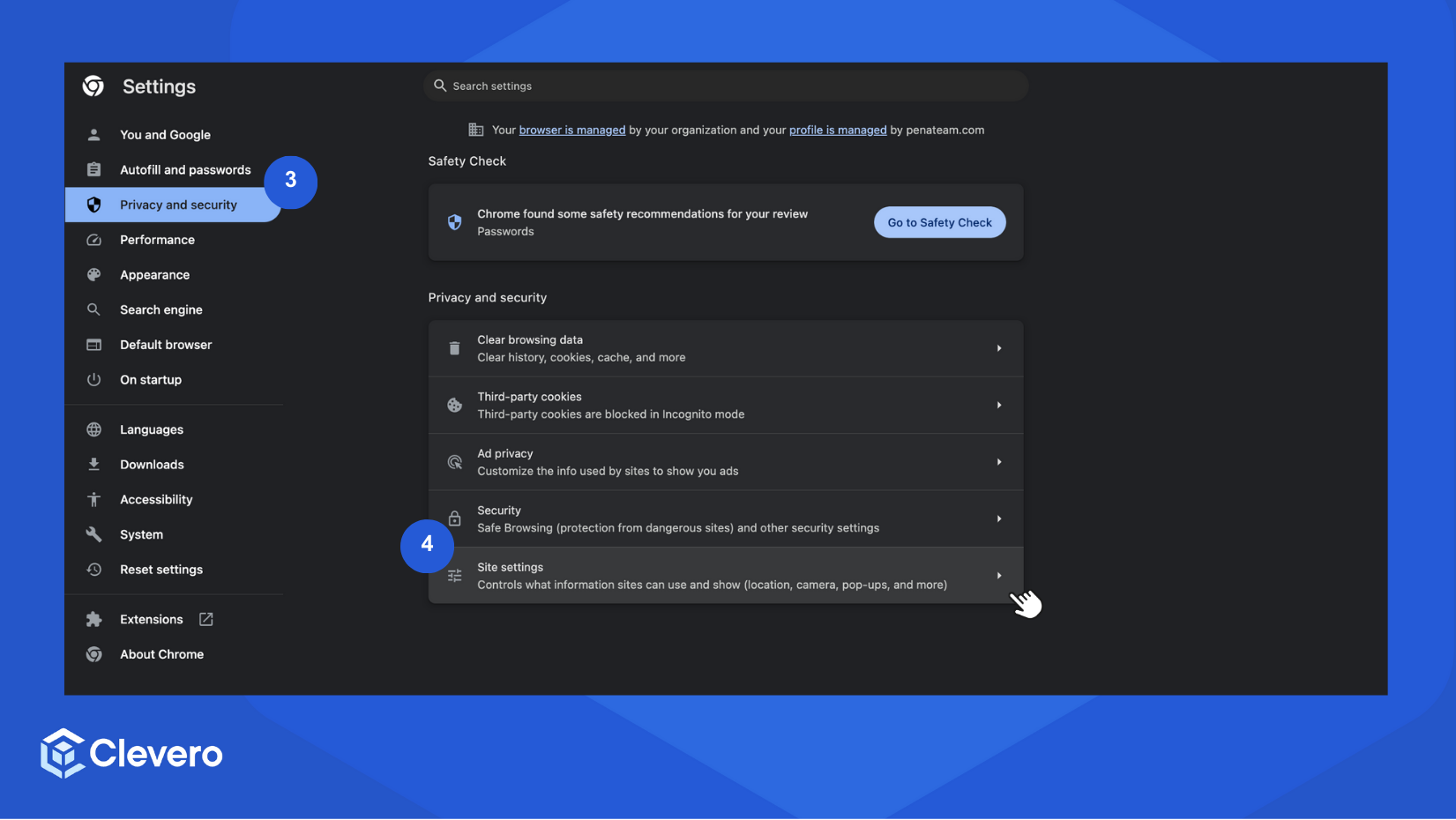
- Select Privacy and security from the sidebar.
- Click on the Site settings option.
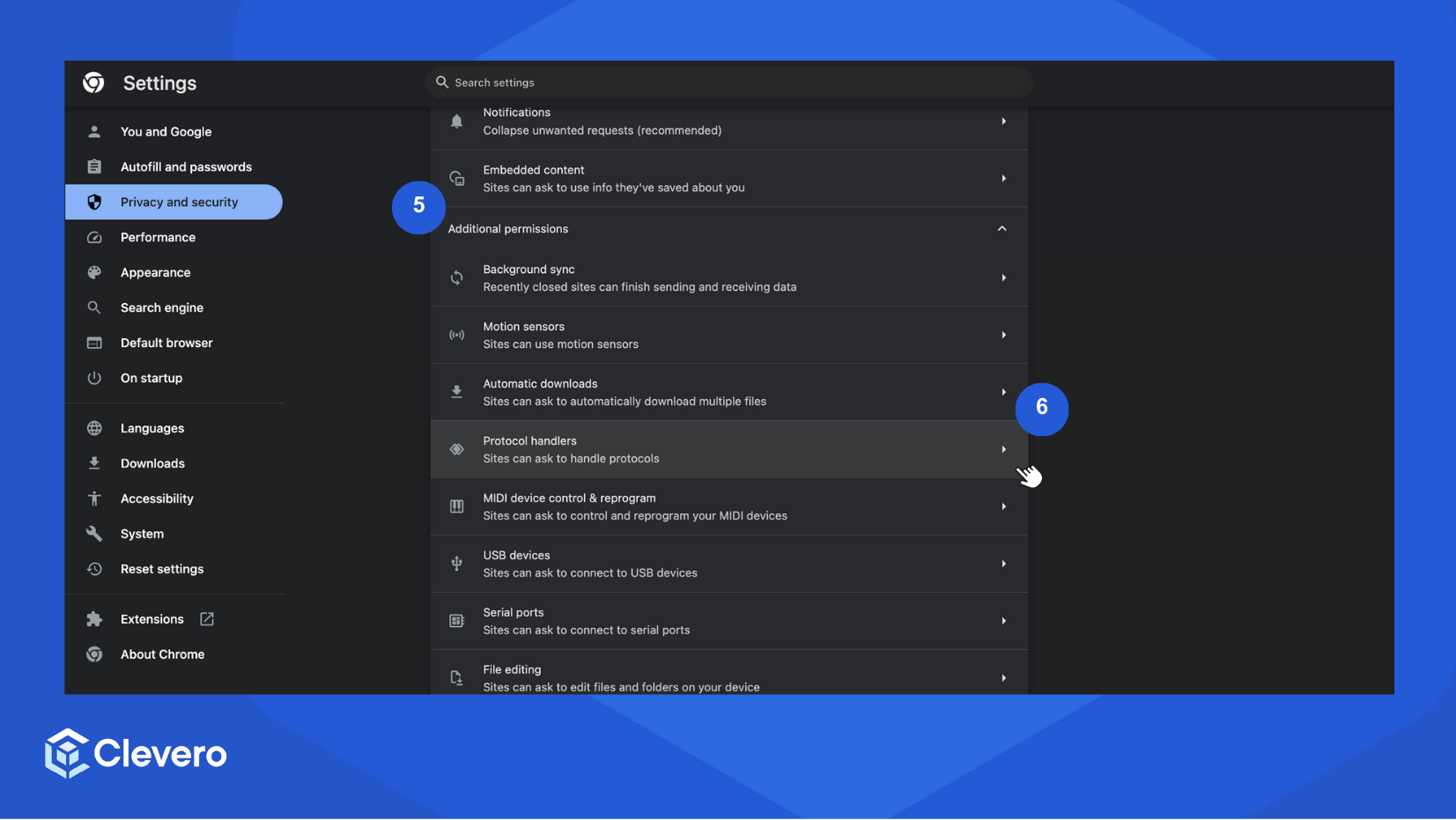
- Select Additional permissions under the Permissions section to expand all the available options.
- Select Protocol handlers.
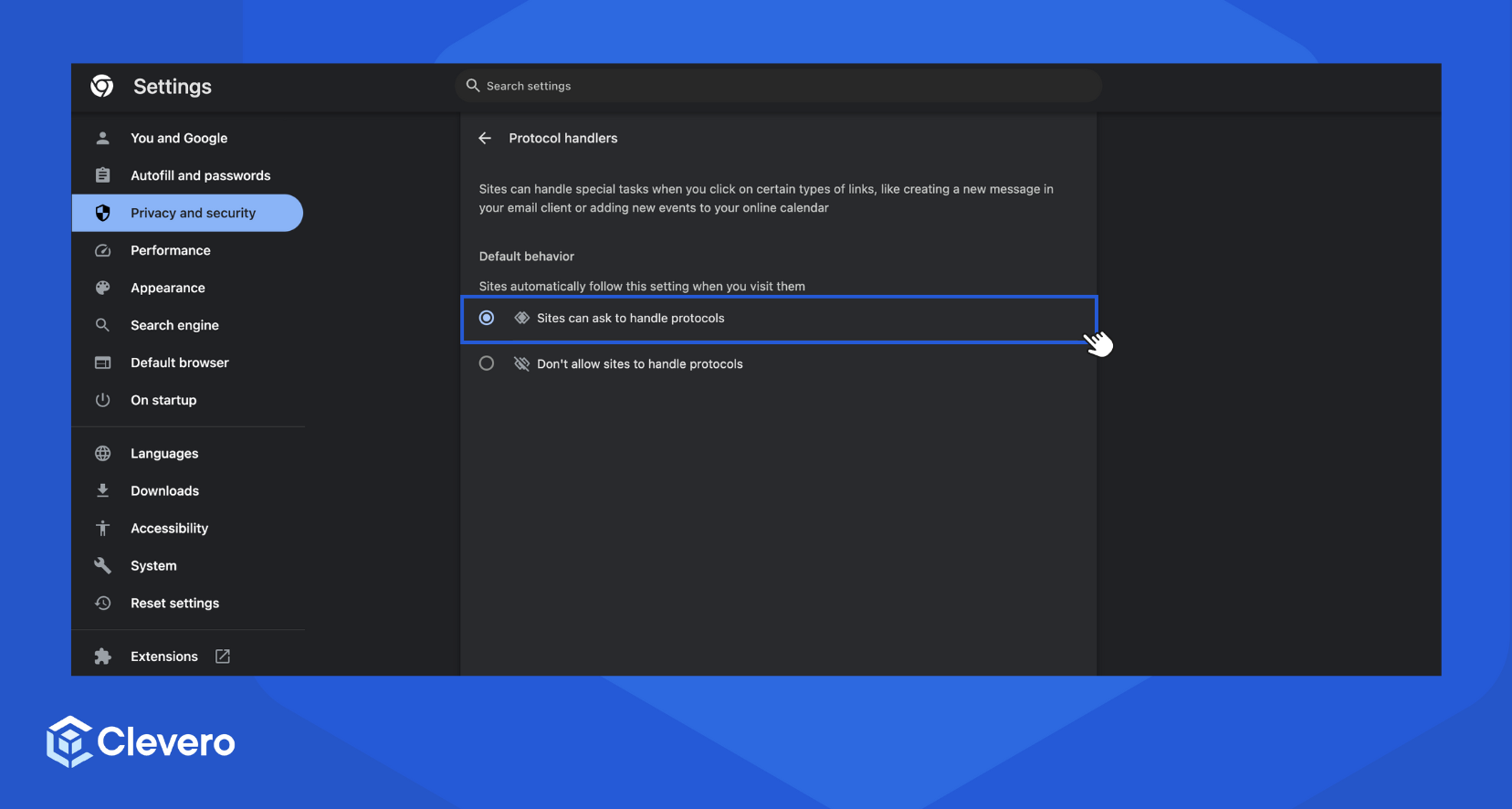
- Enable the Sites can ask to handle protocols option.
- Open your default email client (e.g., Gmail), and look for a diamond icon at the right of the address bar.
- Click Allow > Done to set Gmail as your default email handler.
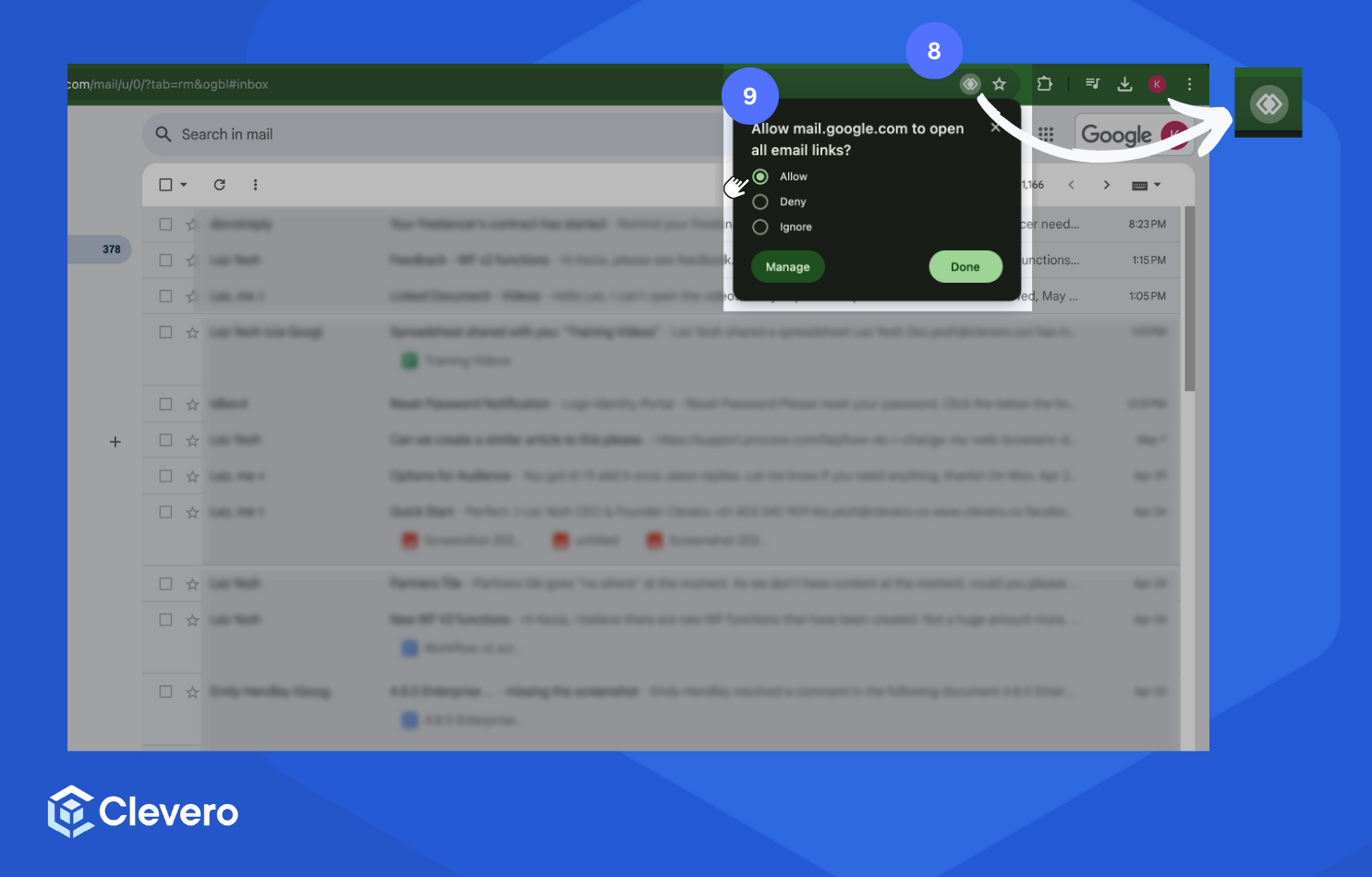
- The next time you click the email hyperlink, it will directly open Gmail.
Firefox
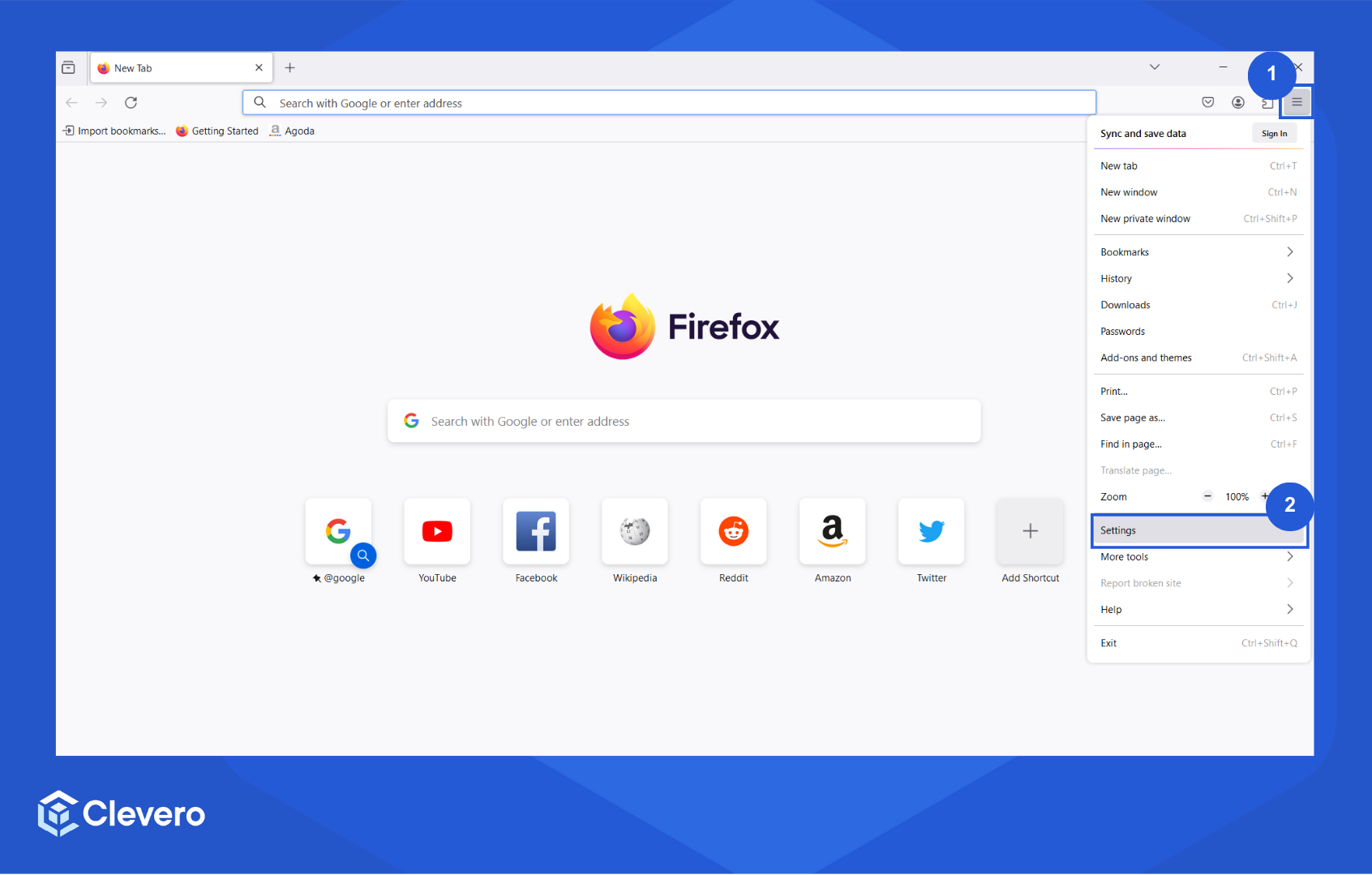
- Click the three vertical lines in the top-right corner.
- Click Settings (PC) option.
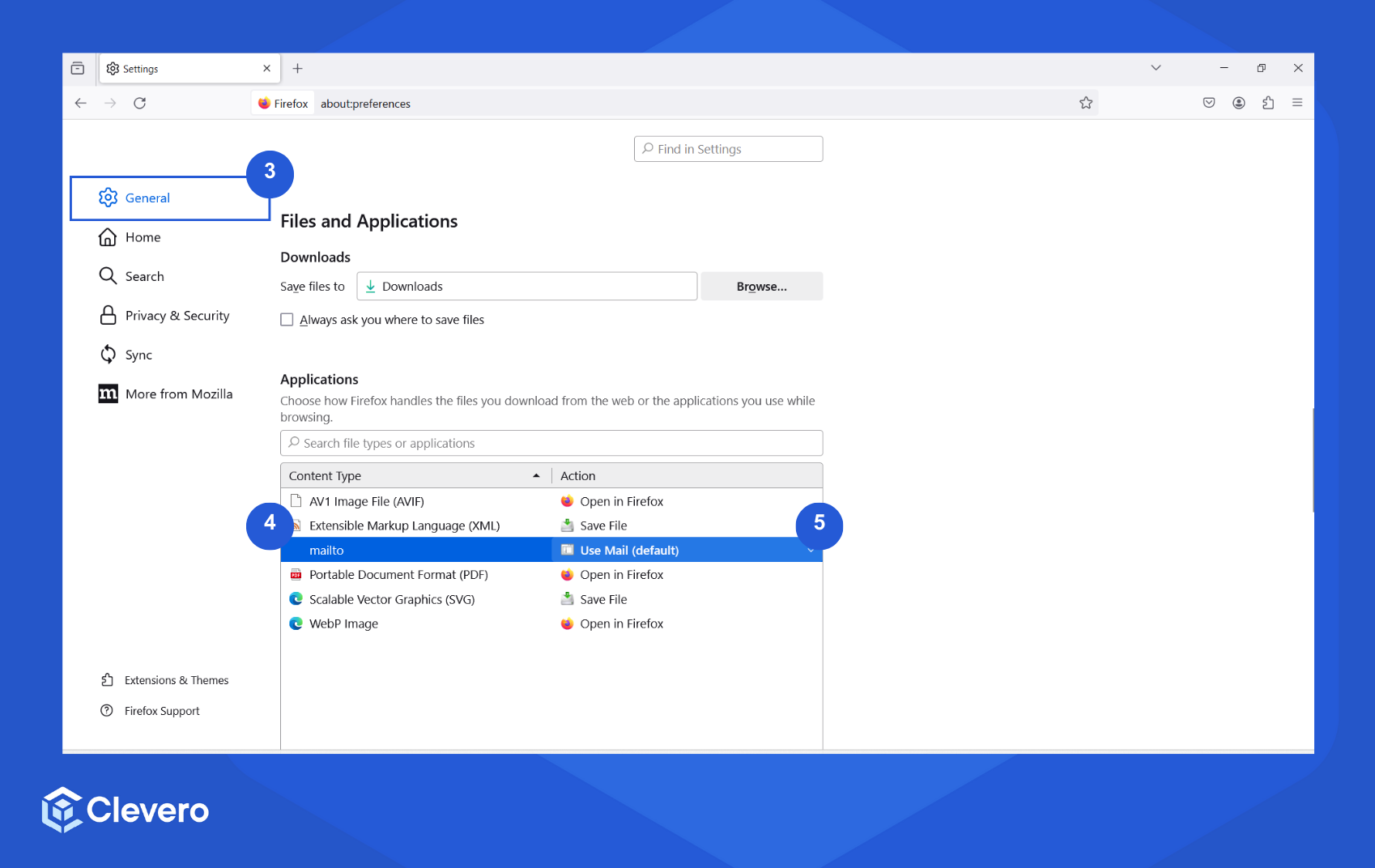
- On the General tab, scroll down to find the Files and Application subtab.
- Select the mailto from the list.
- Click the drop-down menu under the Action column and select your desired default email client (e.g. Gmail).
- Click OK.
Microsoft Edge
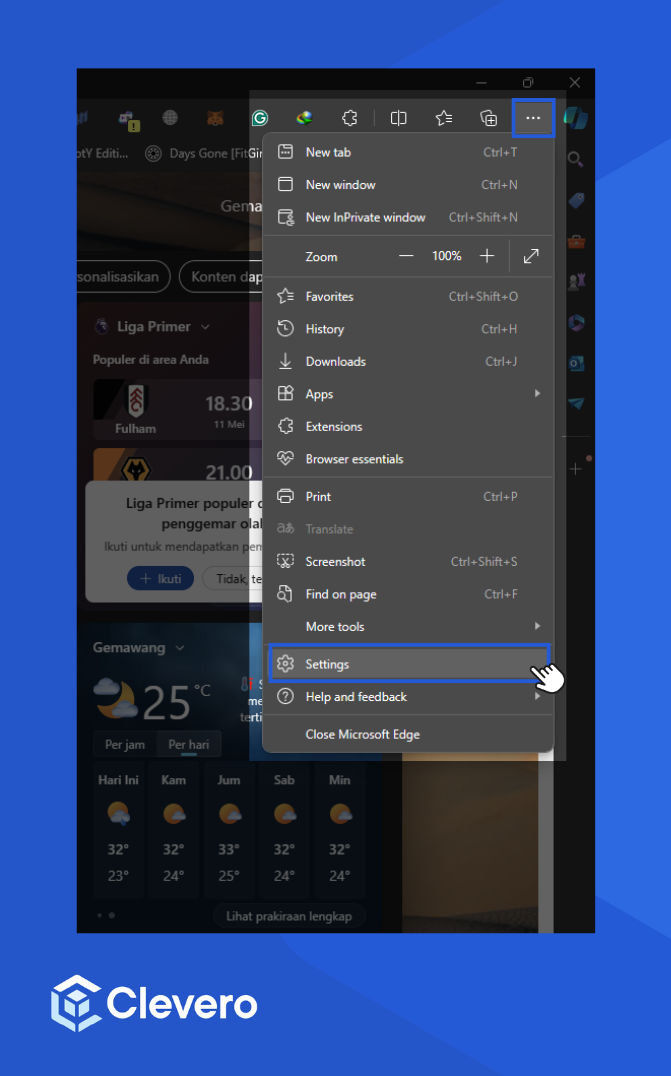
- Click the three horizontal dots button in the top-right corner.
- Click Settings.
- Select Cookies and site permissions > Protocol handlers.
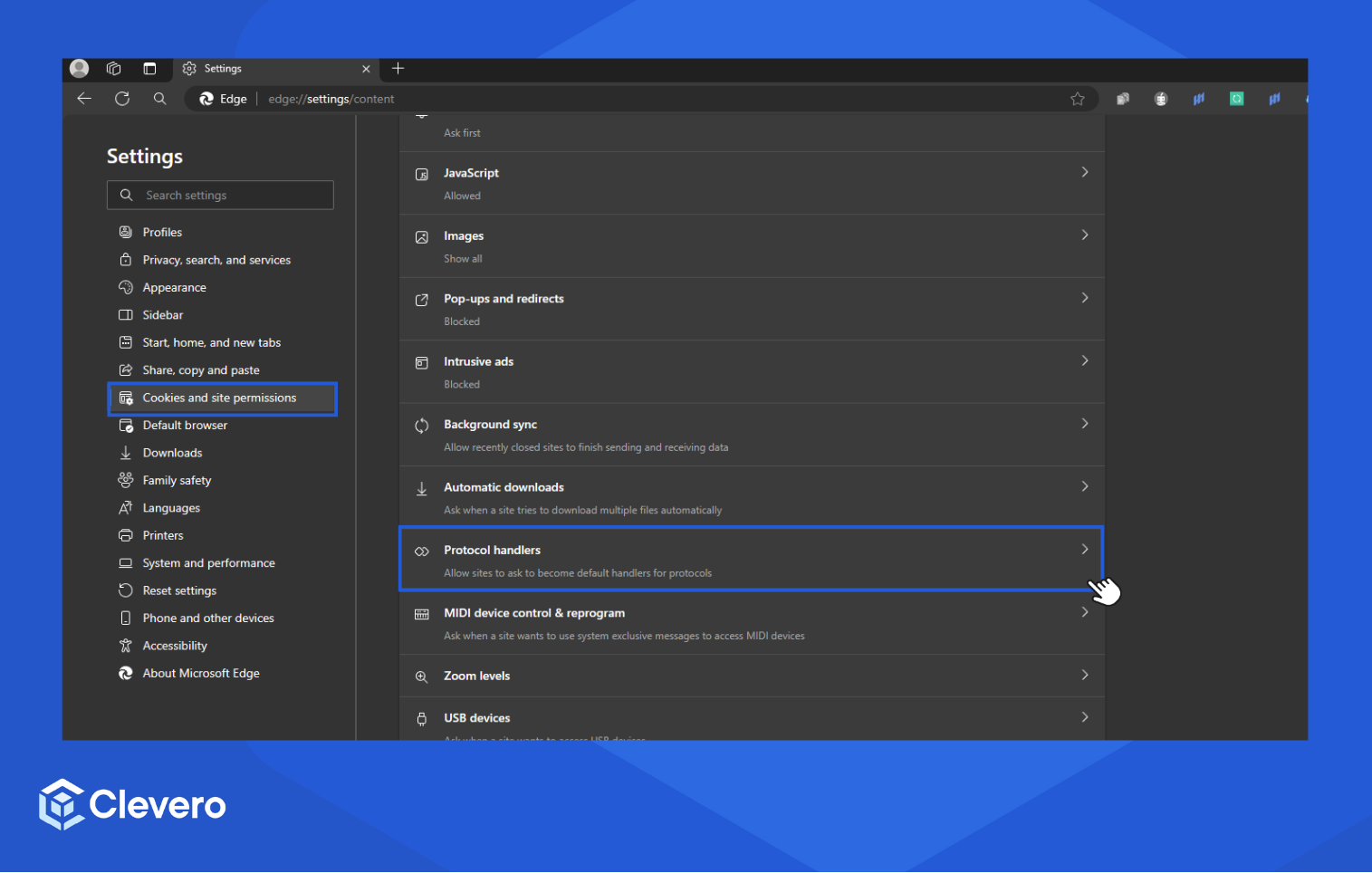
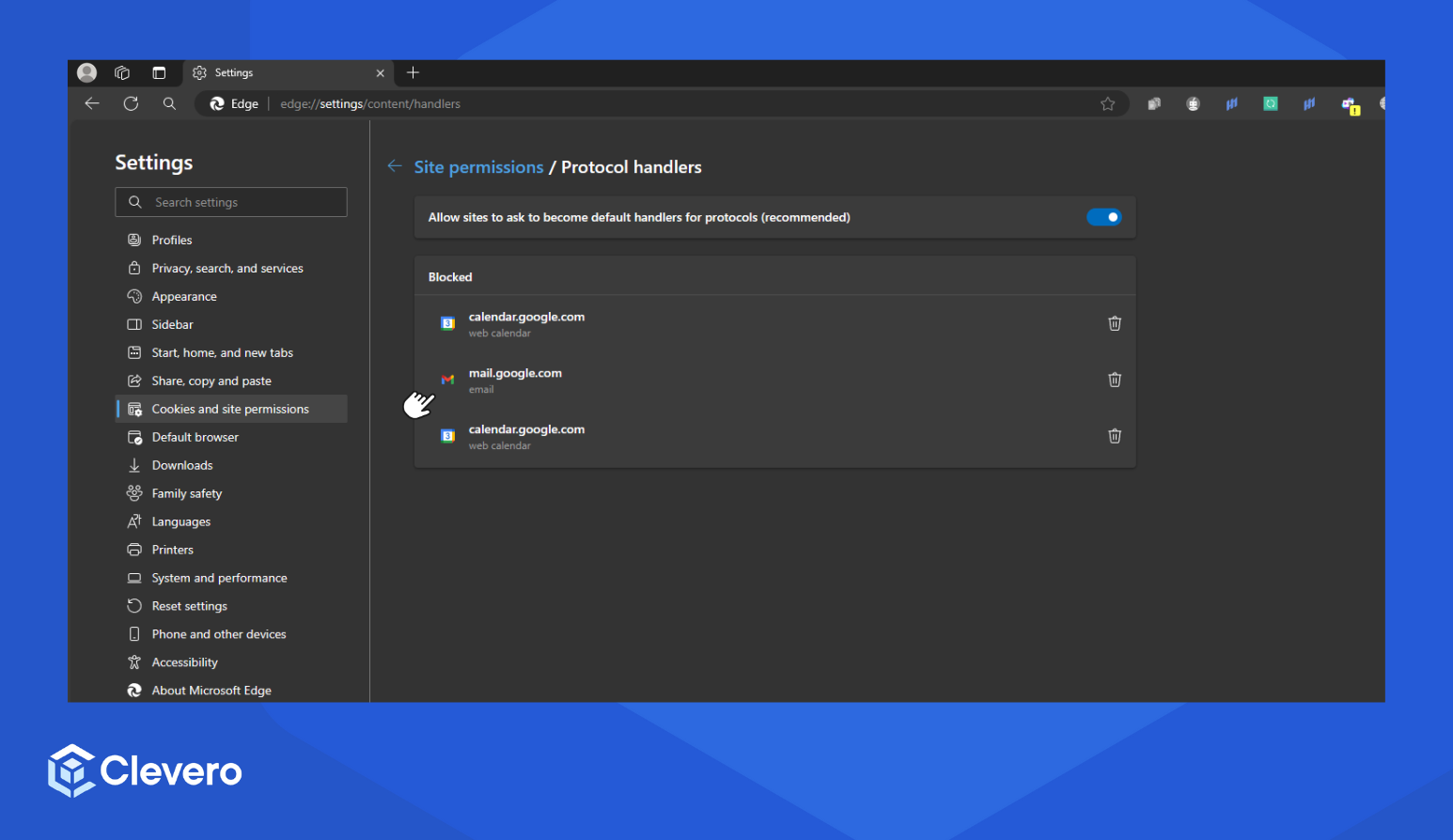
- Enable the Allow sites to ask to become default handlers for protocols option.
- Click the email you’d like to use, then click Set this program as default.
📌 Need Help?

Updated over 1 year ago
Did this page help you?