
Interactions
🔄 Enhance user-system exchanges with interactions.
Introduction to Interactions
Interactions in Clevero are client-side automations that respond to how users interact with the browser in real time. They’re designed to make your Entry Layouts smarter, more dynamic, and more intuitive—without requiring complex development.
With Interactions, you can control how your interface behaves based on what the user is doing. This allows you to guide users through your workflows, enforce business rules, and streamline data entry.
Here are some common use cases for Interactions:
- On Load of the Entry Layout: Automatically filter dropdown options, pre-fill values, or set certain fields as mandatory.
- On Change of a Field: Dynamically show or hide other fields, make fields conditionally mandatory, or pull in data from linked records to update the current entry.
- On Save: Run validations and display custom alert messages to the user before the data is committed.
Whether you're fine-tuning the user experience for your team or creating robust business rules on the front end, Interactions let you shape the UI to match the way your business works.
This feature revolves around the interaction between fields in the Entry Layout.
1. Creating an Interactions
Here's how you can access and configure Interactions:
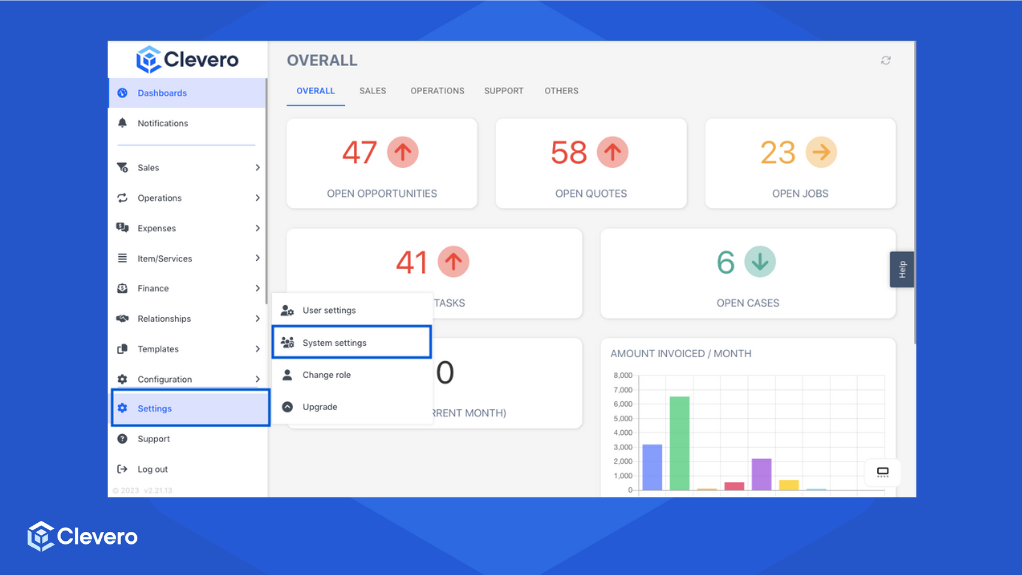
- Go to "Settings" > "System Settings".
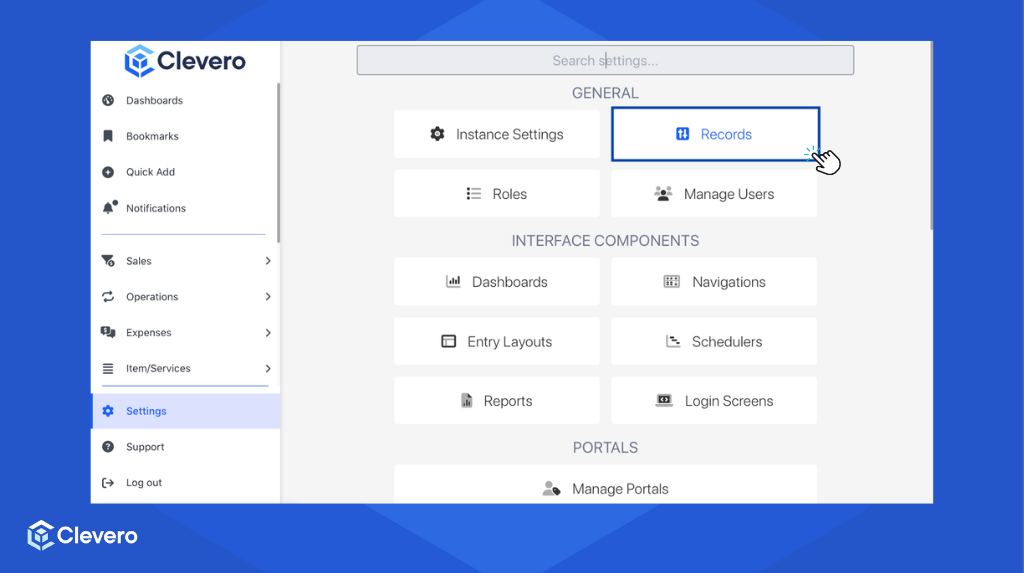
- Select "Records".
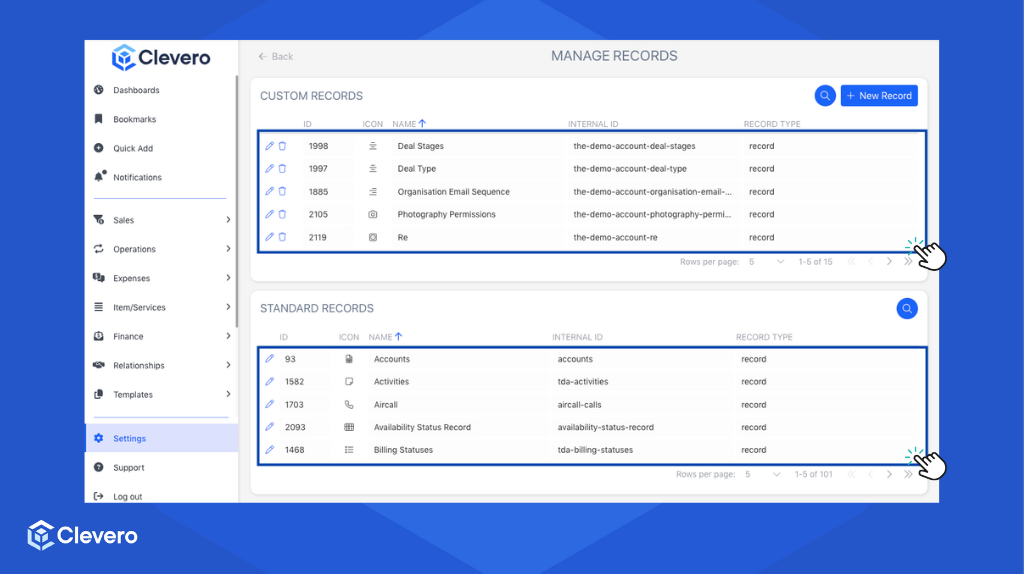
- Choose the desired record you want to configure.
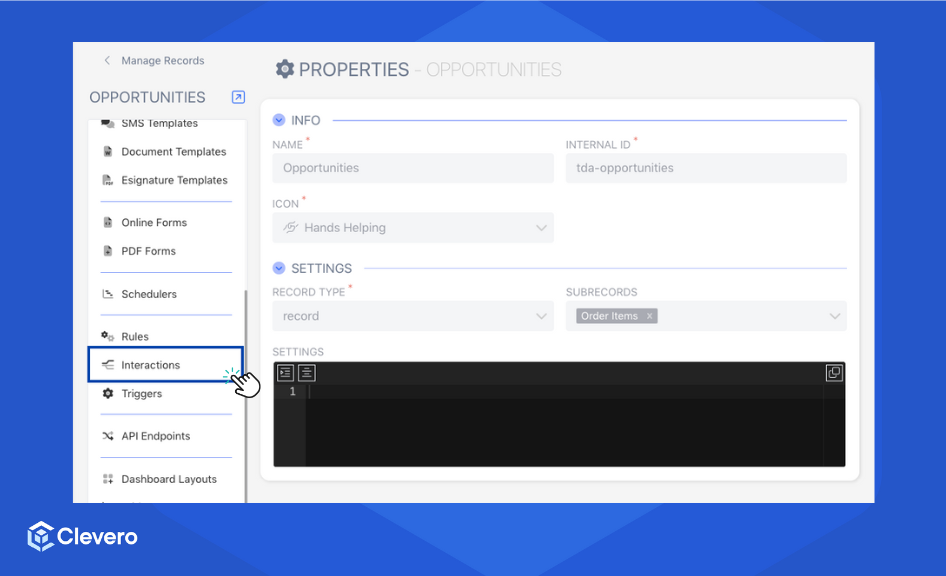
- On the sidebar, click on "Interactions".
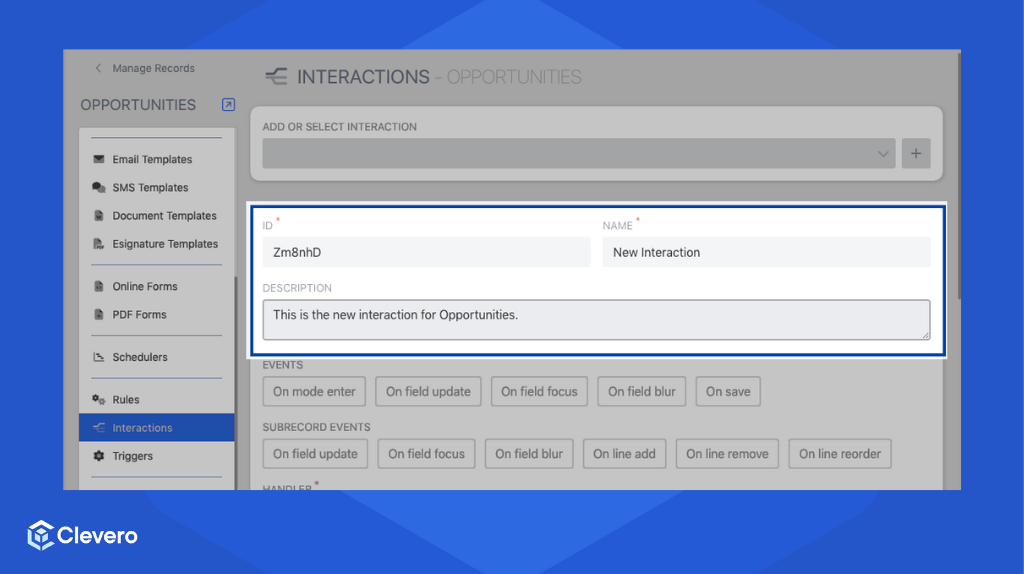
- The Interaction ID will be automatically set. Please provide the Interaction Name and Description. The description is a great way to ensure any users know exactly what this interaction is intended to do.
1.1. Events
Events define actions performed by end users, triggering Interaction Functions.
Info:You can set and combine multiple events at once.
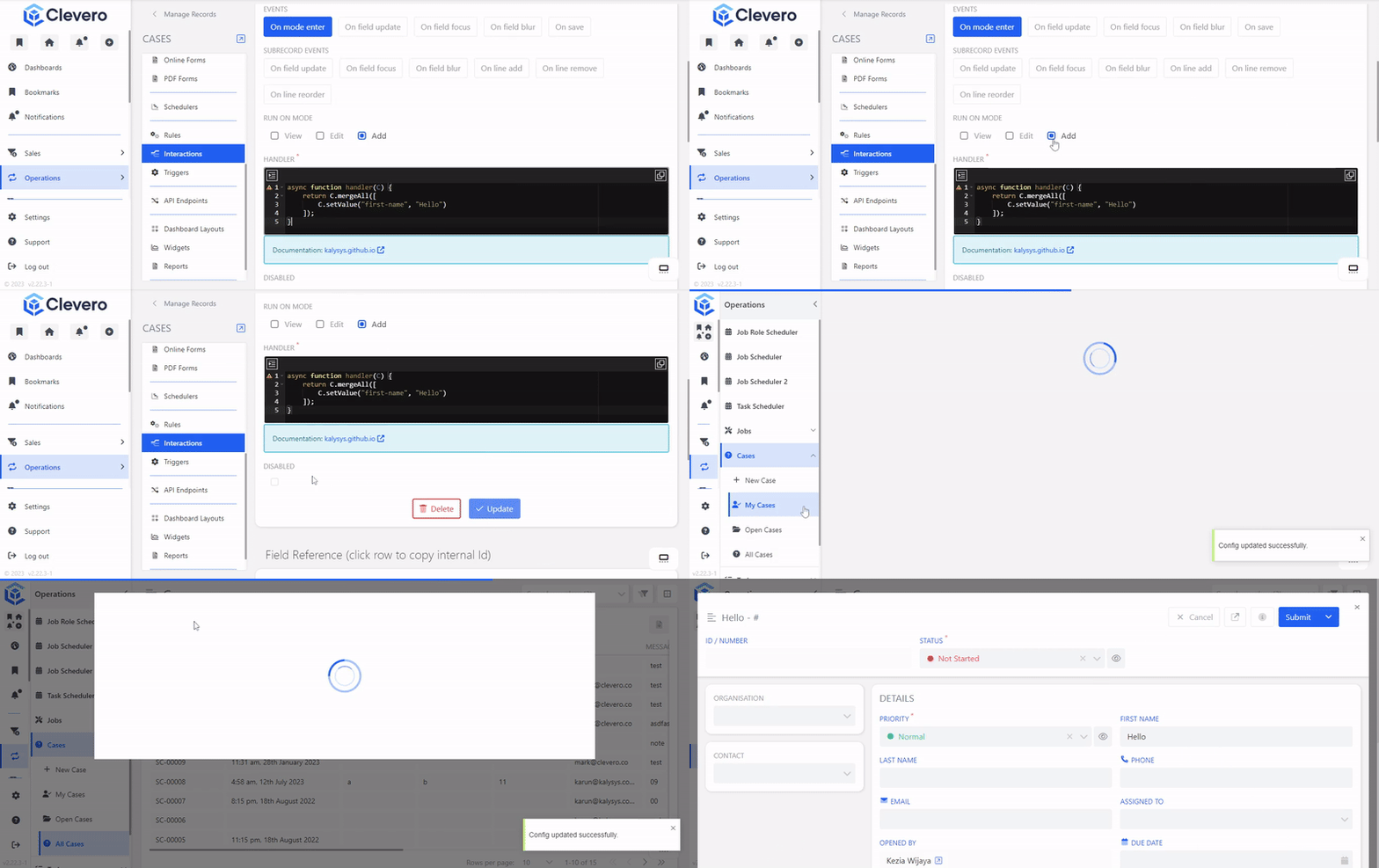
To help you picture it more clearly, consider the following function where the "First Name" field is automatically set to "Hello" when a specific event occurs.
async function handler(C) {
    return C.mergeAll([
        C.setValue("first-name", "Hello")
    ]);
}
See the event's implementation below:
1. On mode enter[MODE_SET]
MODE_SET]This interaction occurs when the page loads, initialising components or data as the user enters the app's screen.
Event Payload
The "Run On Mode" payload determines when the event will be executed. For example, when selecting Add, the event will be executed when we create new data.
2. On field update[FORM_UPDATE]
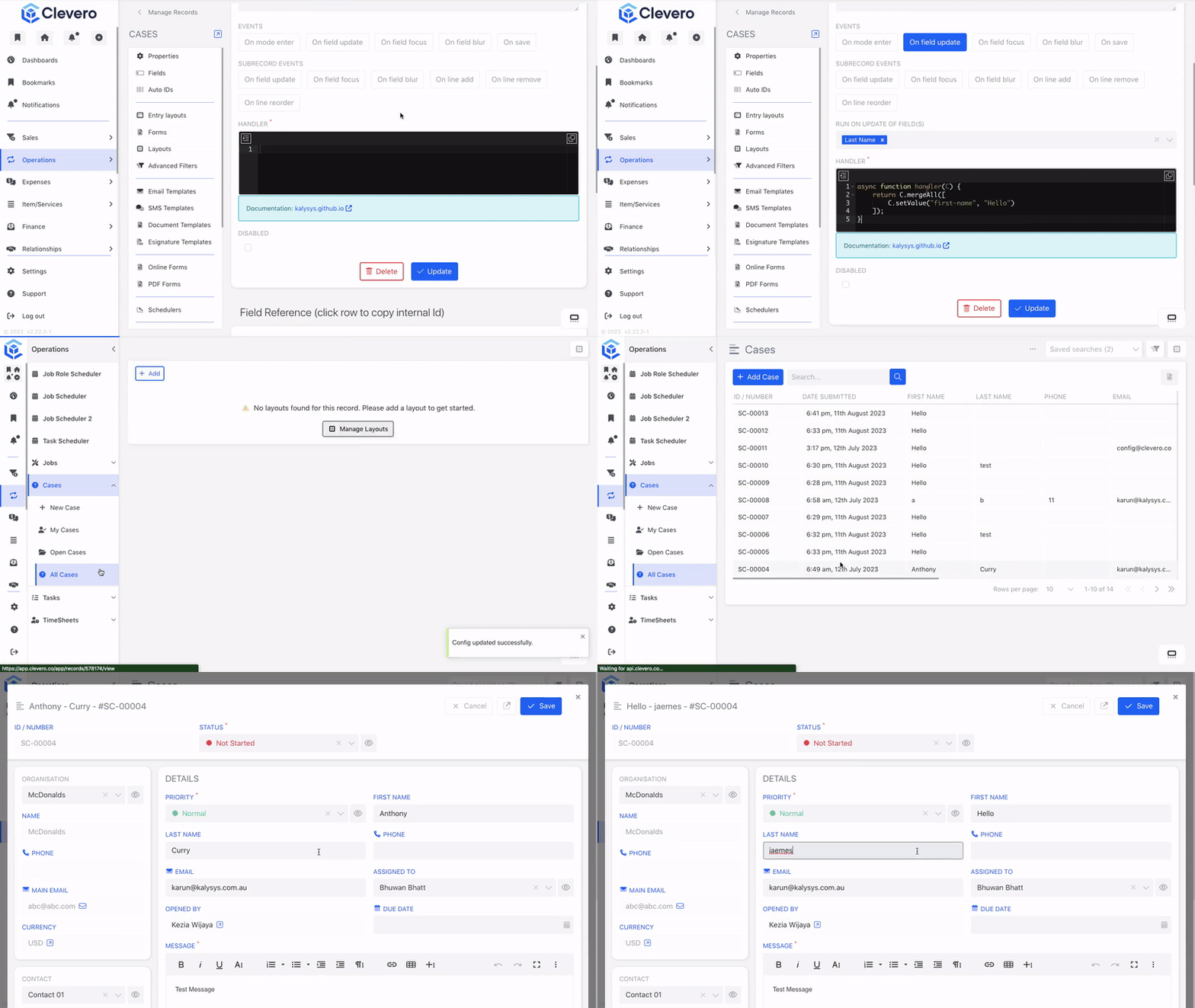
FORM_UPDATE]This interaction occurs when a field's content changes due to user input.
Event Payload
The "Run On Update of Field(s)" payload is used to specify which field(s) will trigger the event's execution. For example, any changes to the "Last Name" field will automatically populate the "First Name" field.
3. On field focus[FIELD_FOCUS]
FIELD_FOCUS]This interaction occurs when a user selects or focuses on a specific field or input element.
Event Payload
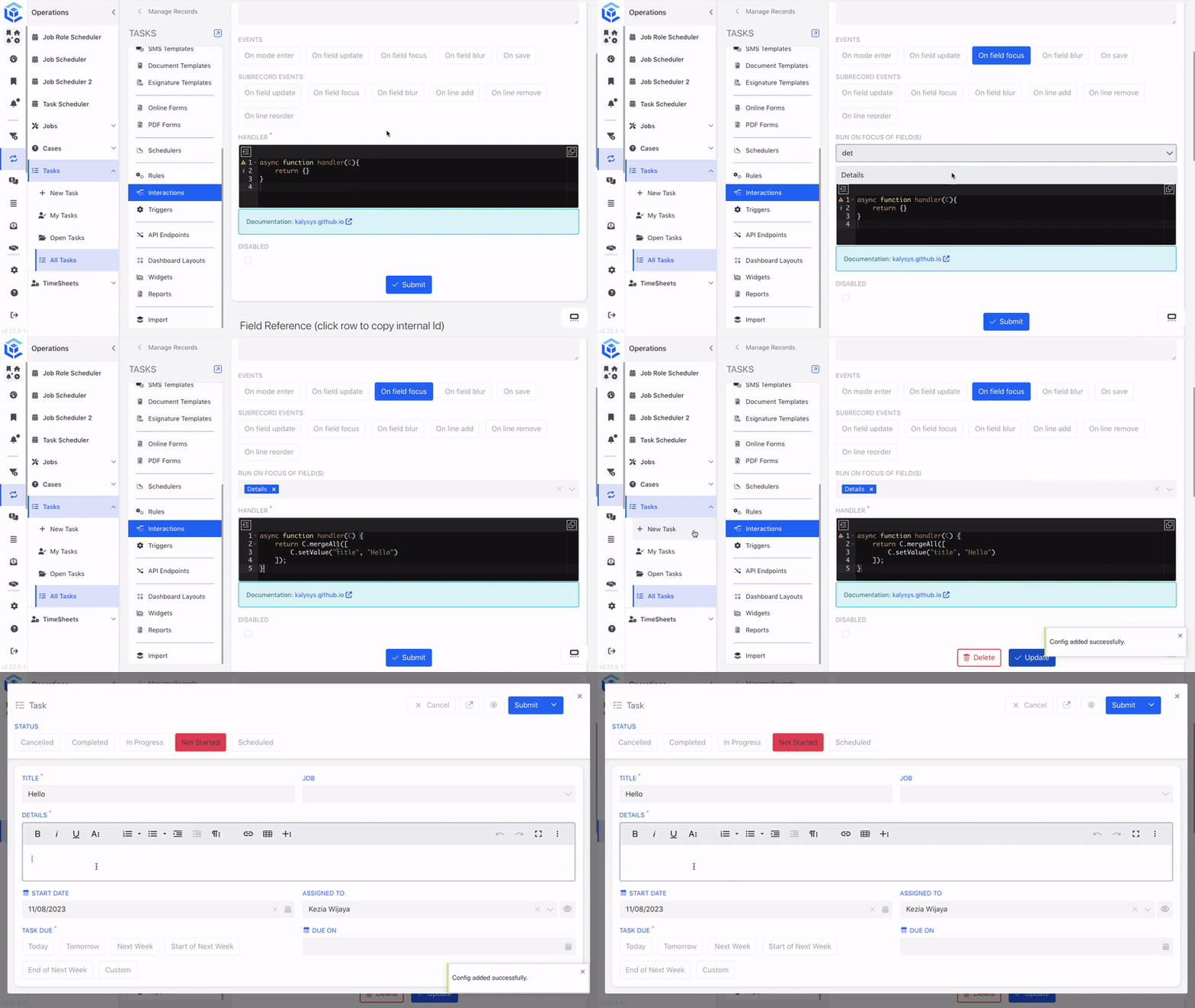
The "Run On Focus of Field(s)" payload is used to determine which field(s) will trigger the event's execution. For example, when we click on or place our cursor in the "Details" area, it will automatically populate the "Title" field.
4. On field blur[FIELD_BLUR]
FIELD_BLUR]This interaction occurs when a user moves focus away from a field or element, validating entered data or performing final actions after field editing.
Event Payload
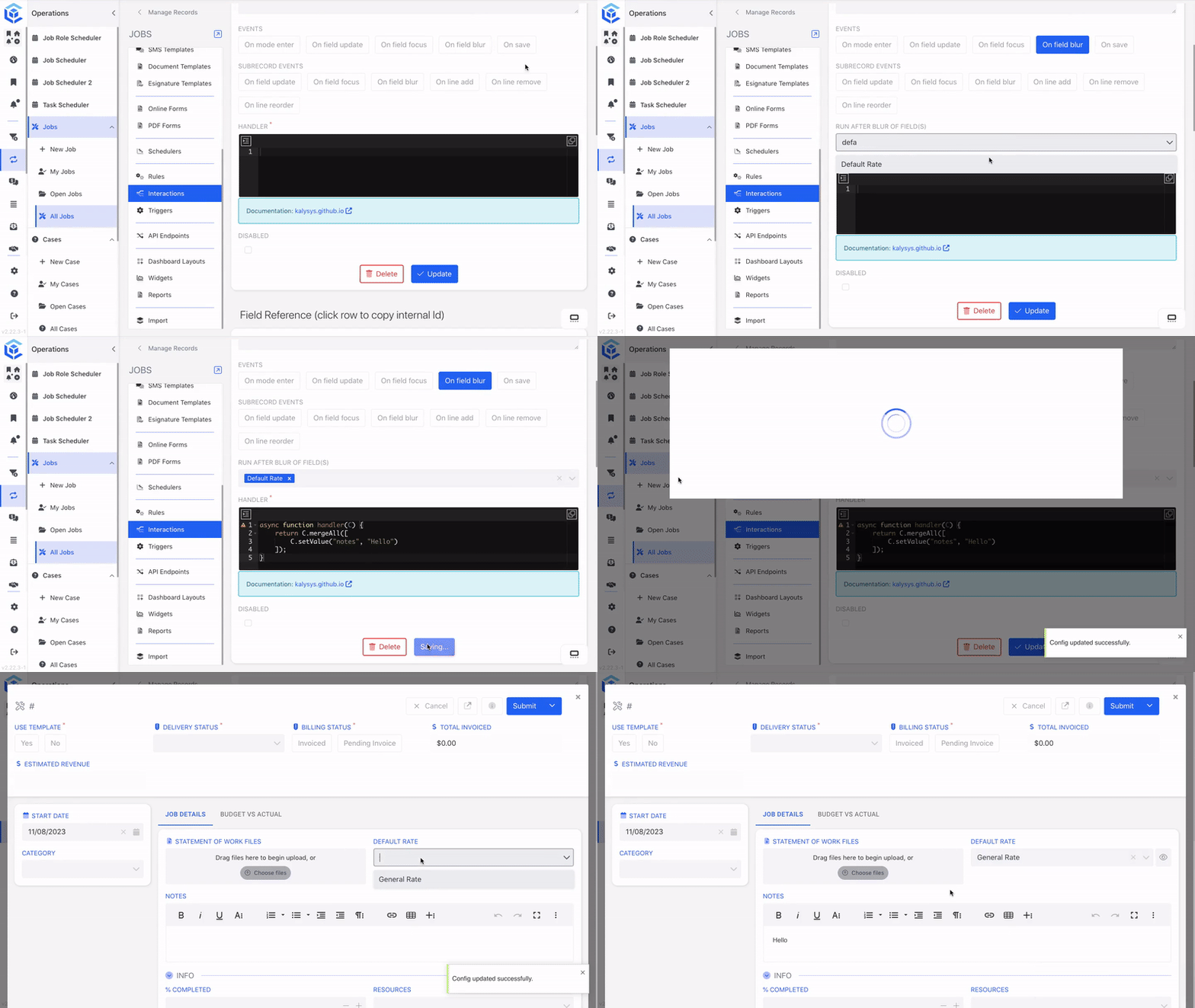
The "Run After Blur of Field(s)" payload is used to specify which field(s) will trigger the event's execution. For example, when the cursor's focus is removed from the "Default Rate" field, it will automatically populate the "Notes" area.
- On save[
ON_SAVE]
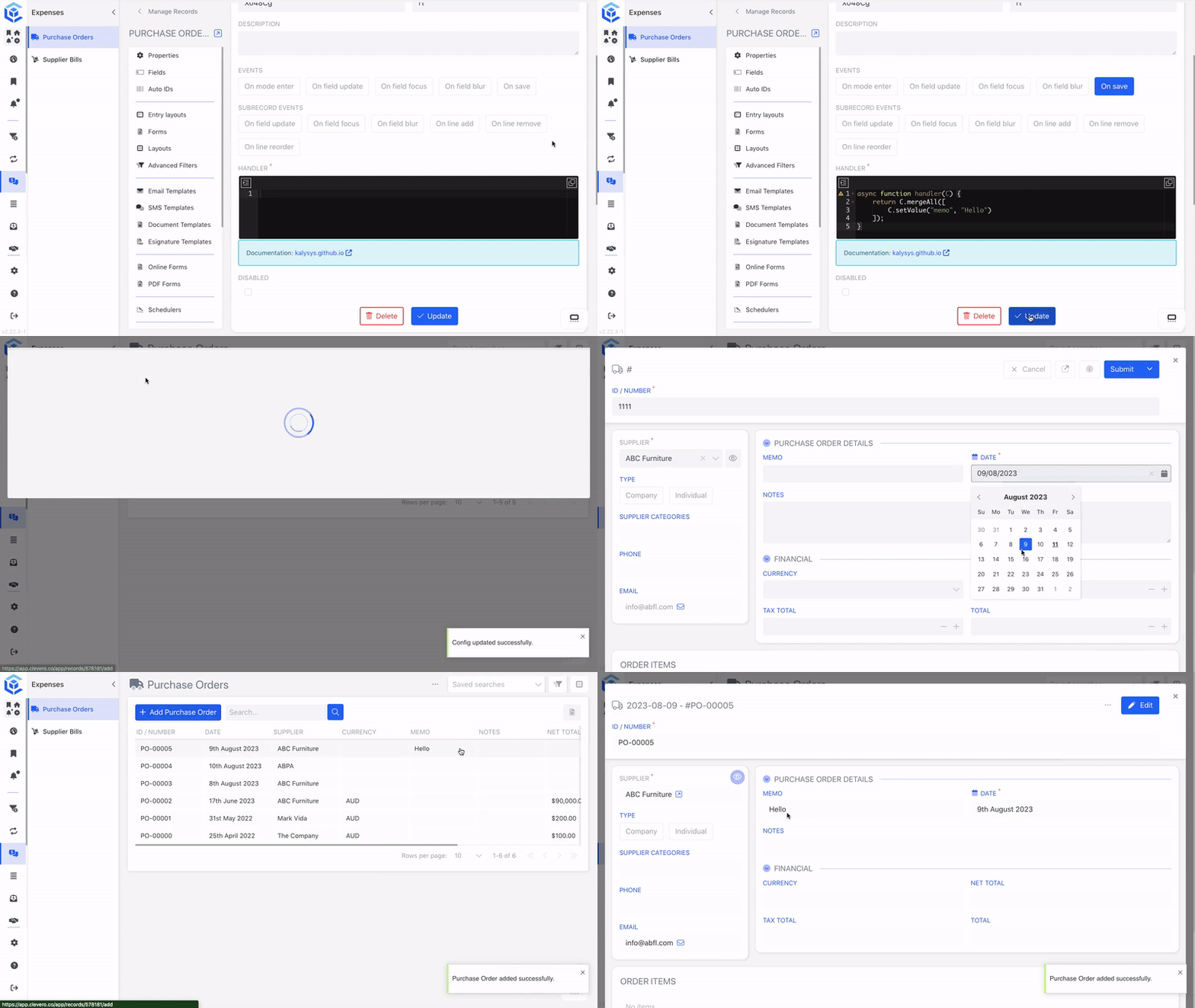
This interaction occurs when a user clicks 'Submit' or saves their work, allowing final checks, data preparation, or displaying a confirmation message before completing the save action.
1.2. Sub Records Events
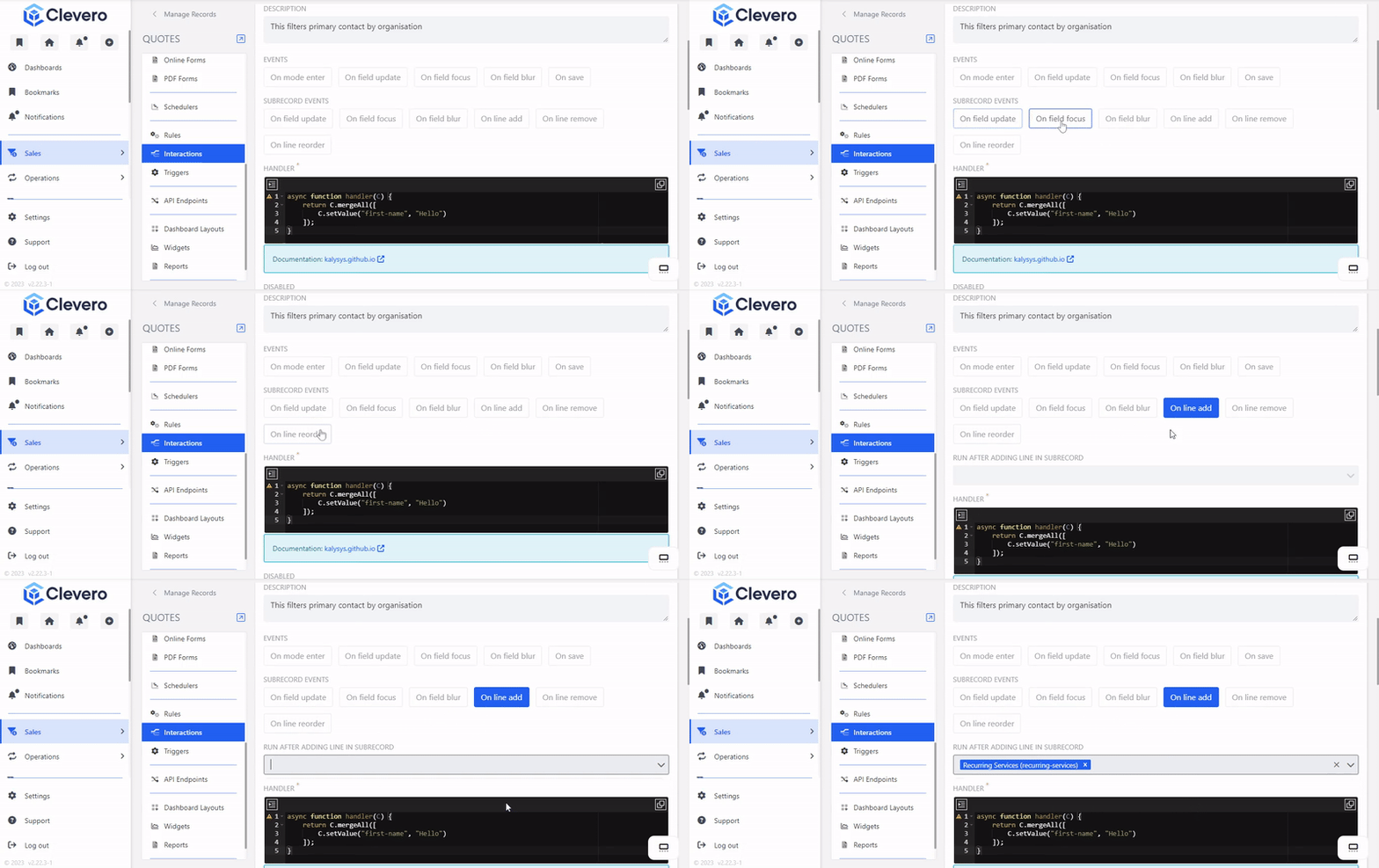
Sub Record events are similar to normal events but are fired when specific actions are performed within the record. Below are the currently supported Sub Record events:
| Sub Record Events | Description |
|---|---|
On field update [SUB_CHANGE] | It occurs when a field's content is updated within a subrecord due to user input or changes. |
On field focus [SUB_FOCUS] | It occurs when a user selects or focuses on a particular field within a subrecord. |
On field blur [SUB_BLUR] | It occurs when a user moves, focus away from a field within a subrecord. |
On line add [SUB_LINES_ADD] | It occurs when a new line is added to a sub record. |
On line remove [SUB_LINE_REMOVE] | It occurs when a line is removed from a sub record. |
On line reorder [SUB_LINE_REORDER] | It occurs when lines within a subrecord are reordered. |
1.3. Handler
The handler plays a crucial role in managing interactions. It is responsible for executing the desired actions when specific events are triggered. The handler contains a script with various usable functions.
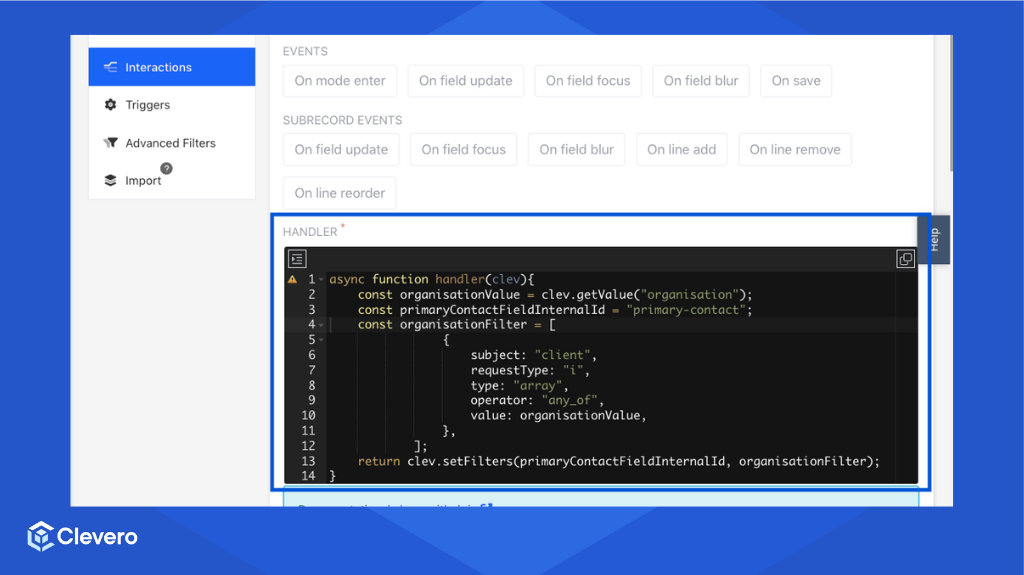
Example:
The script below is an asynchronous function that handles interactions with a form.
async function handler(clev){
    const organisationValue = clev.getValue("organisation");
    const primaryContactFieldInternalId = "primary-contact";
    const organisationFilter = [
                {
                    subject: "client",
                    requestType: "i",
                    type: "array",
                    operator: "any_of",
                    value: organisationValue,
                },
            ];
    return clev.setFilters(primaryContactFieldInternalId, organisationFilter);
}
It retrieves the value of the "organisation" field using thegetValue function. Then, it creates a filter using thesetFilters function.
The purpose of this interaction is to dynamically set filters on the "primary-contact" field when the "organisation" field is updated or when a specific event occurs. The filter ensures that the "primary-contact" field only shows relevant data related to the selected "organisation" value.
Info:For more information, please refer to the Scripts page.
📌 Need Help?

Updated over 1 year ago