
Kanbans
💼 Visualize Workflow with Kanban View.
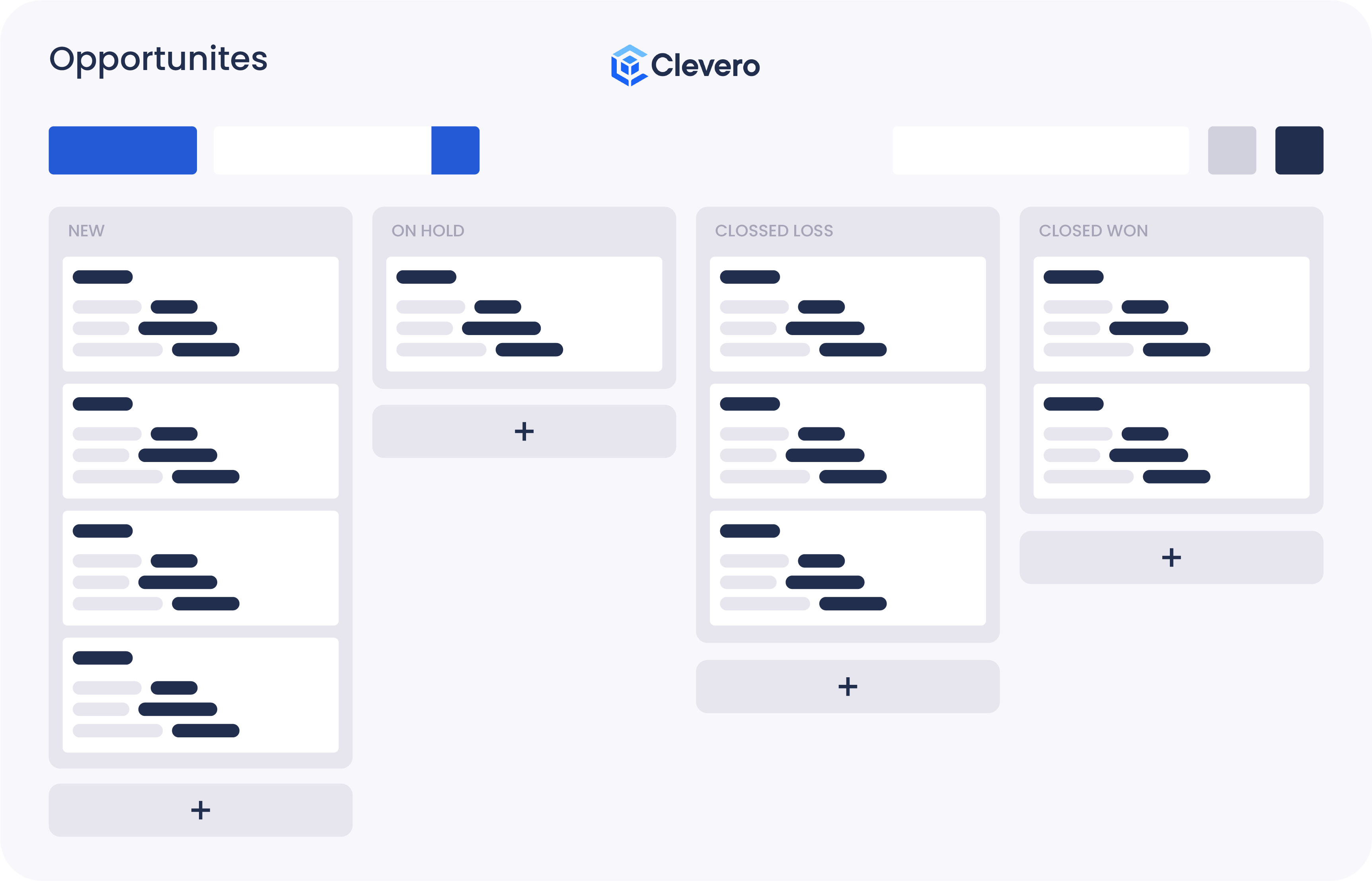
Kanban Views are a way to display data on a Kanban board. Kanban boards typically consist of columns representing stages of a process, and tasks are represented as movable cards.
1. Features
The Kanban view includes the following features:
- Customise the Kanban view to suit your workflow.
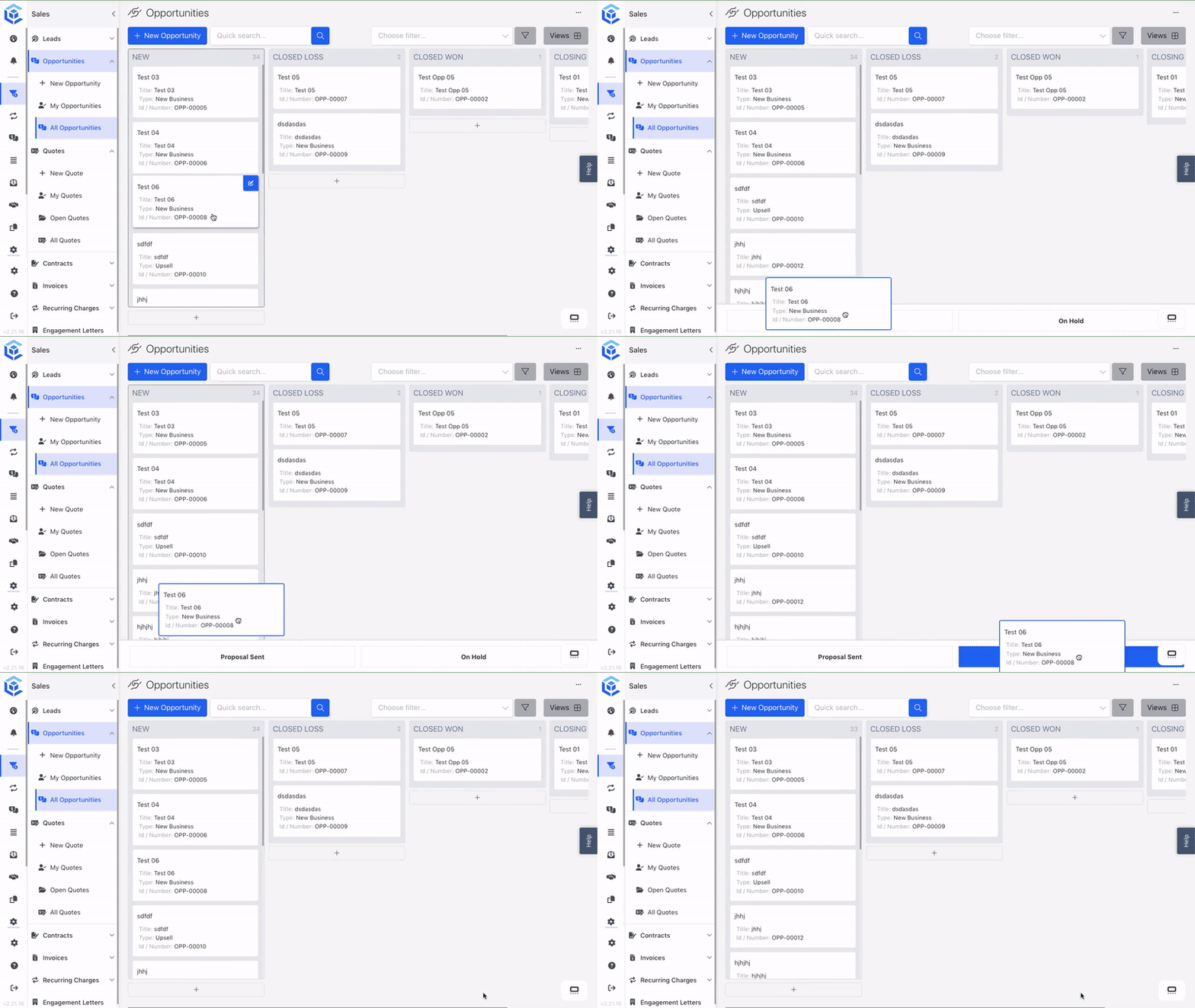
- Drag and drop cards between columns to update their status.
- Search or filter cards to find specific records.
- Group cards into swimlanes based on selected criteria.
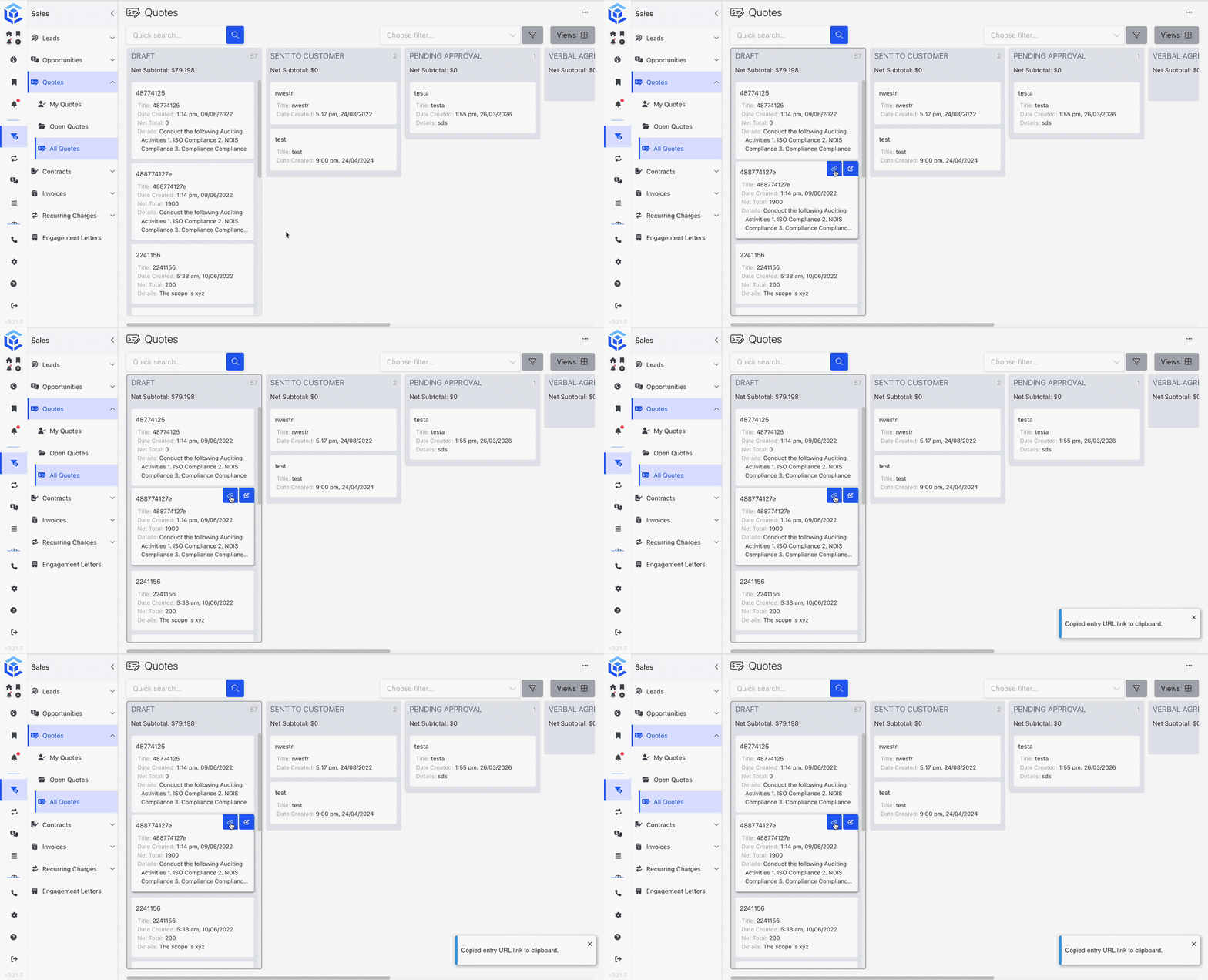
- Copy a card URL to share a direct link to the record.
- Display up to two lines of text on each card, making longer titles easier to read.
2. Create a Kanban View
WarningThe default view is visible to all users. To make sure it works for everyone, create a default setting that works for all users. If you need a personalized experience, copy the default view or create a new view as needed.
Watch the guided demo below to create and apply a kanban view.
You can also follow the same steps using the written guide below.
- Open the record and find the Views icon in the top-right corner of the screen.
- Click on the "New View" button within the Views menu.
- Choose the "Kanban View" option.
- Specify the view name.
- Determine the columns you want to use in your Kanban view.
- Define the specific columns. These columns represent the different stages or statuses of your Kanban view.
- Configure the dropzone settings. This refers to where you can place cards that have not yet been assigned to a specific column.
-
Choose which field to act as the title of our card.
📘 Note: Only fields set as Mandatory appear in the Title field list. If the field you want isn't listed, turn on Mandatory for it in the record's Fields settings.
-
(Optional) Set colours for the columns.
- Enable Column Color to assign a colour to each column.
- How the colours are set depends on the field you chose under Use as columns:
- If the field uses a List (for example, a Status list), each column automatically uses the colour set for its list value in System Settings > Lists. No further setup is needed.
- If the field uses another record, select the field that stores the colour under Color field. This should be a Text field on that record, containing a hex colour code for each entry (for example, #2ECC71).
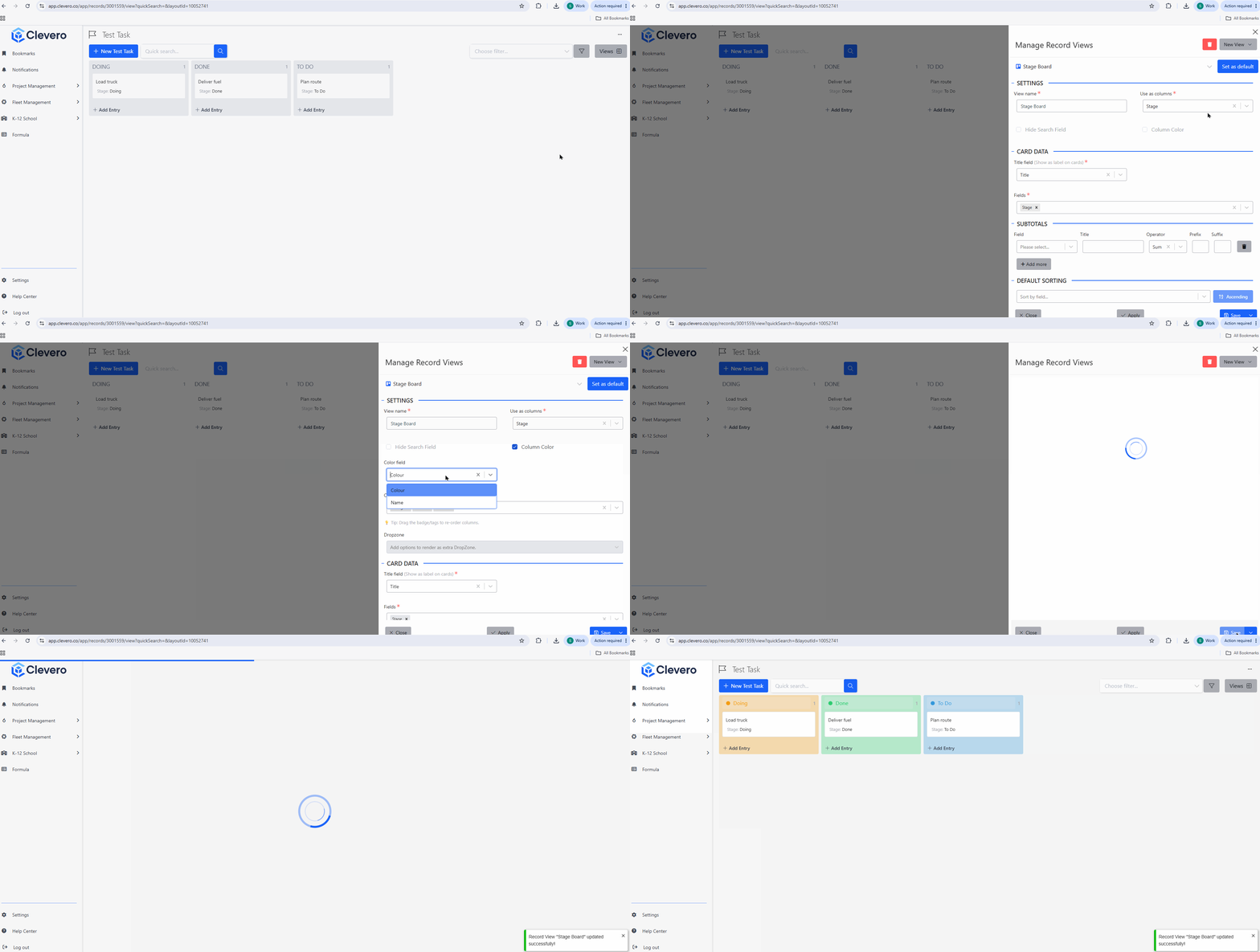
Example of a Kanban view with coloured columns
- Add specific fields to display on our card.
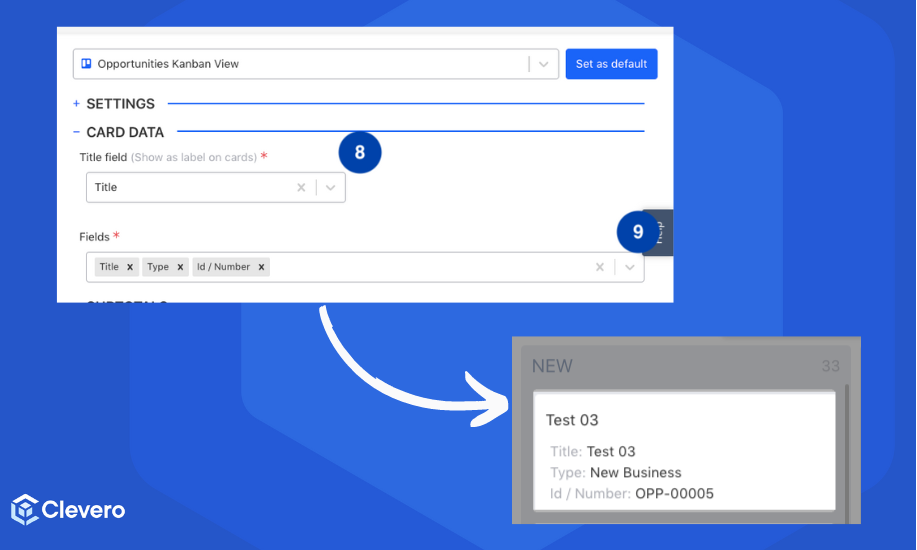
⚠️ Important: At least one field must be added here, or the view can't be saved.
- Add subtotals to columns with the following:
- Field: Specify the specific field from which the subtotals are calculated.
- Title: Provide a descriptive name for the displayed subtotals.
- Operator: Choose the mathematical operation to calculate the subtotals. The available options are Sum and Average.
- Prefix: Optionally, include a prefix for the subtotal values, such as a currency symbol or any other desired identifier.
- Suffix: Optionally, include a suffix to be appended to the subtotal values, for example, "-," to represent a monetary amount.
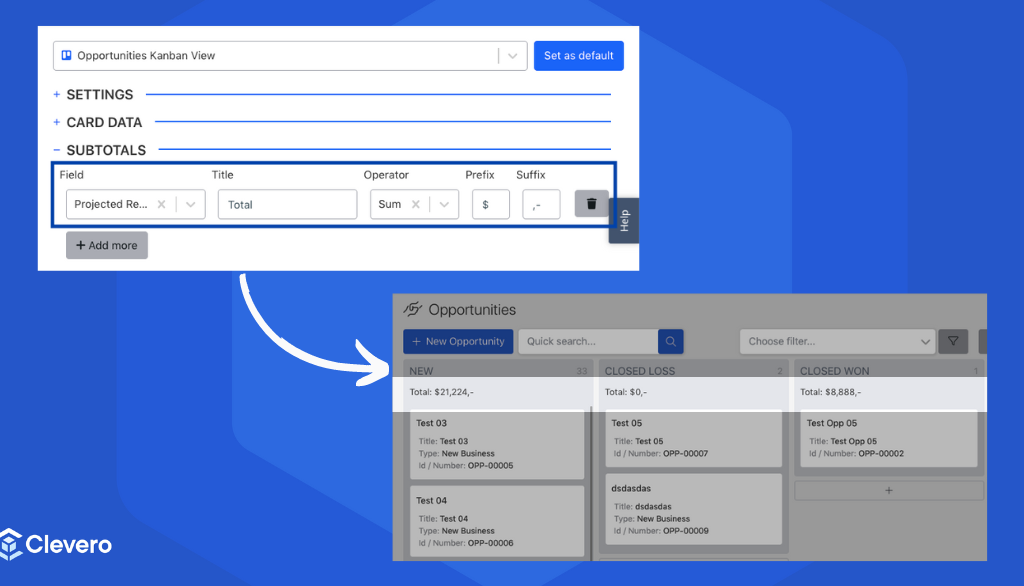
- [Optional] Set a field for Default Sorting. Specify whether it should be sorted in ascending or descending order.
- [Optional] Utilise quick filters to pre-define specific filter criteria for easy data filtration.
- Click on the Save button to save the changes.
3. Apply a Kanban View
To set up and use a Kanban View for a desired record, follow these steps:
- Open the record and find the Views icon in the top-right corner of the screen.
- Choose the desired layout you wish to display from the available options.
- To set the selected view as the default display for the record, click on the "Set as default" option > Click "Save".
- Alternatively, if you only want to apply the selected layout without setting it as the default, click the "Apply" button.
📌 Need Help?

Updated 1 day ago