
Activity Logs
The Activity Log lets you view and manage all activity related to a record in one place, such as emails, updates, and interactions.
Note:Ensure that you have set up the Email Composer within the record.
Create an Activity Log
Follow these steps to add an Activity Log to a record.
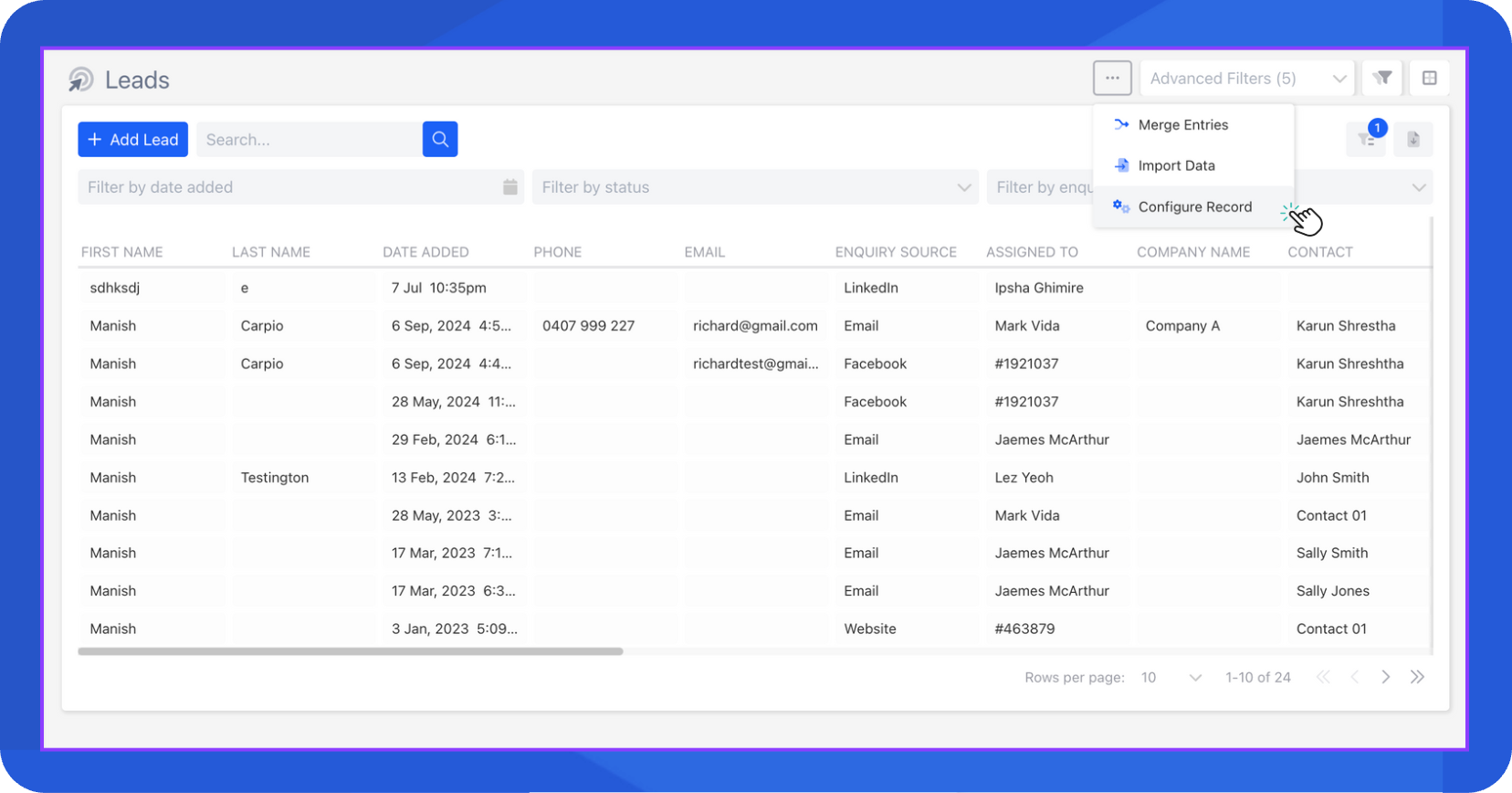
- From the record, click the three-dot menu at the top-left corner, then select Configure record.
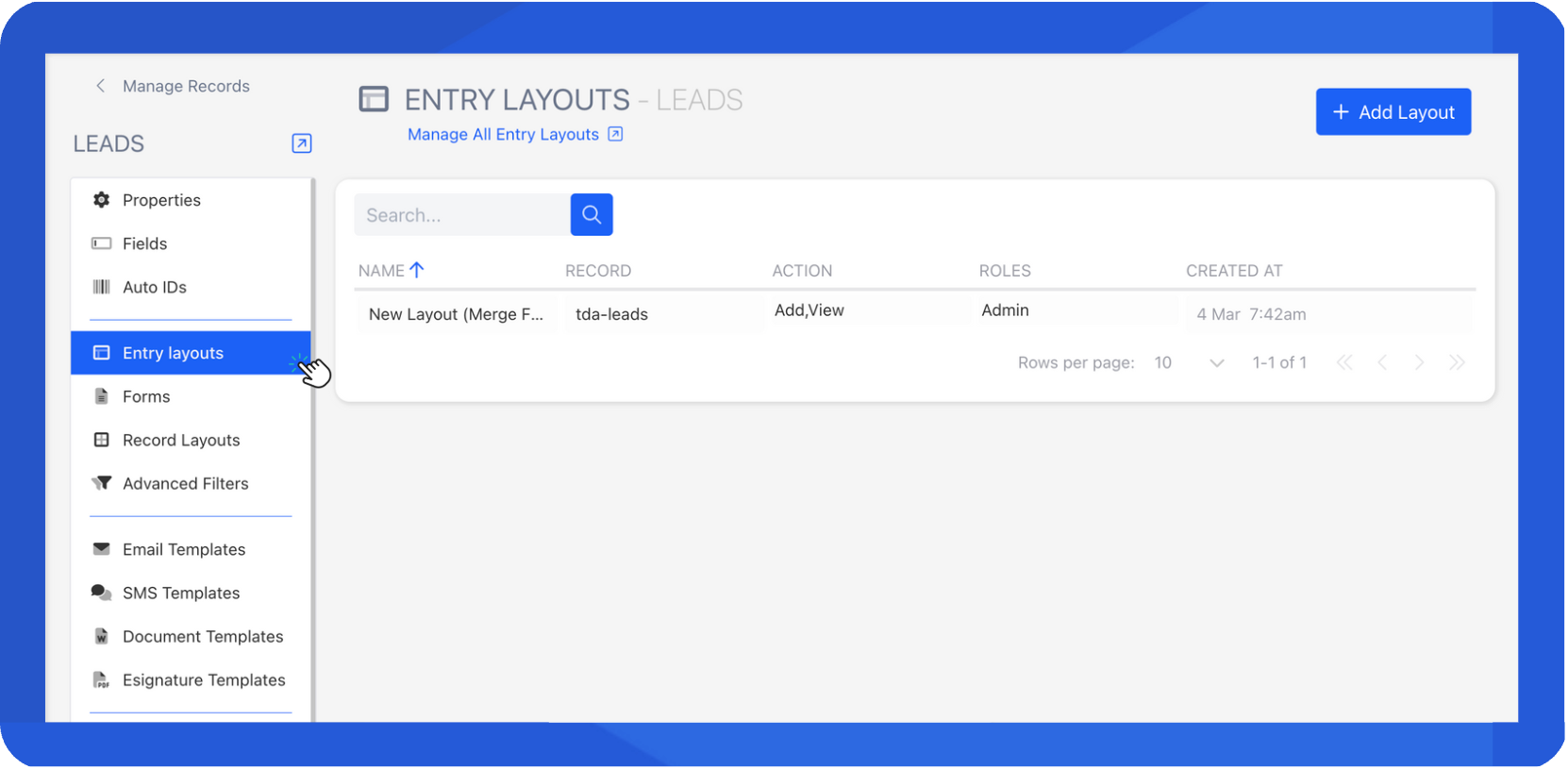
- In the side navigation menu, select Entry Layout, then choose the layout currently used for that record.
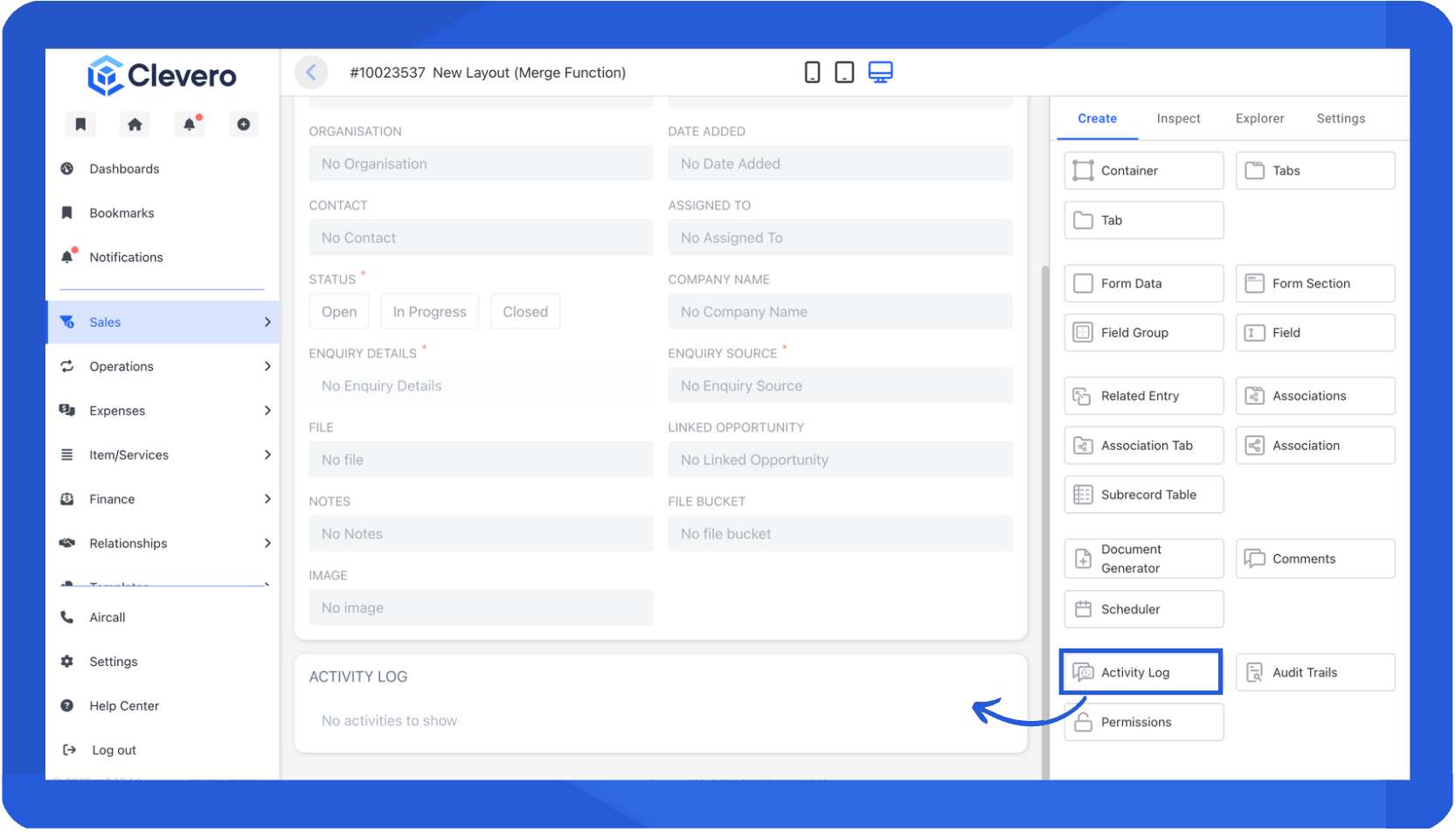
- In the Entry Builder, add the Activity Log to the layout.
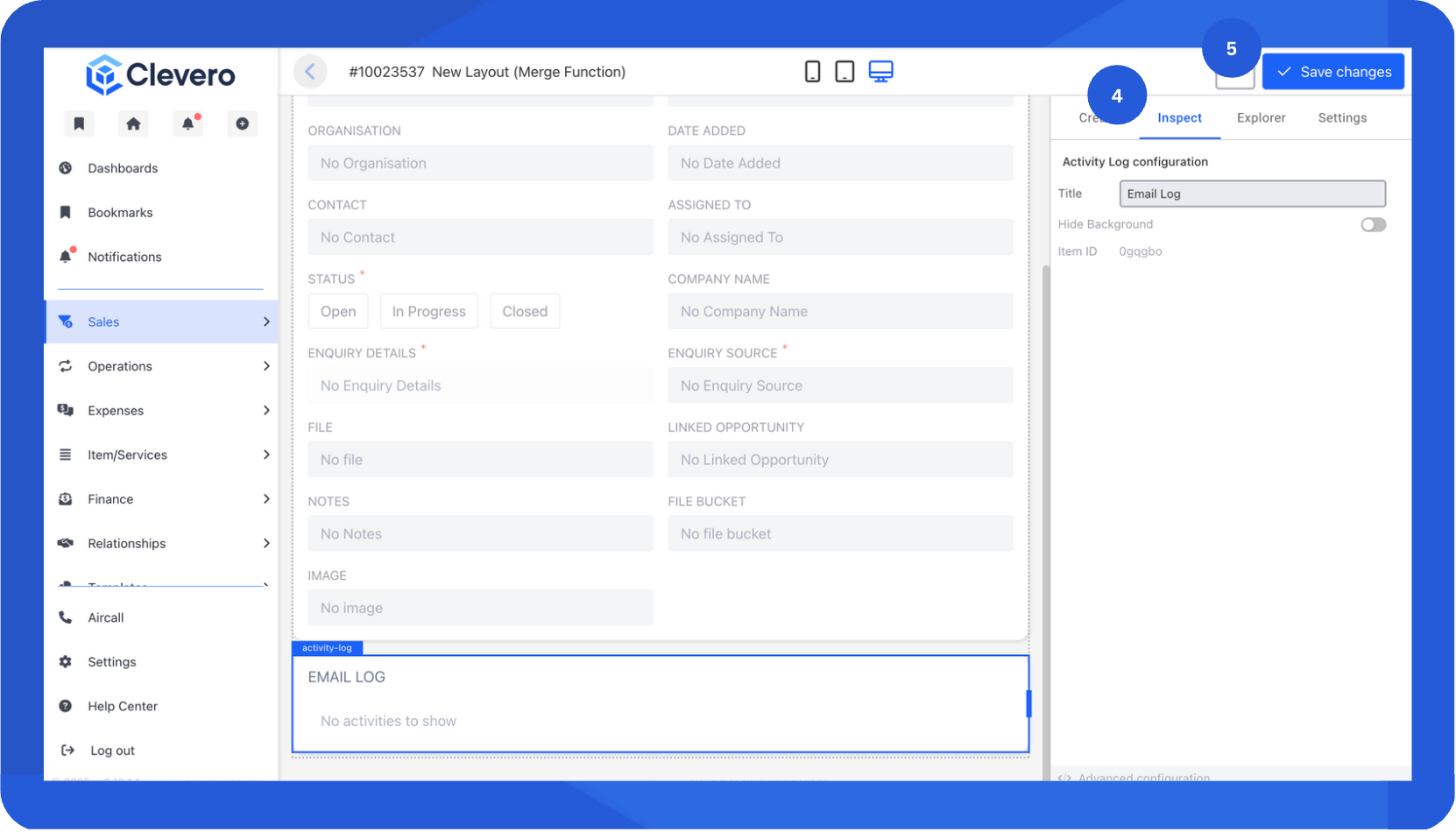
- Configure the component’s properties under the Inspect tab.
| Property | Description |
|---|---|
type (mandatory) | Always activity-log. |
title (optional) | If false, it won't show the title.if omitted, defaults to “Activity log”. You can modify it with a new title, such as "Email Log" |
hideBackground (optional) | If true, the tile’s background is hidden. This can be useful when used inside a tab group. |
- Select Save changes to apply your configuration.
Activity Log Functionality
You can now perform more actions directly within the Activity Log (Email Log) in Clevero. This new enhancement lets you quickly respond to or forward emails without leaving the log view.
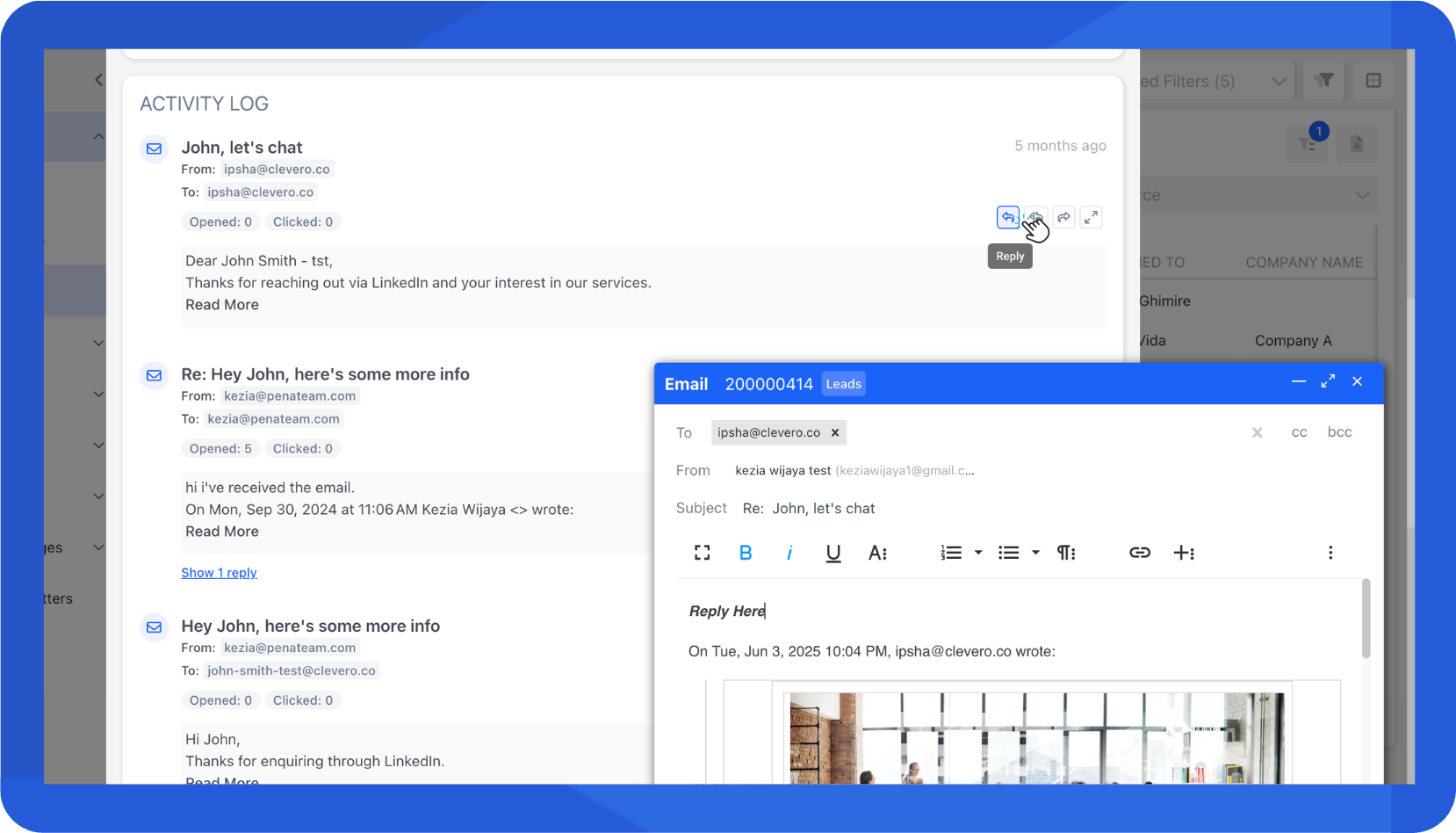
When you hover over an email log entry, you’ll see these available actions:
1. Reply
Respond only to the sender of the email.
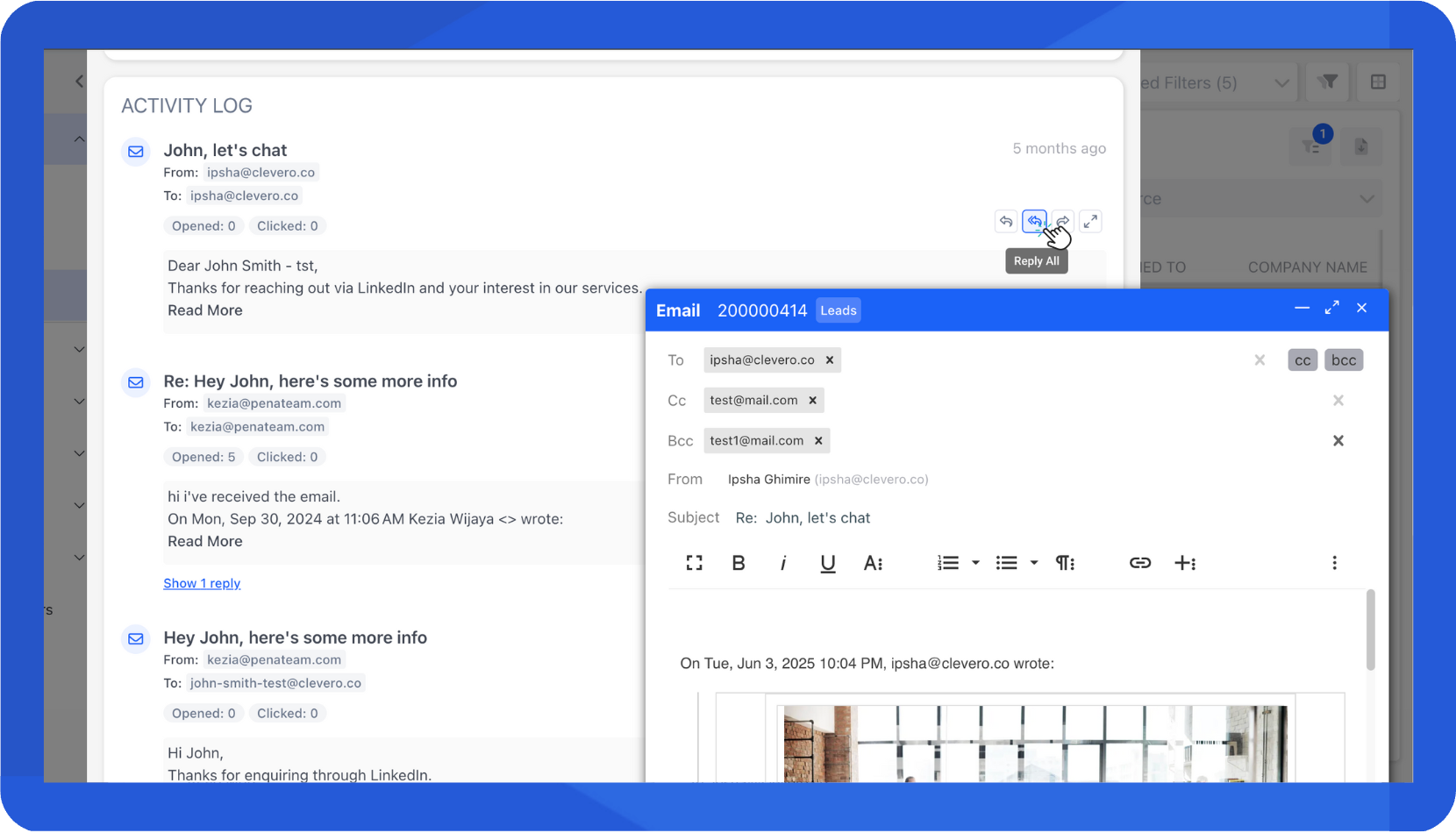
2. Reply All
Respond to all recipients of the original email, including CC and BCC.
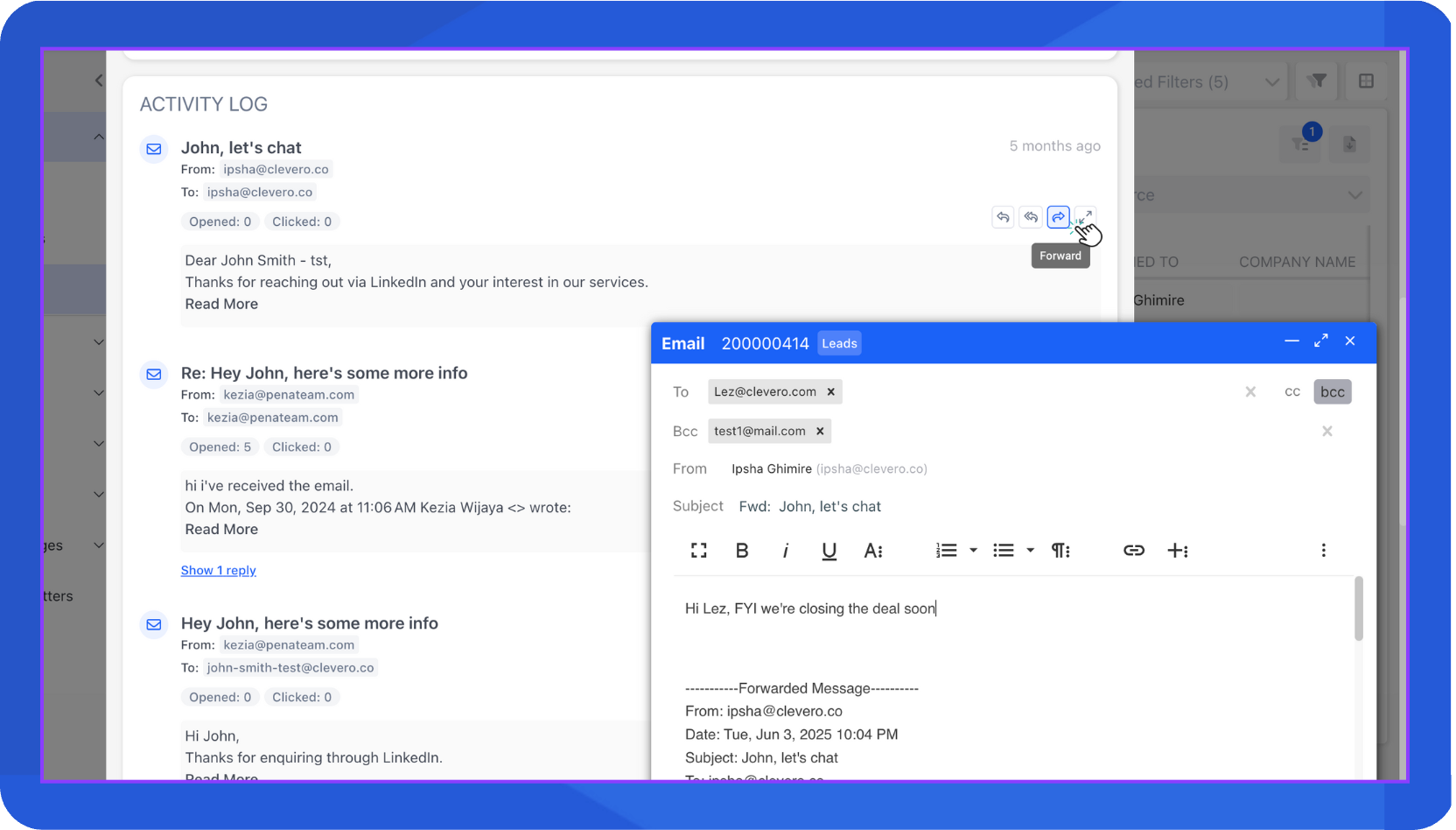
3. Forward an Email
Send the email to another recipient (for example, to follow up or escalate the message).
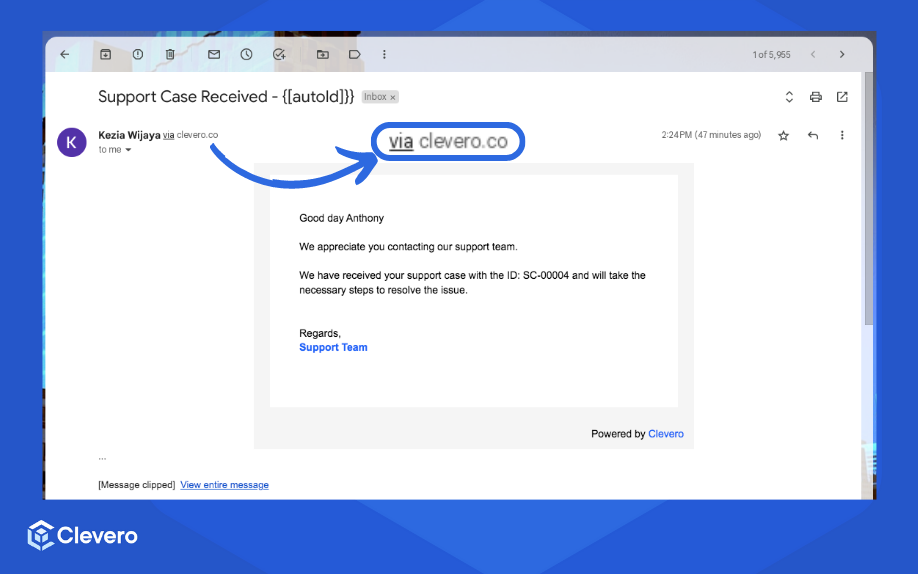
Why is My Email Considered as Spam?If your email from the system is being flagged as spam, it may be due to the information indicating that the email is from you but via Clevero. This might confuse your customers, leading them to question the sender's identity and potentially categorise it as spam.
This issue can be resolved by implementing user authentication through Sendgrid. User authentication authenticates and verifies your identity, ensuring that emails come from your business name, enhancing trust and reducing the chances of being marked as spam.
For more information, please refer to the Sendgrid User Authentication documentation.
How to Download Email Logs
You can view and download email logs for any entry. Here’s how:
- Go to an entry page and find the Activity Log or Email Log section.
- Find the email log you want to view. Click the log or the expand icon to open it.
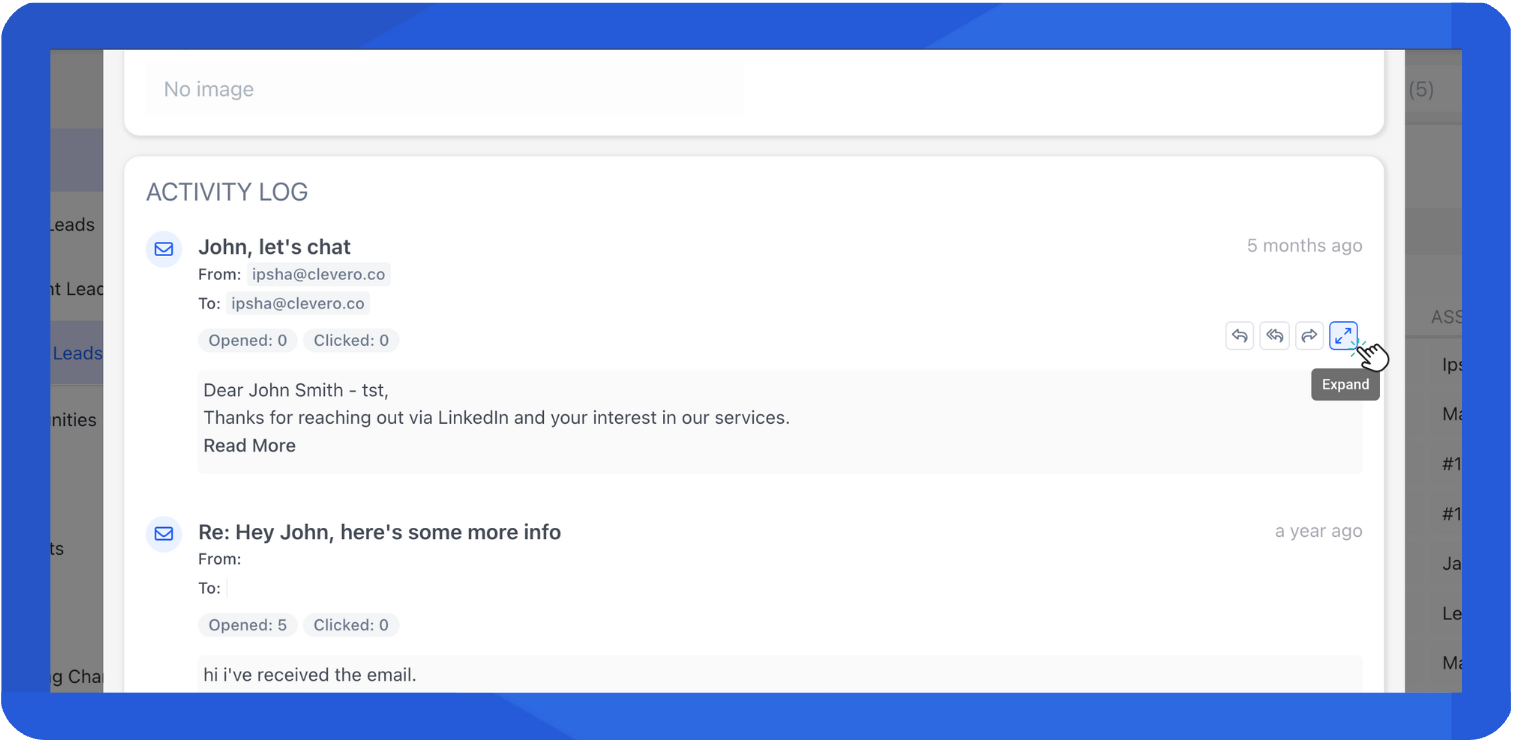
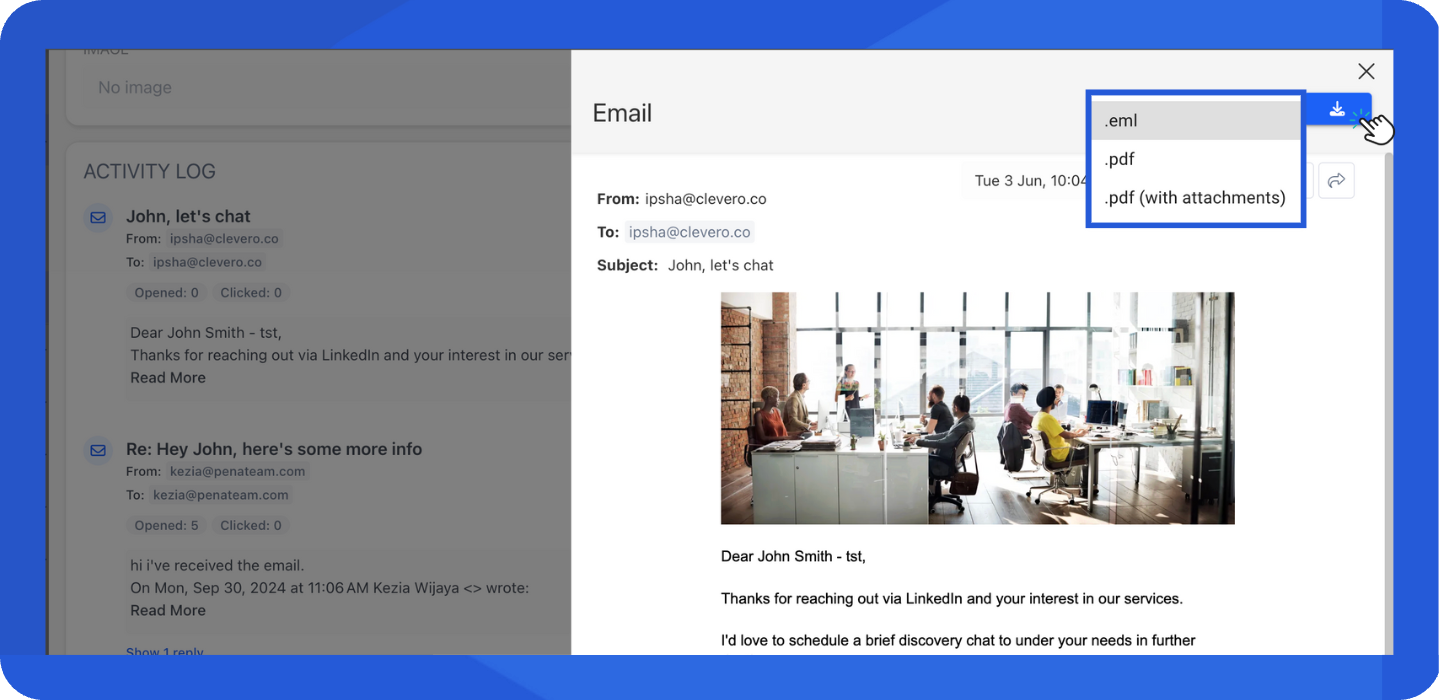
- Click on the Download icon, then choose your preferred format.
.eml: Saves the original email file, which you can open in email clients like Outlook or Mail..pdf: Saves the email content in a readable PDF format (without attachments)..pdf (with attachments): Saves the email as a PDF file and includes all attached files in the download.
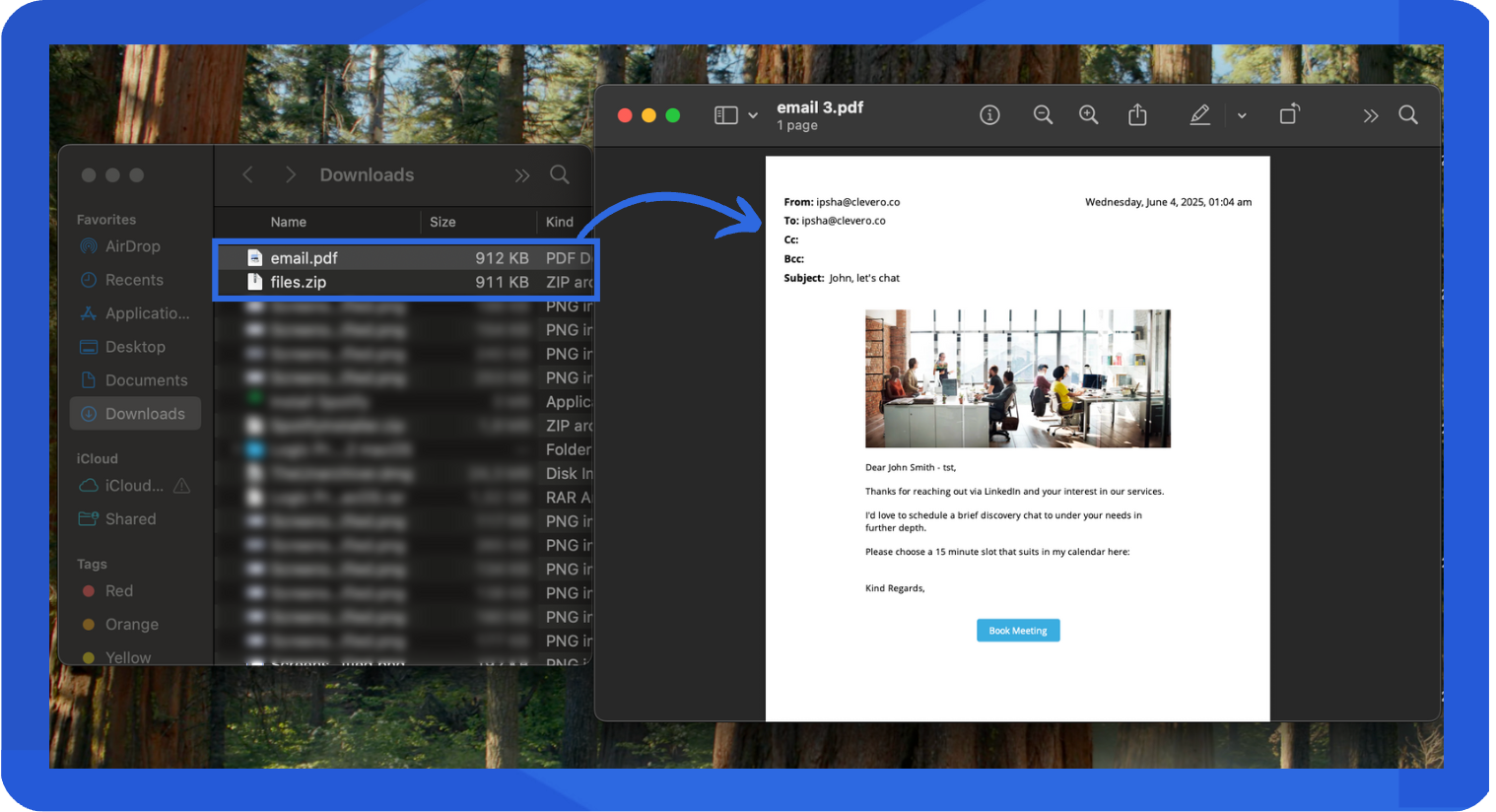
- Extract the downloaded archive and open the file.
📌 Need Help?

Updated 8 months ago