
How to Enable Private Browsing Mode
Learn how to enable incognito mode in popular web browsers like Google Chrome, Edge, Firefox, and Safari.
Private browsing mode (Incognito mode) is useful when you want to browse the Internet without leaving any trace of your online activities, such as browsing history, cookies, and website data.
WarningThese modes don't make you completely anonymous online. Use Private Browsing wisely and combine it with other privacy-protection tools.
Google Chrome
Accessing via Shortcut
| PC | Control + Shift + N |
| Mac | Command (⌘) + Shift + N |
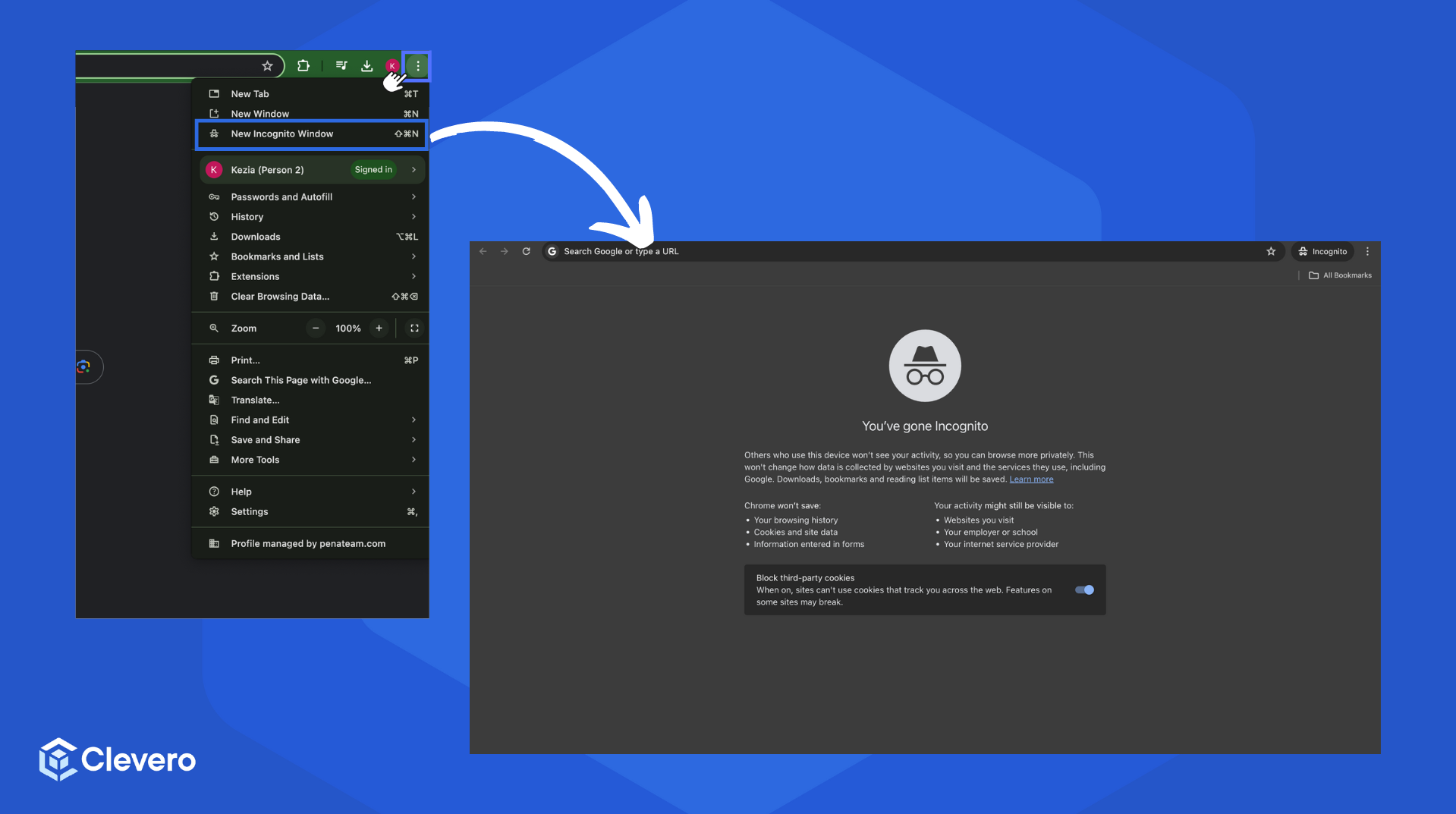
Accessing via Menu
- Click the three vertical dots button in the top-right corner.
- Select "New Incognito Window".
Mozilla Firefox
Accessing via Shortcut
| PC | Control + Shift + P |
| Mac | Command (⌘) + Shift + P |
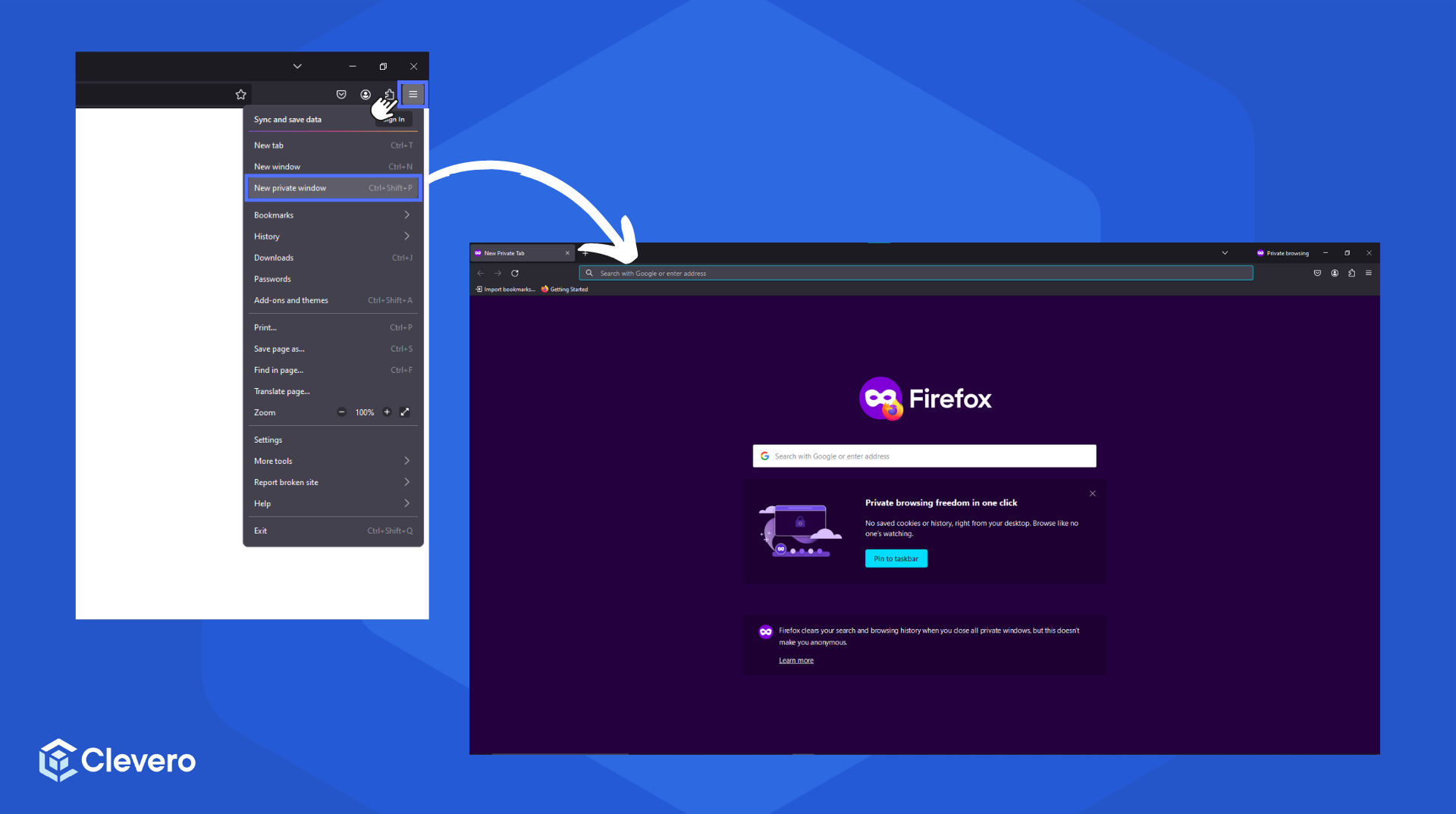
Accessing via Menu
- Click the three vertical lines button in the top-right corner.
- Select "New private window".
Safari
Accessing via Shortcut
| Mac | Command + Shift + N |
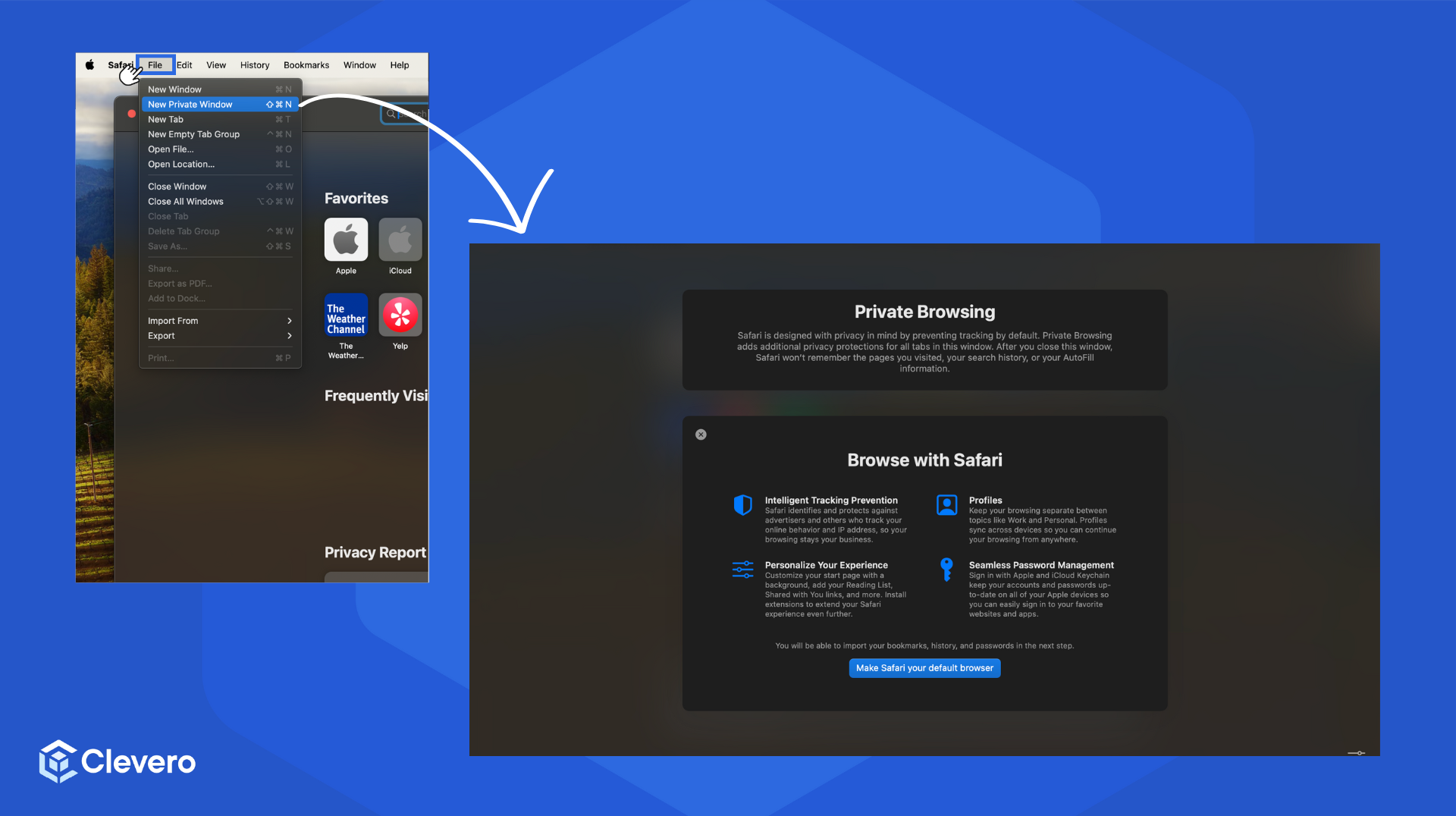
Accessing via Menu
- Click "File" in the top-left corner of the browser.
- Choose "New Private Window" from the dropdown.
Microsoft Edge
Accessing via Shortcut
| PC | Control + Shift + P |
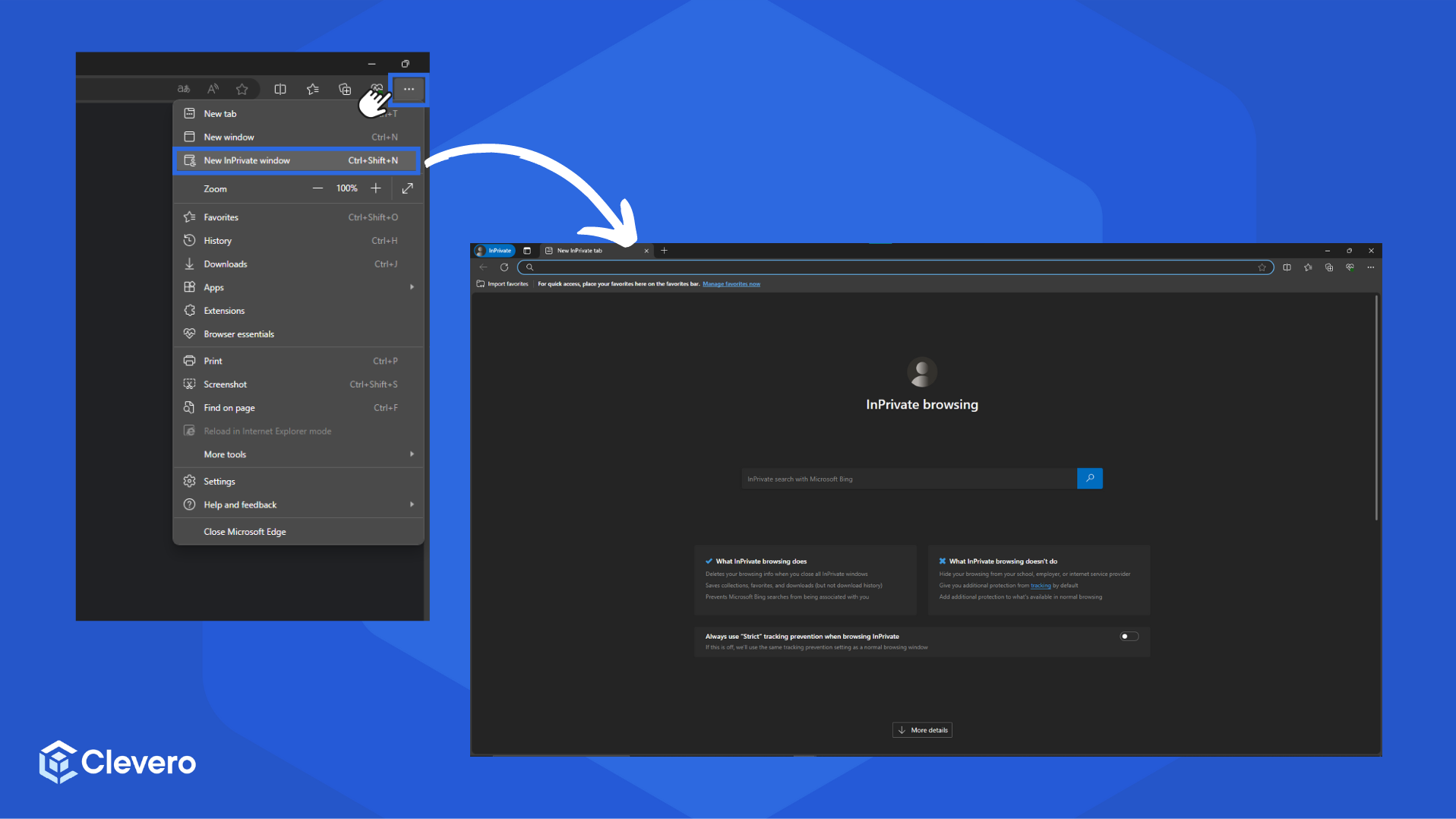
Accessing via Menu
- Click the three horizontal dots button in the top-right corner.
- Choose "New InPrivate window".
📌 Need Help?

Updated about 1 year ago
Did this page help you?