
Merge Template
📧 Discover how to create and utilise merge templates to personalise email communications.
Email Templates are pre-designed email drafts created within Clevero. It offers the flexibility to send emails ad-hoc or automate their delivery. These templates can merge in relevant record data, incorporate branding elements, and are customisable by the client.
Watch the guided demo below to create and manage the merge email template.
You can also follow the same steps using the written guide below.
1. Create a Merge Email Template
To create a Merge Email Template, follow these steps:
- Go to "Settings" and select "System Settings".
- Click on "Email Templates" to access the template management page.
- Choose the "+ Merged Template" option to create a new template.
- Select the record from which you want to source information. This template will be available for use on that specific record.
Info:For customising the content and layout, refer to the Generic Template page for more details.
- Merge Template offers two unique and distinct features:
Default Recipient
When using an email template, the default recipient refers to the predetermined email address automatically populated in the "To" field. It is a convenient feature that saves time and ensures consistency when sending emails to the same recipient repeatedly.
There are two options for setting the default recipient:
- Fixed
In this option, you manually enter the email address in the designated field of the template settings.
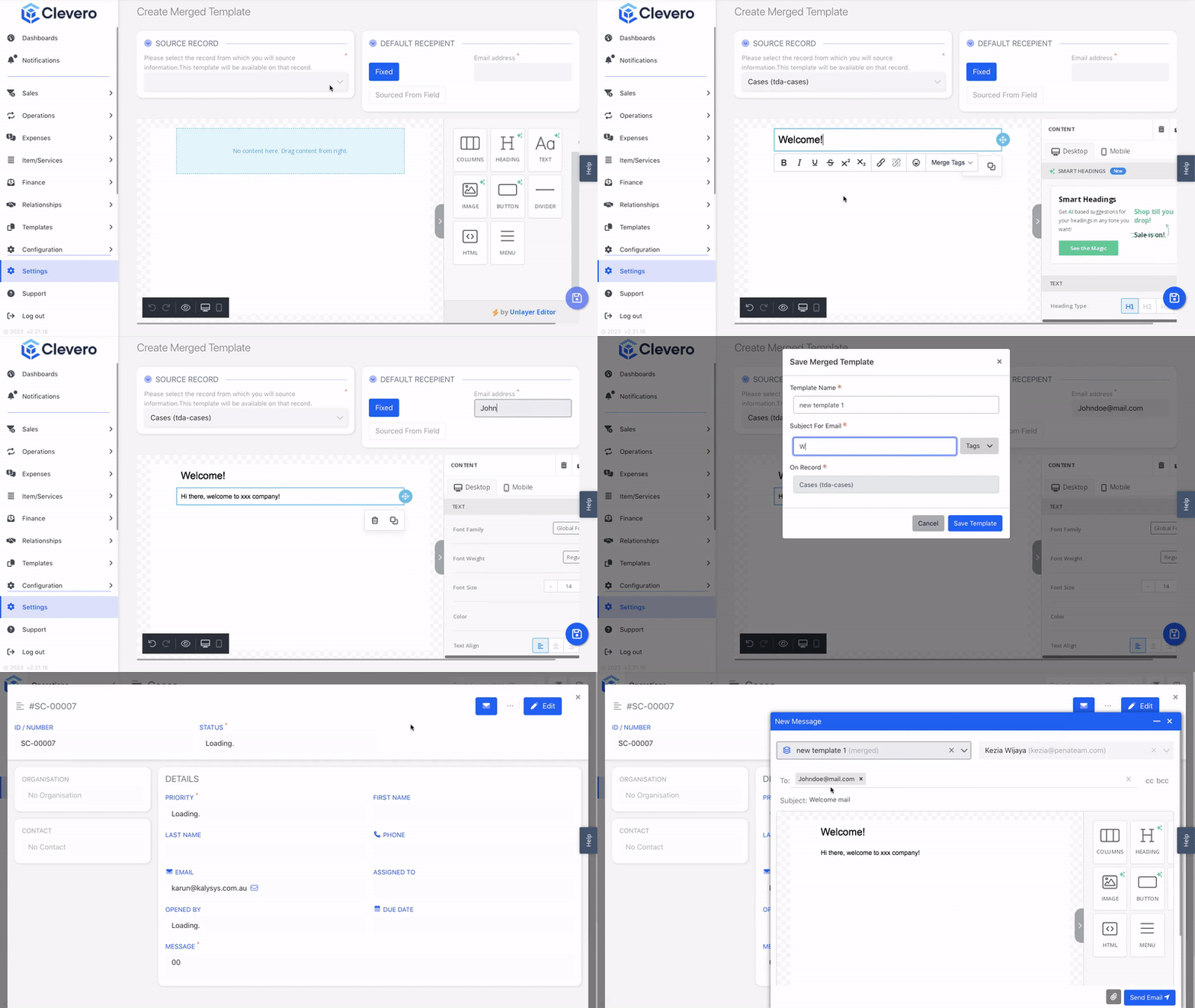
- Sourced From Field
With this option, the default recipient email address is sourced from a specified field within the associated record.
For example, if you have an employee field in the record, you can set the default recipient as that employee's email address.
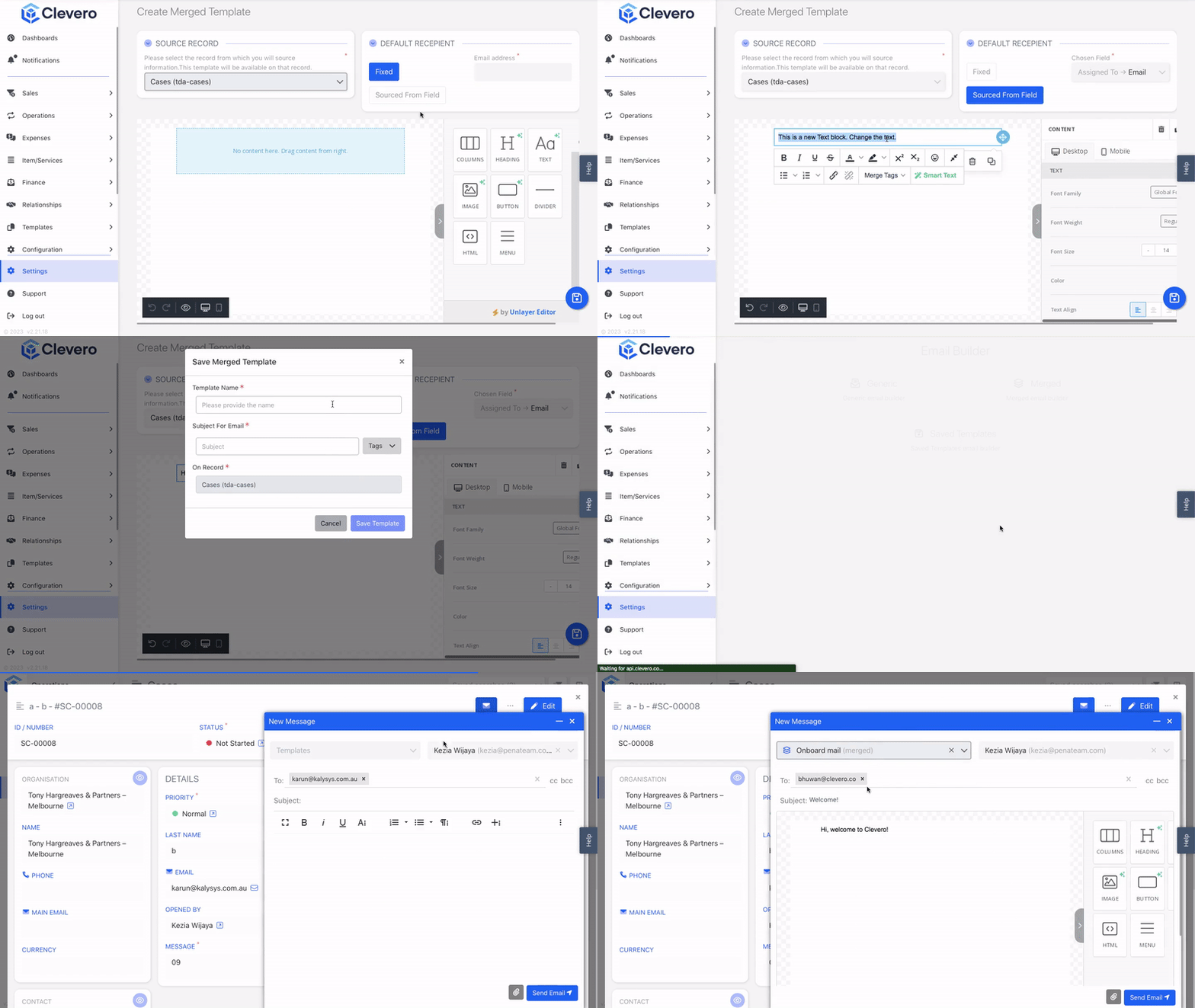
Understanding Merge Tags
Merge Tags are placeholders that allow you to incorporate specific data from the associated record into your email templates. When the email is sent, the Merge Tags are replaced with the corresponding values from the record.
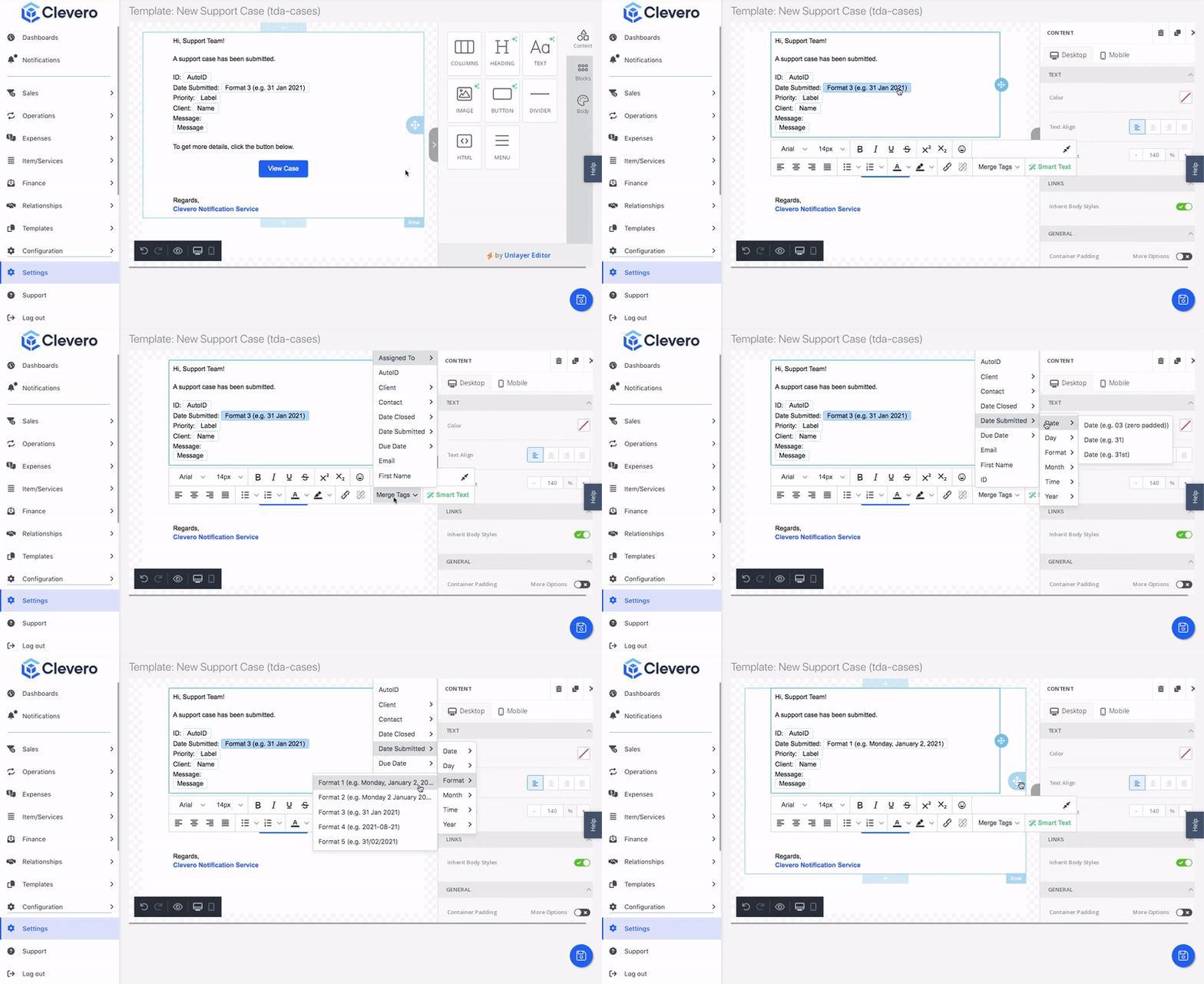
Merge Tags offer levels of tagging capability.
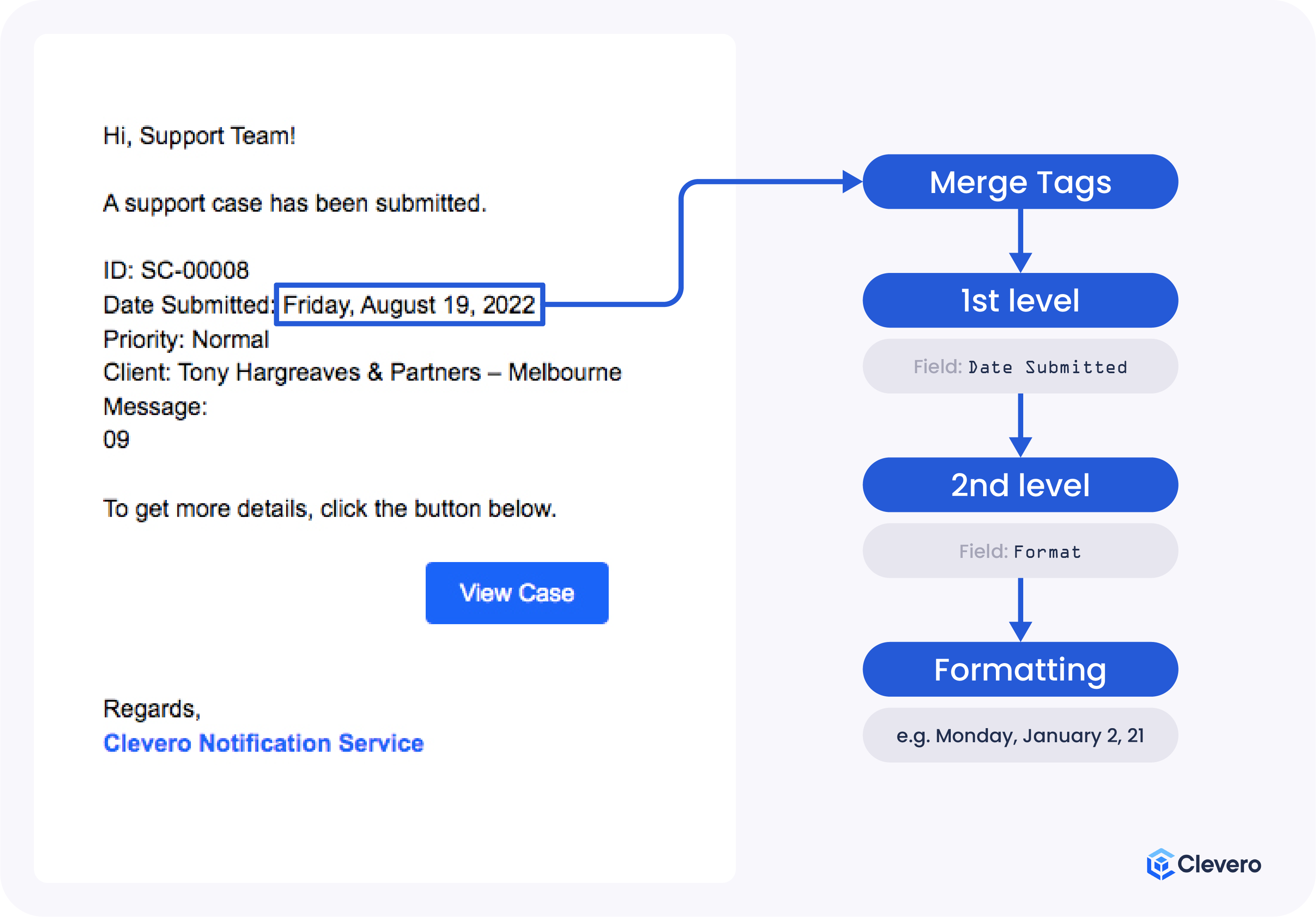
| Levels | Details |
|---|---|
| Level 1 | Here's where the magic begins: the "Date Submitted" acts as the first level of the Merge Tags. But it doesn't stop there! ⬇️ |
| Level 2 | Selecting the "Format" option as the second level allows you to present the "Date Submitted" in a specific style or layout. But wait, there's more! ⬇️ |
| Level 3 | Among the formatting options, you decide to choose "Format 1". This could transform the "Date Submitted" into a representation like "Monday, January 2, 2021." |
- Preview the template (👁) you have created with various display options.
- Click on the Save button to proceed.
- Provide a template name and subject for the email, which will be automatically filled in when creating the email.
- Finally, click on the Save Template button to save your changes.
2. Duplicate and Delete the Email Template
To duplicate or delete a template, follow these steps.
- Go to "Settings" and select "System Settings".
- Click Email Templates.
- You can perform the following actions:
- To duplicate, right-click on the template, then click Duplicate Email Template.
- To delete, right-click on the template, then click "Delete Email Template".
📌 Need Help?

Updated 5 months ago