
How to Access Browser Consoles
Quick shortcuts and menu to access browser consoles various browsers.
Learn how to access the browser console on various web browsers for troubleshooting and debugging web applications.
Google Chrome
Accessing via Shortcut
| Windows | Press Ctrl, Shift, and J simultaneously. |
| MacOS | Press Command (⌘), Option, and J simultaneously. |
Accessing via Menu
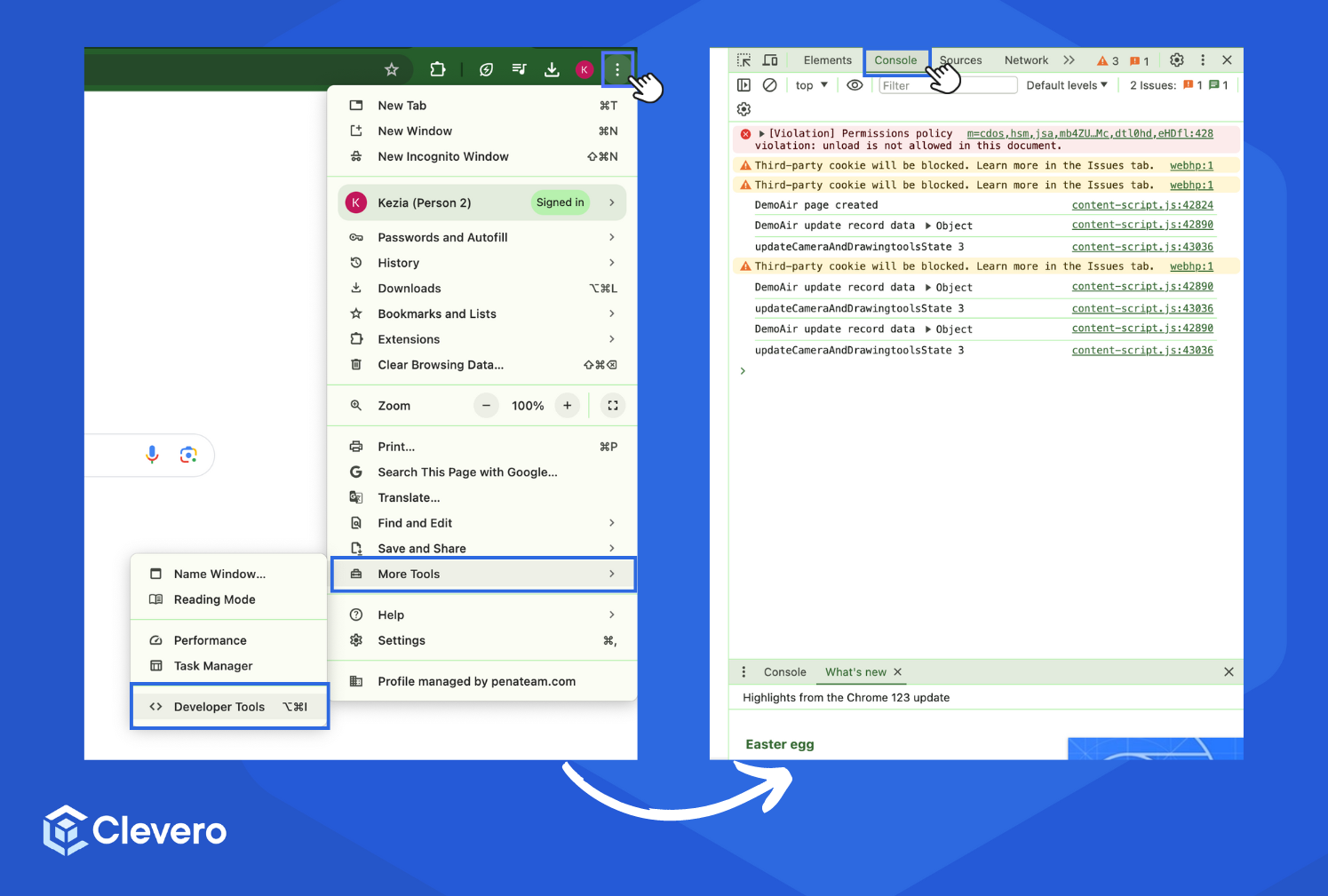
- Click on the three verticals in the top right-hand corner.
- Select "More tools".
- Select "Developer tools".
- Choose the "Console" tab from the Developer Tools window.
Microsoft Edge
Accessing via Shortcut
| Windows | Press Ctrl, Shift, and J simultaneously. |
| MacOS | Press Command (⌘), Option, and J simultaneously. |
Accessing via Menu
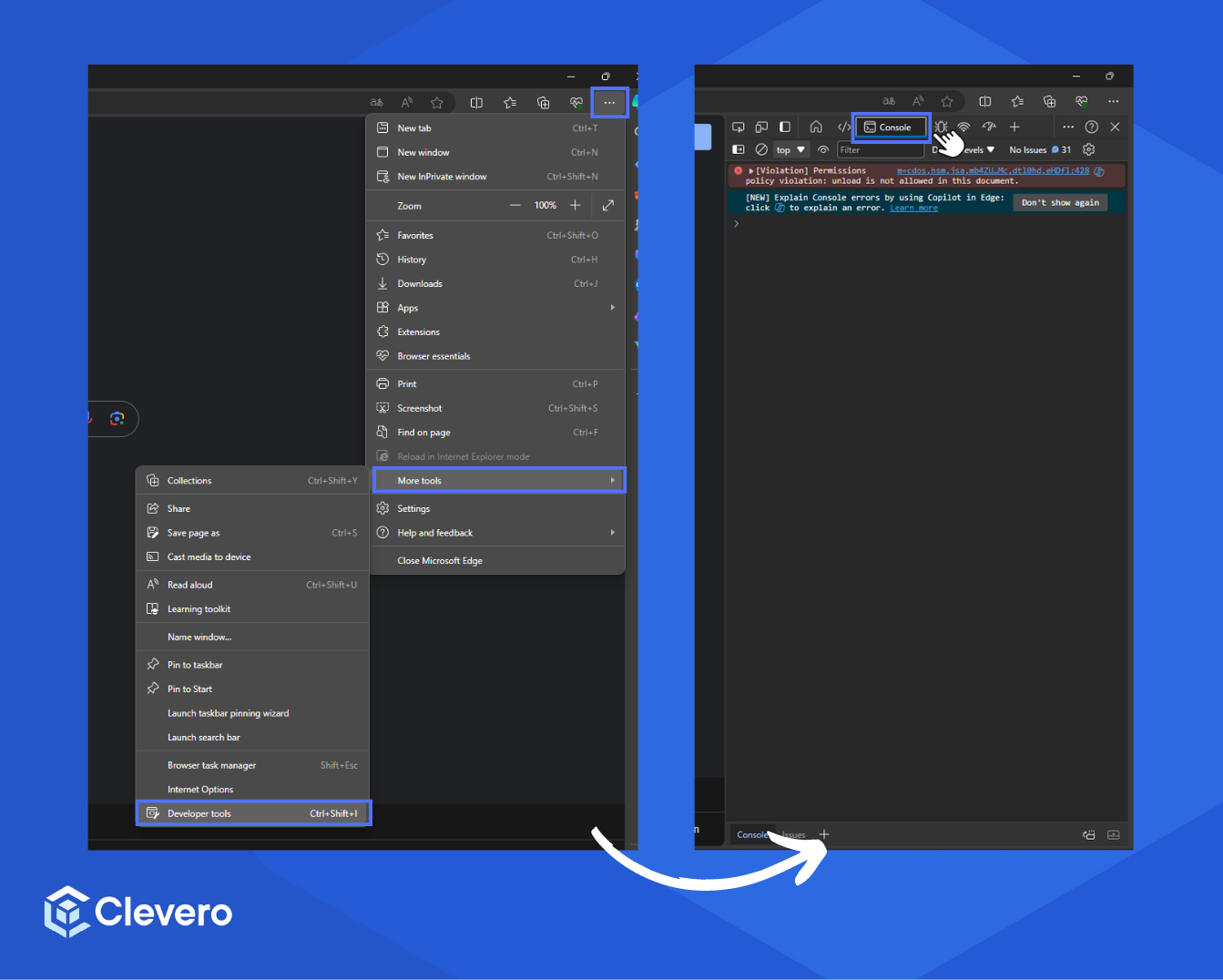
- Click on the three horizontal dots in the top right-hand corner.
- Select "More tools".
- Select "Developer tools".
- Choose the "Console" tab from the Developer Tools window.
Mozilla Firefox
Accessing via Shortcut
| Windows | Press Control, Shift, and K simultaneously. |
| MacOS | Press Command (⌘), Option, and K simultaneously. |
Accessing via Menu
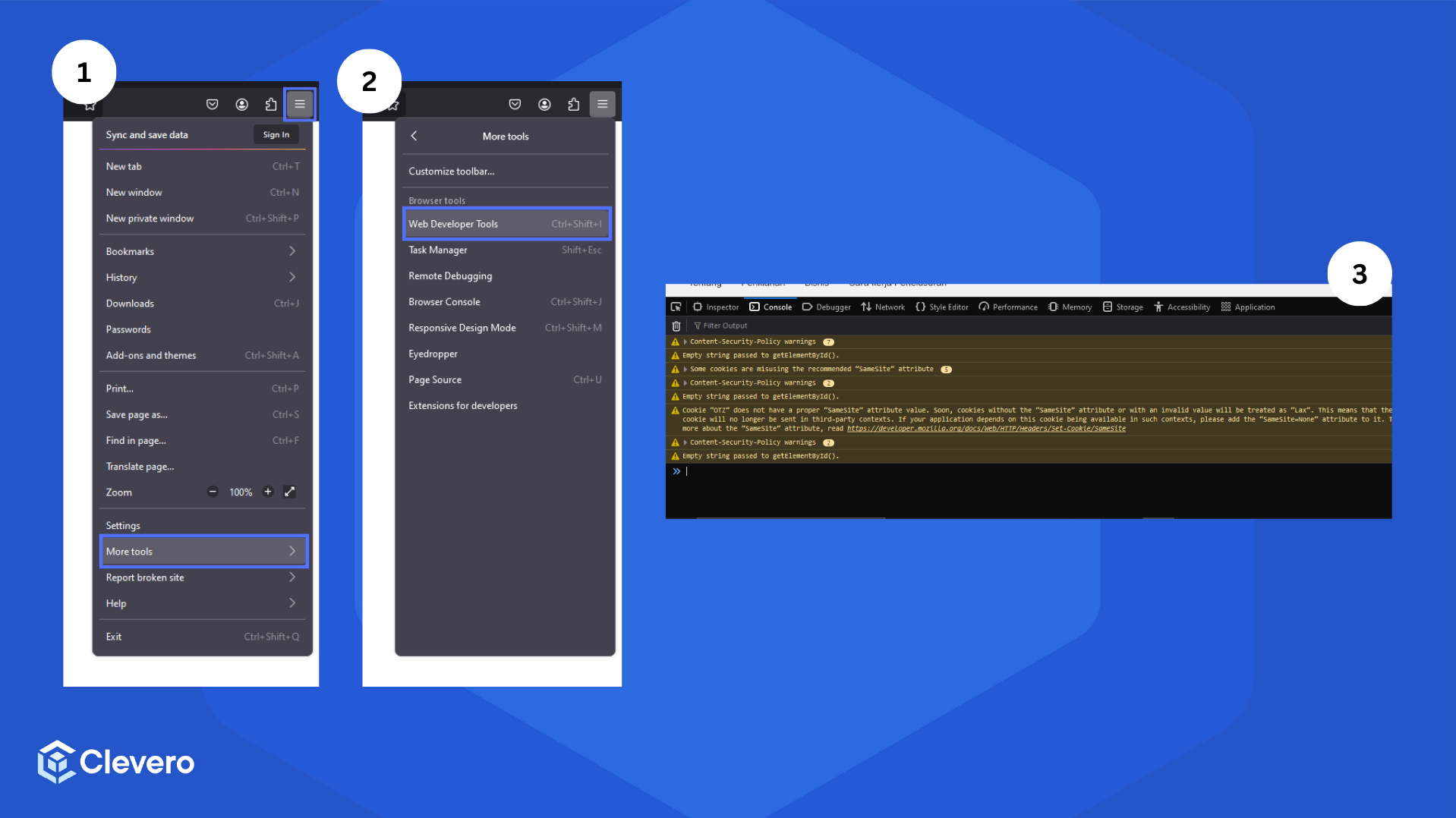
- Click on the three vertical lines in the top right-hand corner > Choose "More tools".
- Select "Web Developer Tools" from the menu.
- In the pop-up menu, choose "Console".
Safari
Accessing via Shortcut
| MacOS | Press Command (⌘), Option, and C simultaneously. |
Accessing via Menu
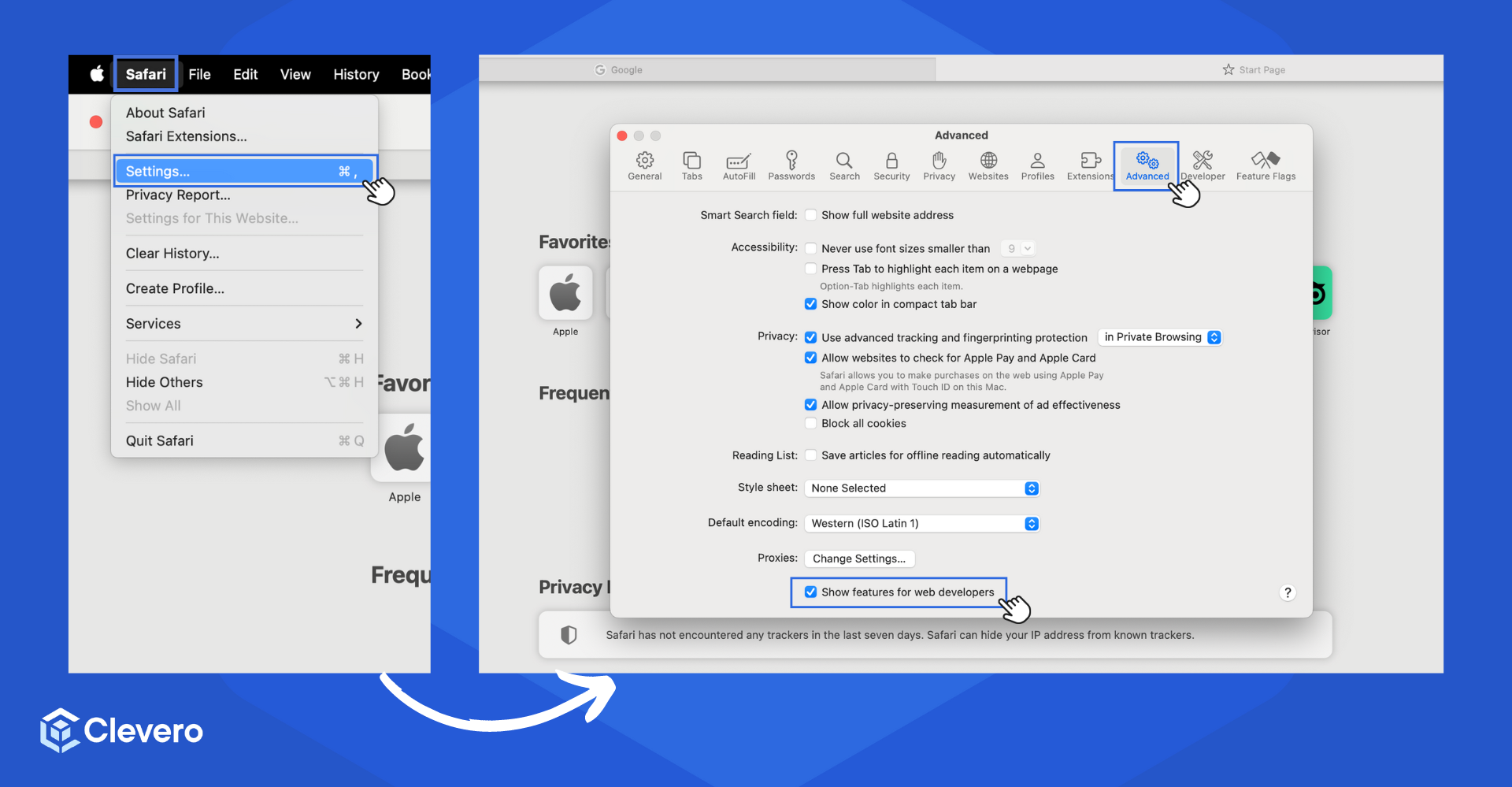
- From the top left-hand corner of your screen, select "Safari".
- Choose "Settings..." from the drop-down menu.
- In the pop-up window, select the"Advanced" tab.
- Tick the checkbox of "Show features for web developers".
- Close the pop-up window.
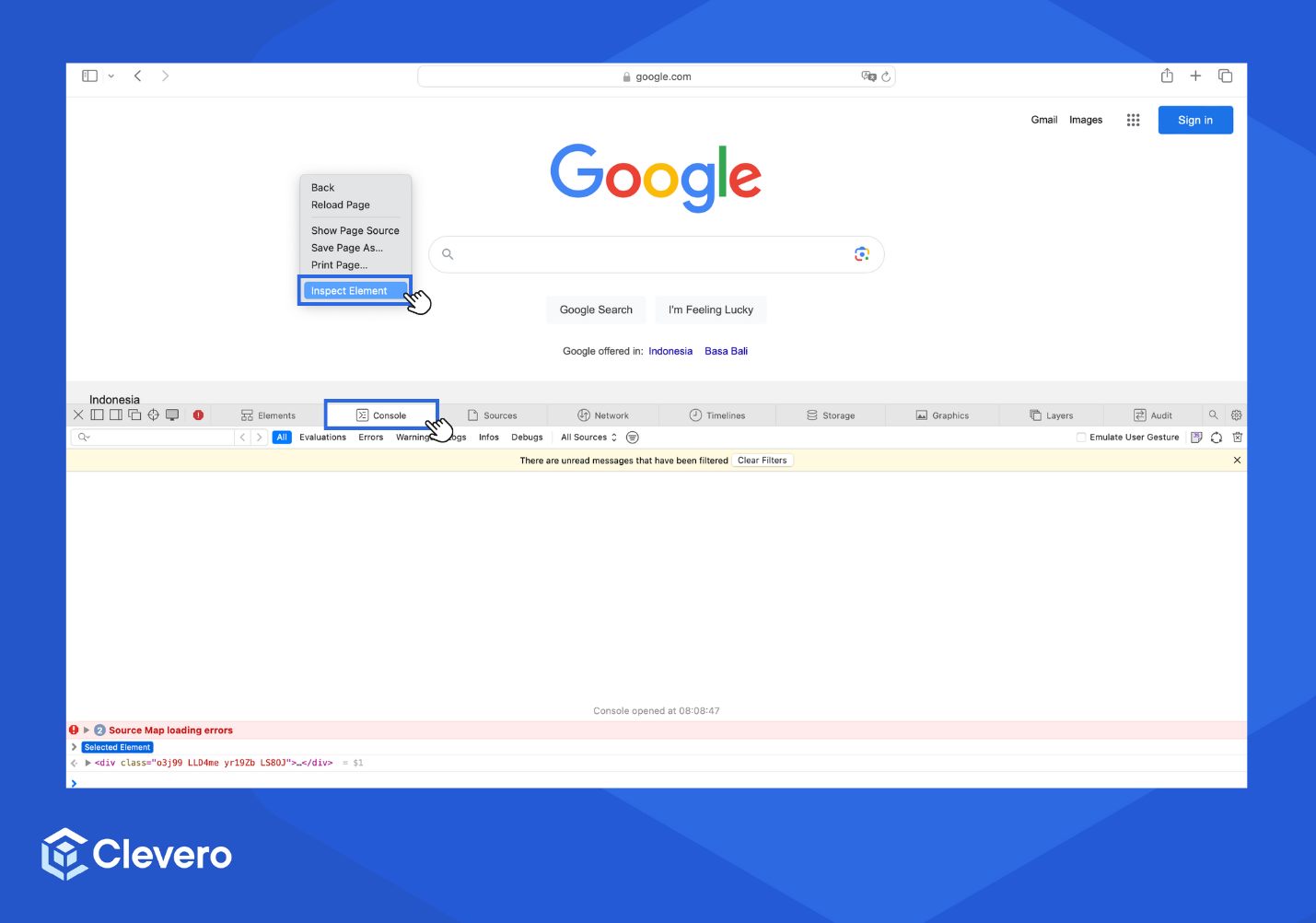
- Right-click on the page and press "Option" on the keyboard.
- Select "Inspect Element" from the menu.
- A new window will open. Choose the Console tab.
📌 Need Help?

Updated about 1 year ago
Did this page help you?