
Timeline
A single, chronological feed of everything that has happened on a record, including activity from its associated records, in one place.
1. Overview
Seeing the full history of a record normally means checking several different screens: its emails, calls, SMS activity, and the activity on any related records. Timeline brings all of this together into a single feed on the record itself, in chronological order.
2. Adding Timeline to an Entry Layout
Timeline is added to a record type as a widget on one of its entry layouts.
- Select a record.
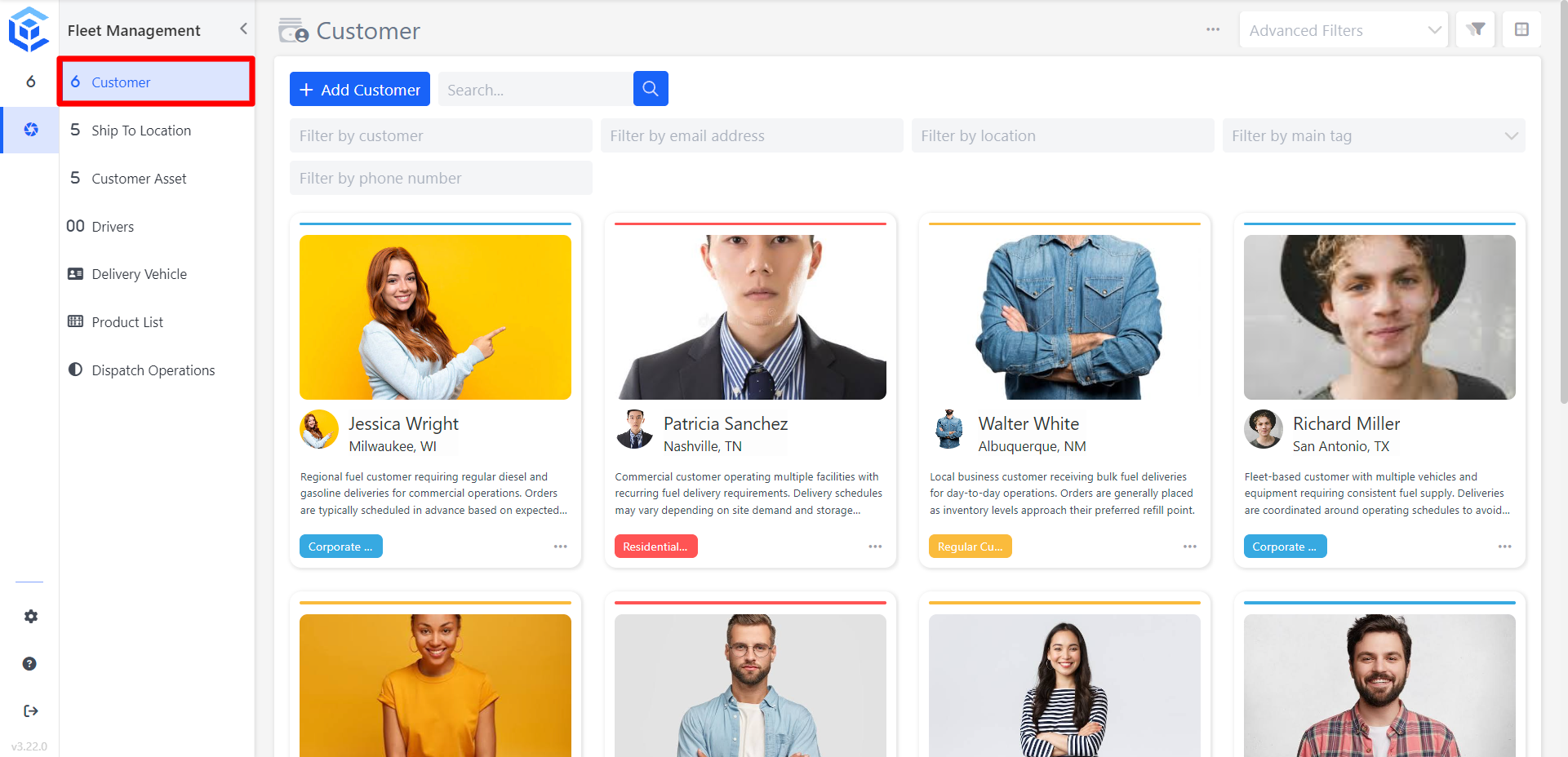
- Click the (3 Dot) menu and select Configure Record.
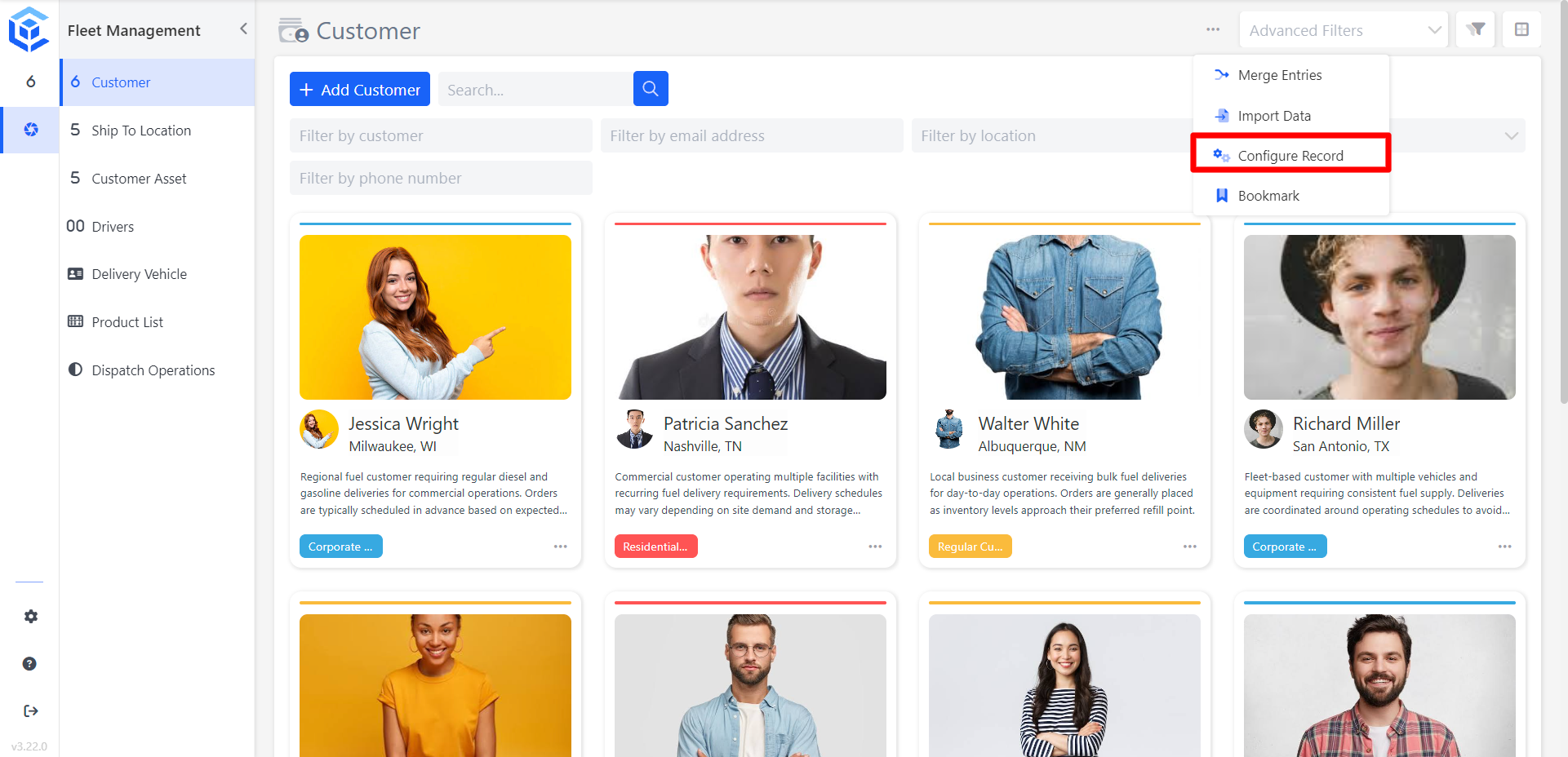
- Go to Entry Layouts and select the layout you want to add Timeline to.
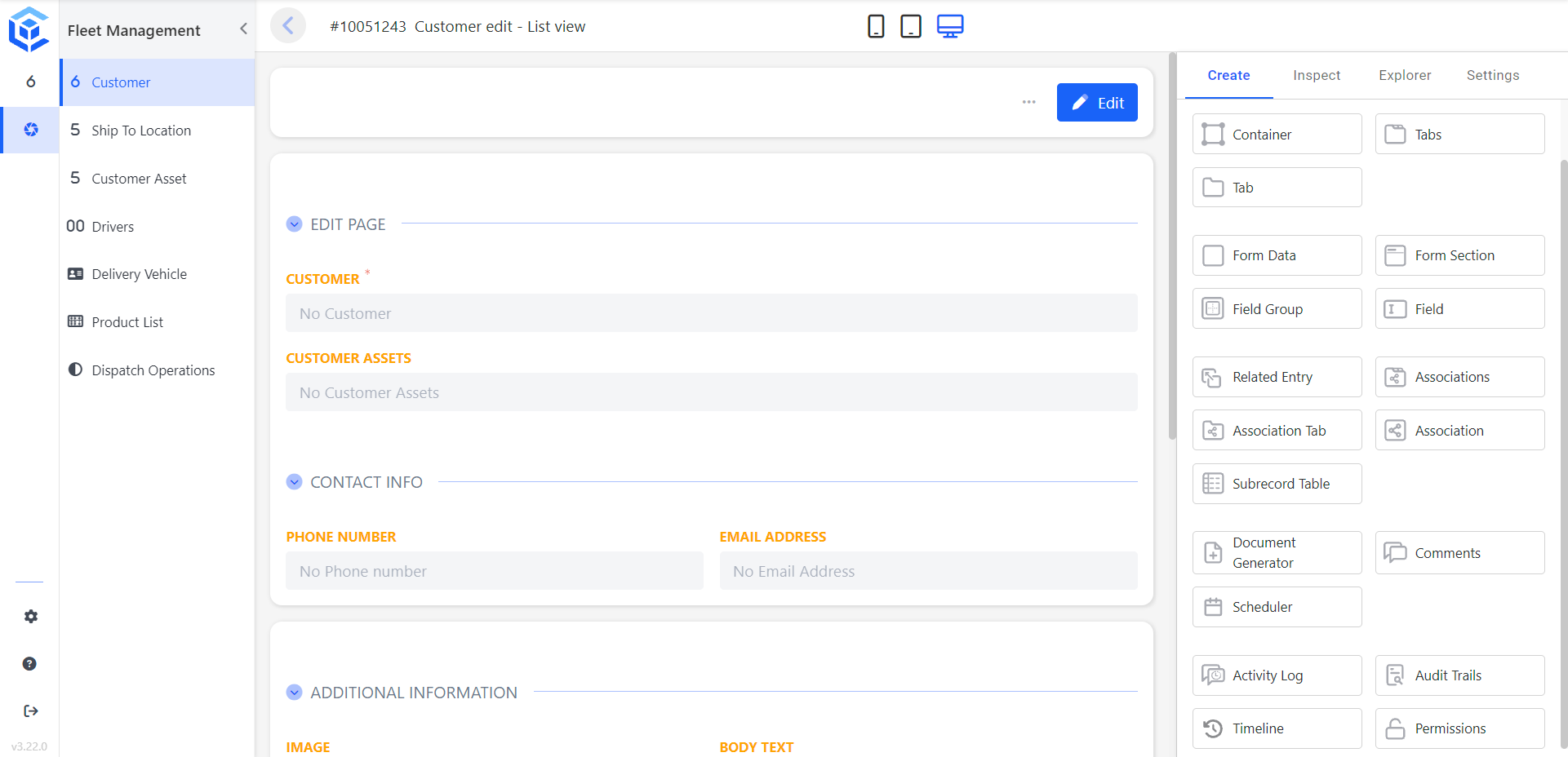
- On the Create tab, drag the Timeline widget onto the layout.
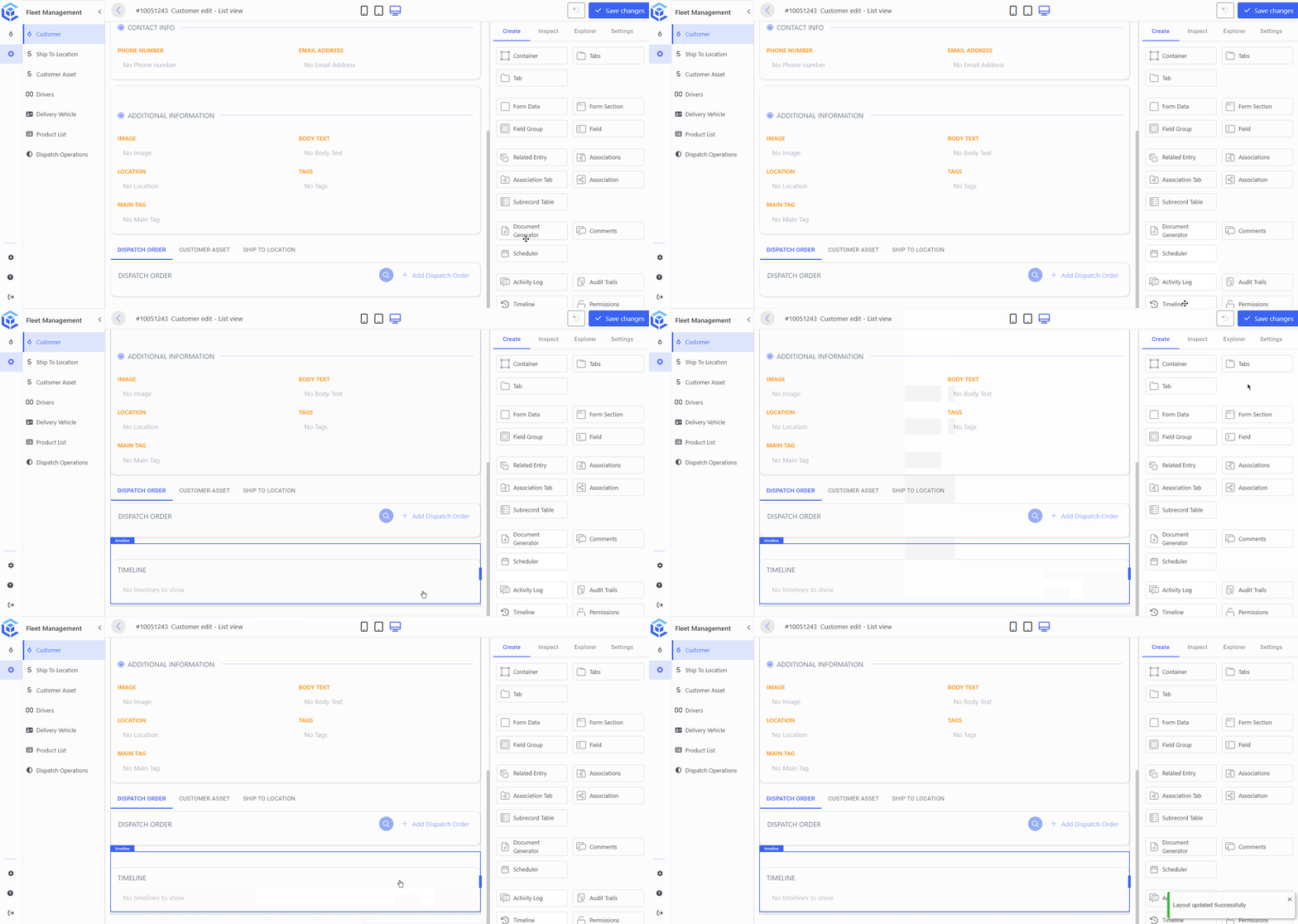
- Select the Timeline widget and open the Inspect tab.
-
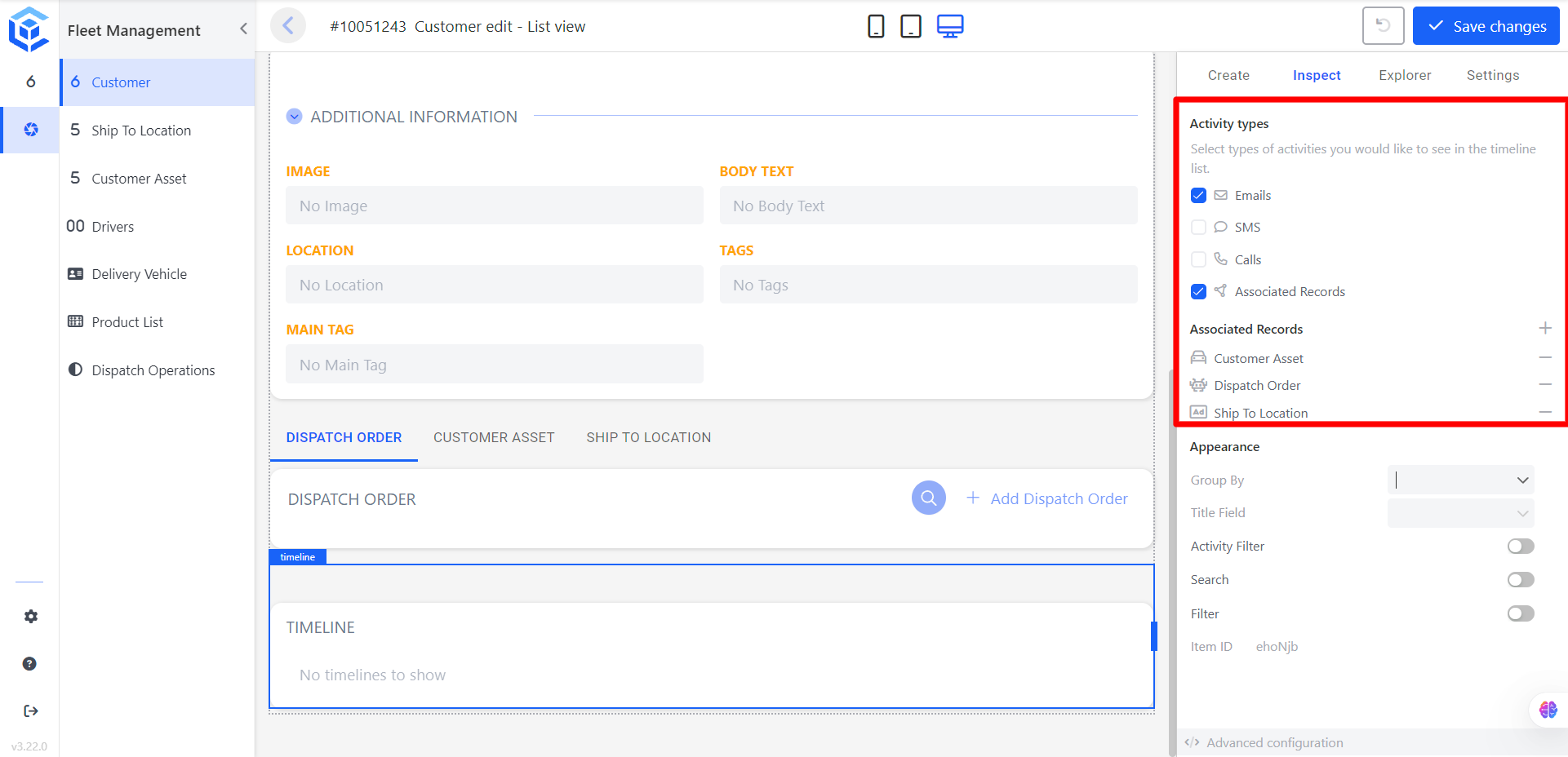
Under Activity Types, select the types of activity you want to see in the timeline. Available options: Emails, SMS, Calls, Associated Records.
-
If you select Associated Records, click + next to Associated Records to add a related record type to the timeline.
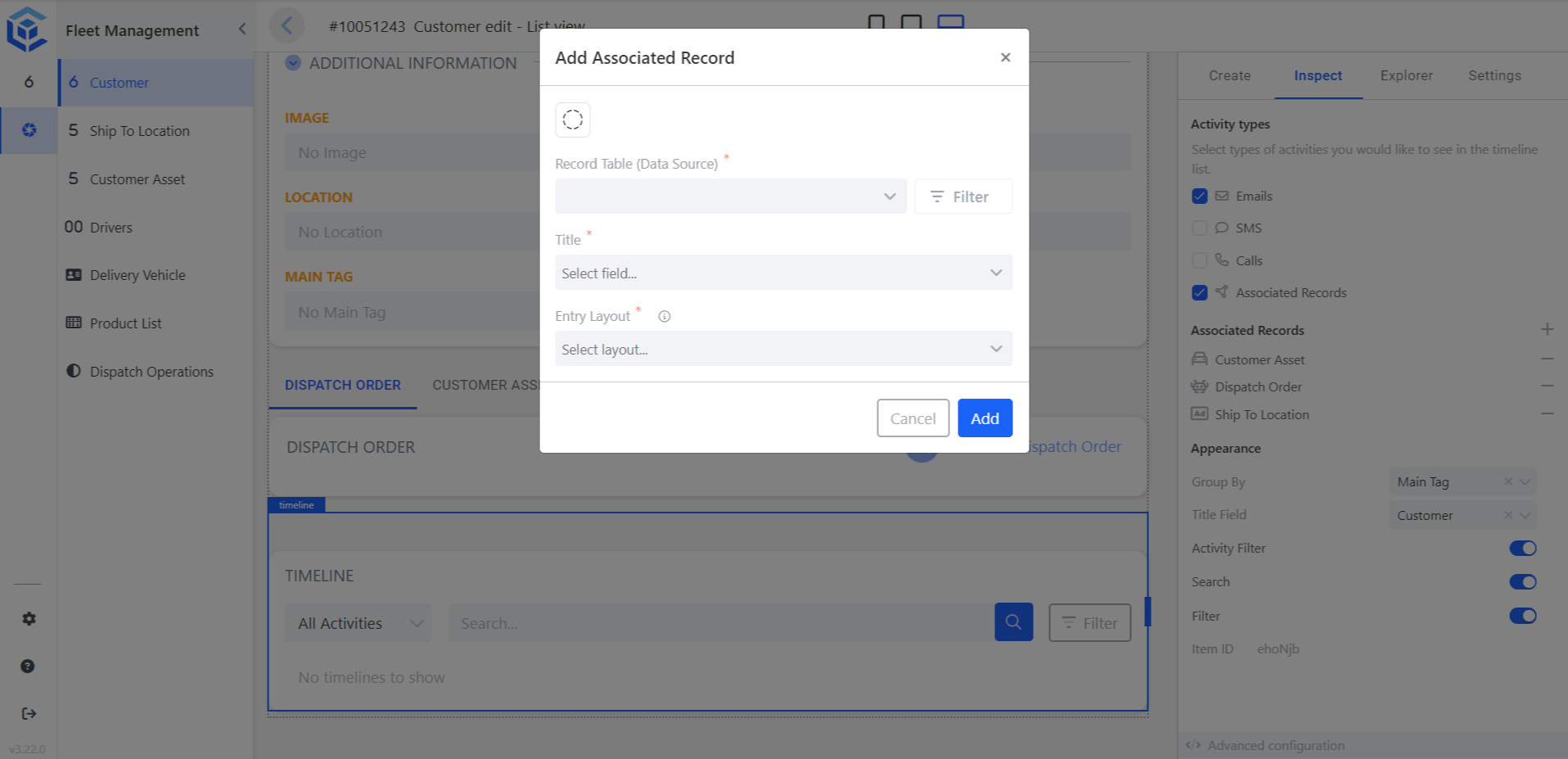
- Enter the Record Table (Data Source), Title, and Entry Layout for the associated record.
- Click Add.
- Click Save changes.
3. Configuration
| Property | Type | Requirement | Description |
|---|---|---|---|
| Activity Types | Checkbox list | Mandatory (select at least one) | Selects which kinds of activity appear in the timeline: Emails, SMS, Calls, Associated Records. |
| Associated Records | List | Conditional, shown when Associated Records is selected | Related record types included in the timeline. Add a record type with +, or remove one with –. |
| Group By | Dropdown | Optional | Group timeline entries. |
| Title Field | Dropdown | Optional | Field used as the entry title in the timeline feed. |
| Activity Filter | Toggle | Optional | Shows a filter for activity type on the timeline. |
| Search | Toggle | Optional | Adds a search field to the timeline. |
| Filter | Toggle | Optional | Adds filtering to the timeline. |
3.1. Associated Records
When Associated Records is enabled, each entry added under Associated Records requires:
| Field | Description |
|---|---|
| Record Table (Data Source) | The related record table the activity is pulled from. |
| Title | The label shown for this record type in the timeline. |
| Entry Layout | The layout used when an associated record is opened from the timeline. |
4. Viewing the Timeline
Once saved, opening the record shows the Timeline with a chronological feed of activity on the record, including activity from its associated records.
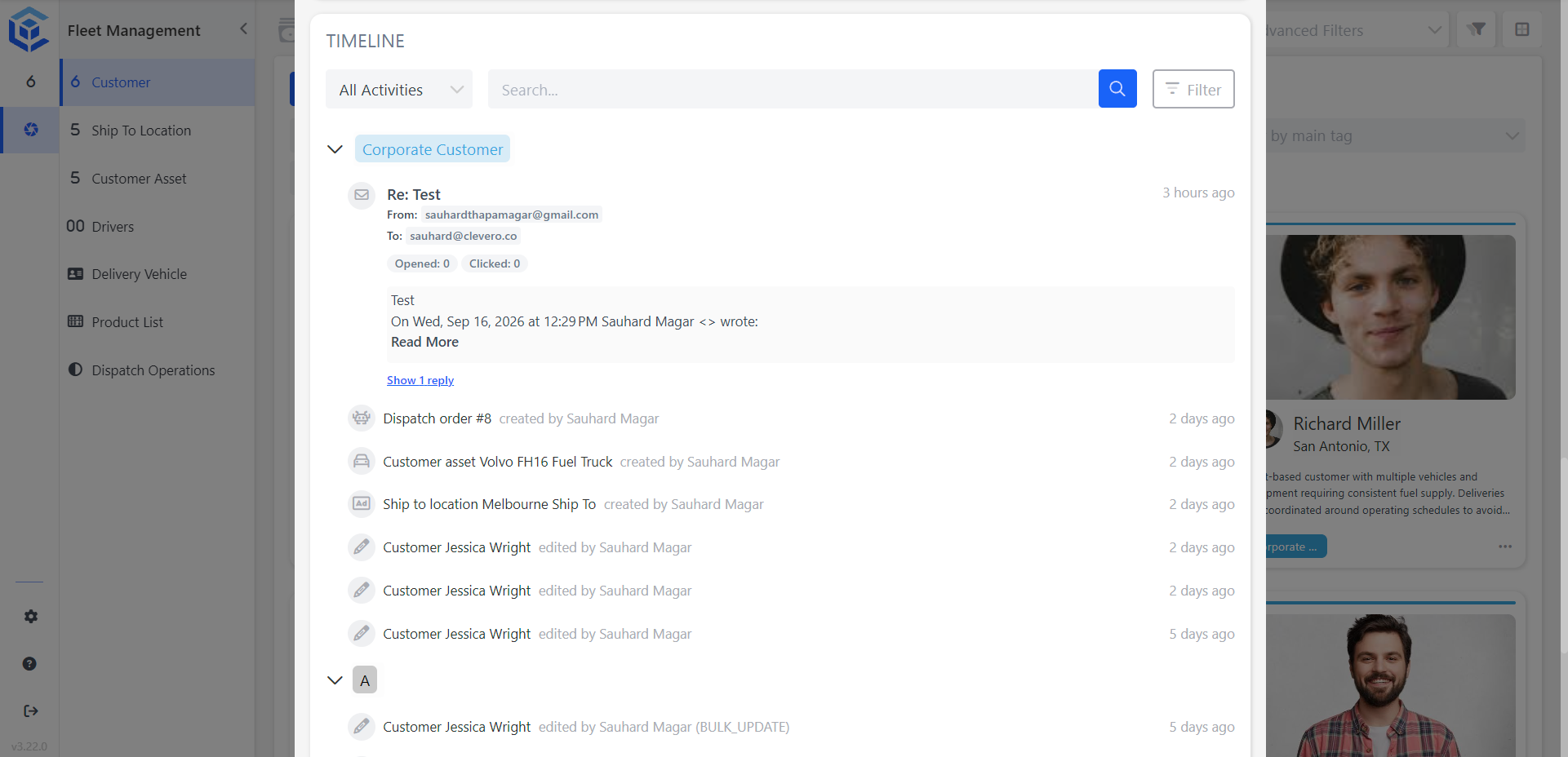
Each entry shows what happened, who performed it, and when: for example, an email thread with open and click tracking, or a related record being created or edited by a user.
5. Notes
- Only activity types selected under Activity Types appear in the feed.
- Associated record activity only appears once the relevant record type has been added under Associated Records.
📌 Need Help?
If you require assistance or encounter any issues, please don't hesitate to contact us for further support.
Updated about 9 hours ago