
Merge Tags Syntax
This guide explains how to use Docx Merge Tags to generate dynamic content when creating a document template.
You’ll find examples and syntax details for:
- Merging data from association and sub-record tables
- Handling conditional statements
- Formatting fields (dates, currencies, and rich text)
🔗 1. Association Table
Association tables let you display data from related records.
| Full Name | Relation | Address | Role | Occupation |
|---|---|---|---|---|
{{#each [association].[bacs-contact-roles]}} | {{#each [association].[bacs-contact-roles]}} | {{#each [association].[bacs-contact-roles]}} | {{#each [association].[bacs-contact-roles]}} | {{#each [association].[bacs-contact-roles]}} |
{{full-name}} | {{[relation].[value]}} | {{address}} | {{#each [role]}} {{[value]}}{{#unless @last}}, {{/unless}}{{/each}} | {{occupation}} |
NoteWrap the table rows with
{{#each}}and{{/each}}to loop through associations.
↕️ 2. Subrecord Table
Subrecord tables allow you to display nested data. The syntax below shows how to structure subrecord tables and sort them.
| Type | Frequency | Notes |
|---|---|---|
{{#each [subrecord].[bacs-income]}} | {{#each [subrecord].[bacs-income]}} | {{#each [subrecord].[bacs-income]}} |
{{[type].[name]}} | {{[frequency].[value]}} | Following are the main notes: {{notes}} |
Note
- Use the
{{#each}}block to loop through each item in the subrecord.- No vertical gap between the
{{#association-table}}and{{#subrecord-table}}with their respective tables.
Sorting Subrecord Tables
To sort the sub-record tables, add the {{#orderBy}} tag immediately after the {{#subrecord-table}}.
{{#orderBy [fieldId].[nestedFieldId] [--fieldType] asc}}{{#orderBy [fieldId] [--fieldType] desc}}fieldIdis the parent field ID, andnestedFieldIdis the nested field ID for sorting subrecord entries.[--fieldType]specifies the field type (string, number, or date).- Use
ascfor ascending order anddescfor descending.
Example
{{#subrecord-table}} {{#orderBy [type].[name] [--string] asc}}📌 3. Conditional Tags
Conditional tags let you display content only when conditions are met.
{{conditional #if (eval conditional_field '=' true)}}

Texts inside this block will be rendered if the condition is met...

{{/if}}
Key Points
conditional_fieldcan be any field from the parent record or a nested select field.- You can also use nested fields, like select fields. For example:
{{conditional #if (eval organisation.location '=' 'Australia')}}- Complex conditions with multiple criteria are not supported. For example:
{{conditional #if (eval field_1 '=' true' && field_2 '!=' false)}}Notes
When referencing parent fields inside associations or sub-records, use the correct syntax:
| Type | Frequency | Notes |
|---|---|---|
{{#each [subrecord].[bacs-income]}} | {{#each [subrecord].[bacs-income]}} | {{#each [subrecord].[bacs-income]}} |
{{tableField [12345-name]}} | {{[frequency].[value]}} | Following are the main notes: {{notes}} |
{{/each}} |
Here,
12345-nameis an example of an internal ID used for a field in the parent entry, which applies similarly to sub-records.
🔘 4. Multi Select Tags
Use multi-select tags to list values from multi-choice fields.
{{multiSelect #each [multi-select-field]}}{{[fieldname]}}{{#unless @last}},{{/unless}}{{/each}}Key Points
- The
multi-select-fieldcan be any of the multi-choice fields in the system (Checkbox, radio, multi-select) of the parent record (for which we are generating the merged docx) - The
fieldnamerefers to the field of the multi-choice record.
WarningEnsure the spacing in the code snippet is exactly as shown above. Incorrect spacing can cause parsing issues with the Handlebars compiler.
Example
To display all the names from the multi-select field types-of-variation, use:
{{multiSelect #each [types-of-variation]}}{{[name]}}{{#unless @last}},{{/unless}}{{/each}}Variation
If you prefer each multi-select value to appear on a new line rather than inline, use the "-newline" tag:
{{multiSelect-newline #each [types-of-variation]}}{{[name]}}{{#unless @last}},{{/unless}}{{/each}}Notes
- Do not use the
multiSelectkeyword. Instead, use the following syntax:
{{#each [types-of-variation]}}{{[name]}}{{#unless @last}},{{/unless}}{{/each}}- Multi-select tags do not support rich text fields or any fields enclosed in triple curly braces (
{{{ }}}). For example:
{{multiSelect #each [multi-select-field]}}{{{[rich-text]}}}{{#unless @last}},{{/unless}}{{/each}}🔡 5. Rich Text Tags
Rich text:
{{{[rich-text-field]}}}
Key Points
- Always use triple curly braces
{{{ }}}. - Rich text tags do not work inside multi-select tags.
- Place the rich text tag on its line. This is important because the merging process replaces the entire line with the formatted rich text. Avoid combining it with other text on the same line, like this:
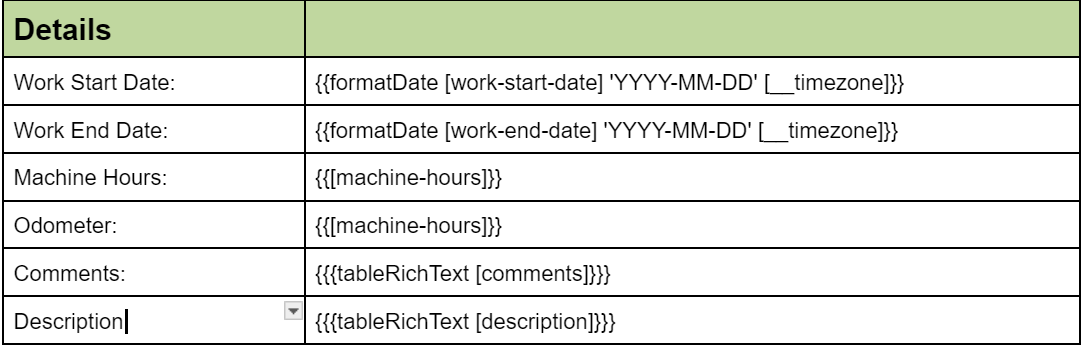
The Rich text: {{{[rich-text-field]}}} is now formatted!- Rich text tags don't work correctly inside regular tables. To display rich text within a regular table (not association or sub-record), use the
tableRichTexttag instead. This will render the rich text as raw text within the table.
{{{tableRichText [rich-text-field]}}}Example of Using tableRichText in a DOCX Document
📅 6. Moment Date Tags
{{formatDate [auth-reconc-posted] 'dddd D MMMM YYYY h:mm:ss' [__timezone]}}
{{formatDate [auth-reconc-posted] 'dddd D MMMM YYYY h:mm:ss'}}

// for formatting current date
{{formatCurrentDate 'dddd D MMMM YYYY h:mm:ss' [__timezone]}}
{{formatCurrentDate 'dddd D MMMM YYYY h:mm:ss'}}
Key Points
- The syntax matches what is used in the Unlayer tool within our system's email/PDF builder.
- Ensure the date format is enclosed in single quotes
' ', not the apostrophe symbol used by Google Docs. - The
formatCurrentDatetag formats the current Australian date and time according to the provided format.
Notes
When using date tags within association or sub-record tables, use the specific syntax:
{{formatAssociationDate [date-field] 'dddd MMMM YYYY h:mm:ss'}}
{{formatSubrecordDate [date-field] 'dddd MMMM YYYY h:mm:ss'}}
💰 7. Format Currency Tags
{{formatCurrency [currency-field]}}Key Points
This tag automatically attaches a dollar sign, adds a thousand separator, and displays two decimal places.
1000converts to$1,000.009000.5converts to$9,000.50
Notes
When using currency tags within association or sub-record tables, use the following syntax:
{{formatAssociationCurrency [currency-field]}}
{{formatSubrecordCurrency [currency-field]}}
📌 Need Help?

Updated about 1 year ago