
Bulk Edit & Delete
Select multiple records at once to edit a field or delete them in a single action.
1. Overview
Editing records one at a time works fine for a handful of updates, but not when you need to change a hundred. Bulk Edit & Delete lets you select a batch of records from a record list and either update a field across all of them or delete them all in one go.
2. Benefits
Bulk Edit & Delete allows users to:
- Update a field across many selected records in a single action, instead of editing each one individually.
- Delete multiple records at once.
- Select records individually, or select every record on the current page at once using the header checkbox.
3. Selecting Records
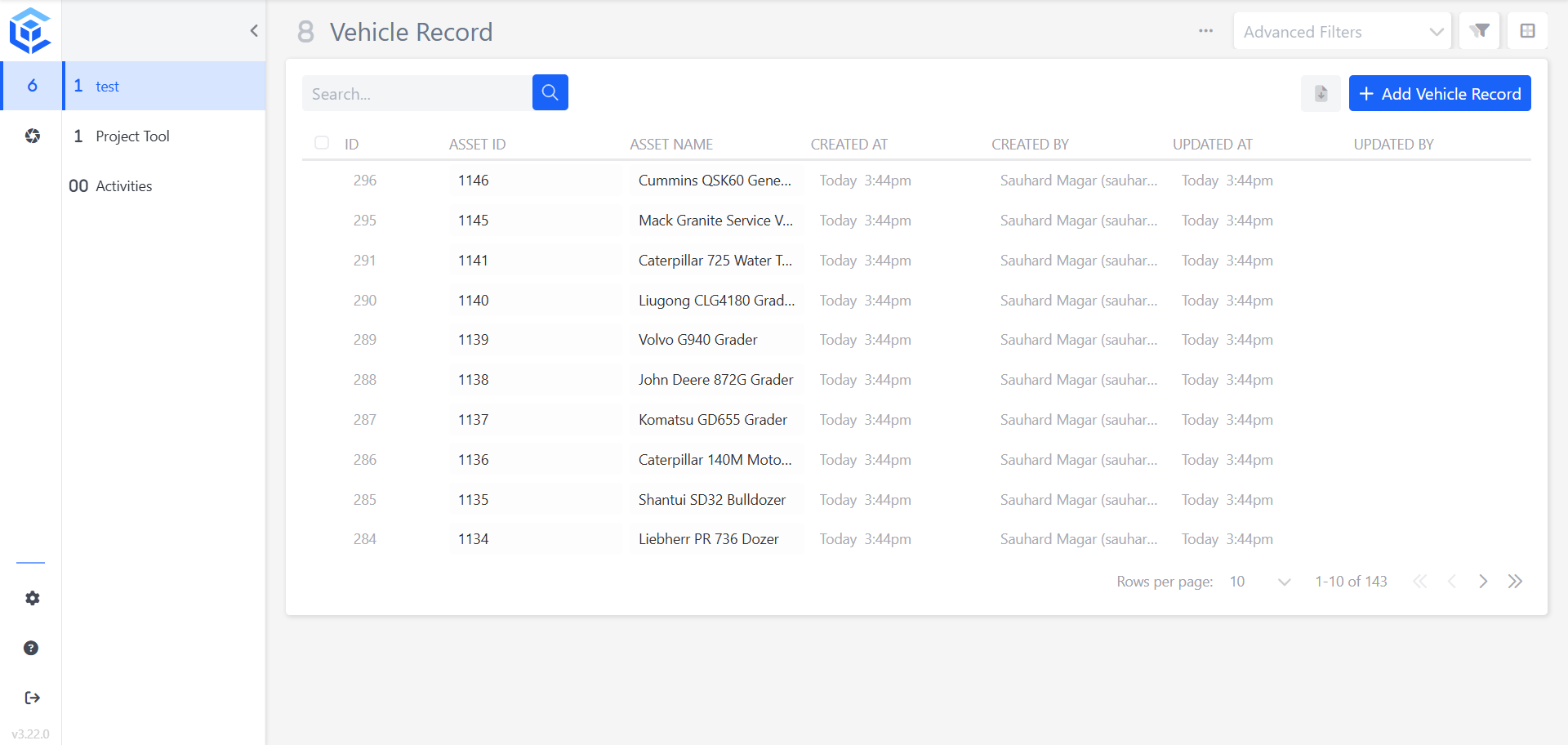
- Open the record list you want to bulk update (for example, Vehicle Record)
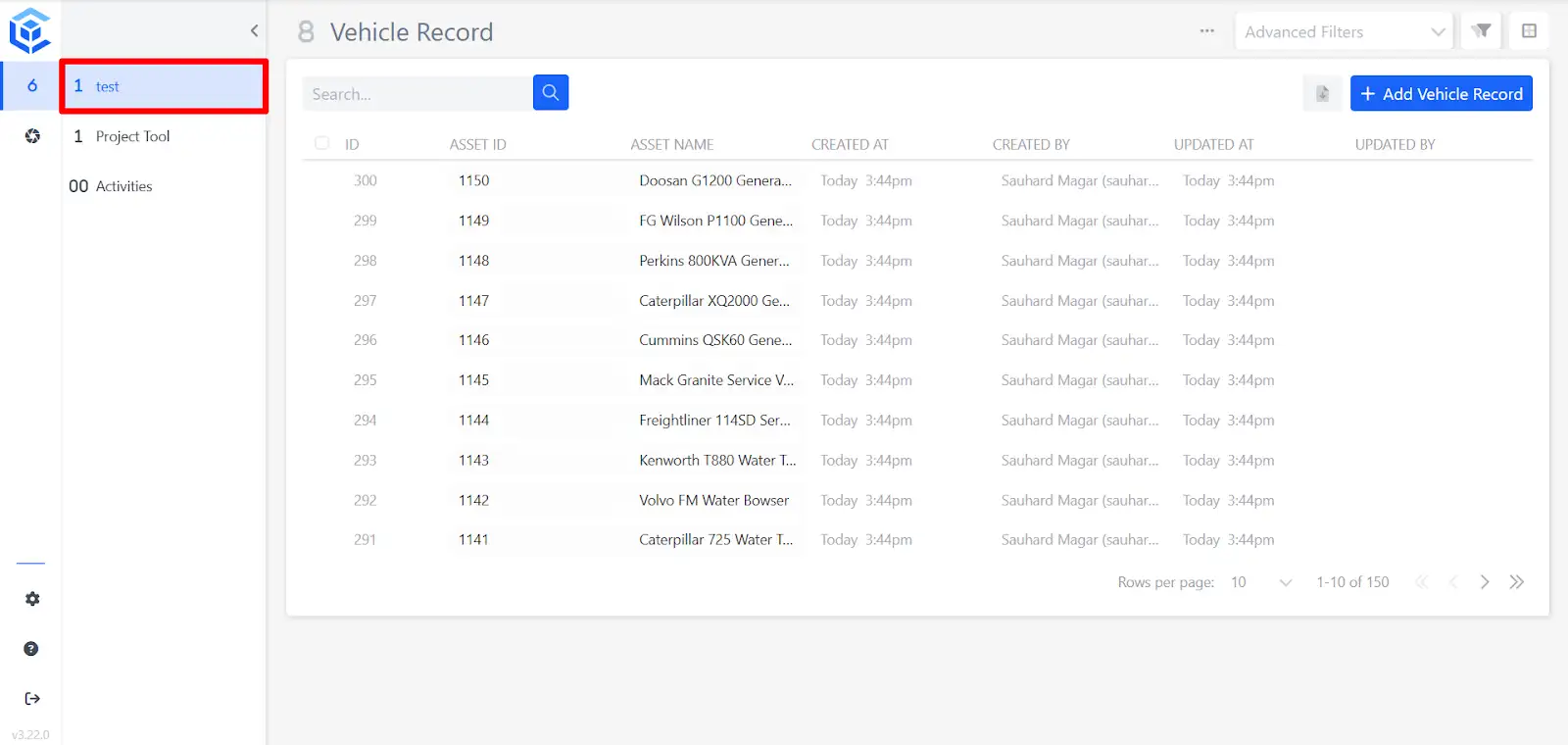
- Check the box next to each record you want to include, or check the box in the header row to select every record on the current page.
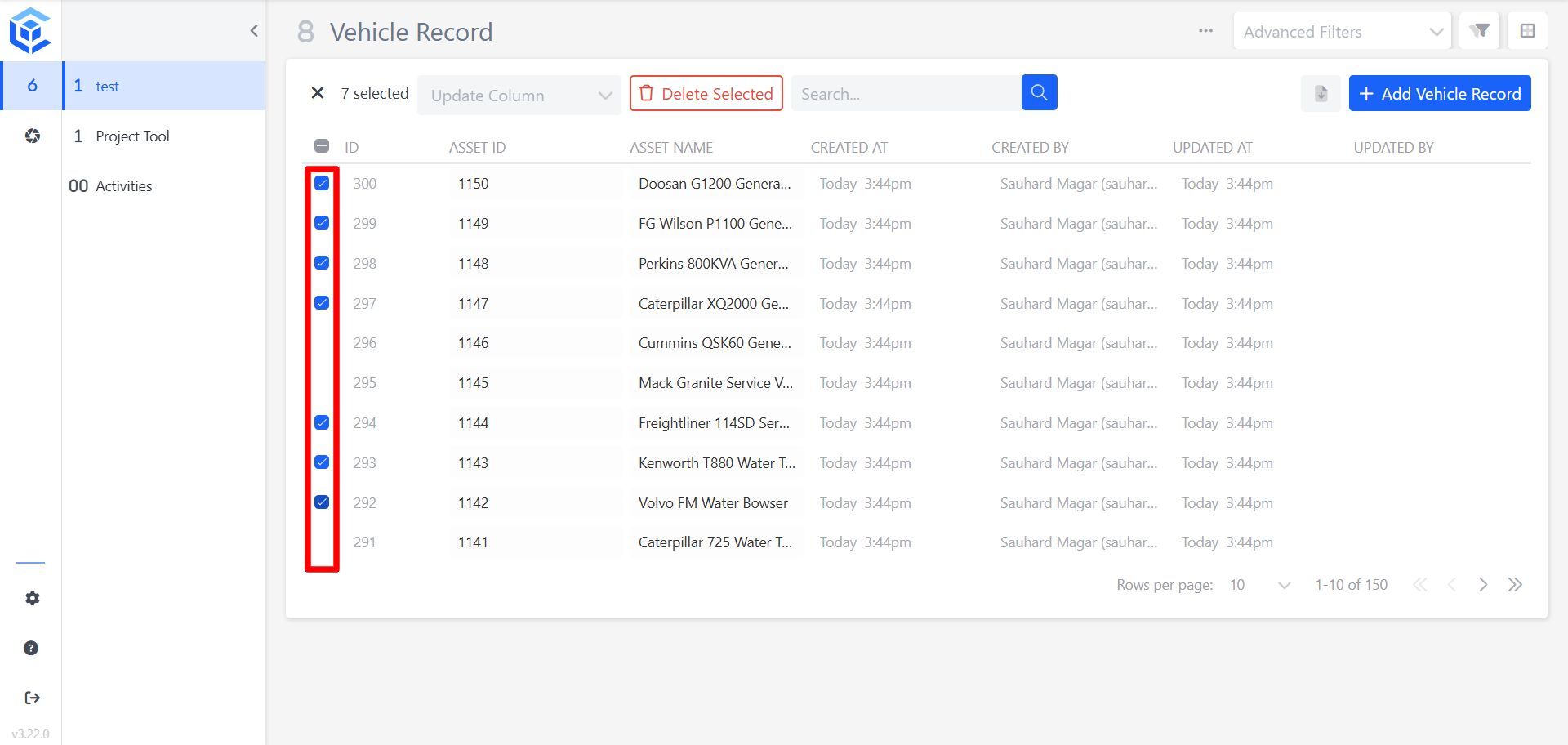
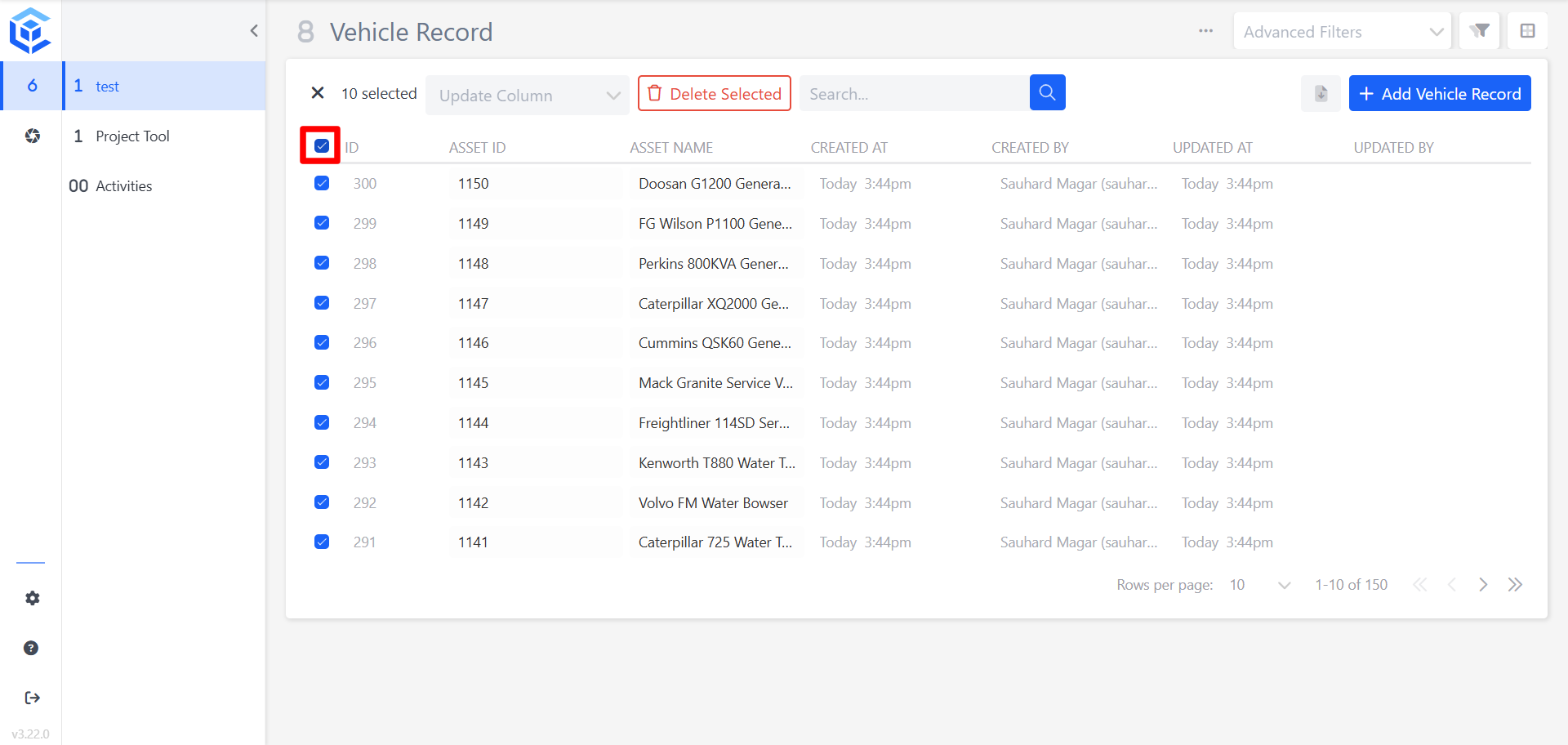
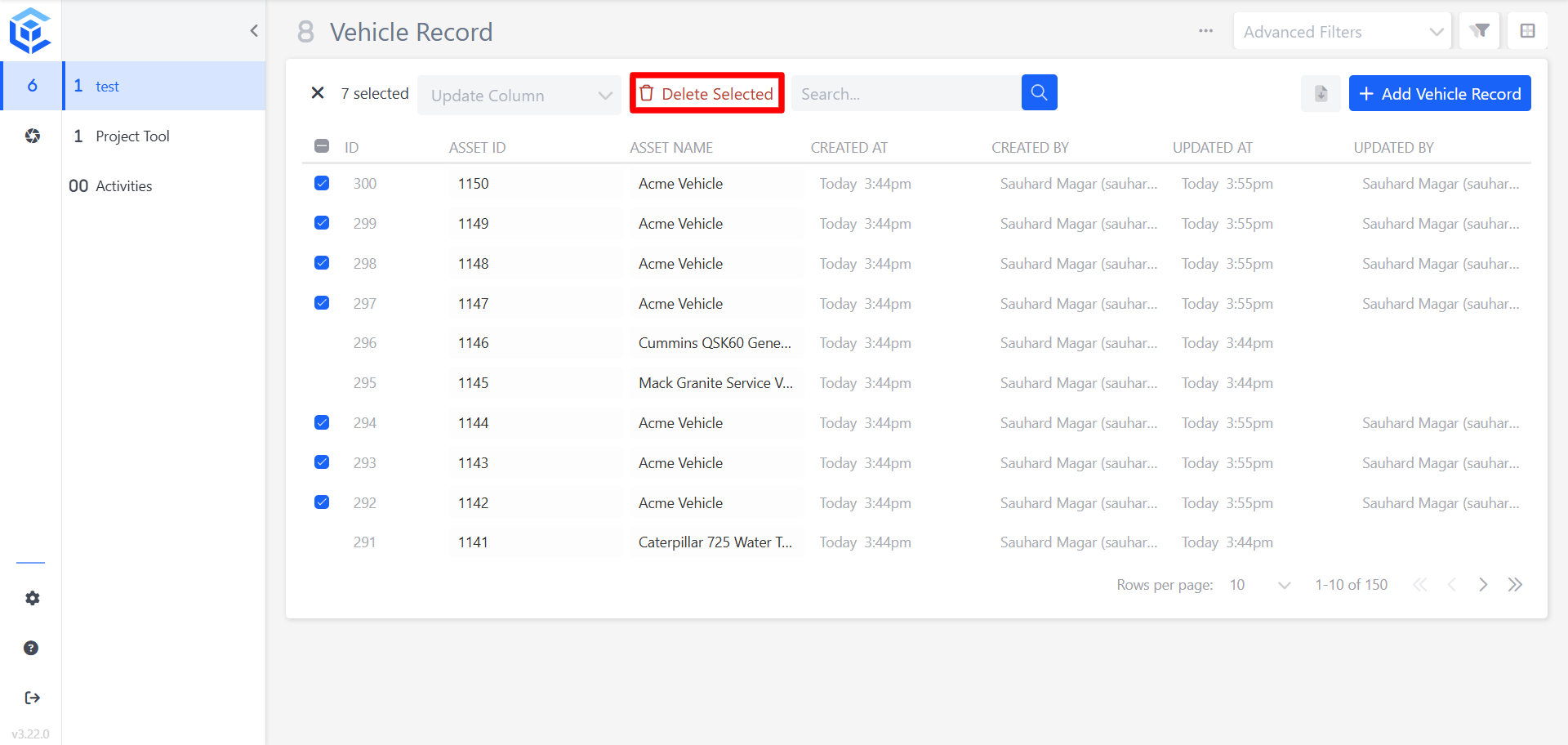
Once records are selected, a toolbar appears showing the number selected along with Update Column and Delete Selected.
📘 Note: The header checkbox selects all records on the current page, based on the list's pagination setting. For example, if Rows per page is set to 100, the header checkbox selects all 100 records on that page.
4. Bulk Editing Records
- With records selected, click Update Column
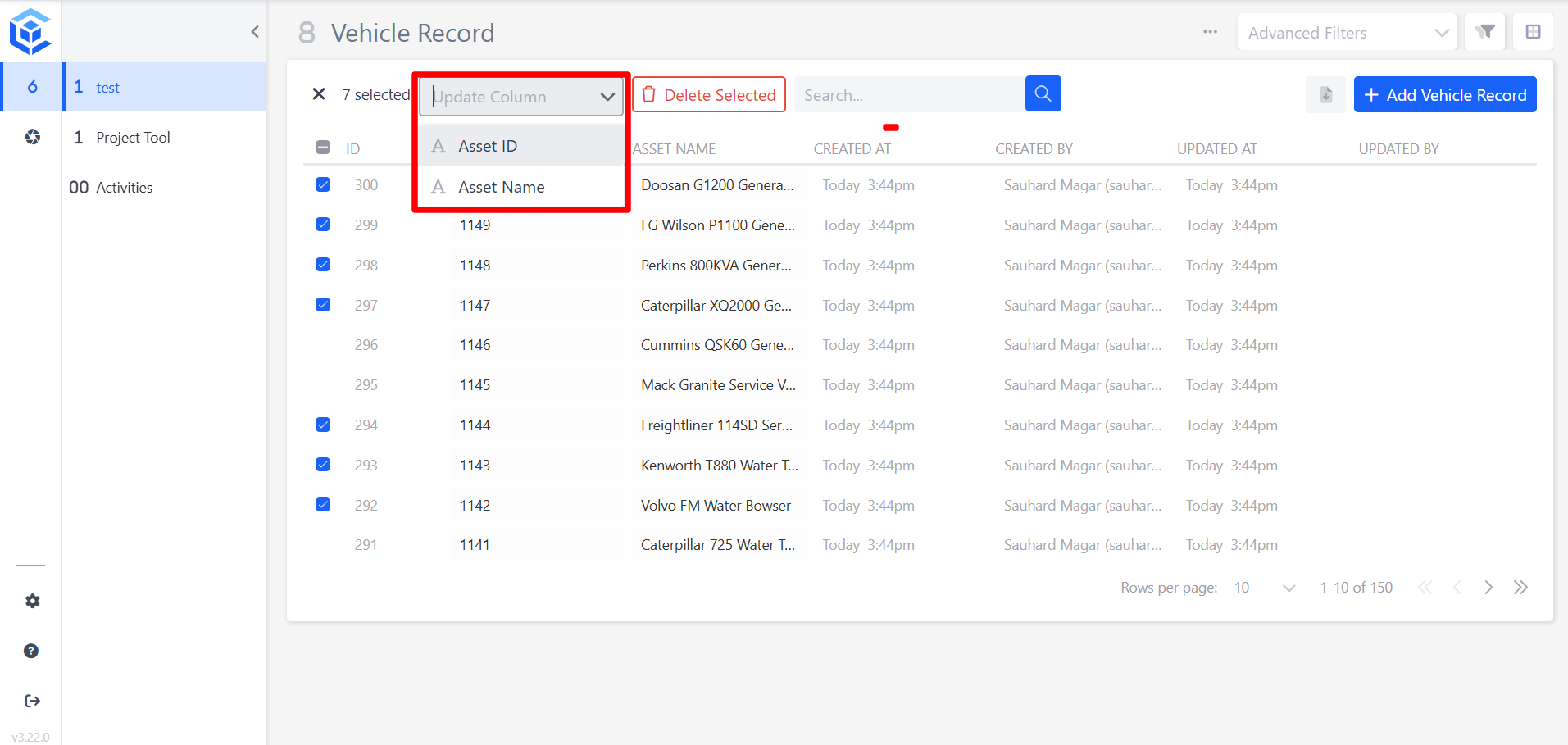
- Select the field you want to edit.
- Enter the new value, then click Save.
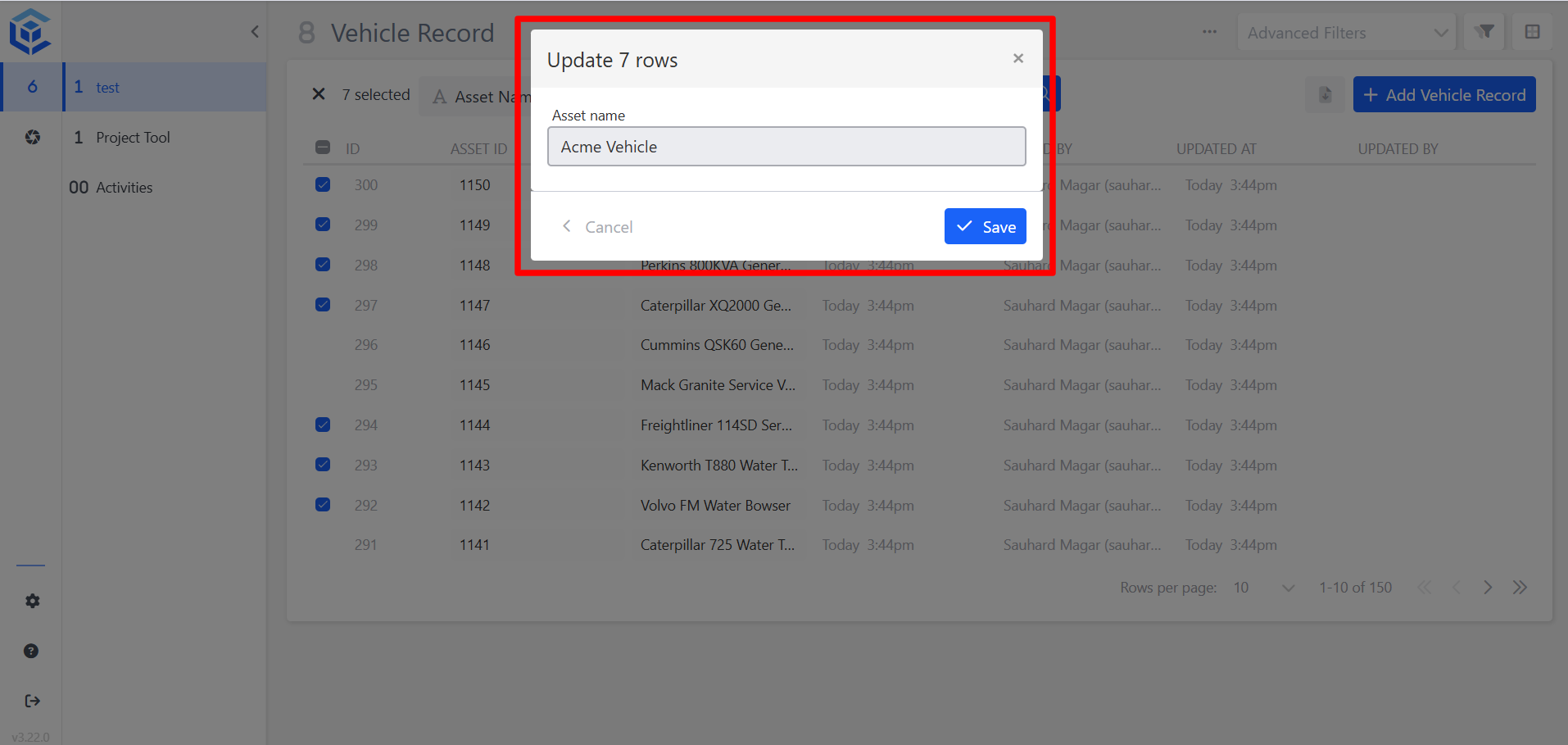
The selected records are updated immediately.
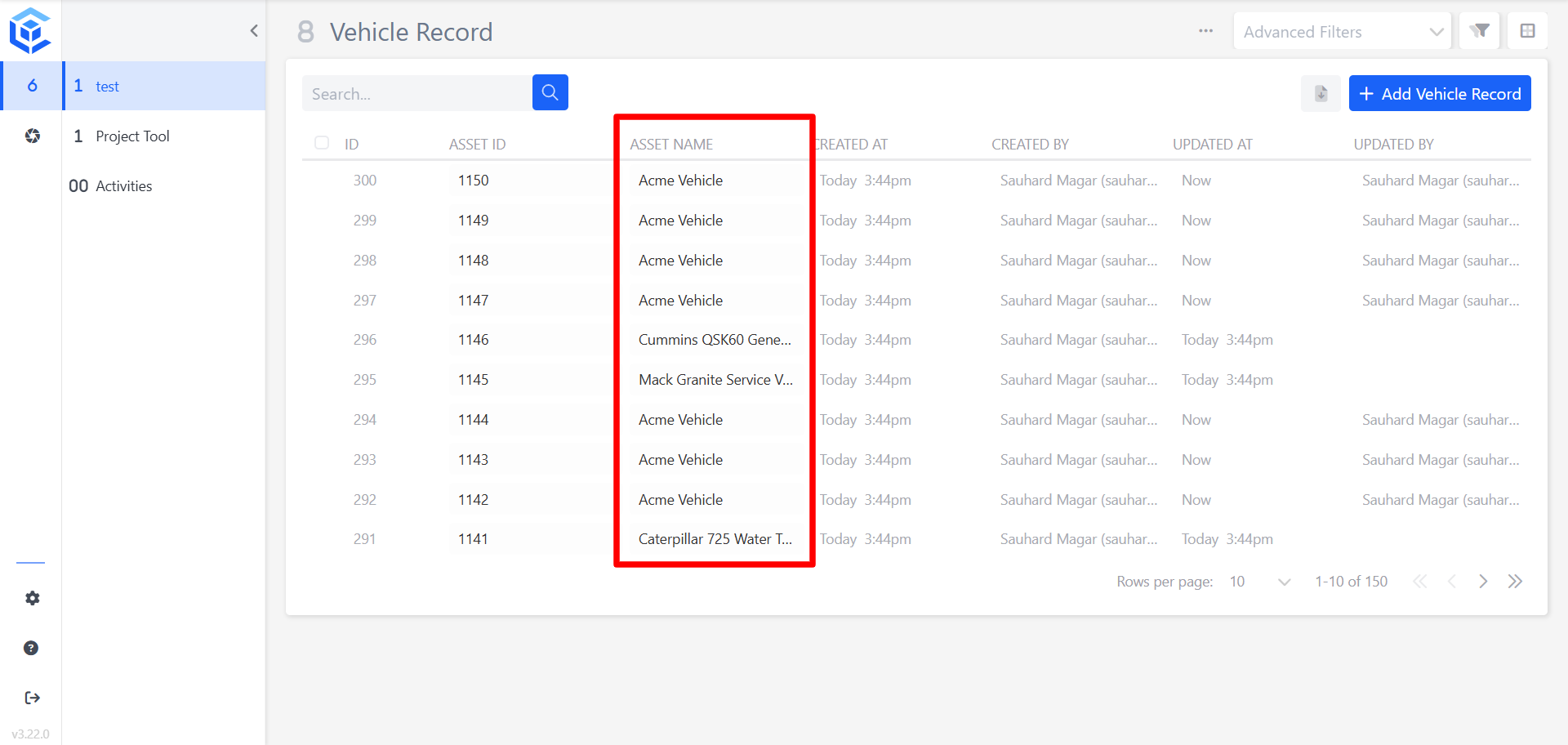
5. Bulk Deleting Records
- With records selected, click Delete Selected.
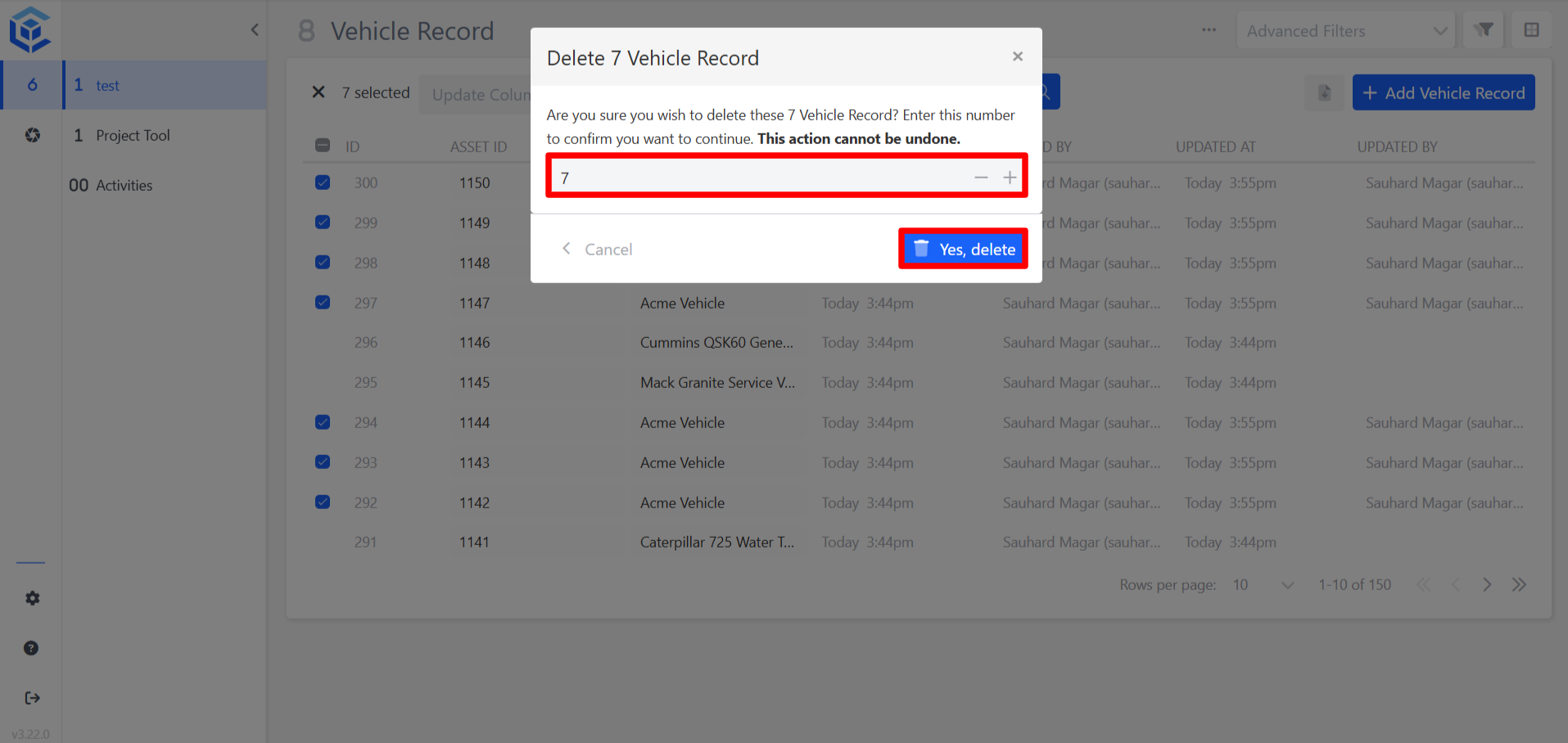
- Enter the number shown to confirm the deletion, then click Yes, delete.
The selected records are removed from the list.
⚠️ Important: Deleting records cannot be undone.
6. Notes
- Bulk Edit updates one field at a time across all selected records.
- The delete confirmation requires typing the exact number of records being deleted before it can be confirmed.
📌 Need Help?
If you require assistance or encounter any issues, please don't hesitate to contact us for further support.
Updated about 2 hours ago