
How to Submit a Support Case
🚨 We're here to help!
In this section, we'll guide you through the process of reaching out to our support team for any assistance you might need.
How to Submit a Support Case
Watch the guided demo below to submit a support request.
You can also follow the same steps using the written guide below.
- Select the "Help Center" menu.
- Select the type of support request:
- Support Request: Select this option if you require assistance with a specific issue.
- Feature Request: Select this option to request a new feature.
- Fill in the request details based on the selected request type.
- Enter your personal details, such as Name, Phone, Email, and Organisation.
- Provide a clear description of the issue, including as much detail as possible.
- You can also add attachments (e.g., screenshots, log files, or a Loom video) to help our support team better understand the issue.
- Click Submit to proceed.
- Your request has been submitted. You’ll also receive a confirmation email with the details of your ticket. Our support team will follow up with you via email.
How to Record a Loom Video
In some cases, our support team may ask you to provide a screen recording of the issue you’re experiencing. Loom makes it easy to record and share videos directly from your browser.
Step 1: Install Loom
- Go to Loom’s website and sign up.
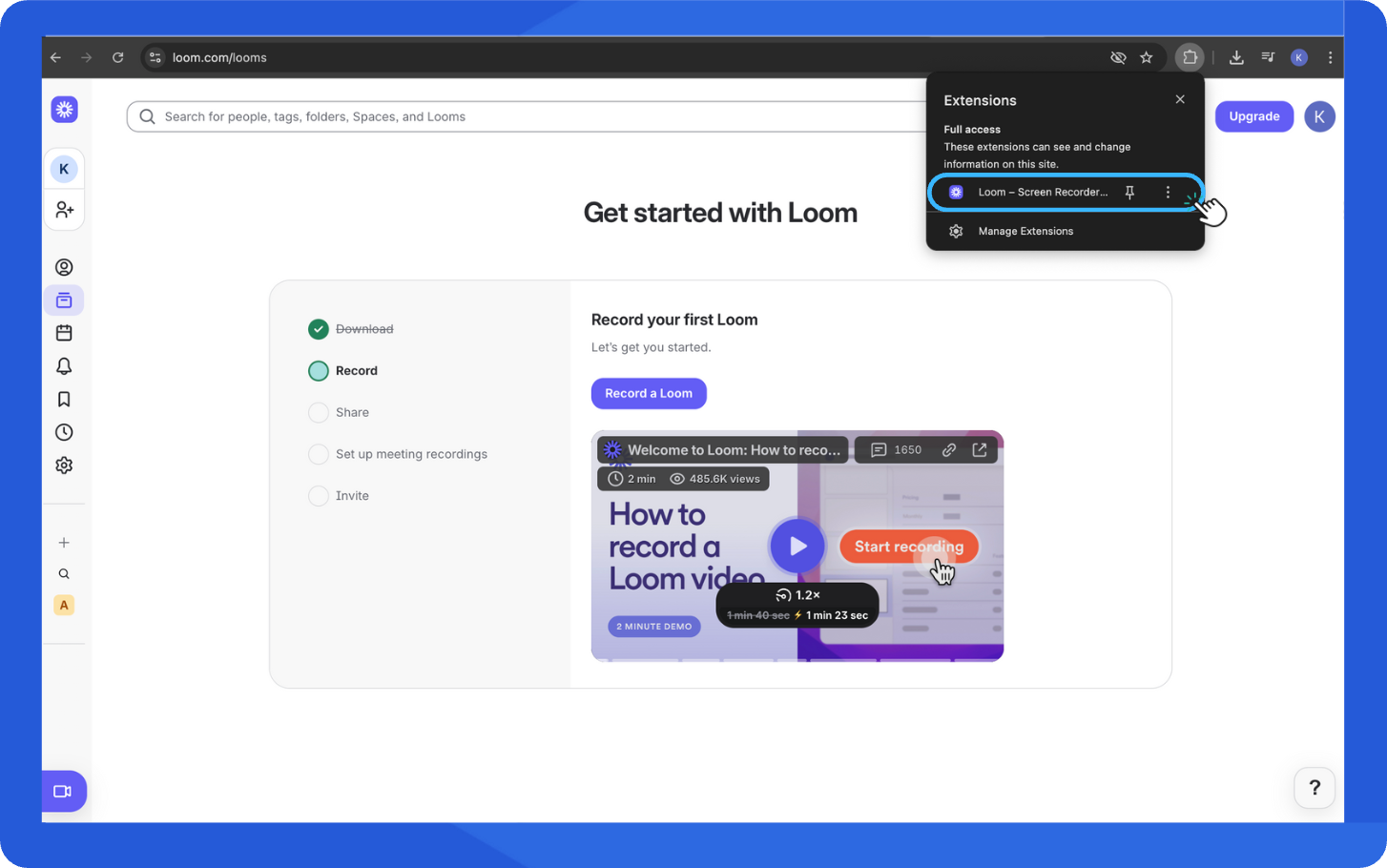
- Install the Loom Chrome extension or the desktop app.
Step 2: Start Recording
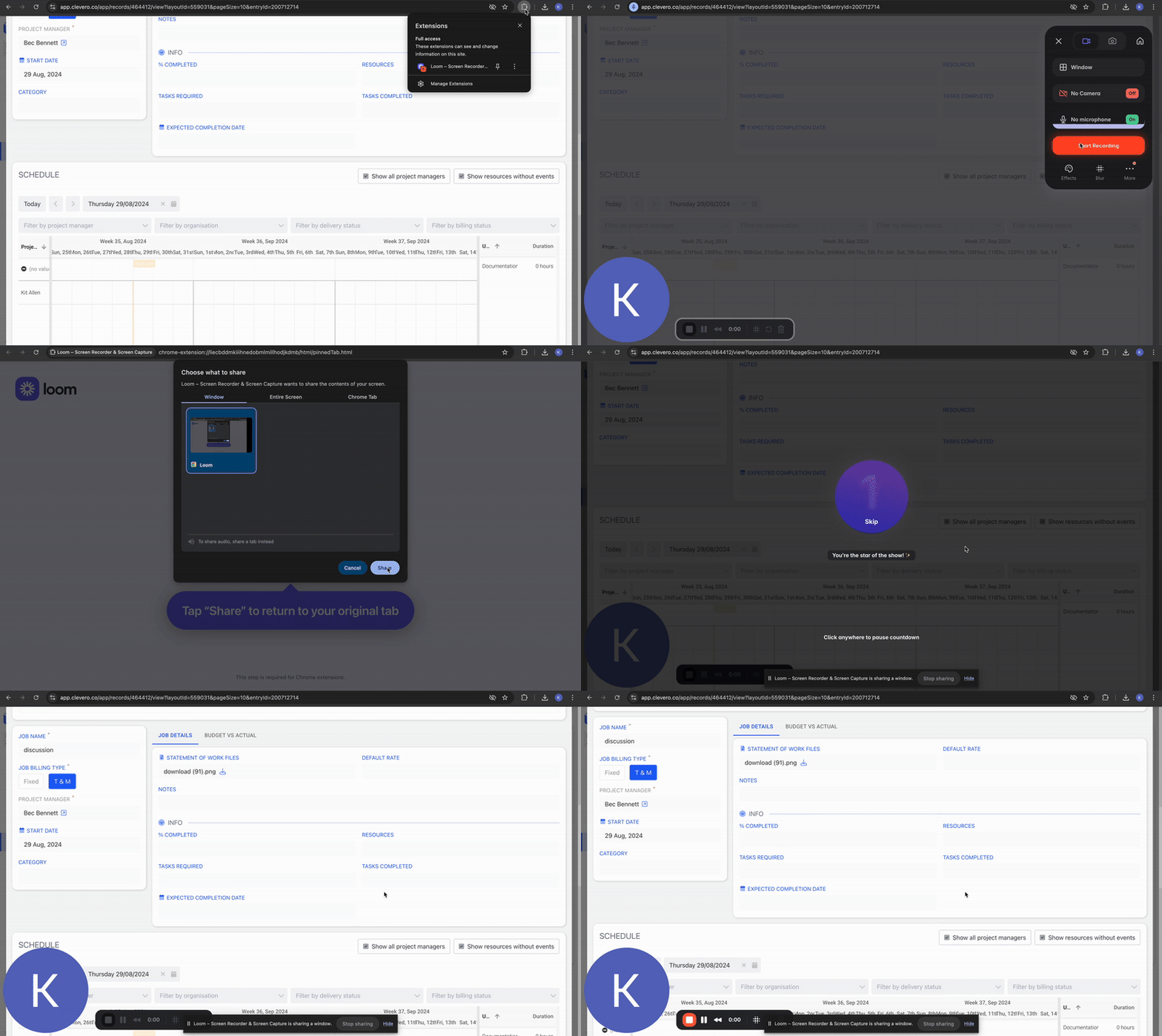
- Open the Loom app or click the Loom icon in your browser.
- Select whether you want to record:
- Screen + Camera: records both your screen and webcam.
- Screen Only: records just your screen.
- Click Start Recording.
Step 3: Demonstrate the Issue
- Navigate to the page where the problem occurs.
- Reproduce the steps leading to the issue while recording.
- Speak (optional) to describe what’s happening.
Step 4: Finish & Share
- Click the Stop Recording button when you’re done.
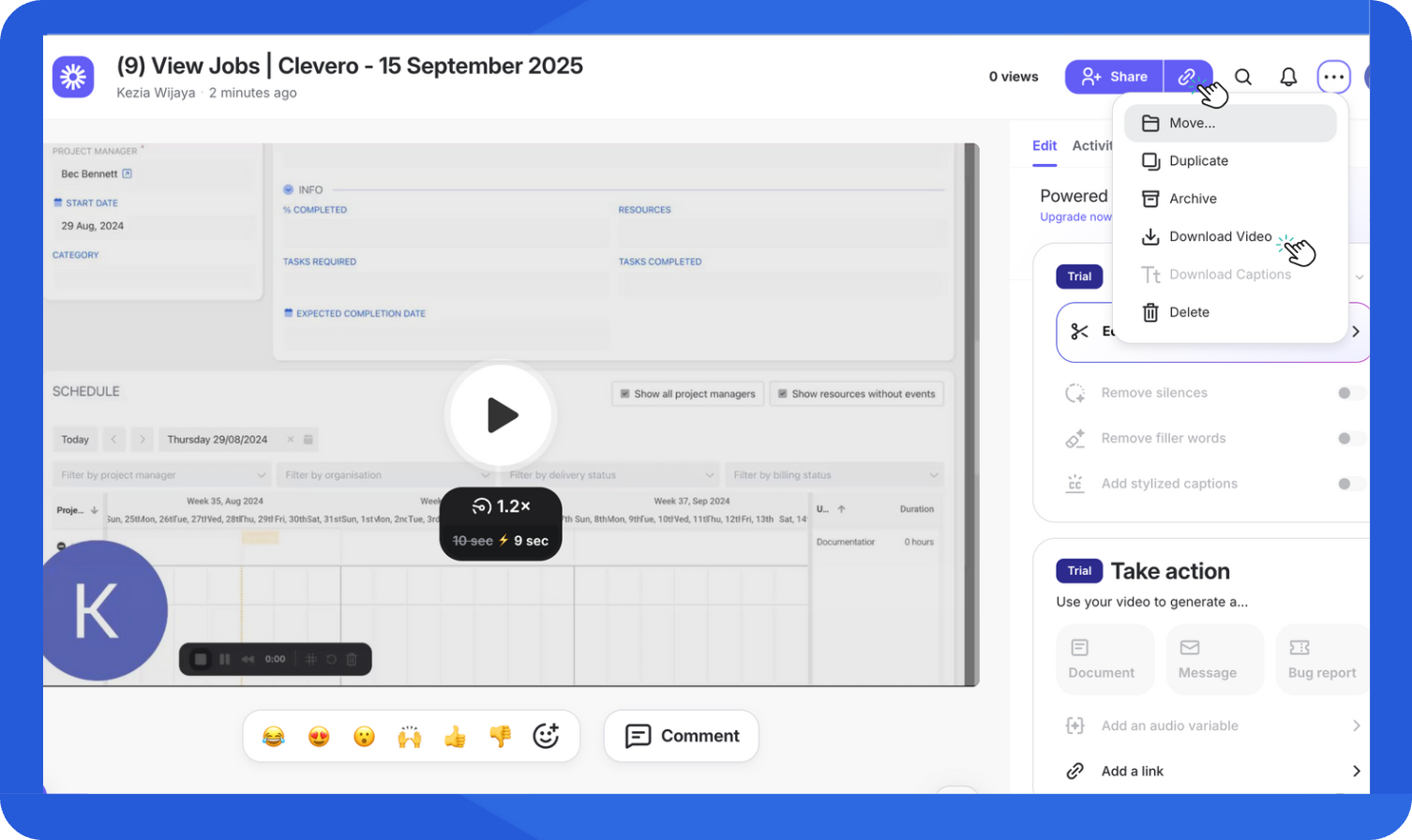
- Loom will automatically generate a video link.
- Copy the link and paste it into your support case or email reply. Alternatively, you can download the video file from Loom and upload it as an attachment to your support case.
📌 Need Help?

Updated 11 days ago
Did this page help you?