
Email Signature
Adding a signature every time you send an email can be repetitive and time-consuming. In Clevero, you can configure a default e-signature for your account. Follow these steps to create, use, and add your signature to templates.
InfoEach account can have only one email signature. You can only send an email with your own signature.
Creating an Email Signature
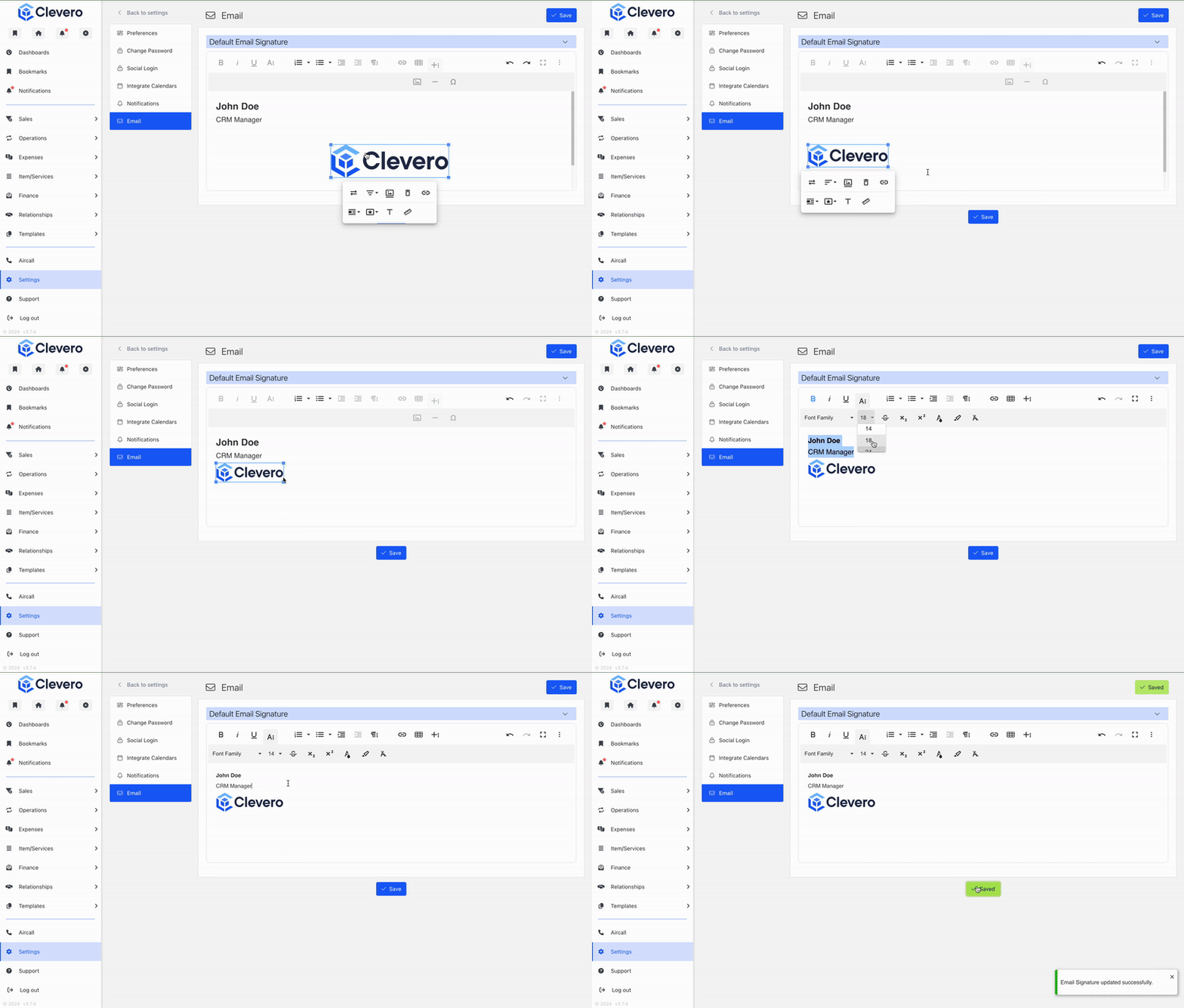
- Click Settings in the sidebar, then select User Settings.

- Go to the Email tab.
- Customise your signature in the editor. The editor supports basic text editing features such as styling, lists, tables, and images.
- Click Save once you're done.
Using Your Email Signature
You can use your signature when sending or replying to emails or adding it to an email template.
1. Sending an Email
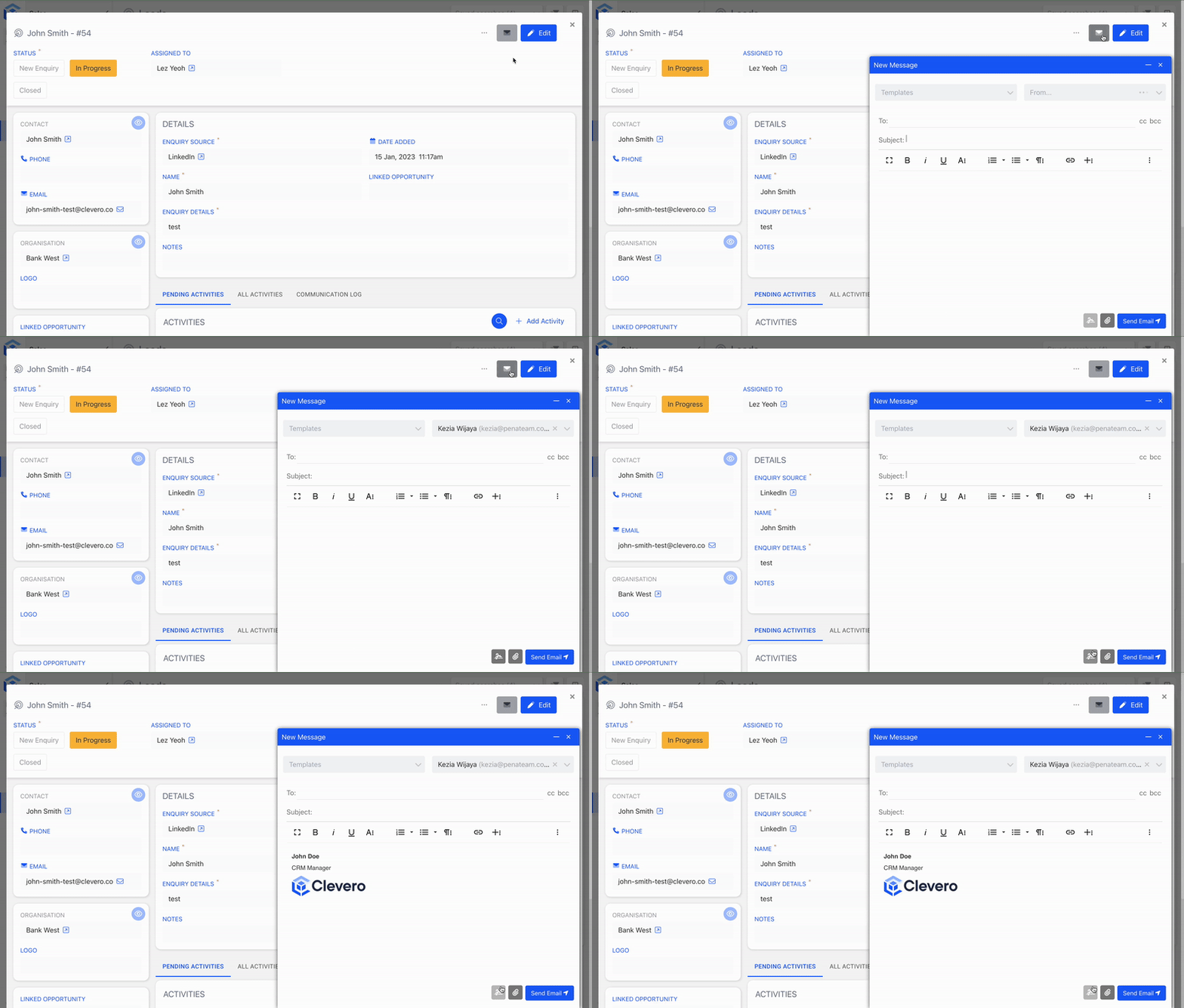
- On the record page, click the mail option.
- Compose your email, then click the signature button to insert the signature you created earlier.
- Click the Send Email button to send your email.
- After sending, you will have a short delay where you can undo the email if needed.
2. Adding to an Email Template
Info:For more details on creating an email template, please refer here.
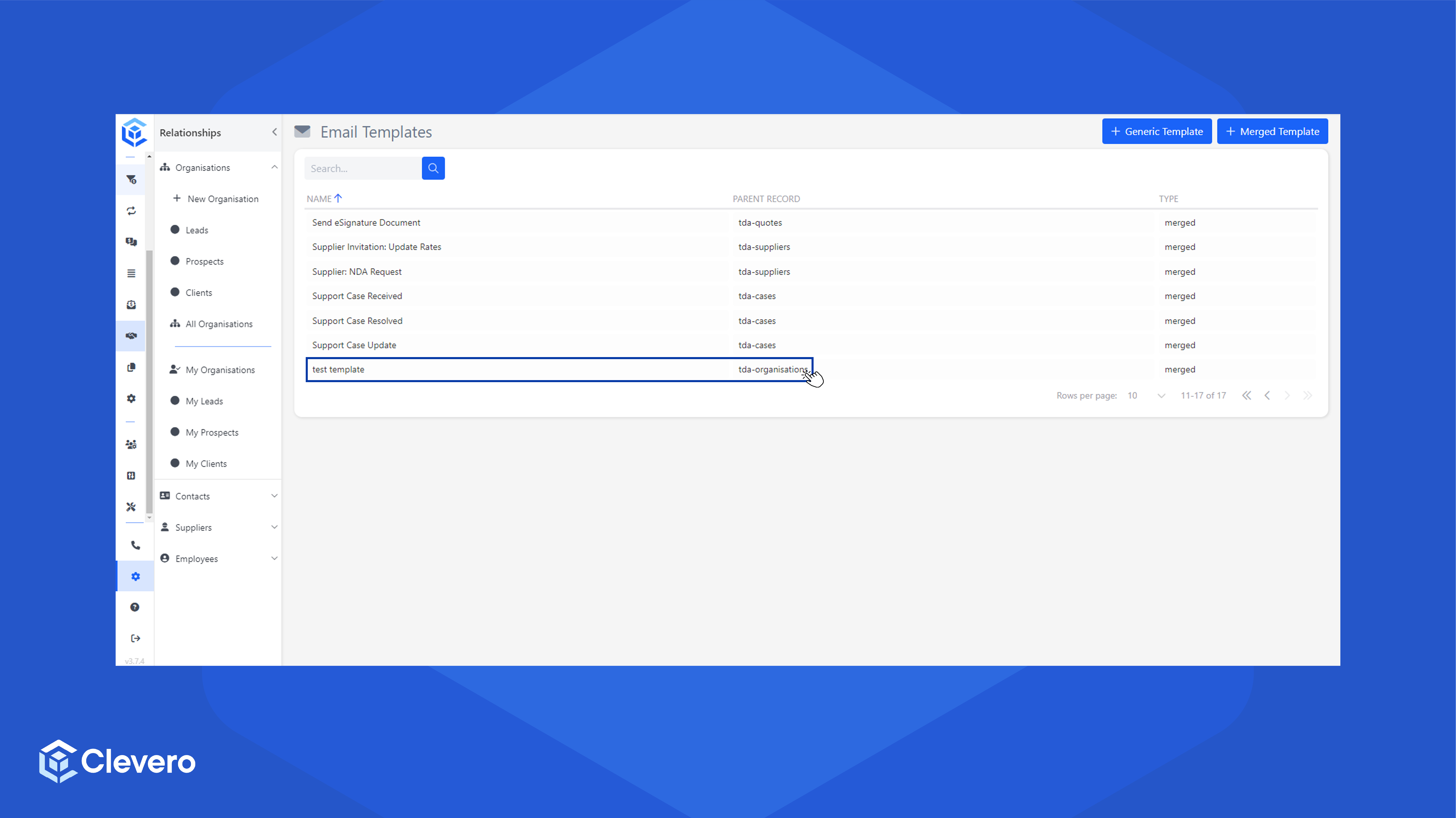
- In the Templates section, click Email Templates.
- Select one of the email templates.
NoteThe email type must be Merged.
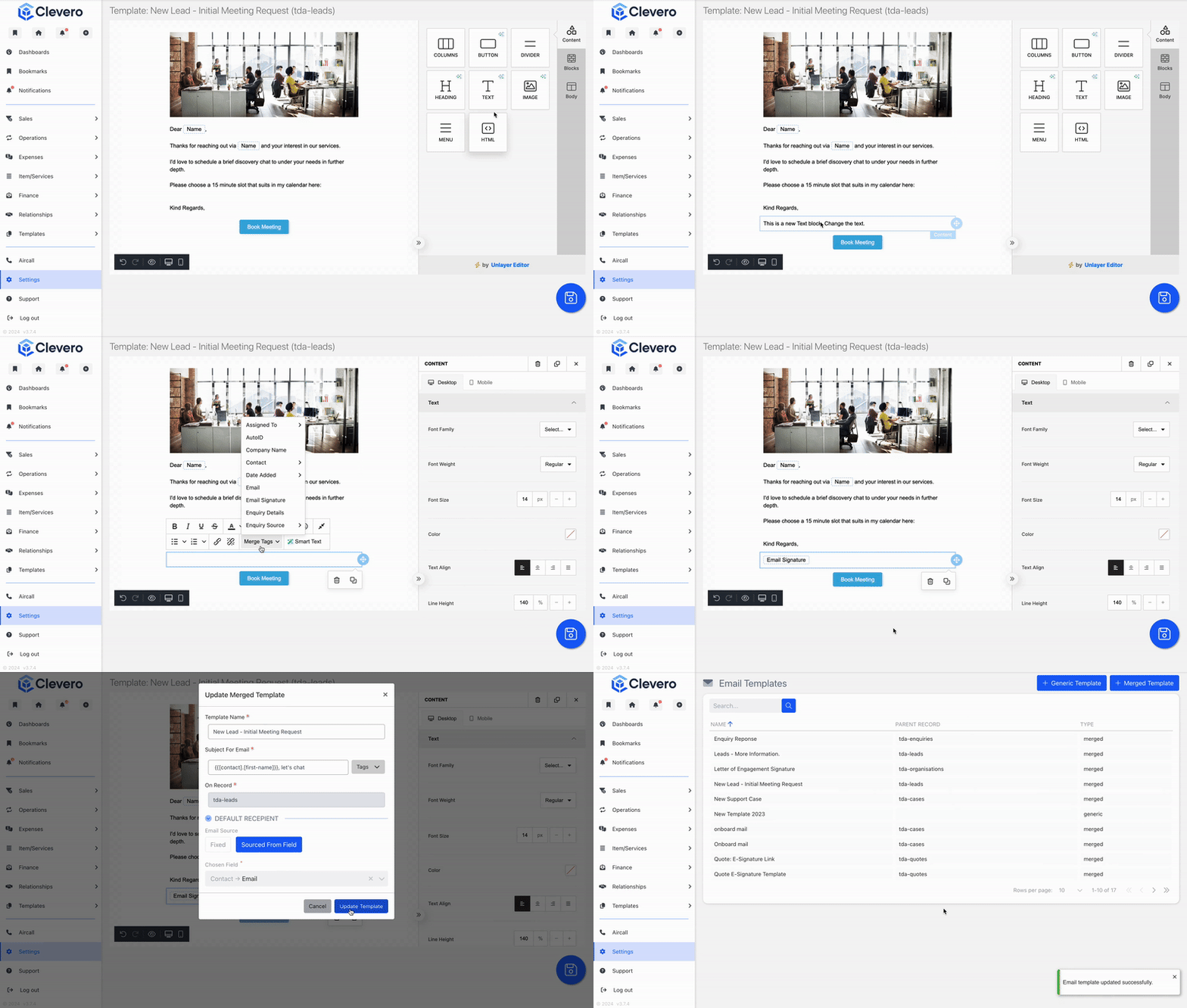
- Add a text field to the editor page.
- When the menu bar appears, click the Merge Tags dropdown and select Email Signature.
- The signature will be added. Click the Save button.
- To use it:
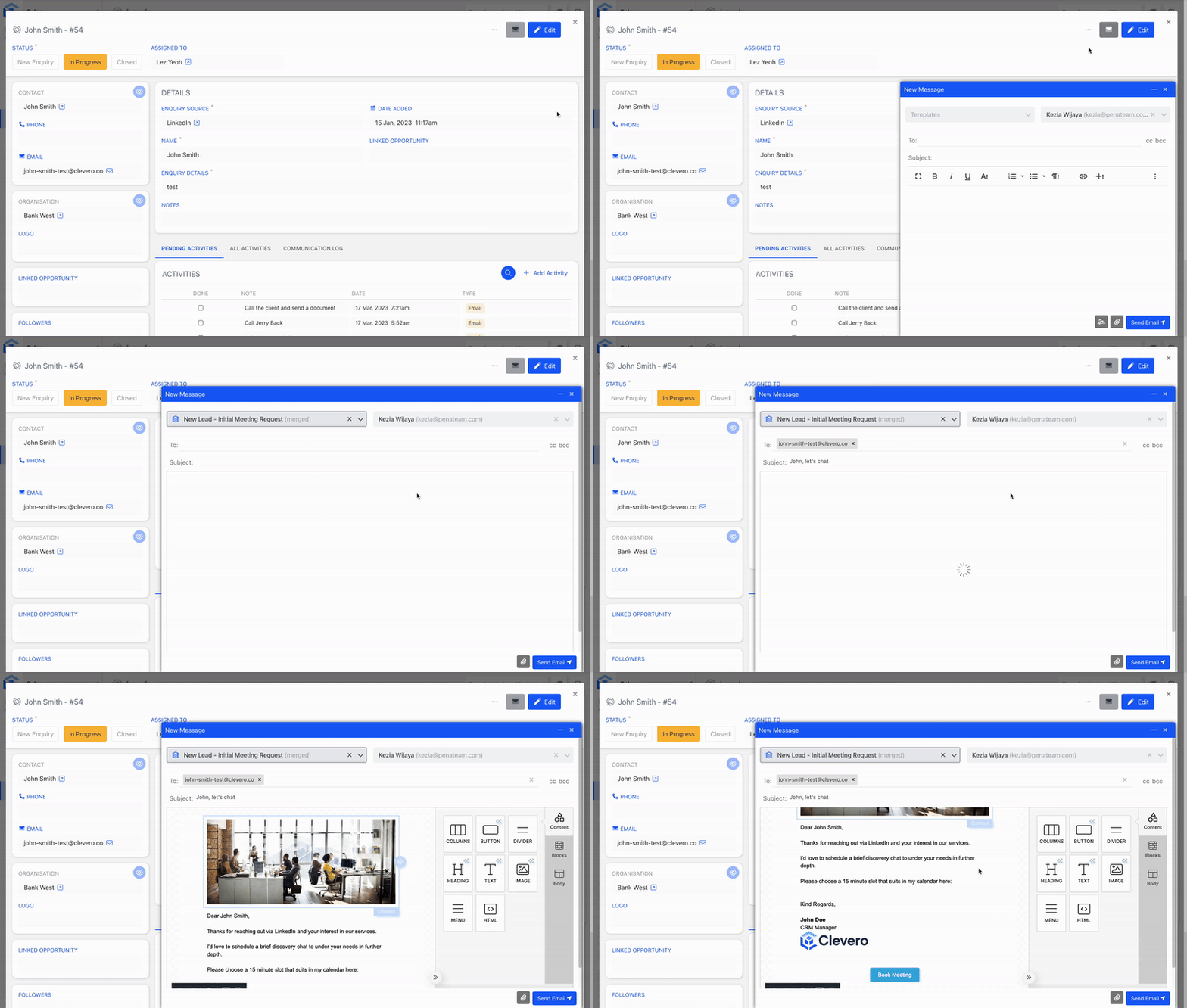
- Open any email compose page within any record.
- Select an email template.
- Your email will now have a signature.
📌 Need Help?

Updated 6 months ago
Did this page help you?