
Lists
🗂Optimize Data Viewing with Lists.
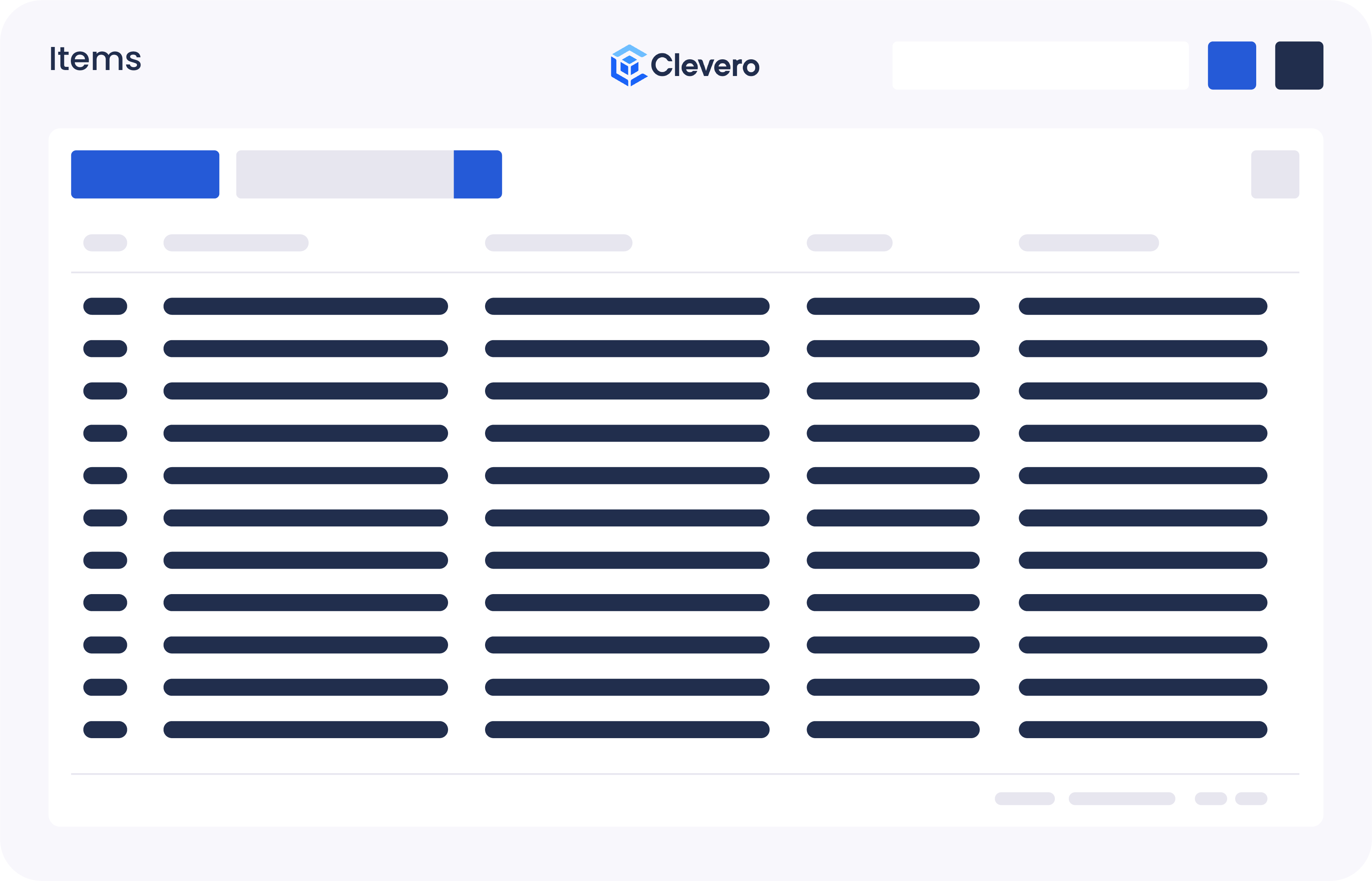
Lists are linear arrangements of items typically displayed vertically, with each item represented as an entry. They are used to display and manage data in a structured format.
1. Features and Benefits
The list view offers a range of features and benefits that enhance the display:
- Compact and space-efficient
- Easy scanning and reading
- Ideal for large datasets or long lists
- Sorting and filtering capabilities
2. Create a Lists View
WarningThe default view is visible to all users. To make sure it works for everyone, create a default setting that works for all users. If you need a personalised experience, copy the default view or create a new view as needed.
Watch the guided demo below to create and apply lists view.
You can also follow the same steps using the written guide below.
- Open the record and find the Views icon in the top-right corner of the screen.
- Click on the "New View" button within the Views menu.
- From the available options, choose the "Table View" option.
- Provide the view name.
- Select the "Show auto-incrementing IDs" checkbox to display an auto-incrementing ID column.
- Specify the columns you want to display in the table by choosing the corresponding field that links the data to each column.
- Alternatively, you can click "Add all fields" to add all available fields to the table.
- If there is a field in the record that contains a value or references another record, and you want to display that value in the current record view, you can use the Joined fields feature. For example, a Quote record has a Sales Rep field, and you want to display the sales rep’s email in the Quote record view. To do this, select the Sales Rep field, click + Add joined, select Email, then click + Add Field.
- [Optional] Set a field for Default Sorting. Specify whether it should be sorted in ascending or descending order.
- [Optional] Utilise Quick Filters to pre-define specific filter criteria for easy data filtration.
- [Optional] Utilise Advanced Settings to add configuration to your list view.
- Add Entries Using This feature lets you choose between two view options: Modal (default) or Fullscreen.
- Report Widgets are simple “number widgets” that can display a calculation over a list of entries. To add a report widget, insert a configuration. Here are sample configurations for reference: Link to the report widget.
- Click on the Save button to save the changes.
2.1. (Optional) Add colours to a list view
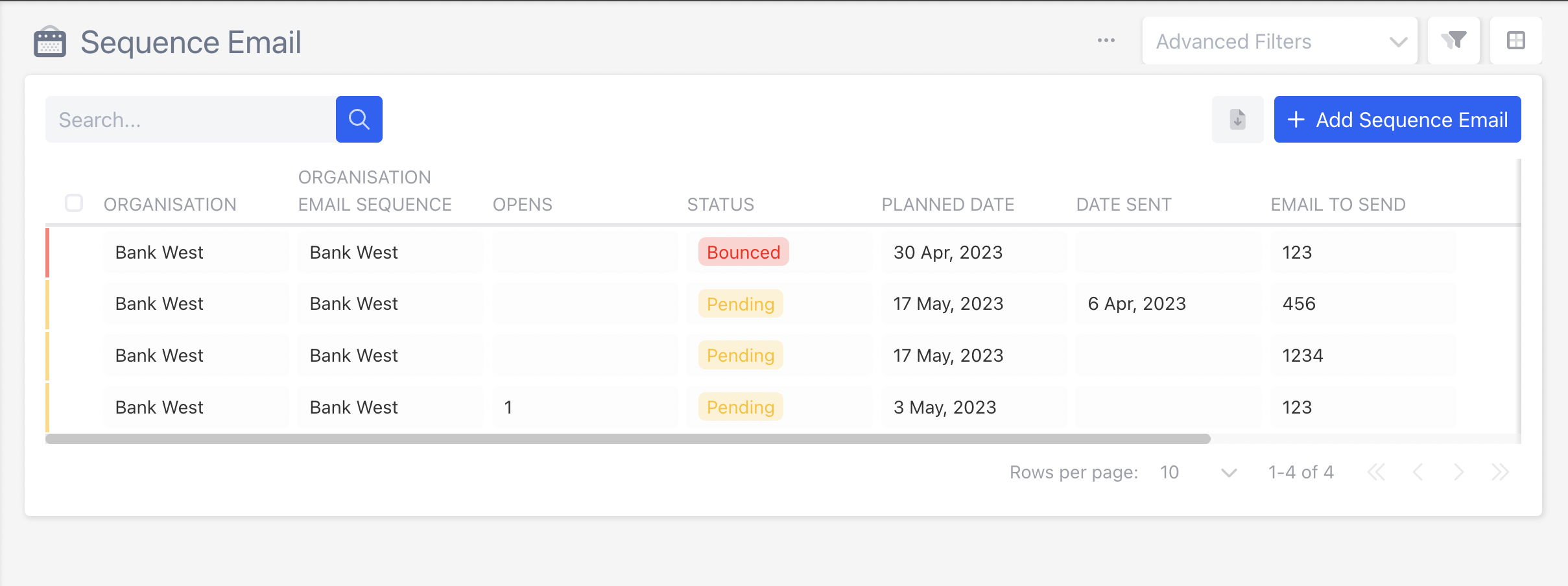
Use colours to make records easier to identify at a glance. For example, you can colour-code records based on their Status so users can quickly distinguish between Open, In Progress, and Closed items.
To add colours to a list view:
- Click the three-dot menu in the top-right corner.
- Select Configure Record.
- In the side navigation, select Fields.
- Select the field you want to use for colour coding (for example, Status).
- Under Options, select Colour for the Colour Field.
- Click Save.
- Return to the record and refresh the page or reapply the list view.
- The rows in the list view are now colour-coded based on the values in the selected field.
3. Apply a Lists View
To use Lists view, follow these steps:
- Open the record and locate the Views icon in the top-right corner of the screen.
- Choose the desired view you wish to display from the available options.
- To set the selected view as the record's default display, click on the "Set as default" option > Click "Save".
- Alternatively, if you only want to apply the selected view without setting it as the default, click the "Apply" button.
📌 Need Help?

Updated 17 days ago