FAQs



FAQs
What are you looking for?

-
Email Template is a pre-designed drafts that can be sent ad hoc or automated. To create one:
1. Open the "Email Templates" in the "System Settings".
2. Choose "Generic" to create a new template.
3. Customise the template's content, blocks, and body as needed.
Read more >
-
SMS Template is a pre-defined text drafts for seamless communication. To create one:
1. Open the "SMS Templates" in the "System Settings".
2. Choose "SMS Builder" to create a new template.
3. Create your SMS body and use fields to auto-populate data.
Read more >
-
We used SendGrid, a reputable email delivery platform, to provide a secure and seamless user authentication experience. These steps will ensure that all your emails via Clevero are authenticated.
Read more >
-
The export process is used to back up, analyse, and share data.
1. Go to the specific record wish to export.
2. Click the download button.
3. Select "Export as CSV" from the menu.
4. Download the CSV file with your data.
Read more >
-
Importing data allows the transfer of information from external sources. To import data:
1. Go to the specific record.
2. Click the upload button.
3. Select "Import as CSV" from the menu.
4. Upload your CSV file and map fields to the system fields.
Read more >
-
Fields in Clevero are used to capture, organise, and manage data within your records. To create a new field:
1. Select a "Records" from the "System Settings".
2. Choose the desired record.
3. Open fields management.
4. Create a new field.
Read more >
-
To make a field mandatory:
Read more >
1. Select "Records" from the "System Settings".
2. Choose or search for the desired record.
3. Click on the "Fields" option on the side bar.
4. Select the existing field or create a new field.
5. Enable the "Mandatory" option in the optional settings.
To make a field mandatory via Entry Layout, learn more here.
-
Let's set up your new portal dashboard by following the steps below:
1. Go to "Dashboard" in the main menu.
2. Click the "Customize" button.
3. Drag and drop widgets to arrange them as needed.
Read more >
-
There are three types of layouts available:
1. List Layout: Displays records in a list format. Read more.
2. Kanban Layout: Organizes records into columns based on their status or category. Read more.
3. Calendar Layout: Presents records in a calendar view. Read more.
-
Creating an Entry Layouts involves creating a new record layout and linking it to the existing record. To create a new one:
1. Go to "Settings" >"Entry Layout".
2. Select the entry layout you want to configure.
3. Customise the layout by rearranging fields and sections.
Read more >
-
1. Open the "Reports" in the "System Settings".
2. Click the "Add Report" button.
3. Create a report.
Read more >
To personalise data report to match your requirements, learn more here.
-
Before you add a new user, make sure you have the required role license available. To request a new one, please contact Clevero Support.
To setup a new user:
1. Go to the "Settings" >"System Settings" >"Users".
2. Click the "New User" button.
3. Fill in the user's details and assign roles and permissions.
Read more >
-
When a user needs to be temporarily inactive, follow these steps:
To activate and deactivate the user:
1. Go to the "Settings" >"System Settings" >"Users".
2. Click on the user in the list.
3. Click on the Edit button.
Read more >
-
To update the user role:
1. Go to Settings → System Settings.
2. Click "Manage Users"
3. Select the user you want to update role.
Read more >
-
Make your account more secure by create a strong new passwords:
1. Go to the login page.
2. Click the "Forgot Password?" link.
3. Enter your registered email address and submit.
4. Follow the instructions sent to your email to reset the password.
Read more >
-
Whether you're facing an issue, encountering a bug, or have a suggestion for a new feature, you can reach out to us by filling out the form in the app.
Read more >
-
If you're stuck on the loading screen when logging in, try the following:
1. Clear your browser cache and cookies.
2. Ensure your browser is up-to-date.
3. Disable browser extensions and try again.
Read more >
-
1. In your browser, go to the settings or options menu.
2. Find the section for clearing browsing data or cache.
3. Select the options to clear the cache and cookies.
4. Confirm the action and restart your browser.
Read more >
-
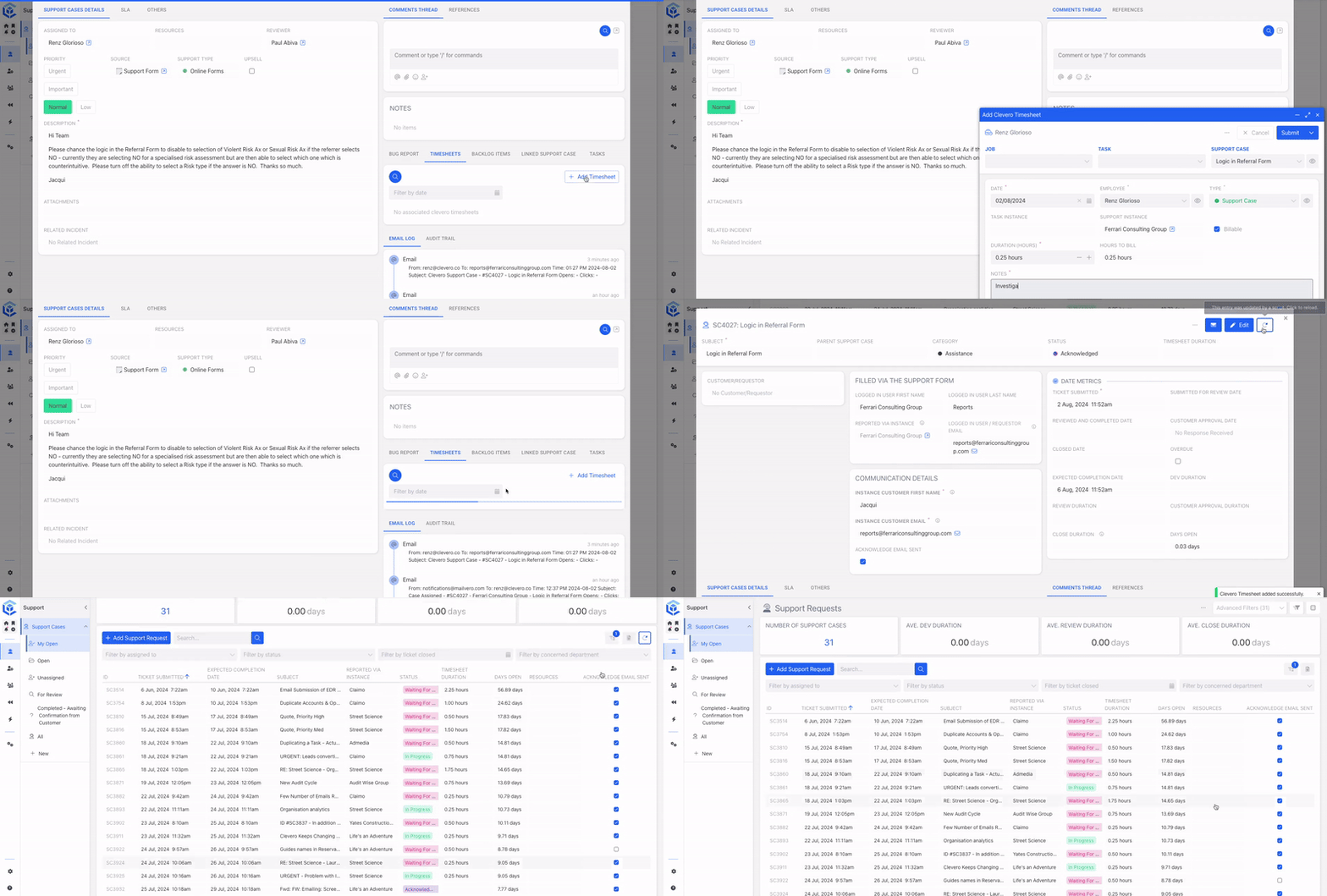
To get the most up-to-date information, click the circular arrows to reload or refresh information in related records.
Can’t find what you’re looking for?
Connect with us on our social media: