
Email Configurations
💌 Learn how to compose and send emails using Clevero's email composer tool.
The Email Composer tool allows users to send emails directly from a record entry within the system. To configure this feature, learn the steps outlined below.
1. Where to Put the Configuration?
Watch the guided demo below to access the email configuration.
You can also follow the same steps using the written guide below.
- Go to "Settings" > "System Settings".
- Click on "Records".
- Do one of the following:
- Select an existing record, then choose Properties from the side menu. Add the email configuration in the Settings section.
- Create a new record, then add the email configuration in the Settings section.
2. Email Configurations
This section provides an example configuration for setting up the ability to send emails.
2.1. sendEmail
The sendEmail property is a mandatory boolean that indicates whether the system can send emails.
2.2. emailTo
The emailTo property is an optional object used to determine the email's recipient. It includes the following properties:
| Properties | Data Type | Mandatory/Optional | Details |
|---|---|---|---|
source | string | mandatory | The source of the recipient. It can be one of these:
|
value | number | mandatory | Represents the ID of the field to source the email from if the source is set to Otherwise, it should be the internal ID of the Select/Multiselect field from which the email should be sourced. |
nestedValue | string | optional | If the source is set to If this property is omitted, the default value is set to "email," indicating that the system will attempt to source the email address with the internal ID "email". |
2.3. sourceEmailsFrom
The sourceEmailsFrom property is an optional array of objects that enhances the suggestion feature within the email tool. This feature automatically suggests email addresses sourced from the specified entries.
It includes the following properties:
| Properties | Data Type | Mandatory/Optional | Details |
|---|---|---|---|
recordInternalId | string | mandatory | The internal ID of the record from which you want to source entries. |
filterSubjects | array of internalIds | mandatory | An array of internal IDs representing conditions to filter the entries and determine which email addresses should be included in the suggestion list. |
emailFieldInternalId | optional | The internal ID of the email field from which you want to retrieve email addresses.If not specified, it defaults to a predetermined email field. | |
nameFieldInternalId | optional | The internal ID of the name field from which you want to retrieve corresponding names for the email addresses.If not specified, it defaults to a predetermined name field. |
2.4. associateEmailsFrom
The associateEmailsFrom property is an optional array of objects used to import emails from associated entries. It allows you to link and retrieve email from the specified associated entries.
It includes the following properties:
| Properties | Data Type | Mandatory/Optional | Details |
|---|---|---|---|
recordInternalId | string | mandatory | The internal ID of the record from which you want to source the associated entries. |
emailFieldInternalId | string | optional | The internal ID of the email field from which you want to retrieve email addresses. |
nameFieldInternalId | string | mandatory | The internal ID of the associate field is used to link the parent entry with the associated entries. |
3. Configuration Example
The provided configuration example demonstrates how to configure the email functionality within the system.
"emailFromRecordEntry": {
    "sendEmail": true,
    "associateEmailsFrom" : [
        {
   				"recordInternalId":"tda-timesheets",
   				"emailFieldInternalId":"employee",
   				"linkedFieldInternalId":"employee"
				}
    ],
    "sourceEmailsFrom": [
        {
            "recordInternalId": "employees",
            "filterSubjects": ["email","name"],
            "emailFieldInternalId":"email",
            "nameFieldInternalId":"name"
        },
        {
            "recordInternalId": "neighbourhood-house-contacts",
            "filterSubjects": ["email","full-name"],
            "emailFieldInternalId":"email",
            "nameFieldInternalId":"full-name"
        }
    ],
    "emailTo": {
        "source": "field",
        "value": 7693
    }
	]
}
Let's break down the configuration properties:
3.1. Enabling Emails
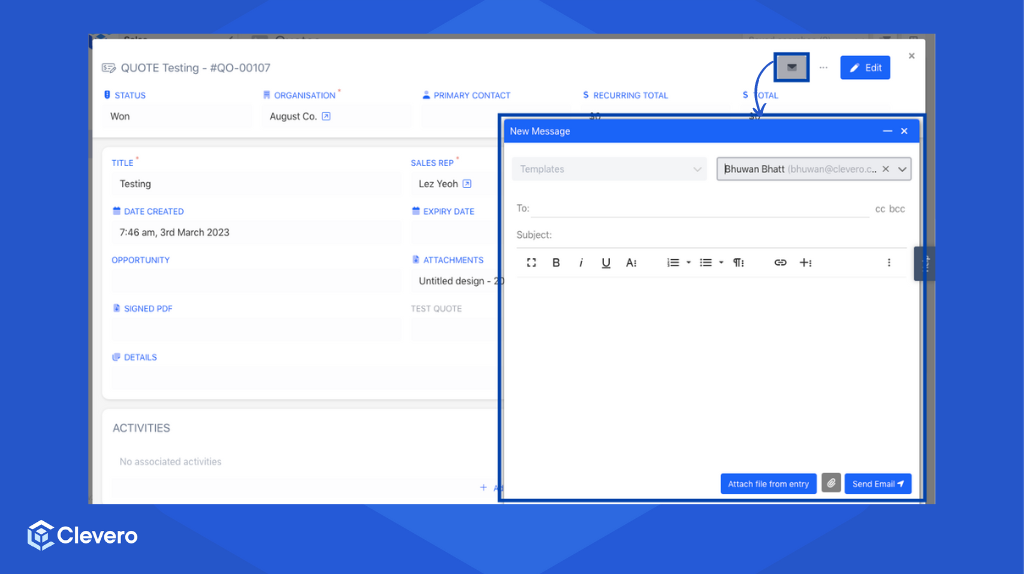
This line sets the sendEmail property to true, indicating that the system is enabled to send emails.
"sendEmail": true,This will enable the email functionality.
3.2. Associate Email
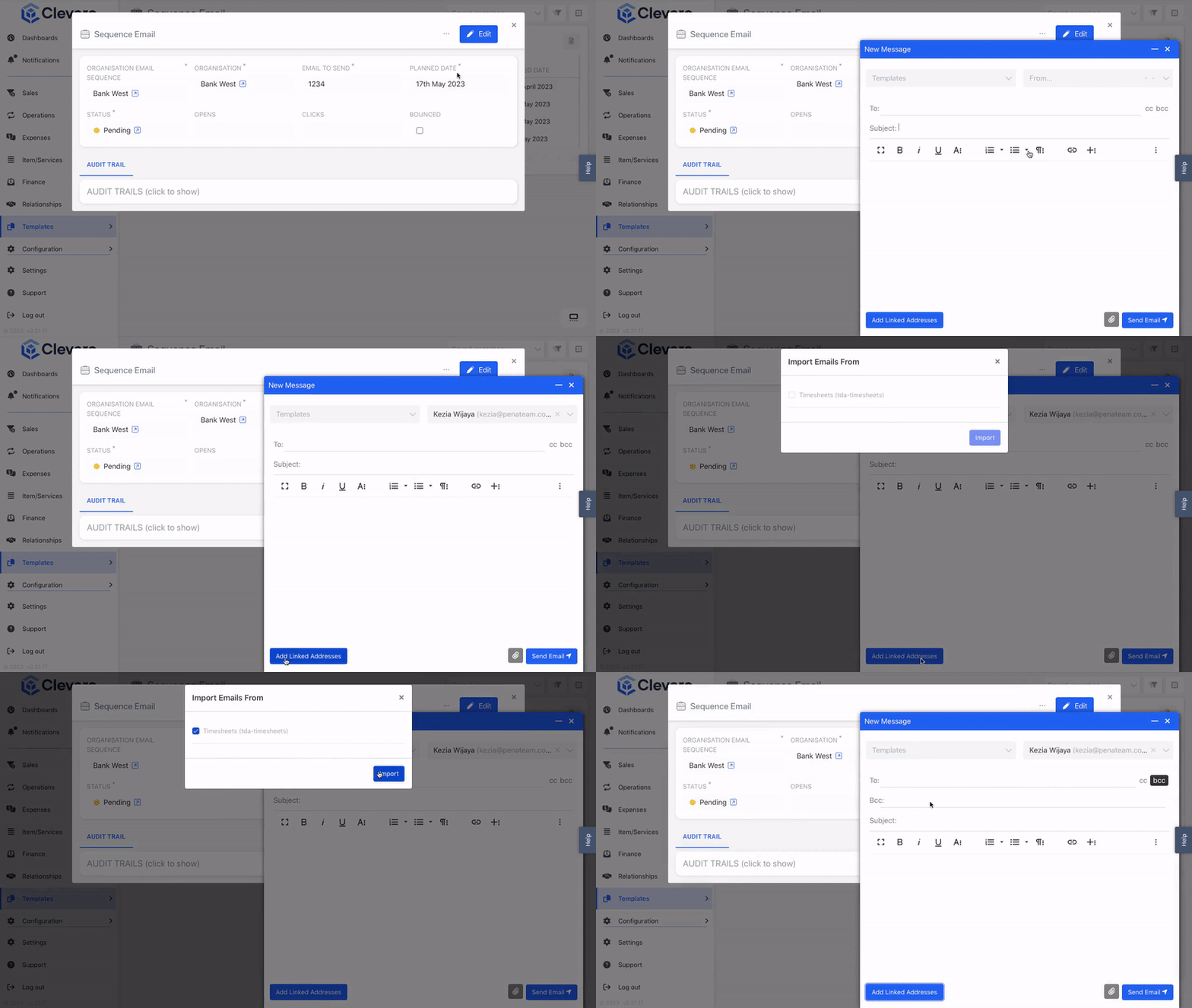
The associateEmailsFrom property import emails from associated entries. In this example:
recordInternalIdit has two associated records (neighbourhood-house-attendances&neighbourhood-house-transactions) which are specified with their internal ID.emailFieldInternalIdspecifies the internal ID of the field within each record.linkedFieldInternalIdspecifies the internal ID of the field that links the parent entry to associated entries.
{
   "recordInternalId":"tda-timesheets",
   "emailFieldInternalId":"employee",
   "linkedFieldInternalId":"employee"
}
The imported email will appear in the "BCC" field.
3.3. Source Email
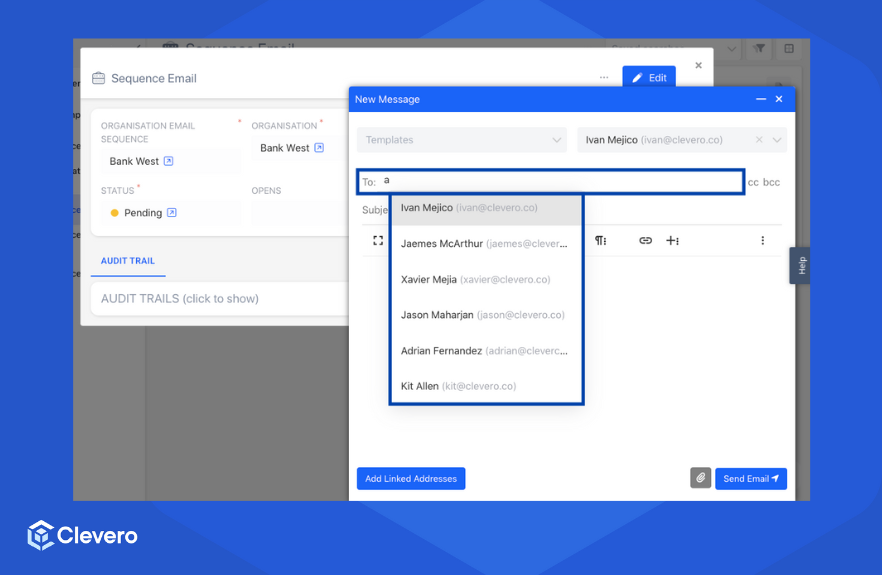
The sourceEmailsFrom property offers email addresses from the specified entries. In this example:
recordInternalIdit has two specified records (employees&neighbourhood-house-contacts) which are specified with their internal ID.filterSubjectsis an array of internal IDs used as conditions to filter the entries["emailFieldInternalId", "nameFieldInternalId"].emailFieldInternalIdspecifies the internal ID of the email field within the record.nameFieldInternalIdspecifies the internal ID of the name field within the record.
{
    "recordInternalId": "employees",
    "filterSubjects": ["email","name"],
    "emailFieldInternalId":"email",
    "nameFieldInternalId":"name"
},
{
    "recordInternalId": "neighbourhood-house-contacts",
    "filterSubjects": ["email","full-name"],
    "emailFieldInternalId":"email",
    "nameFieldInternalId":"full-name"
}
The emails from a specified record will be displayed as a dropdown menu in the "To" field.
3.4. Recipients
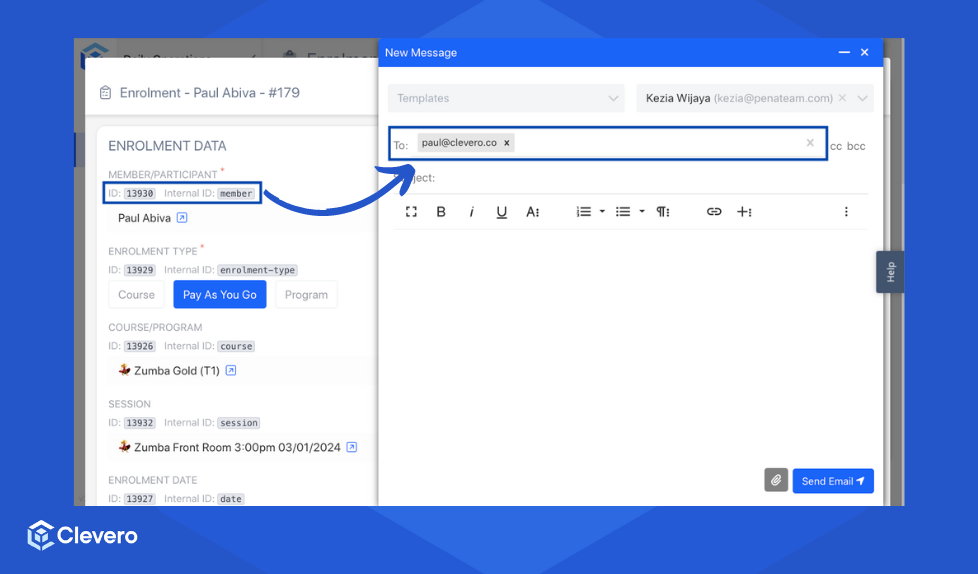
The emailTo property specifies the source of the recipient's email address. In this example:
- The
sourceis set to "field," indicating that the recipient's email address will be sourced from a specific field. - The
valueis set to 12777, representing the ID of the field from which the recipient email address will be sourced.
],
"emailTo": {
    "source": "field",
    "value": 13930
}
When opening the email for the first time, the "To" field will automatically populate with the email address sourced from the specified field.
📌 Need Help?

Updated 6 months ago